

Viewing Smart Form Submissions
When a patient submits a SmartForms V2 form, you read their answers in a window called the answer view. The answer view opens from two places: the Smart Forms tab on the patient’s record, and the Assignments tab on the main Smart Forms page. A submitted form also has a PDF copy in the patient’s documents, which The Submission PDF explains.
From the patient’s record
Use this when you already have the patient open.
- Open the patient’s record.
- Click the Smart Forms tab.
- Find the form in the list. The newest form is at the top, and SmartForms V2 forms carry an orange V2 badge.
- Click the eye icon in the Actions column.

The Smart Forms tab on the patient's record. The eye icon opens the answers and the list icon opens the audit trail.
The tab lists SmartForms V1 and SmartForms V2 forms together. Each row says who sent the form and when, and the Status column says whether the patient has submitted it.
From the Assignments tab
Use this when you want to see every patient who has been sent a form.
- Open the main menu and click Smart Forms > Smart Forms v2.
- Click the Assignments tab at the top.
- Find the patient’s row. The table lists every form you have sent, and every form sent by colleagues who share a form with you.
- Click the eye icon on the row.
The patient’s name in the Patient column is a link that opens their record.
What the answer view shows
The answer view shows the form from top to bottom, with each answer under its question. Its title is the form’s name and the date the patient submitted it.
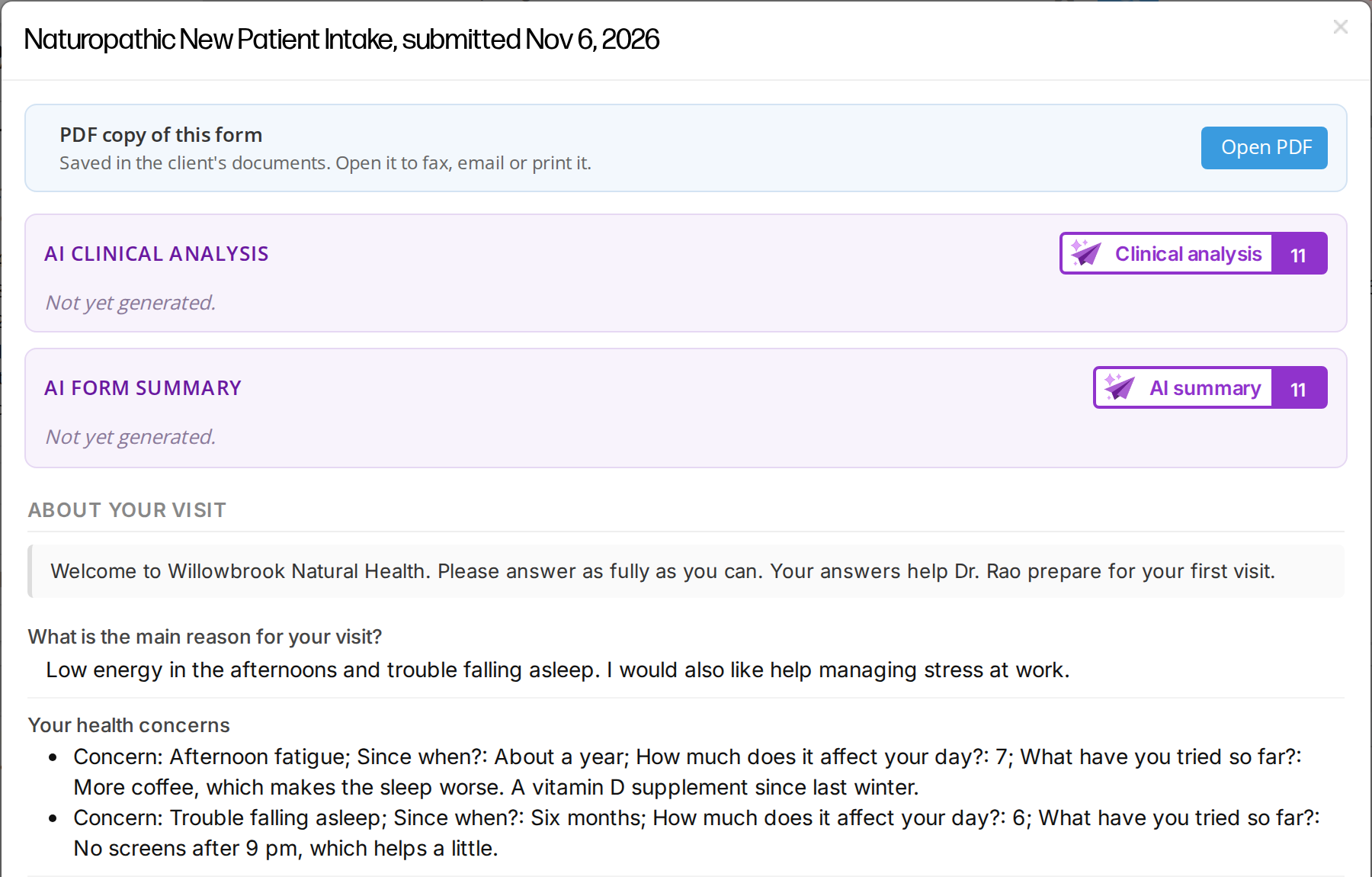
The answer view for a submitted form. The PDF bar and the two AI boxes sit above the answers.
In the answer view:
- Each page of the form starts with the page’s title as a heading, and the questions of a titled section sit under the section’s title.
- Text blocks from the form, such as a welcome message or instructions, appear in a grey box, so you read the answers in the same context the patient did.
- A question’s description and any comment the patient typed next to it appear with the answer.
- A choice question shows the words of the options the patient chose.
- A table question shows as a small table, and a repeating block, such as one entry for each health concern, shows one line for each entry.
- A signature shows as the signed image.
- A question the patient did not answer shows No answer in grey, so you can see what they skipped.
The answer view is read only. You cannot change the patient’s answers.
The PDF copy of a submitted form
Every submitted form has a PDF copy in the patient’s documents, so you can fax, email or print it. To open it, click Open PDF on the bar headed PDF copy of this form at the top of the answer view. The Submission PDF explains where the PDF comes from, its file name and what it shows.
AI summary and clinical analysis
Above the answers on a submitted form are two boxes: AI Clinical Analysis and AI Form Summary. Each box shows when its result was made, and has a Copy button for pasting the text somewhere else.
- The summary turns the answers into a written note.
- The clinical analysis is a reading of the answers for you: the presentation in brief, notable patterns, things worth exploring, questions to ask, and things worth ruling out. It opens by stating that it is not a diagnosis.
A box that says Not yet generated. has no result yet. The button on the box, Clinical analysis or AI summary, makes one, and the number on the button is how many AI credits you have left.
These are the same results you get from inside a SOAP chart, so a result made in either place is available in the other at no further cost. Reading a result costs nothing. See Importing A SmartForms V2 Submission Into A Chart for what making one costs and who can make one.
Anyone who can open the submission can read a result that is already there. Making one needs a submitted form, and is offered to the practitioner who sent the form and their office staff. Where the button is not offered, the box says why.
Reading a form the patient has not submitted
You can open a form that a patient started and has not submitted, and see the answers they have saved so far. On the Assignments tab, the eye icon on such a row says View what the client has filled in so far (not submitted) when you point to it.
This tells you whether a patient stopped near the end of a long form or never started it. From the answers, you can ask the patient the rest of the questions yourself, or hand them a tablet to finish the form at their next visit.
A form that has not been submitted has no PDF copy and no AI boxes. Both appear once the patient submits.
The audit trail
The audit trail lists everything that happened to one form sent to one patient, newest first, with each time in your office’s time zone.
- On the patient’s Smart Forms tab, click the list icon on the row.
- On the Assignments tab, click the list icon on the row.
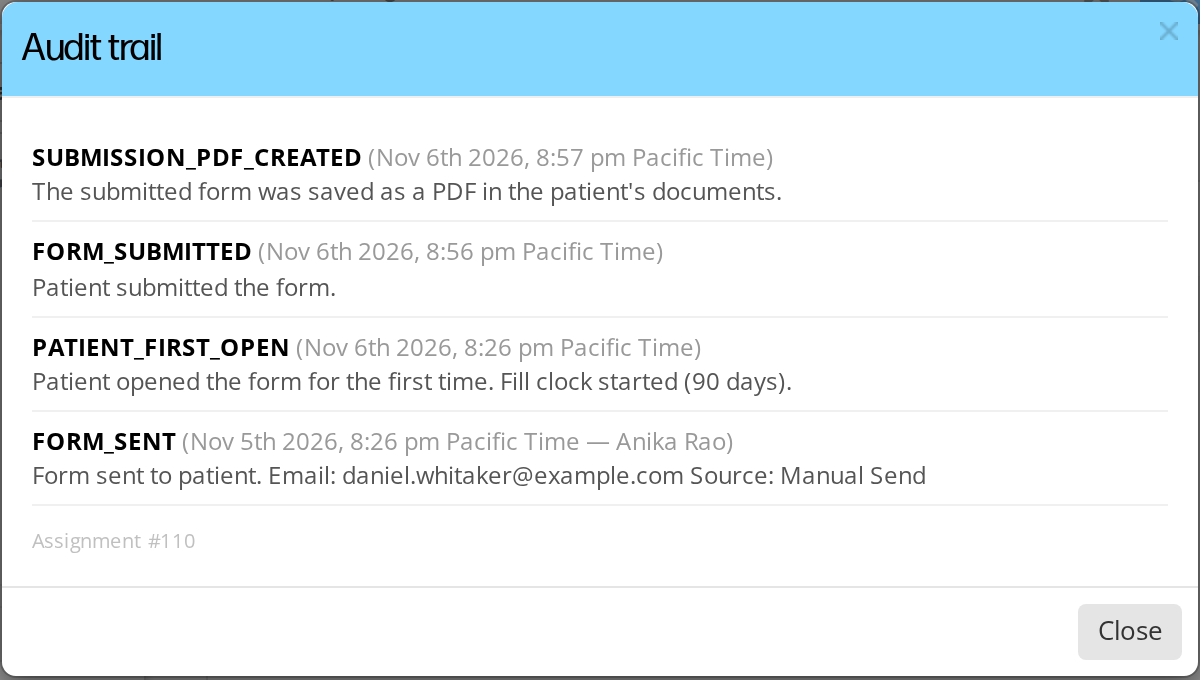
The audit trail for a form that was sent, opened, submitted and saved as a PDF. The newest event is at the top.
The audit trail records:
- When the form was sent, how it reached the patient, and who sent it.
- When the patient first opened the form, and when they submitted it.
- Each reminder that was emailed to the patient.
- Each time a staff member gave the patient more time, and the one time the patient can give themselves more time from the deadline banner.
- Each change to the patient or to the practitioner the form belongs to.
- When the PDF copy was saved to the patient’s documents.
When a patient or a colleague asks what happened with a form, the audit trail shows each step and when it happened.
Remind the patient or give them more time
When a patient has not submitted a form yet, two icons on their row help you follow up. Both icons are on the Assignments tab and on the patient’s Smart Forms tab.
- The bell icon emails the patient a reminder with the same link. The reminder says how many days they have left. It does not change the deadline.
- The clock icon gives the patient more time. Before the link expires, it moves the deadline out so the patient has a full window again. After the link expires, it emails the patient a new link and keeps the answers they already saved. The bell is not shown on an expired form, but the clock icon is.
Expiries And Link Timing explains both cases in full.
Related Pages
- Sending Smart Forms To Patients explains how to send a form by email or by a guest link.
- The Submission PDF explains the PDF copy of a submitted form.
- Importing A SmartForms V2 Submission Into A Chart explains how to bring the answers into a SOAP chart.
- Sharing Smart Forms With Other Practitioners explains how sharing affects which forms you see on the Assignments tab.
- Patients Filling Out A Smart Form explains what the patient sees while filling in the form.