

Filling A Form In The Clinic
You can hand a patient a tablet and have them fill in a Smart Form while they are in the clinic, instead of emailing it and hoping they do it before their visit.
Staff scan a QR code on their own screen, check a handover screen, and pass the tablet to the patient. No email is sent, and the patient does not need an email address on file, which is the point for a walk-in.
Sending a form to a tablet
- Open the Send panel for the form, either from the Smart Forms list or from the patient’s Smart Forms tab.
- Under Who is sending this form?, check the Office and the Practitioner.
- Under Give this form to a patient, turn on Fill in the clinic on a tablet. The button at the bottom of the panel changes to Show QR code.
- Choose the patient. An email address is not needed.
- Click Show QR code. A QR code appears on your screen. Scan it with the clinic tablet.
- The tablet shows a handover screen for you to check. When you are ready, tap Tap here, then hand the tablet to the client, and give the tablet to the patient.
- The patient fills in the form and submits it. The answers arrive on their record straight away.
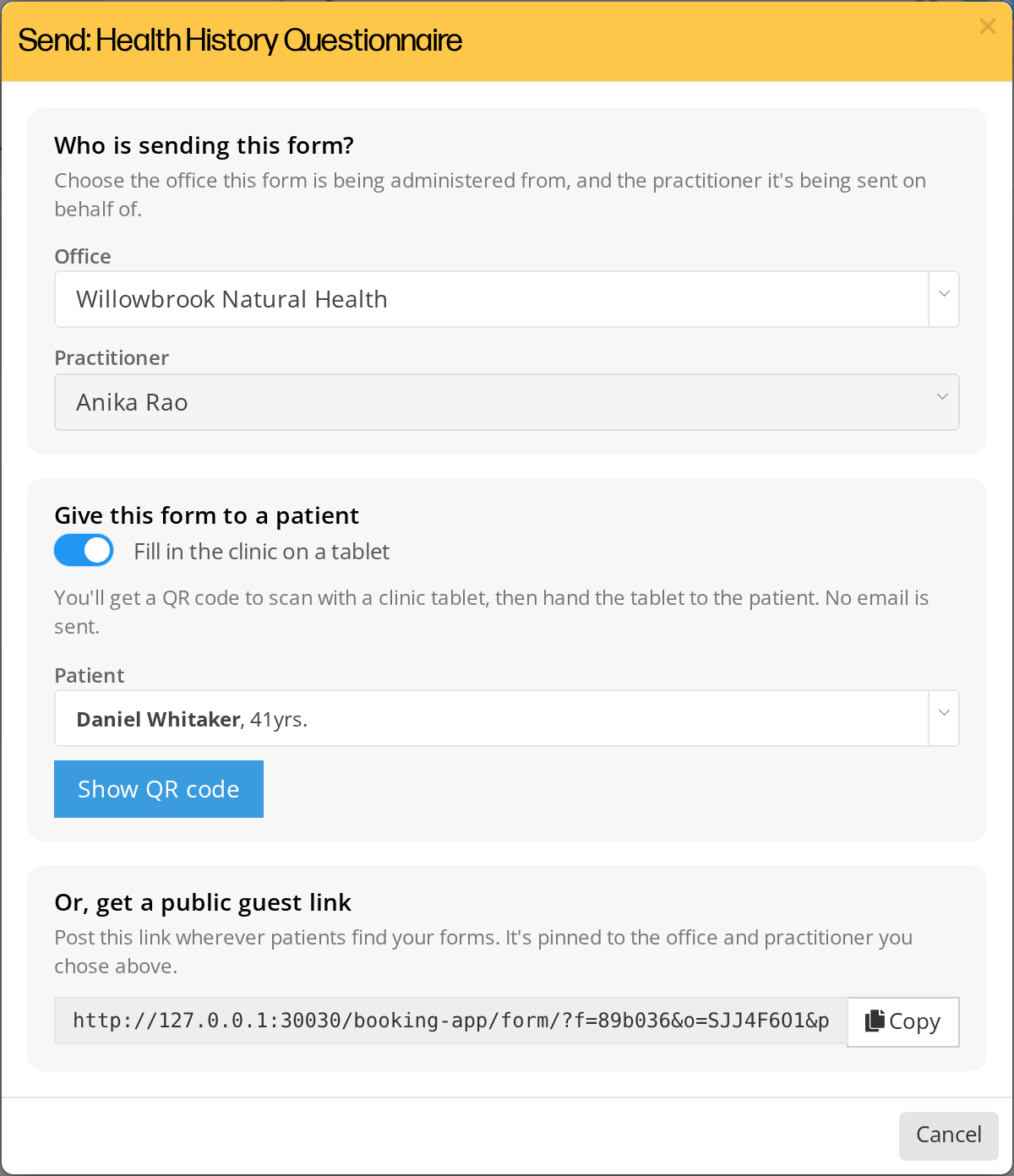
The Send window with the tablet switch turned on. No email address is needed, and the button changes to Show QR code.
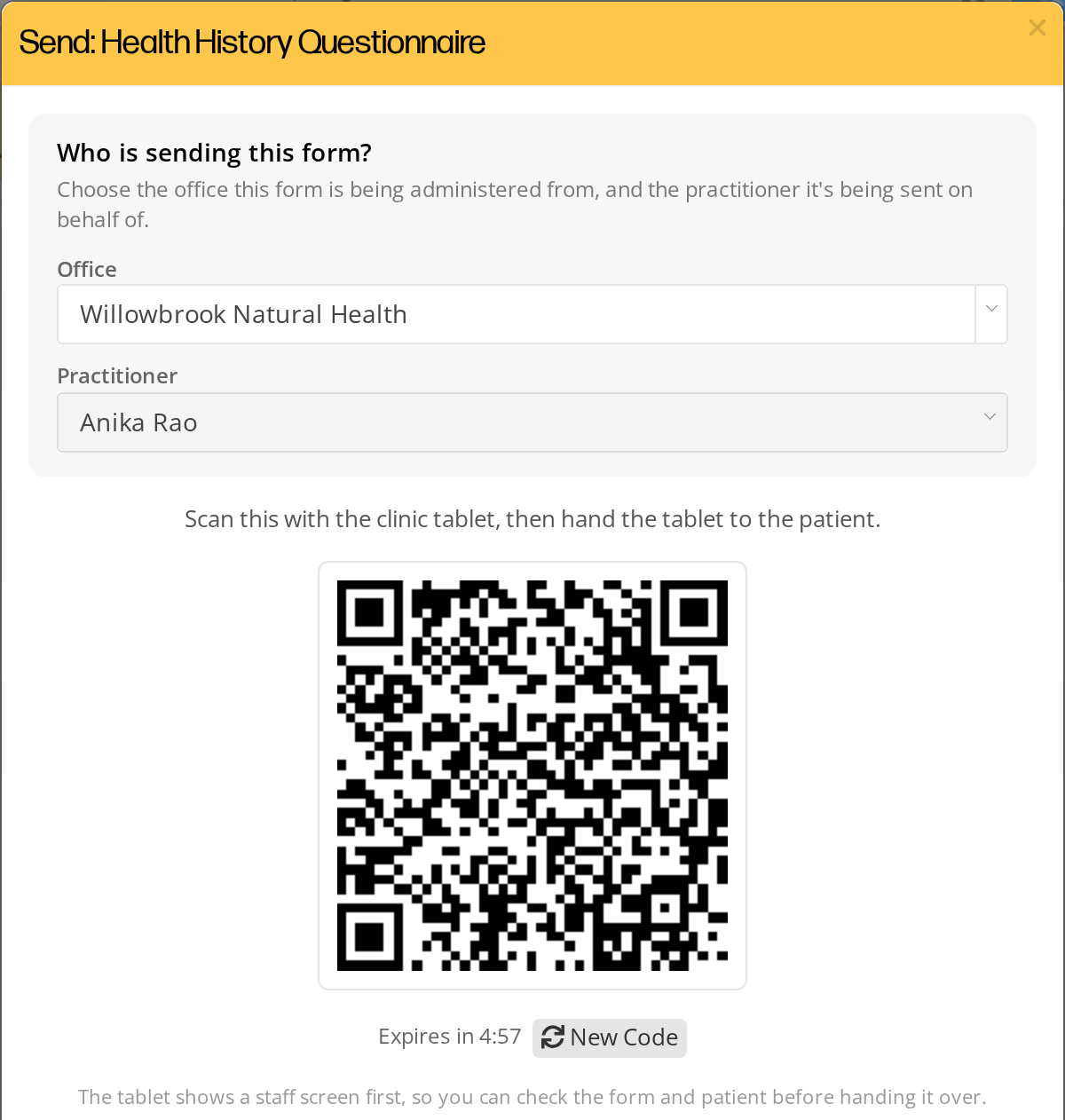
The QR code to scan with the clinic tablet. It works for five minutes, and New Code makes a fresh one.
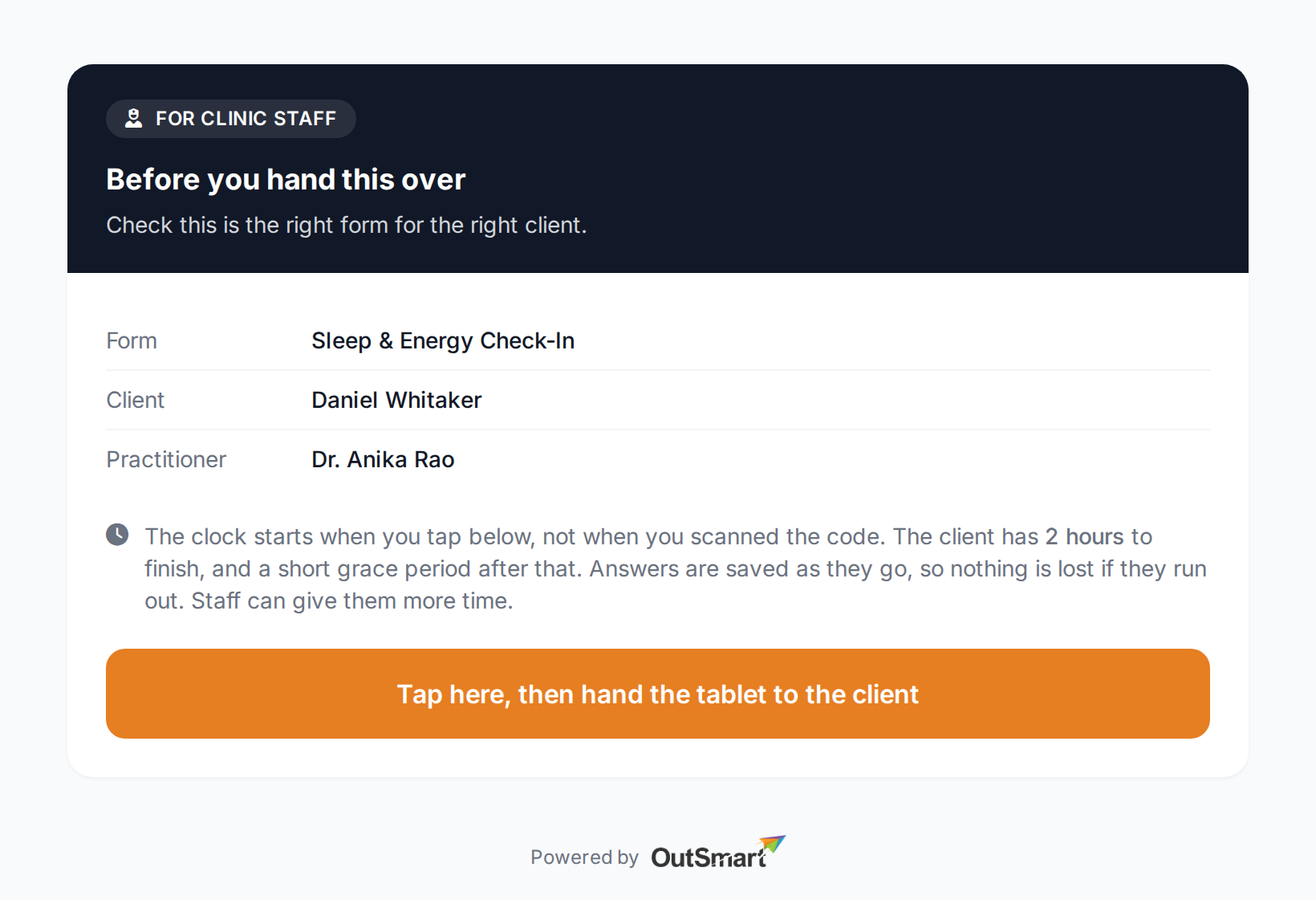
The handover screen on the tablet. Check the form and the client before you tap the button and hand the tablet over.
How long you have
There are two separate limits:
- Five minutes to scan the code. If nobody scans it in time, generate a new one.
- Two hours once you hand the tablet over. For a new form, the two hours start when you tap the button on the handover screen, not when you scan. Time spent reading the screen or walking the tablet across a waiting room does not come out of the patient’s time.
After the two hours, the patient has a grace period of two more hours to submit. Answers are saved as the patient goes, so nothing is lost if they run out of time.
If the patient needs more time, click the clock icon on the form’s row. It gives the patient another two hours on the same code and sends no email. The bell icon for email reminders is not offered on forms filled in the clinic.
A code nobody scanned is not treated as a form the patient failed to fill in. It shows as Code not used, not as an expired form on the patient’s record.
Finishing a form the patient already started
If you emailed a patient a form, or one went out automatically when they booked, and they have not finished it, you can hand them a tablet during their visit to complete it. To show the code, click the QR code icon on the form’s row on the Assignments tab or the patient’s Smart Forms tab.
The patient picks up exactly where they stopped. Anything they typed before is still there, and the handover screen tells you the form was started earlier.
This is offered on any unfinished form, including ones that have expired.
How long the patient has depends on whether they opened the form before:
- A form the patient never opened. Handing it over gives the patient two hours from when you tap the handover button. If the emailed form had more time left than that, the handover screen warns you that handing it over shortens the time left to two hours. You can give the patient more time afterwards.
- A form the patient already started. The time left is set when you show the code, and it only ever gets longer: the patient keeps the deadline they had, or gets two hours from then, whichever is later.
Seeing answers on a form nobody submitted
You can open a form a patient started and has not submitted, and read the answers they have saved so far.
This tells you whether a patient stopped near the end of a long form or never started it. You can then ask the patient the remaining questions yourself, or hand them a tablet to finish it.
Look for the form on the patient’s Smart Forms tab or the Assignments tab of the Smart Forms page, and click the eye icon on its row.
Related Pages
- Sending Smart Forms To Patients. Emailing a form, and the guest link.
- Viewing Smart Form Submissions. Reading answers once they come in.
- Expiries And Link Timing. How long an emailed form lasts, and how to give a patient more time.
- Adding SmartForms V2 To An Event Type. Sending forms automatically when a patient books.
- Client Update: Patients Check Their Own Details. The same idea for demographic details.