

Refunding an Overpayment on an Invoice
Sometimes a client is charged more by card than their invoice comes to, because of a mistake on the invoice. For example, a discount was left off, or a product was taken off the invoice after the card was charged. The refund on the invoice corrects this straight away. It sends the difference back to the client’s card, and records it on the same invoice.
This page explains when to use the refund on the invoice, how to do it, and what it records.
Refund on the Invoice or Refund Transaction?
You can give a client money back in two ways, and each one is for a different situation.
| Refund on the invoice | Refund transaction | |
|---|---|---|
| What it is for | Correcting a mistake on the invoice straight away, when the client paid more by card than the invoice comes to. | Giving money back after the sale. For example, a client brings back a product they bought last week. |
| How you do it | On the invoice itself, with the orange Refund $X to the card button. | With the Refund button, which creates a separate refund transaction, numbered like Refund #18. |
| When it is available | Only when card payments taken through OutSmart Pay come to more than the invoice total. | At any time, for any invoice or order. |
| What happens to the invoice | The refund is recorded in the invoice’s payments, and the invoice is then paid in full. | The invoice is left exactly as it was. The refund transaction is linked to it. |
When the Refund Button Appears
The orange Refund $X to the card button appears in the Payments section of the invoice when all of these are true:
- the invoice’s payments come to more than its total;
- the extra money came from a card payment taken through OutSmart Pay;
- the invoice has no other payment left on it that could be corrected instead, such as cash or debit.
The button is shown to the dispensary owner and to staff who have full access to the dispensary. It works in every dispensary, regular or order management.
When the overpayment came from cash, debit, or a card you charged on your own card machine, you do not need this button. Change the amount of that payment on the invoice instead. Taking Payments on an Invoice explains how.
Refunding the Overpayment
This example is an invoice for a $32.00 product that the client paid for by card through OutSmart Pay. The client’s 10% discount was then added to the line, so the invoice now comes to $28.80 and the client has paid $3.20 too much.
- Make the correction on the invoice, such as adding the discount or removing the product. The Payments section shows the amount Overpaid at the top right, and the orange Refund $3.20 to the card button appears underneath it.
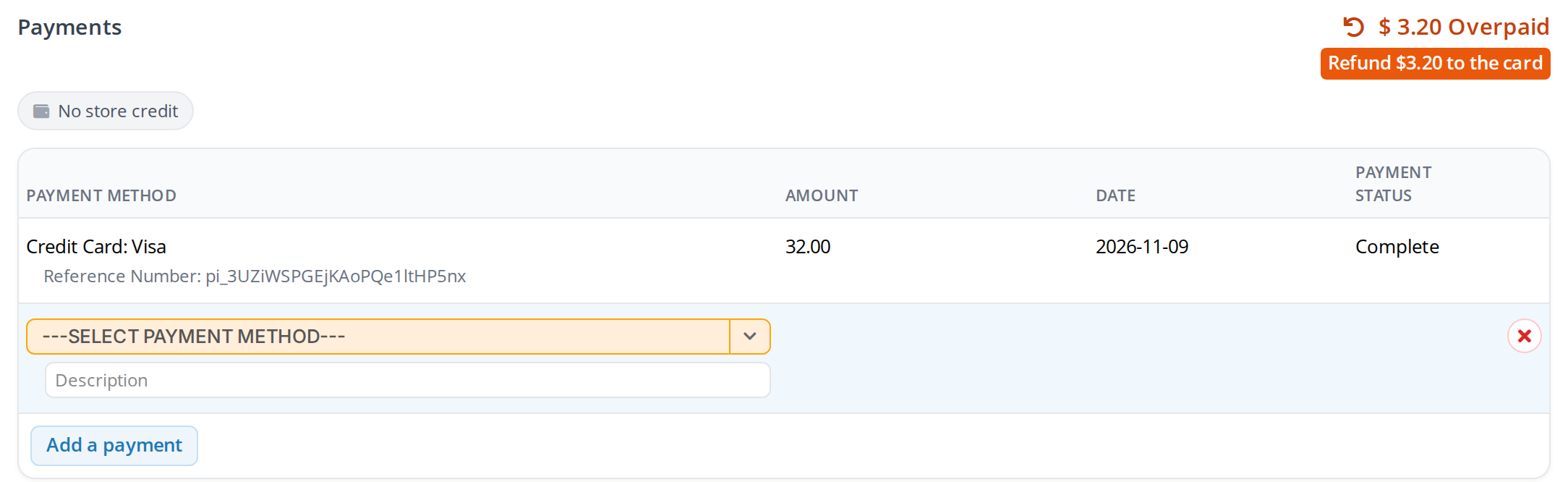
An invoice that was paid by card and then corrected. The orange button under Overpaid sends the difference back to the client's card.
- Click Refund $3.20 to the card. A window titled Refund the overpayment asks you to confirm.
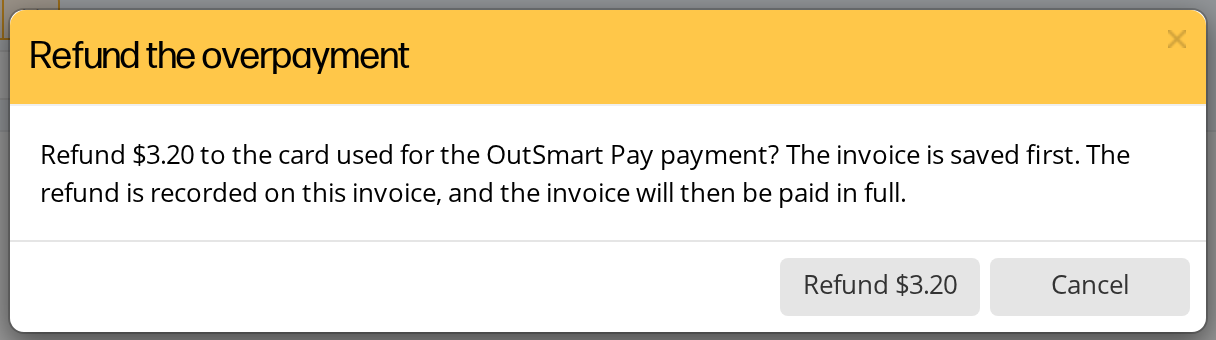
The window that confirms the refund. The invoice is saved first, then the money goes back to the card.
- Click Refund $3.20.
The invoice is saved, the $3.20 is refunded to the card the client paid with, and a message confirms it. The invoice then shows Paid in Full.
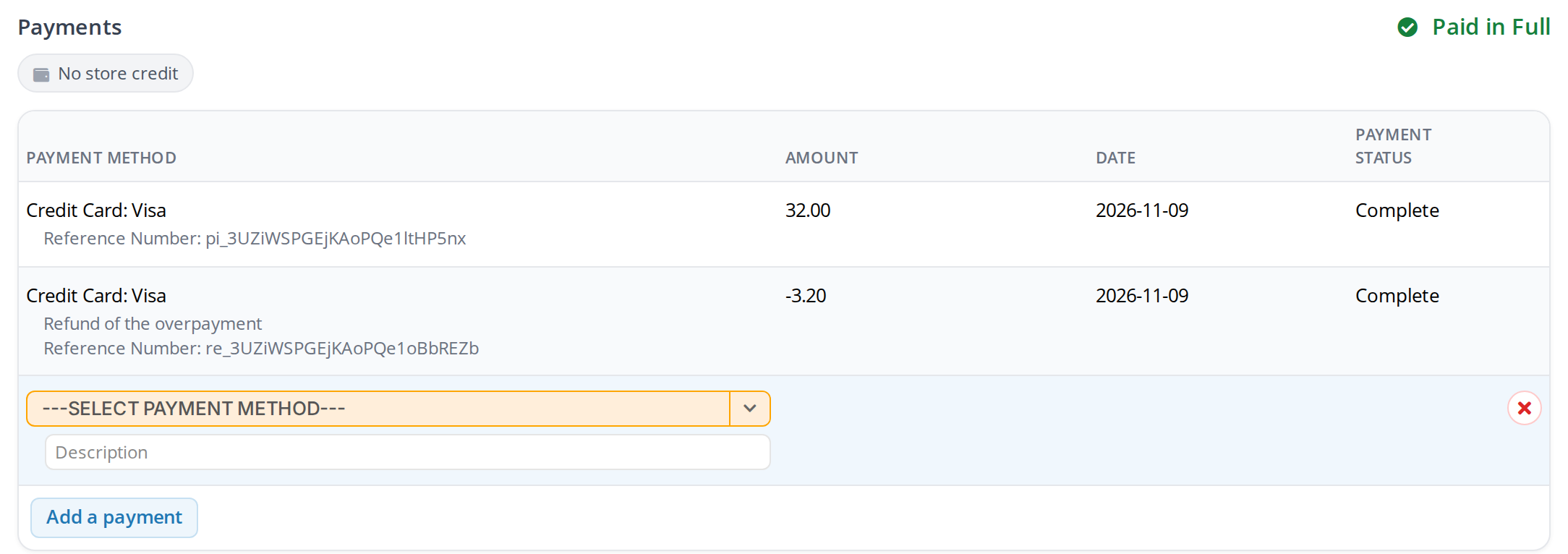
The invoice after the refund. The refund is a payment line of minus $3.20, with its own reference number, and the invoice is paid in full.
The refund is recorded as a new line in the invoice’s payments. It has the same card as the original payment, a negative amount, the description Refund of the overpayment, and its own Reference Number from OutSmart Pay. No separate refund transaction is created. Like the original card payment, the refund line cannot be changed or removed.
Saving an Overpaid Invoice
You can also save the invoice before refunding the overpayment. When you click Save & Print, Save & Send or Save & Close on an invoice that is overpaid by an OutSmart Pay card payment, a window titled Save with an overpayment? reminds you that you can refund the difference.
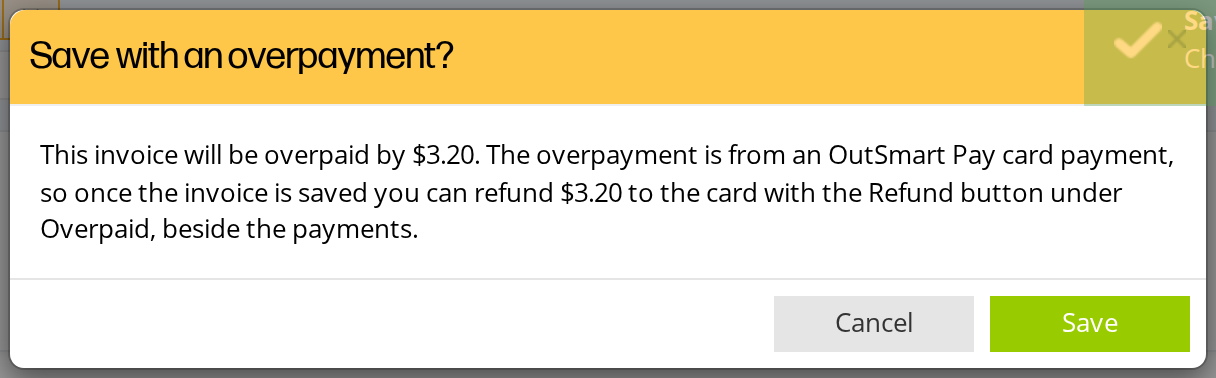
The question shown when you save an invoice that is overpaid by an OutSmart Pay card payment. The refund button stays available after you save.
Click Save to save the invoice as it is. The orange refund button stays under Overpaid for as long as the invoice is overpaid, so you can refund the difference at any time afterwards.
Troubleshooting
The Refund to the card button does not appear
Check that the invoice really is overpaid: the top of the Payments section must say Overpaid. Check that the extra money came from a card payment taken through OutSmart Pay. A payment that was entered by hand, such as cash or a card on your own machine, is corrected by changing its amount instead. If the invoice also has another payment on it, correct or remove that payment first.
The client returned a product a week later
That is a refund after the sale, not a mistake on the invoice. Create a refund transaction with the Refund button. Creating Refunds and Store Credit explains how.
The refund did not go through
A message tells you if the refund could not be made, and nothing is recorded on the invoice. Reload the invoice and try again. If it still fails, contact OutSmart support through the Ask OutSmart widget.
Related Pages
- Creating Refunds and Store Credit: the refund transaction, for money back after the sale.
- Taking Payments on an Invoice: recording payments, and correcting a payment entered for the wrong amount.
- The Dispensary: invoice, order and refund transactions, and the two ways to give a client money back.
- Setting Up Payment Processing with OutSmart Pay: card payments through OutSmart Pay.