

Managing Dispensary Items
Adding Items
Items can be added to your dispensary in a few ways:
- Manually: Add items one at a time directly in the dispensary.
- Via SOAP Charts: Create a new item from a SOAP chart when you are building a patient’s treatment plan.
- Via Express Checkout: Use the Express Checkout card on the Dashboard, which will automatically create items in the dispensary if they don’t already exist.
- By Import: You can request a free import of your inventory details from a spreadsheet.
Manually Adding Items
-
From the Main Dispensary Menu, go to Products > Product List.
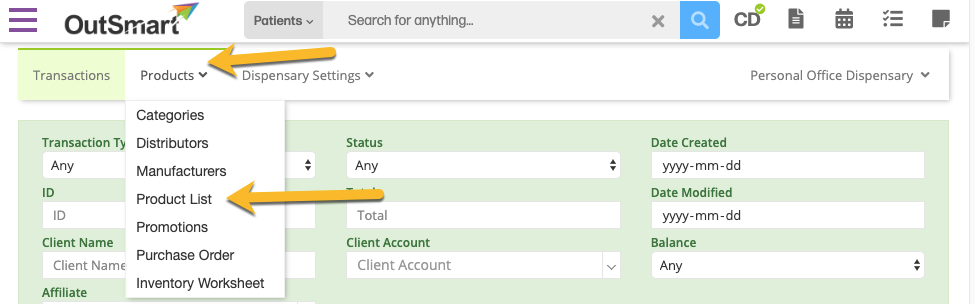
Navigating to the product list.
-
On the Product List page, click the +New Product button.
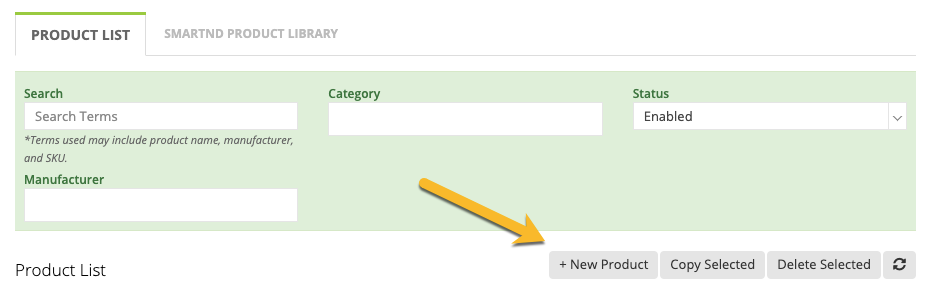
Click the new product button to enter the product creation menu.
-
Fill out the product details and click Save.
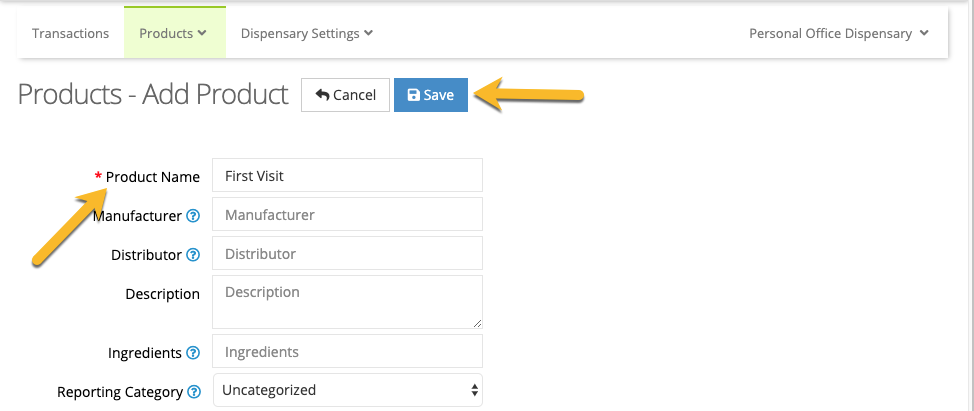
Fill out all the desired fields, and then click save.
Removing Items
To delete an item from your dispensary:
- Go to the Product List in the Dispensary.
- Search for the product you want to delete and check the box next to it.
- Click the Delete Selected button at the top right of the product list.
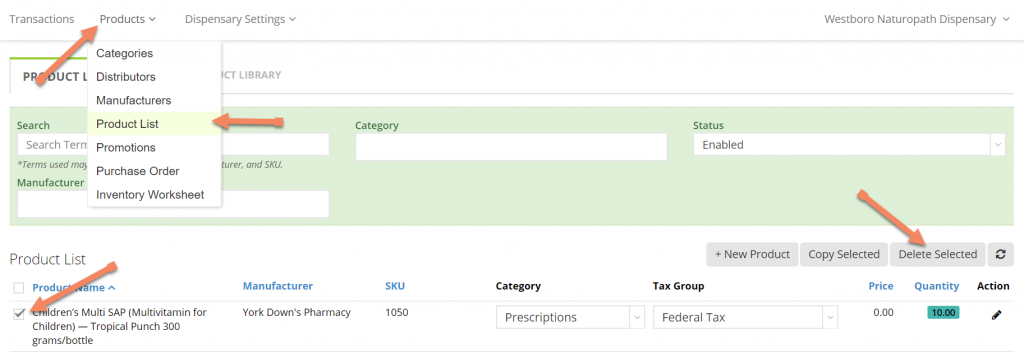
How to delete a product from your dispensary