

Patients Filling Out A Smart Form
This article describes what your patients see when they fill out a SmartForms V2 form, so you can answer a patient who asks what to do.
Direct send flow (you sent it to a specific patient)
- The email arrives. The From name is the practitioner’s name followed by “via OutSmart”. The email names the form and has a Continue to Your Form button. Under the button it says “Please complete this form before your visit”, and under that the date the form expires with the number of days left. See Expiries And Link Timing for the exact timing rules.
- The patient clicks the button. The form opens in their browser. The patient does not log in to the Patient Portal or enter an access code.
- The form page. A header card at the top shows the practitioner’s name, credentials and photo, and the office name. Next to it are the form’s title and two lines: “Please complete this form before your visit”, and under it, in smaller grey text, the date the form expires.
- The patient fills in the form. As they answer, a small Saved [time] indicator appears in the header. Their answers are saved automatically every two minutes, and a few seconds after each change.
- The patient submits. The Complete button at the end takes them to a green thank-you screen.
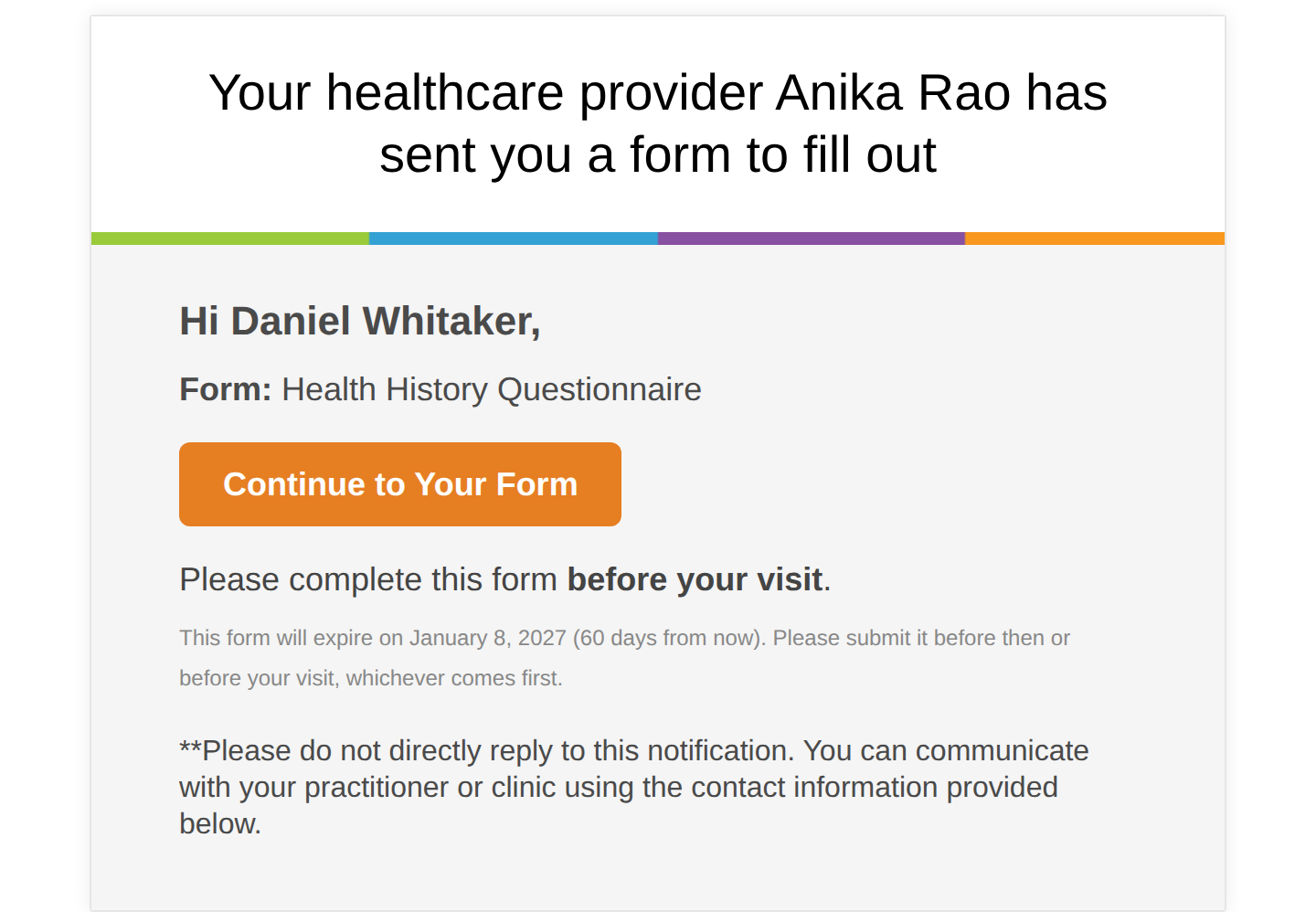
The email a patient receives when you send them a form. The orange button opens the form.
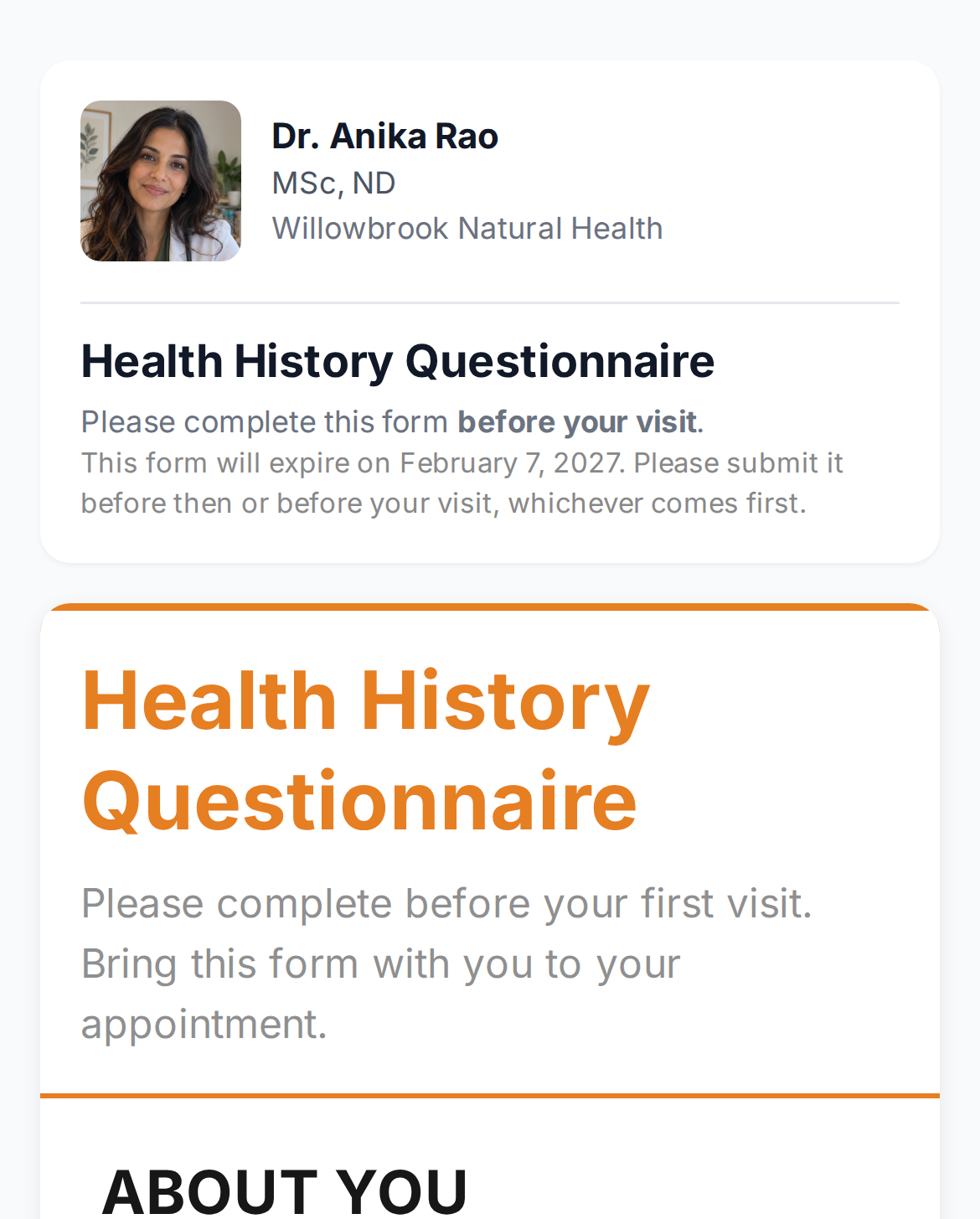
The form page on a phone. The header shows who sent the form and when it expires.
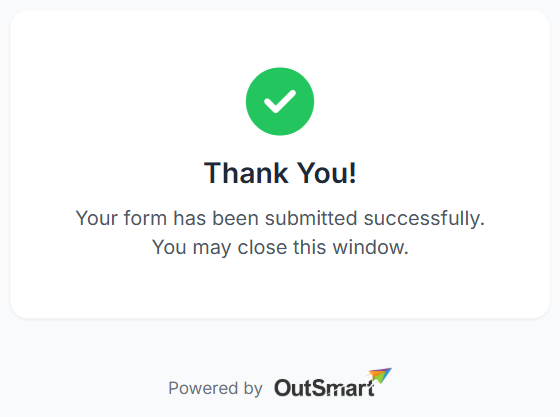
The screen a patient sees after they submit a form.
The administering practitioner gets a notification email when the patient clicks Complete.
Public guest link flow (anyone with the link)
- The patient opens the guest link from wherever you shared it, such as your website, a QR code or an email.
- The landing page shows the practitioner’s name and photo, the office name and the form name. Below that, the patient enters their first name, last name, email and date of birth, and clicks Start Form.
- The confirmation page says You’re all set! and tells the patient that a secure link has been emailed to them. A Continue to your form button opens the form straight away.
- The email arrives. Its subject is “You started a new form:” followed by the form’s name, and it has a Continue Your Form button. It says the link is valid for 90 days.
- The patient opens the form, from the button on the confirmation page or the link in the email. The form page is the same as in the direct send flow from step 3 onward.
- The patient fills in the form and submits it.
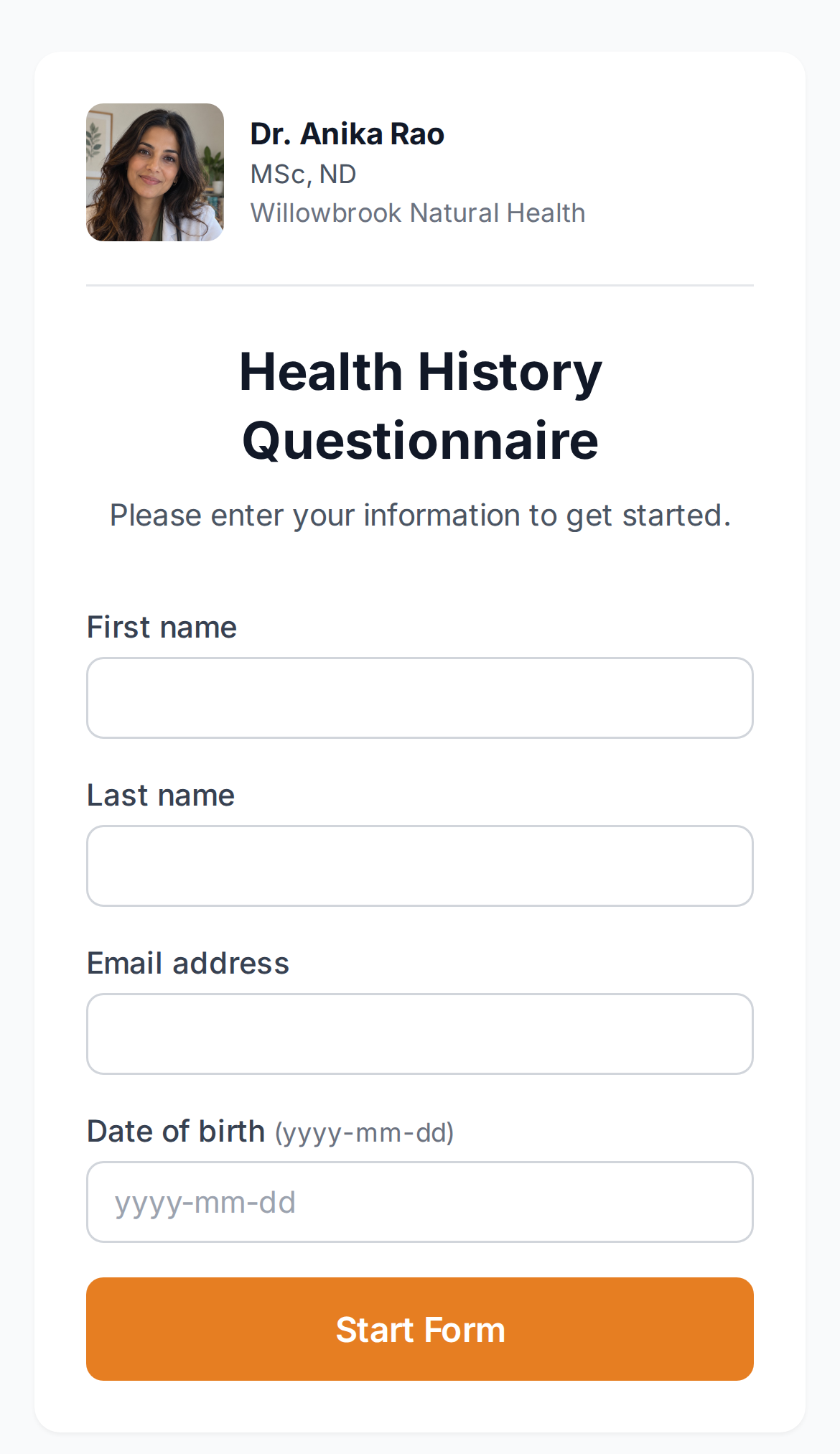
The page a guest link opens. The patient enters their name, email and date of birth, then clicks Start Form.
When the patient clicks Start Form, OutSmart looks for an existing patient with the same first name, last name and date of birth. When the patient submits, the submission goes on that patient’s record. If no patient matched, OutSmart creates a new patient record with the name, email and date of birth the patient entered.
What if they don’t finish in one sitting?
Their answers are saved as they go.
- As they type or click, their answers are saved every two minutes and again a few seconds after the last change.
- If they close their browser, their progress is preserved.
- When they open the link again, the form re-opens with their previous answers filled in.
- They can keep going where they left off.
Once a patient has opened the form, or started one through a guest link, they have time to come back and finish it. The exact timing, and what you can do when a patient runs out of time, is covered in Expiries And Link Timing.
What patients see as the deadline approaches
For most of the time the form is open, there is no deadline banner. The date the form expires shows in small grey text in the header.
When the patient is inside the last hour of their fill window, a coloured banner appears at the top of the form:
- Orange “Almost out of time” with the minutes remaining, while there’s still time on the calendar clock.
- Red “Past the deadline” with the hours of grace remaining, after the deadline has passed but during the 48-hour grace period in which the patient can still save and submit.
- Deep red “Time is up” once the grace period has also run out and the page no longer accepts changes. This banner only appears if the patient was on the page when the grace period ran out.
The banner also includes an “I need more time” link the patient can click once per form to add an extra day to their deadline themselves, without calling the clinic. After they’ve used it, the link is replaced with a note: “You have already used your one-time extension. If you need more time, please contact your clinic. Please still submit before your visit.” See Expiries And Link Timing for the full timing model.
A returning guest who already started the form
If a patient opens the public guest link again after they already started the form, and enters the same details, they see a screen headed You already started this form with two choices:
- Email me the link emails them a link back to the form they started. The link is not shown in the browser, so only the person with access to that email can open the saved answers.
- Start Over discards the answers they saved and starts the form again.
Already submitted
If a patient opens their personal link after they already submitted the form, they see a notice that the form has already been submitted, and they cannot change their answers.
Related Pages
- Sending Smart Forms To Patients explains how the email and the guest link reach the patient.
- Viewing Smart Form Submissions explains where you read the answers after the patient submits.
- Emails Reference lists every email the patient receives at each step.
- Expiries And Link Timing explains how long the patient has to come back and finish.
- SmartForms V2 Overview explains when to use a direct send and when to use a guest link.