

Importing Inventory Lists
If your products are in a spreadsheet, you can import them into your dispensary instead of adding them one at a time. You can import the list yourself, or send it to us and we import it for you. We offer one free inventory import per clinic; request it at contact.outsmartemr.com.
Either way, start with our template. Download it, copy your products into it, and save it as a CSV file.
Download Product_Import_Template.csv
What Your File Must Contain
- Each row is one product. Import no more than 1,000 products at a time, or the import page can stop responding.
- Every row needs a product name, an OutSmart product ID, or both:
- With a product ID, the existing product with that ID is updated. If no product has that ID, the row is not imported.
- With a product name only, OutSmart looks for a product with the same name. If it finds one, it updates it. If not, it creates a new product.
- The Sales Tax ID and Purchase Tax ID columns must hold the ID number of a tax group already set up in your dispensary. If your dispensary has no tax groups yet, the tax columns are not imported. Set up your tax groups first; see Initial Dispensary Configuration.
- If some of your information does not fit the template’s columns, combine it into the columns that are there, or ask us how.
Importing Your Product List Yourself
Only the dispensary’s owner can import products into it.
- Open the Main Navigation Menu, at the top left of the screen, and click Office. The Office Details page opens.
- Click Data Importers, in the row of buttons beside your office’s name.
- Under What kind of data would you like to import?, choose Product List. The instructions for product imports appear on the left, with a Product Import Template & Instructions button, and the Upload Product Data CSV box on the right.
- Drag your CSV file into the Drop files to upload box, or click the box and choose the file.
- Follow the steps on the screen to match your file’s columns and check the result before you import.
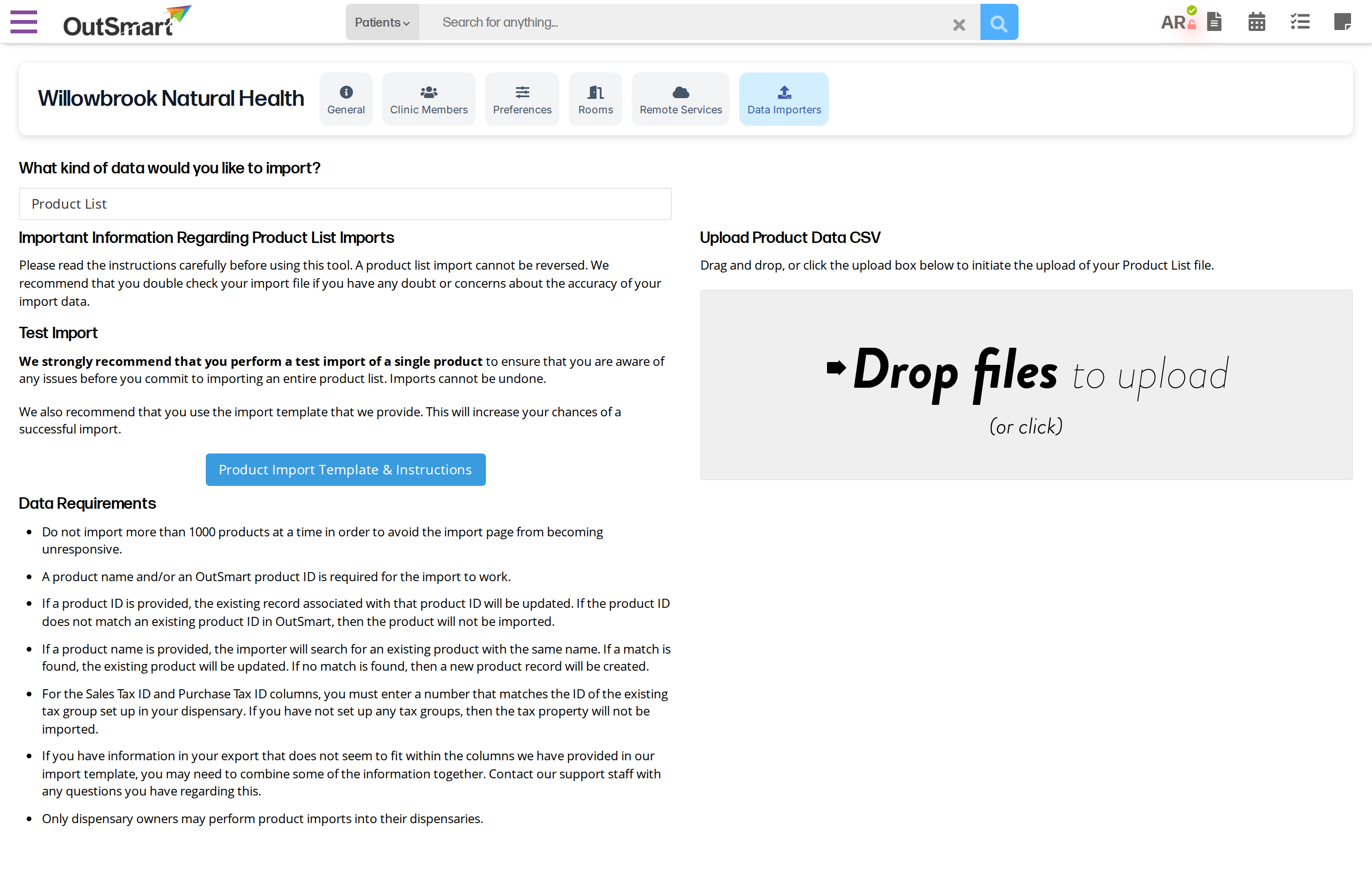
The Data Importers tab with Product List chosen.
After the Import
Open your dispensary’s Product List and check the prices, costs and tax groups of a few products. Then count your stock and enter the counts; see Adjusting Inventory by Hand.
Related Pages
- Importing Data from Other Systems: every kind of data you can bring with you.
- Managing Dispensary Items: adding and editing products one at a time.
- Inventory Management: how OutSmart keeps your stock count.