

When Emails To A Patient Are Stopped
OutSmart sends every clinic’s email through one email service. That service stops sending to an email address when the address bounces, when the person unsubscribes, or when one of its messages is reported as spam. Once an address is stopped, it receives no email from OutSmart at all, including appointment confirmations, reminders and receipts.
The patient card in the patient workspace tells you when this has happened to a patient’s address, and lets you start emails to it again.
The Email Mark On The Patient Card
The patient card is at the top left of the patient workspace. Beside the patient’s email address there is a small mark:
| Mark | What it means |
|---|---|
| Green check | Emails to this address are being delivered |
| Amber exclamation mark | Emails to this address are stopped |
| Red cross | Emails to this address are stopped for good |
Hover over the mark to see when the address was last checked. Click it to check the address again now.
The Emails Stopped Notice
When emails to the patient’s address are stopped, a yellow Emails stopped notice appears on the patient card, under the email address.
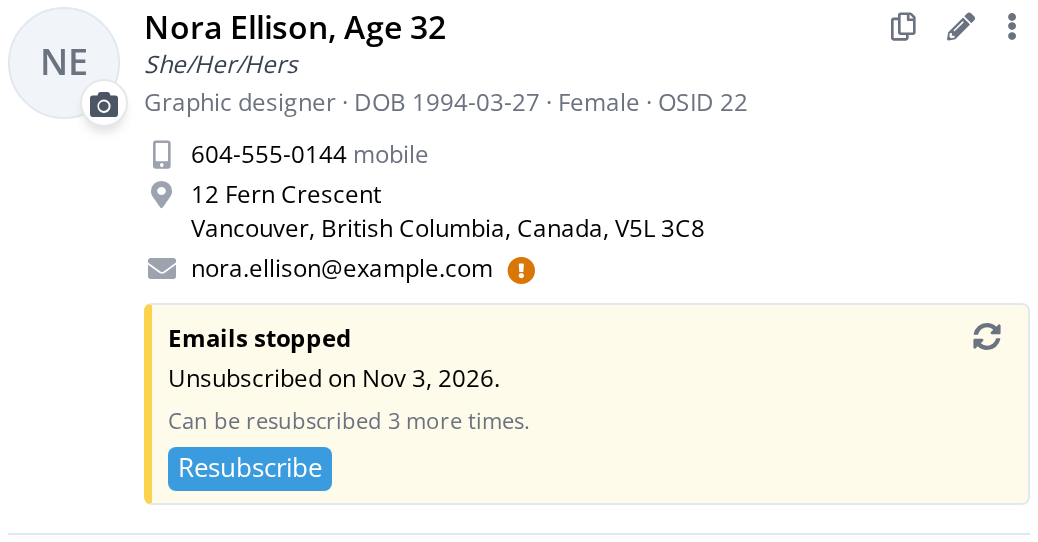
The Emails stopped notice on the patient card. It says what happened to the address and when, how many more times emails can be started again, and has the button that starts them again.
The notice says what happened to the address, and on what date:
| The notice says | What happened |
|---|---|
| Bounced on a date | The patient’s email provider refused a message. The address may be misspelled, the mailbox may be full, or the account may be closed. |
| Unsubscribed on a date | The unsubscribe link in one of the clinic’s emails was clicked. |
| Reported as spam on a date | One of the clinic’s emails was reported as spam. Some email providers do this automatically. |
The circular arrows at the top right of the notice check the address again with the email service. Use them after the patient tells you they have fixed their mailbox or changed their mind. You can check the same address once a minute.
Starting Emails Again: Unblock And Resubscribe
The blue button at the bottom of the notice starts emails to the address again.
- For a bounced address, the button is Unblock. Before you click it, check that the address on the patient’s record is spelled correctly. If emails bounce again, the address is stopped again.
- For an unsubscribed address, or one reported as spam, the button is Resubscribe. Click it only when the patient has asked to receive the clinic’s emails again.
Clicking the button opens a window that asks you to confirm.
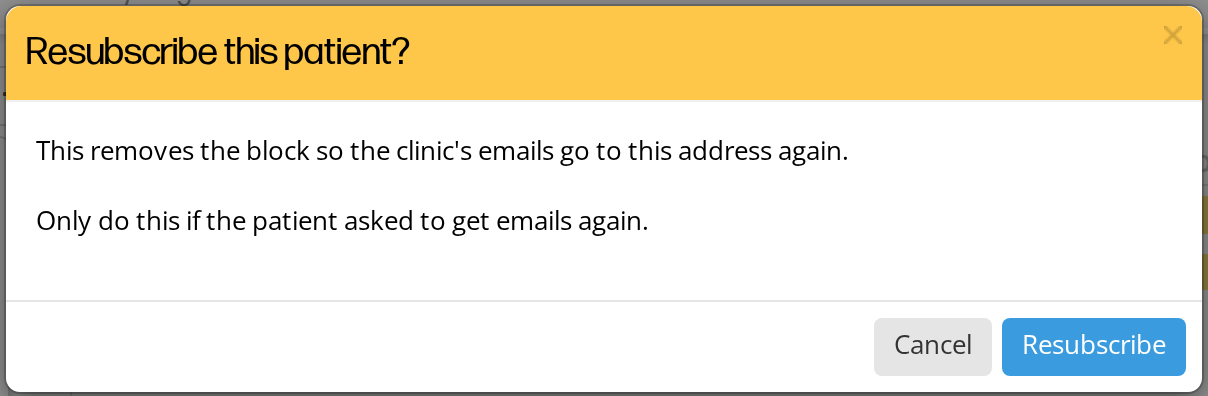
The window that opens from the Resubscribe button. Emails start again only when you click Resubscribe in this window.
When it is done, the notice disappears, the mark beside the email address turns green, and the clinic’s emails go to the address again.
Anyone on your team who can open the patient’s workspace can recheck the address and start emails again.
The Limits
How many times emails can be started again depends on what stopped them:
| What stopped the emails | Emails can be started again |
|---|---|
| A bounce | Any number of times |
| An unsubscribe | 3 times. The notice says how many are left. A 4th unsubscribe stops emails for good |
| A spam report | Once. A 2nd spam report stops emails for good |
When emails are stopped for good, the notice is headed Emails stopped for good and has no button. It says Unsubscribed 4 times. or Reported as spam twice., and Ask the patient for a different email address. Enter the new address on the patient’s record, and the clinic’s emails go to it.
Sending From The Calendar
When you send an appointment confirmation or reminder from the calendar to a patient whose emails are stopped, a window headed Emails to this patient are stopped opens first. It says why, and that the email will not arrive unless the block is removed. You can still go ahead, save the appointment without sending, or start emails again and send in one step.
For a reminder, the window also says that a reminder goes by text message too if the patient receives them.
Related Pages
- Client Workspace Overview: where the patient card is
- When Notifications Are Sent (and When They Aren’t): the other reasons a patient may not receive an appointment email
- Appointment Reminders: what reminders contain and when they go
- Copying A Patient’s Details: the other tools on the patient card