Bookmarks And Starting Views
The Documents Module lets you filter your documents by labels, for example only Unread documents, or only unread faxes. Two buttons in the toolbar at the top of the module help you get back to a filtered view quickly:
- The bookmark button saves a view under a name, so you can return to it with one click.
- The padlock button locks the view you are looking at as the starting view for the page you are on. From then on, the Documents Module opens with that view on that page.
Both are saved in the web browser you are using, on that computer, for your OutSmart login.

The bookmark button and the padlock button are the third and fourth buttons in the Documents toolbar. The name under DOCUMENTS, here PatientWorkspace, is the page a locked starting view is saved for.
Saving and using a bookmark
- Open the Documents Module and filter the list to the view you want, for example by clicking a patient and then a label. The document path above the list shows the filters you have chosen.
- Click the bookmark button in the toolbar. A menu opens.
- Type a name in the Bookmark Name box under Add Current View To Bookmarks.
- Click the yellow bookmark button beside the box.
Your bookmark is added to the top of the menu. To use it, click the bookmark button and click the bookmark’s name. The menu always includes No Patient Assigned, which lists documents that are not linked to any patient. You can save up to 25 bookmarks.
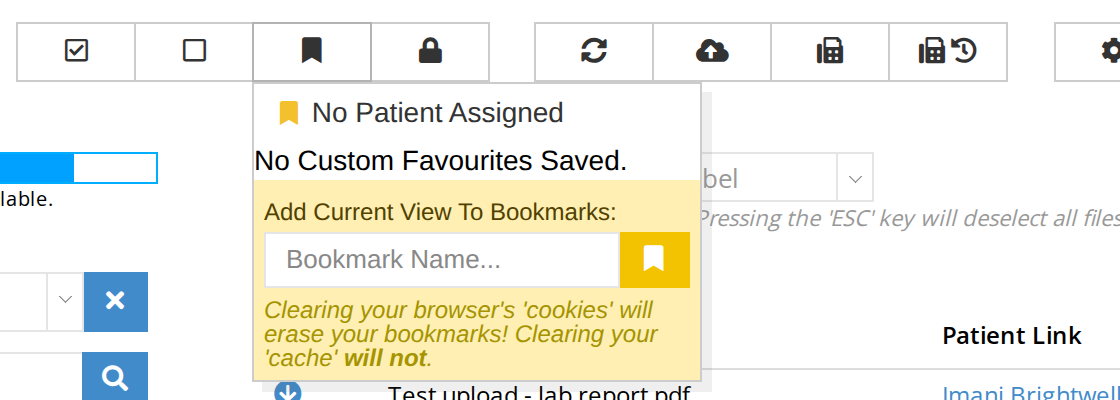
The Bookmarks menu. Type a name and click the yellow button to save the view you are looking at. The note at the bottom explains that clearing your browser's cookies erases your bookmarks.
Locking a starting view
A starting view decides what the Documents Module shows when you open it. Each of these pages keeps its own starting view:
| Page | What the Documents Module shows unless you lock another view |
|---|---|
| The dashboard and your profile page | All of your documents |
| A patient’s workspace | All of that patient’s documents |
| A SOAP chart | All of that patient’s documents |
| Any other page | All of your documents |
To lock a starting view:
- Open the Documents Module on the page you want to change, and filter the list to the view you want.
- Click the padlock button in the toolbar.
A green message confirms Starting documents view saved for this location! The name under DOCUMENTS at the top left of the module tells you which page the starting view was saved for.
On a patient’s workspace and in a SOAP chart, the starting view always opens on the patient you are looking at. The labels you locked are kept for every patient. If you lock Unread while looking at one patient, every patient’s Documents opens showing only their unread documents.
Troubleshooting
When I open Documents, only some of a patient’s files show
The usual reason is that a starting view with a label filter was locked on that page, for example Unread and Fax. Look at the document path above the list. If it shows the patient’s name followed by one or more labels, such as Imani Brightwell > Unread, the list is filtered. Clicking the patient’s name in the path shows all of their documents, but the filter comes back the next time you open Documents.
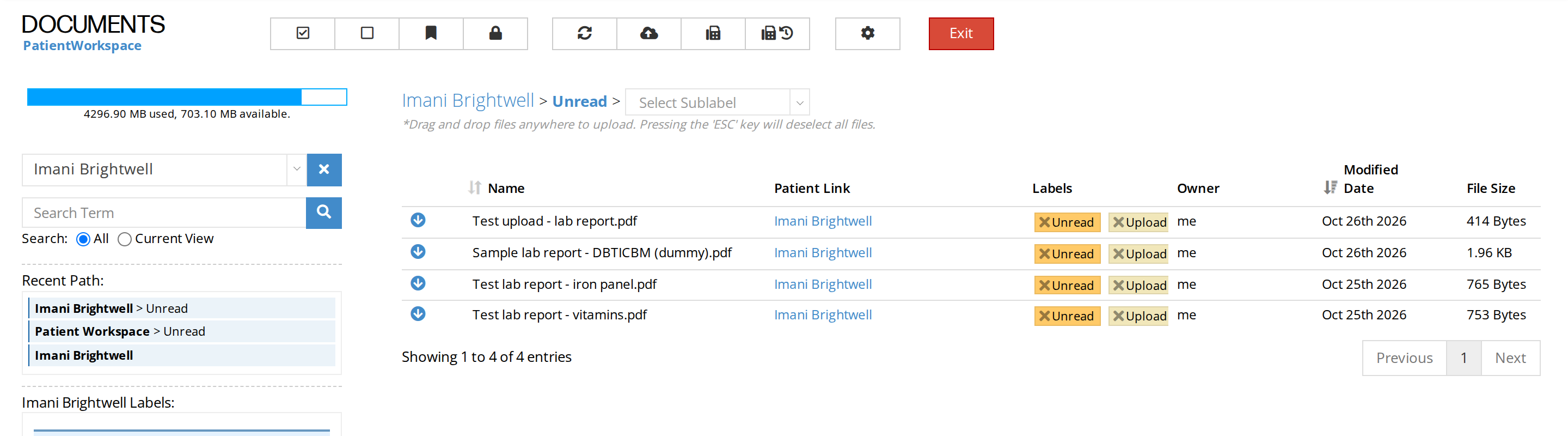
A patient's Documents opening filtered to Unread, because Unread was locked as the starting view. Only four of the patient's six documents are listed.
To open the full list again every time:
- Open any patient’s workspace, and open the Documents Module.
- Click the patient’s name at the start of the document path, so that no labels follow it. The list shows all of the patient’s documents.
- Click the padlock button.
The message Starting documents view saved for this location! appears, and from now on every patient’s Documents opens with all of their documents. If the same thing happens in SOAP charts or on the dashboard, do the same there, because each page keeps its own starting view.
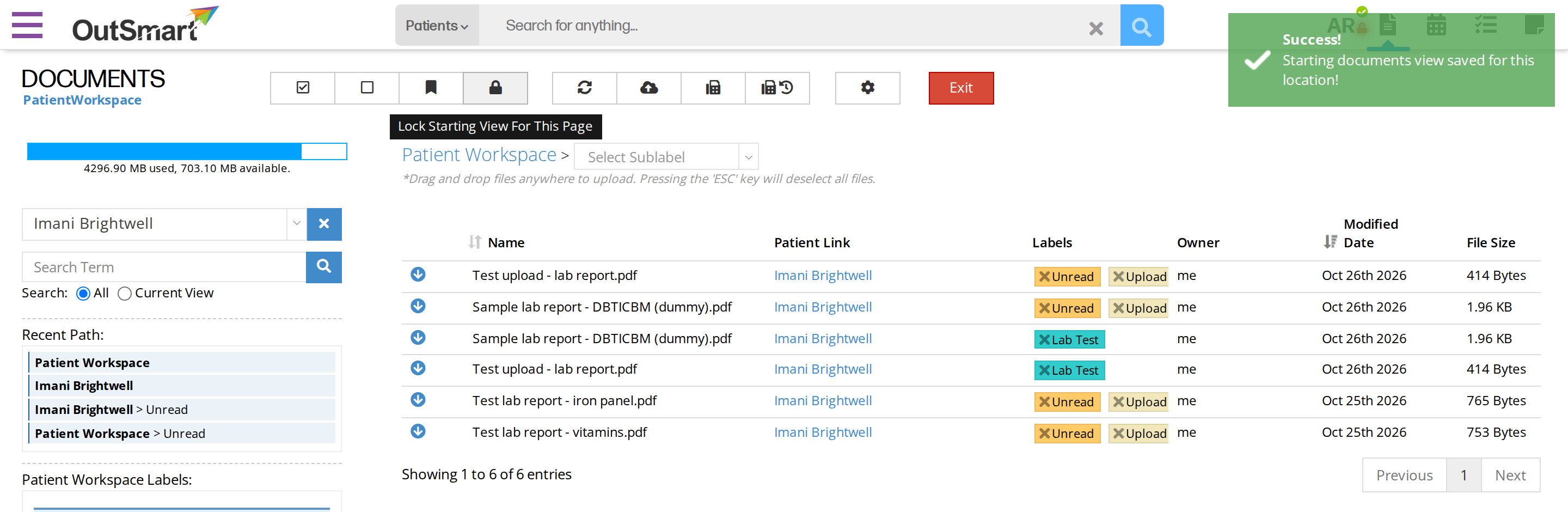
After clicking the patient's name in the path and then the padlock, the full list is saved as the starting view, and the green message confirms it.
Clearing my browser’s cache did not fix it
A locked starting view and your bookmarks are not stored in the browser’s cache. They are kept with the browser’s cookies and other site data, so clearing only the cache, as described in Clearing Your Browser’s Saved Files, leaves them in place. Use the padlock steps above instead. Clearing your browser’s cookies and other site data does remove a locked starting view, but it also removes all of your bookmarks, and if you clear it for every website it signs you out of them too.
I want to remove a bookmark
Bookmarks cannot be removed one at a time from the Bookmarks menu. Clearing your browser’s cookies and other site data removes all of them at once, along with any locked starting views.
Related Pages
- Navigating The Documents Interface. Labels, the document path and searching.
- The Documents Module. How documents are organized and who owns them.
- Uploading and Managing Documents. Adding documents and changing their labels.
- Sending and Receiving Faxes. Where incoming faxes appear and how they are labelled.
- Clearing Your Browser’s Saved Files. When a page looks wrong after an update.