

Checking Your Stock
OutSmart shows a product’s stock count in several places, and keeps a history of every change to it. This page explains where to look, and how to use the history when a count does not match your shelf.
A product’s Transaction History
Every product page has a list of each change to that product’s count.
- Open the dispensary, open the Products menu and choose Product List.
- Click the blue pencil at the end of the product’s row. The Edit Product page opens.
- On the right of the page, below Inventory Calculations, find Transaction History. The number beside the heading is how many changes are listed.
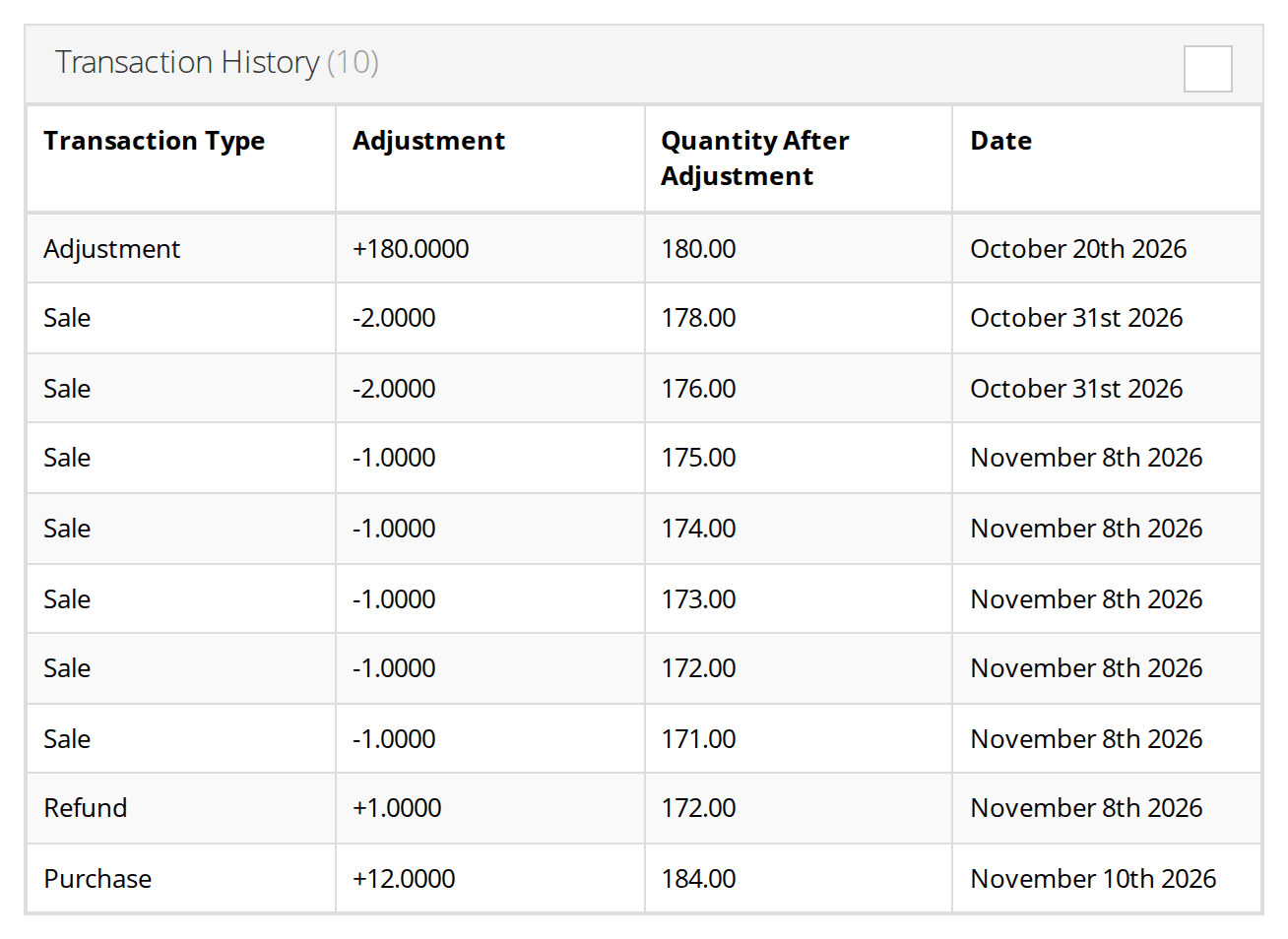
A product's Transaction History. Every change to the count is listed, with the count after it.
Each row is one change, with these columns:
| Column | Shows |
|---|---|
| Transaction Type | Purchase (a purchase invoice), Sale (an invoice or order), Refund (a refund transaction), Adjustment, Used In Blend or Blend Created. Click the type to open the transaction it came from. |
| Adjustment | How much the count changed: a plus number added stock, a minus number took it away. |
| Quantity After Adjustment | The count after that change. |
| Date | The date of the change. |
The count while you sell or recommend
- On an invoice or order. When you add a product, the list of matching products shows how many of each are in stock, beside the product’s name.
- In a chart. In the Products section of a SOAP chart, click the magnifying glass beside the dispensary’s name. The dispensary’s catalog opens, and each product shows its price and how many are in stock. You can also search the catalog from any page: in the search box at the top of the screen, change Patients to Dispensary, choose the dispensary, and click the search button.
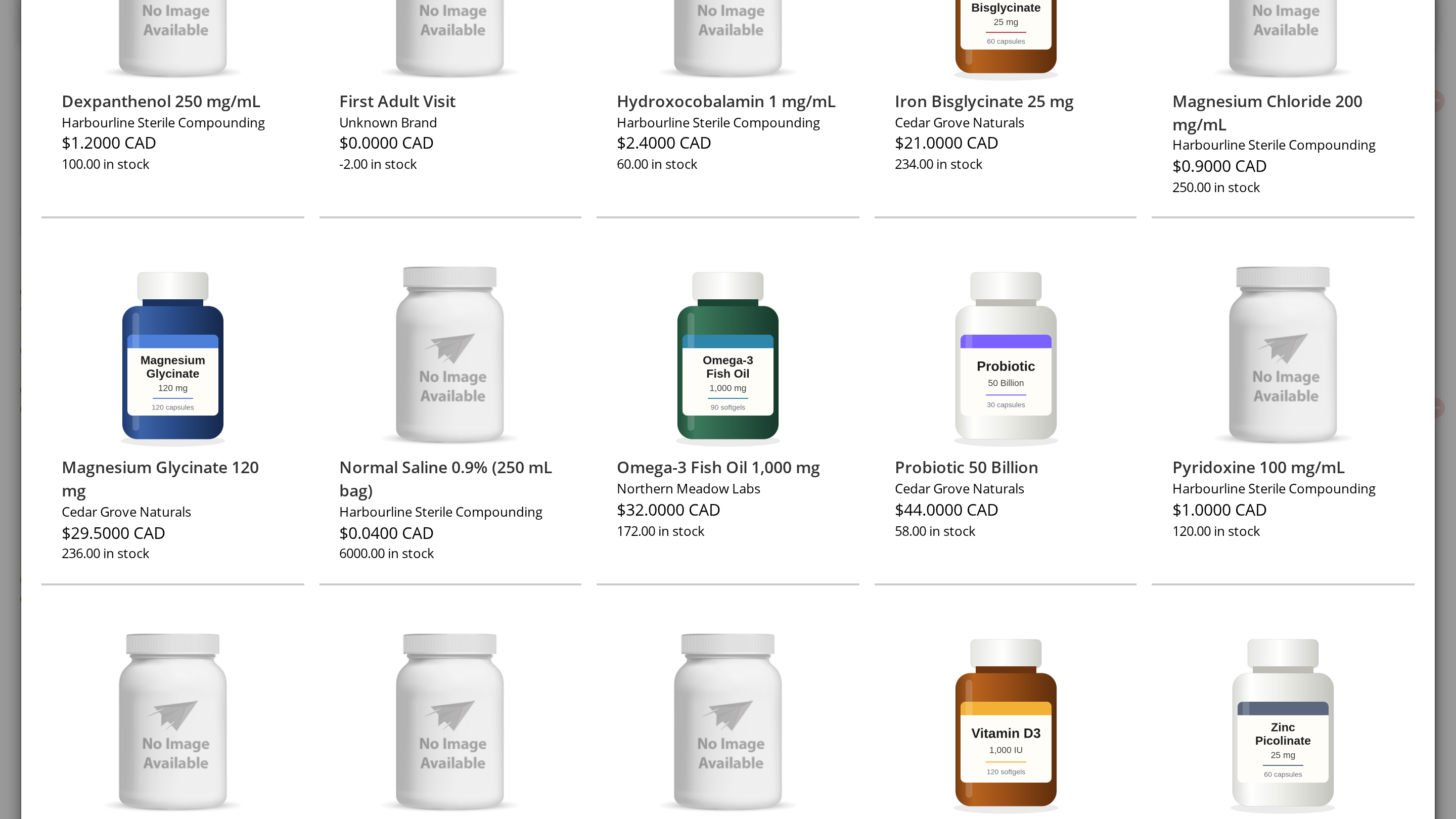
The dispensary catalog, opened from a chart's Products section. Each product shows how many are in stock.
The inventory reports
Two reports, on the Reports page under Financial, cover stock for the whole dispensary. Choose the dispensary, then the report.
- The Item List report lists every product with its stock. It can list only the products that are running low. Under Compare stock to entered value or product minimum, either enter a comparison such as
<5, or check Use Product Minimum to list every product at or below its own Minimum Quantity, which gives you a reorder list. - The Inventory Adjustment Report lists every change to stock across the dispensary, with its date, type, product, quantity and reason. Filter it by product or by reason to see, for example, every expired unit thrown away this year.
Inventory Reports explains every filter and column of both reports.
Troubleshooting
A product’s count does not match my shelf
Open the product’s Transaction History and read down the rows. Every change OutSmart counted is listed there. Compare it with what happened in the clinic. A count is usually different because:
- a delivery arrived but no purchase invoice was recorded for it, so the products were never added. See Purchase Orders and Receiving Stock;
- a sale was put on the wrong invoice or in the wrong dispensary;
- stock left the shelf with no sale, for example an expired or damaged unit.
When you have found the difference, correct the count with an adjustment and the matching reason, such as Physical Count after counting the shelf. See Adjusting Inventory by Hand.
My purchase order did not increase my stock
A purchase order is what you ordered, and it does not change stock. Stock goes up when you record a purchase invoice against the purchase order for what arrived. Purchase Orders and Receiving Stock explains how.
A product shows no count
The product has Calculate Inventory turned off. To keep a count for it, turn Calculate Inventory on. See Turning Calculate Inventory On or Off.
Related Pages
- Inventory Management: everything that adds stock and takes it away.
- Inventory Reports: the Item List and Inventory Adjustment reports in full.
- Adjusting Inventory by Hand: correcting a count.
- How Sales, Orders and Refunds Change Stock: what each transaction does to the count.