

Your Invoice Header and Printouts
In an order management dispensary, invoices, orders and refunds have a printout with a clean design, made from your office’s details. The same design is used for the PDF attached to the emails your clients receive. This page explains what the printout shows and the two things you can customize: the header at the top and the footer at the bottom.
In a regular dispensary, the printout has a different, classic design. Emailing and Printing an Invoice explains it.
What the Printout Shows
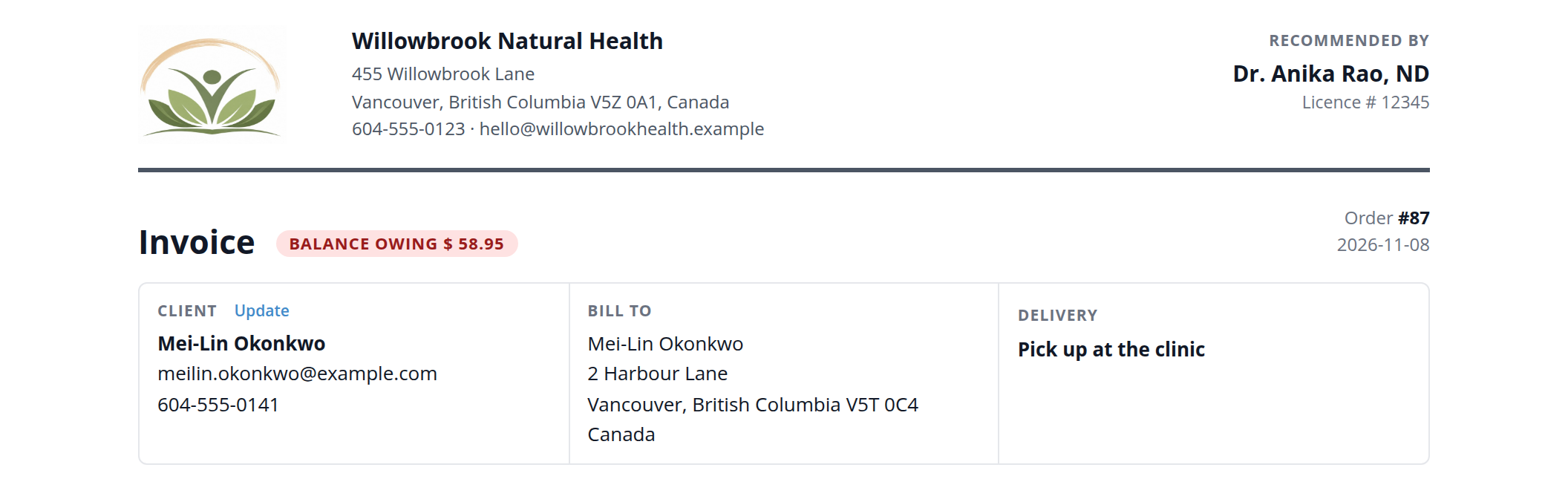
The top of an order's printout, with the header built from the office's details.
| Part | What it shows |
|---|---|
| Header | At the top left: your office’s logo, name, address, phone and email, or the header image you uploaded. |
| Recommended by | At the top right: the practitioner on the invoice or order, with their licence number. |
| Title | Order Request for an order that has not begun fulfillment, then Invoice while there is a balance owing, or Receipt once it is paid. |
| Balance label | A red Balance owing label with the amount, or a green Paid in full label. |
| Number and date | The order or invoice number, and its date. |
| Client, Bill To and Delivery | The client’s name and contact details, the billing address, and for an order, whether it is picked up or shipped. |
| Products, Payments and Refunds | The lines, the payments made, and any refund transactions. |
| Footer | The text you set in Dispensary Preferences. |
The Update link beside Client copies the client’s current details from the patient’s record onto the invoice. It does not appear on paper or in the PDF.
The Invoice Header
Until you upload an image, the header is built from your office’s logo, name, address, phone and email, as in the picture above. You can upload your own header image instead, such as one made by your designer.
Uploading a header image
- Click the purple menu icon at the top left of any page to open the Main Navigation menu. Click Office, then click Office Details.
- On the General tab, find the Invoice Header card, under Office Logo.
- Click Select image, and choose the image on your computer. It must be a .jpg or .png file. A wide image works best, about 1600 by 300 pixels.
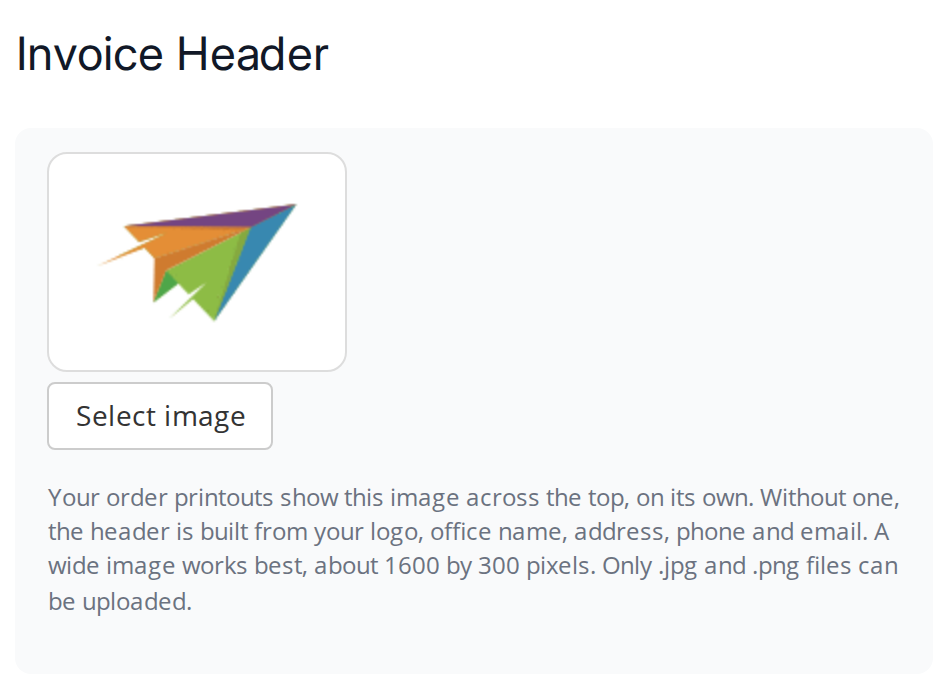
The Invoice Header card before an image is uploaded. The placeholder picture is shown until you choose an image.
The image is saved straight away, and the card shows it with a Use the built header button beside Select image.
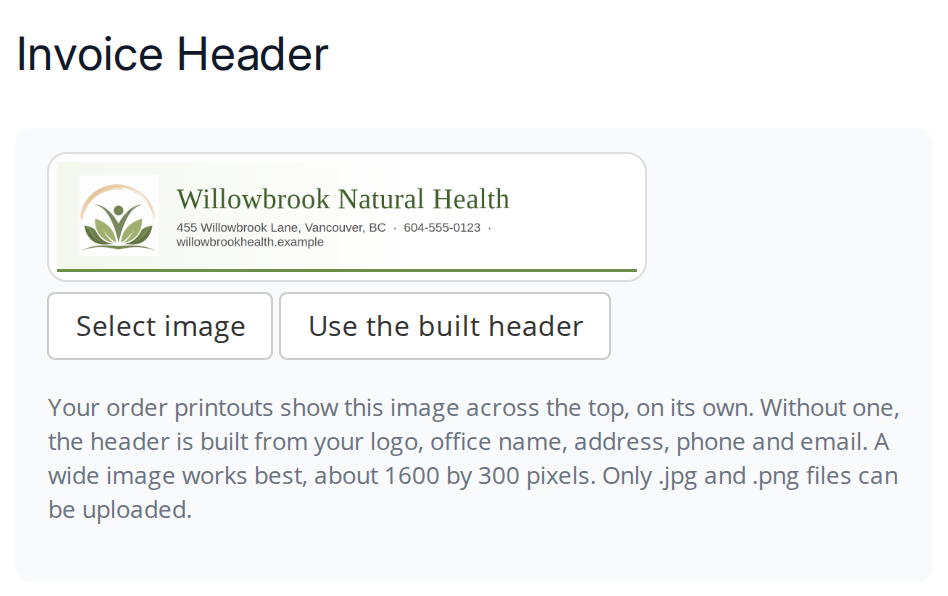
The Invoice Header card with an uploaded image. Use the built header goes back to the header made from your office details.
The uploaded image is printed across the top on its own. Your office’s name, address, phone and email are no longer printed beside it, so include them in the image if you want them on the printout.
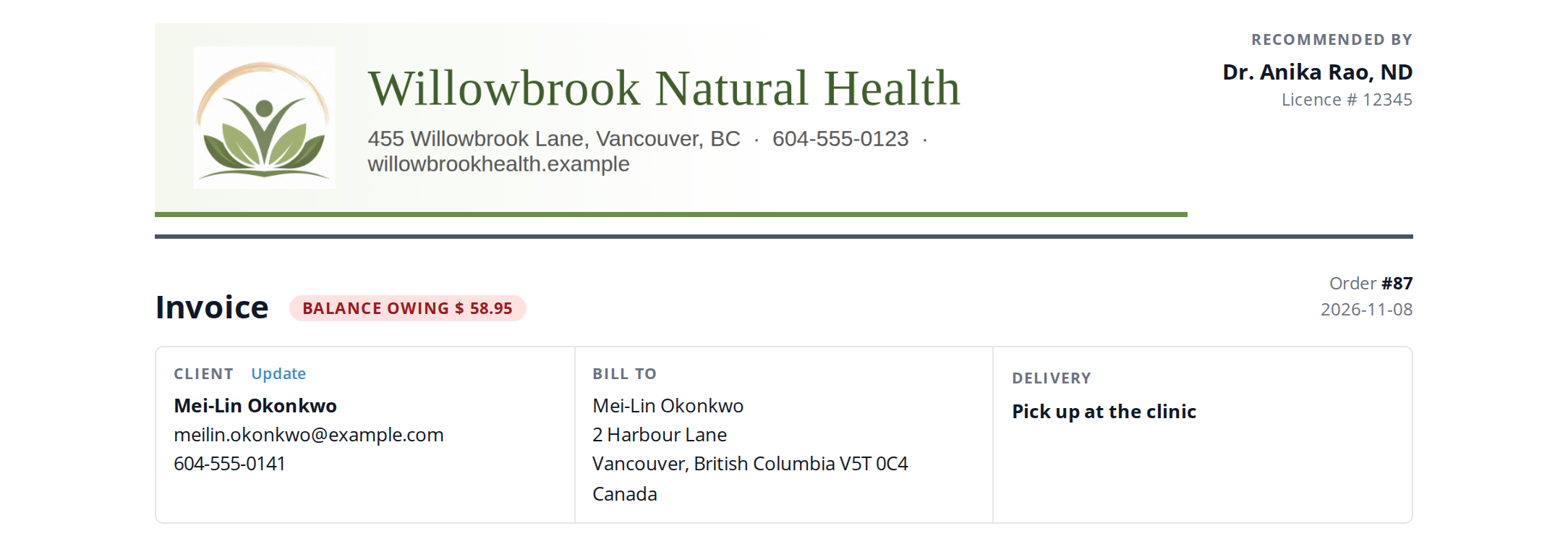
An order's printout with an uploaded header image in place of the built header.
To change the image, click Select image again. To go back to the built header, click Use the built header.
The office owner and the office’s admin staff can change the header.
The Footer
The footer is a line of text printed at the bottom of every order printout, such as your return policy or a thank-you note.
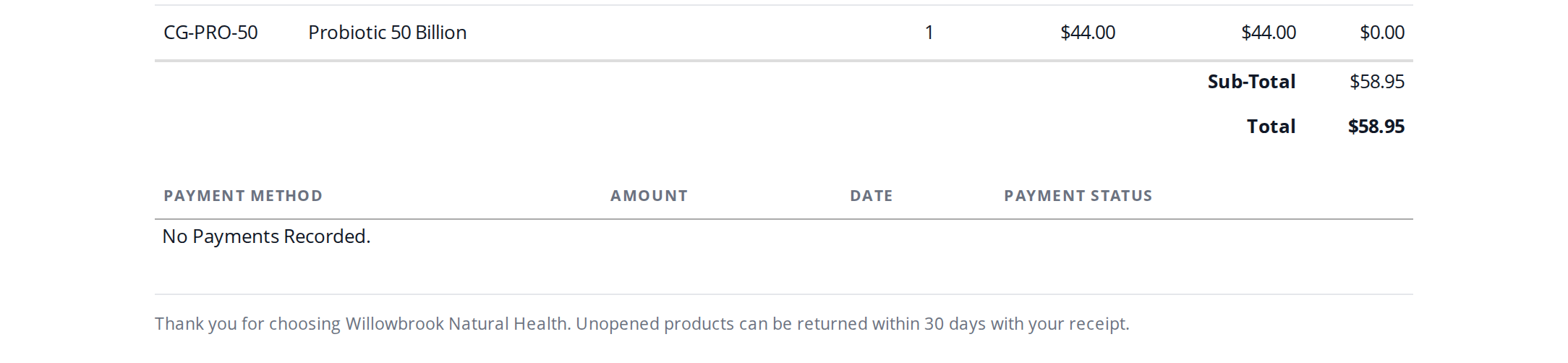
The footer at the bottom of an order printout. It is set on the dispensary's Preferences page.
To set it, open your dispensary, click Dispensary Settings, choose Preferences, type the text in Footer on order printouts, and click Save footer. Leave the box empty for no footer. Dispensary Preferences explains the page.
The PDF
The PDF attached to an invoice, order or refund email is made from the same printout, so the client receives exactly what you see. Its file name says what it is, its number, its date and your office, for example Invoice 87 2026-11-08 Willowbrook Natural Health.pdf.
Troubleshooting
The uploaded header does not appear on a printout
The header is used by order management dispensaries. A regular dispensary prints the classic design, with your office logo. Check also that you uploaded the header in the office the invoice belongs to.
The office’s address is missing from the printout
When a header image is uploaded, the office’s name, address, phone and email are not printed beside it. Include them in the image, or click Use the built header.
The footer does not appear
The footer prints only on order management printouts, and only once it is saved with Save footer.
Related Pages
- Dispensary Preferences: the footer and the Manage orders setting.
- Emailing and Printing an Invoice: emailing the printout as a PDF.
- Orders: how an order’s title changes as it goes through its steps.
- Editing Your Office Profile: the rest of Office Details, including the office logo.