

Purchase Orders and Receiving Stock
A purchase order is the list of products you order from a distributor. A purchase invoice is what you record when the products arrive. The purchase order on its own does not change your stock. The purchase invoice adds the products you received to stock.
You work through three steps:
- Make the purchase order and Finalize it.
- When the delivery arrives, record a purchase invoice with the quantities you received.
- When everything has arrived, Complete the purchase order.
The dispensary owner and staff with full access to the dispensary can make and receive purchase orders.
Adding a distributor
A distributor is the company you order from. Add each one once.
- Open the dispensary, then open the Products menu along the top and choose Distributors.
- Click the + button at the top right of the Distributor List.
- Enter the Distributor Name, and any contact details you want to keep: Contact Name, Email, Phone Number, Fax Number and Account Number.
- Click Save.
You can also choose a product’s usual distributor in the Distributor box on its Edit Product page.
Making a purchase order
- Open the Products menu and choose Purchase Order. The Purchase Order List opens.
- Click + New Purchase Order at the top right. The Purchase Orders page opens in a new tab of your browser.
- Click Add Purchase Order.
- In Select a Distributor, choose the distributor.
- Choose the Shipping Address and the Billing Address from your dispensary’s address book. The addresses come from Dispensary Settings > Address Book.
- Click Add a product and choose a product. Repeat for each product you are ordering.
- For each product, check the Cost and enter the Qty you are ordering. The Total for each line and for the order is worked out for you.
- Add a Comment if you want one, then click Save at the top of the page.
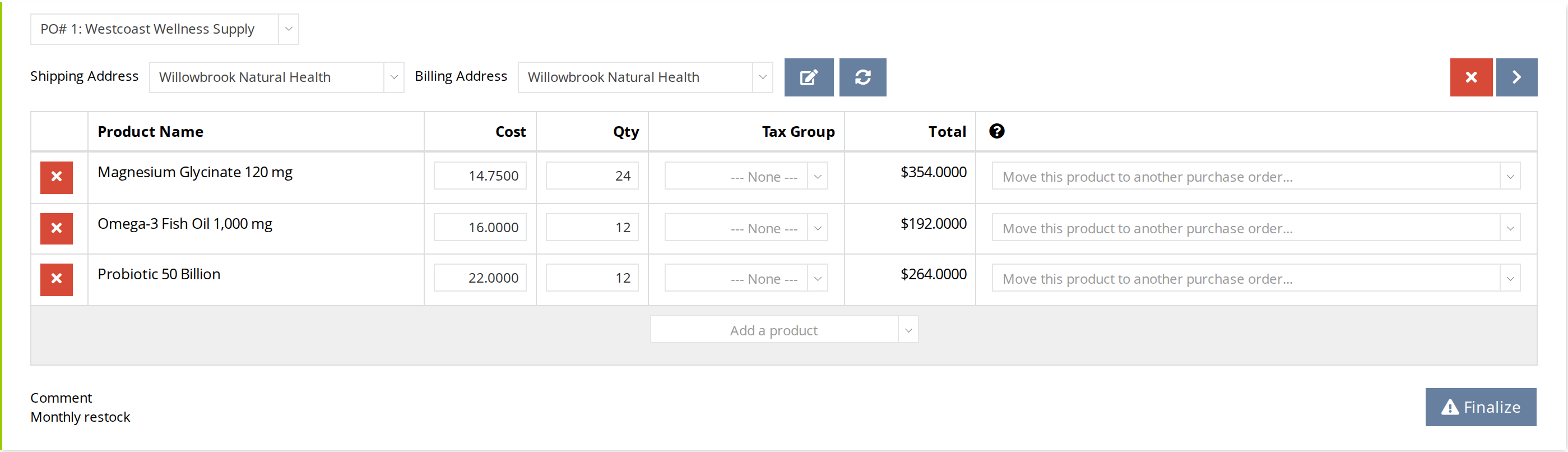
A saved purchase order. Click Finalize, at the bottom right, when the order is ready to send. The stock does not change until a purchase invoice is recorded.
A saved purchase order can still be changed. When it is ready to send to the distributor, click Finalize at the bottom right of the purchase order, and confirm in the message your browser shows. A finalized purchase order cannot be edited, but it can receive purchase invoices.
To change a finalized purchase order before anything has arrived, put it back to a draft: on the Purchase Order List, click the small undo arrow beside its Date Created. This works only while no purchase invoice is recorded against it.
Recording what arrived
When the delivery arrives, record it as a purchase invoice against the purchase order.
- On the Purchase Order List, click the pencil on the purchase order’s row. The purchase order’s Invoices page opens, with what you ordered at the top.
- Click Add Invoice at the bottom of the page. A new invoice appears, filled in with the products and quantities you ordered.
- Enter the Date Received and the distributor’s Invoice Number.
- Change the Qty of any product to the number you actually received. Remove a product that did not arrive with the red × at the start of its line.
- Click Save at the top of the page.
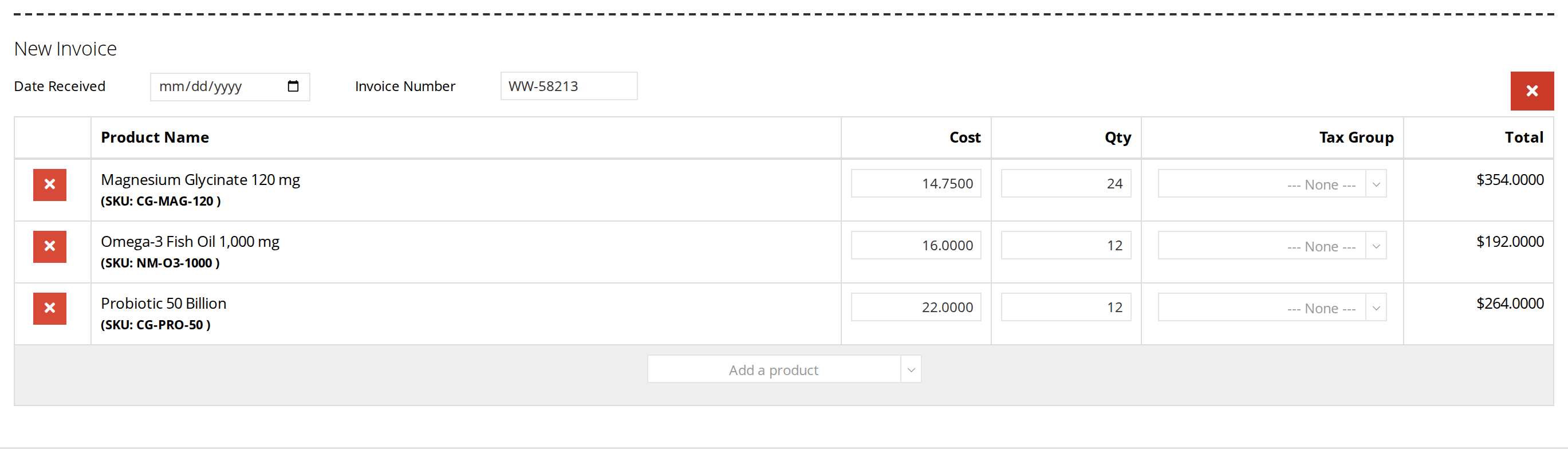
A new purchase invoice, filled in with what was ordered. Change each quantity to what actually arrived, then click Save.
The quantities on the purchase invoice are added to stock as soon as you save it.
If part of the order is still to come, leave the purchase order as it is. When the rest arrives, open the purchase order again, click Add Invoice, and record the second delivery the same way. Each purchase invoice adds its own quantities.
When everything has arrived, click Complete at the top right of the Invoices page. A completed purchase order is closed, and it shows its Date Completed on the Purchase Order List. If a completed purchase order turns out to need another invoice, click the small undo arrow beside its Date Finalized to open it again.
The Purchase Order List
Each row of the Purchase Order List is one purchase order. Its columns are PO #, Distributor, Date Created, Date Finalized, Date Completed, # Of Products, # Of Invoices and Total.
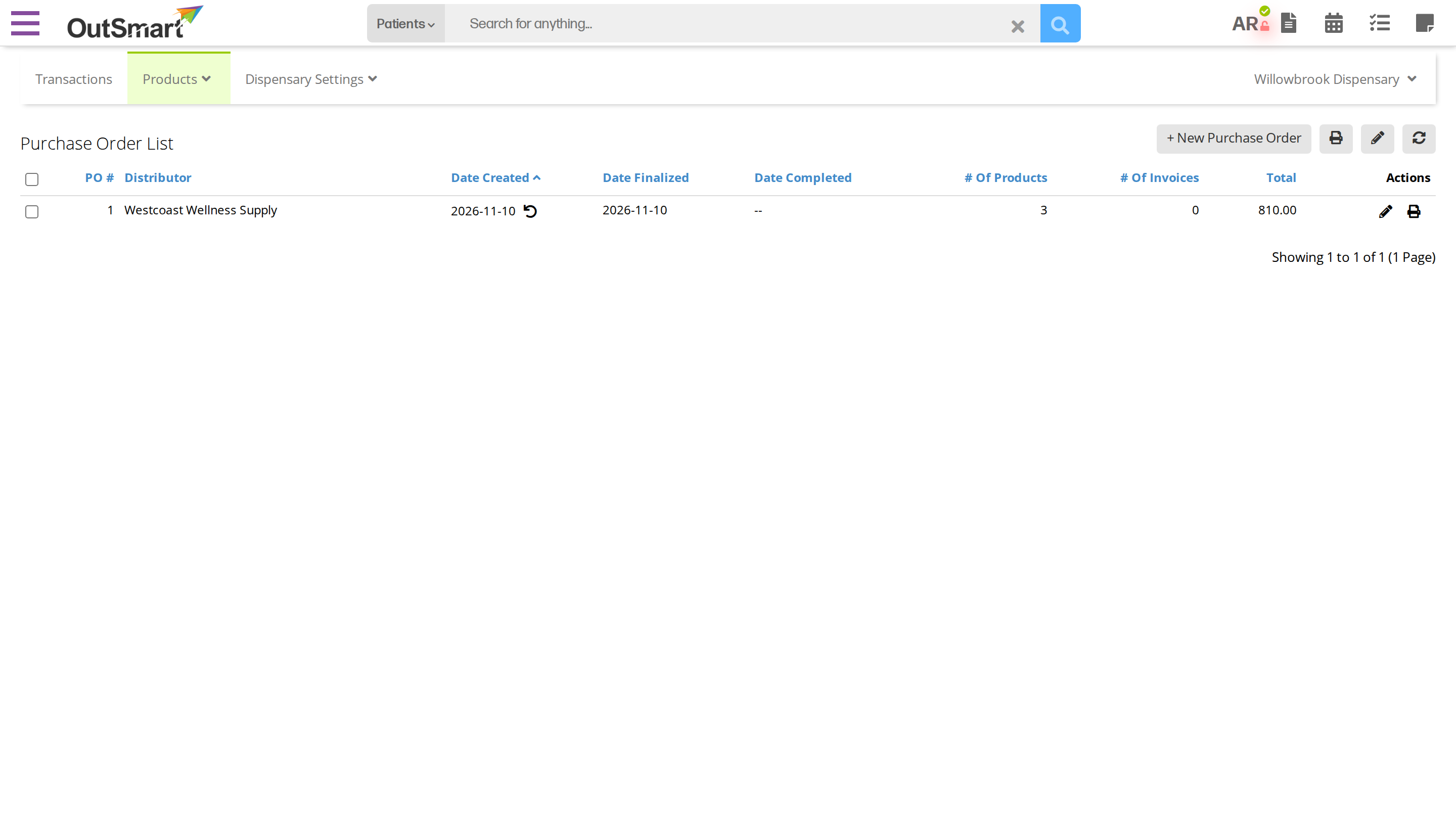
The Purchase Order List. Each row is one purchase order, with the dates it was created, finalized and completed.
The buttons at the end of each row are:
- the pencil, which opens a purchase order to change it or, once finalized, to record its invoices;
- the printer, which prints the purchase order to send to your distributor.
Related Pages
- Inventory Management: what adds stock and what takes it away.
- Checking Your Stock: a product’s Transaction History shows each purchase.
- Purchase Reports: totals of your purchase orders and purchase invoices.
- Initial Dispensary Configuration: your dispensary’s address.