

Products And Diagnoses From Other Practitioners
If you share patients with other practitioners, for example in a multidisciplinary clinic or a teaching clinic, a patient may be taking products or carrying diagnoses that a colleague recorded rather than you.
When you open a new chart for that patient, those items are added to your chart alongside your own, and each one is marked with the name of the practitioner it came from. The point is that you can see everything the patient is currently doing while you chart, without opening your colleague’s charts to find it.
Your own products and diagnoses carry forward exactly as they always have. Nothing about that changes.
How Another Practitioner’s Item Looks In Your Chart
An item that came from a colleague’s chart has a coloured edge down the left side of its section and a strip across the top naming where it came from, such as Recommended by Robin Riverside, from Oct 7, 2026. A diagnosis says Recorded by instead of Recommended by.
That mark is on your screen only. It is not saved into the chart, and it does not appear when you print.
The Box At The Top Of Products And Diagnoses
Above the Products section, and again above Diagnoses, a line tells you how many items in this chart came from elsewhere, for example 9 products in this chart come from other practitioners’ charts. Click it to open the list, and Hide to close it again.
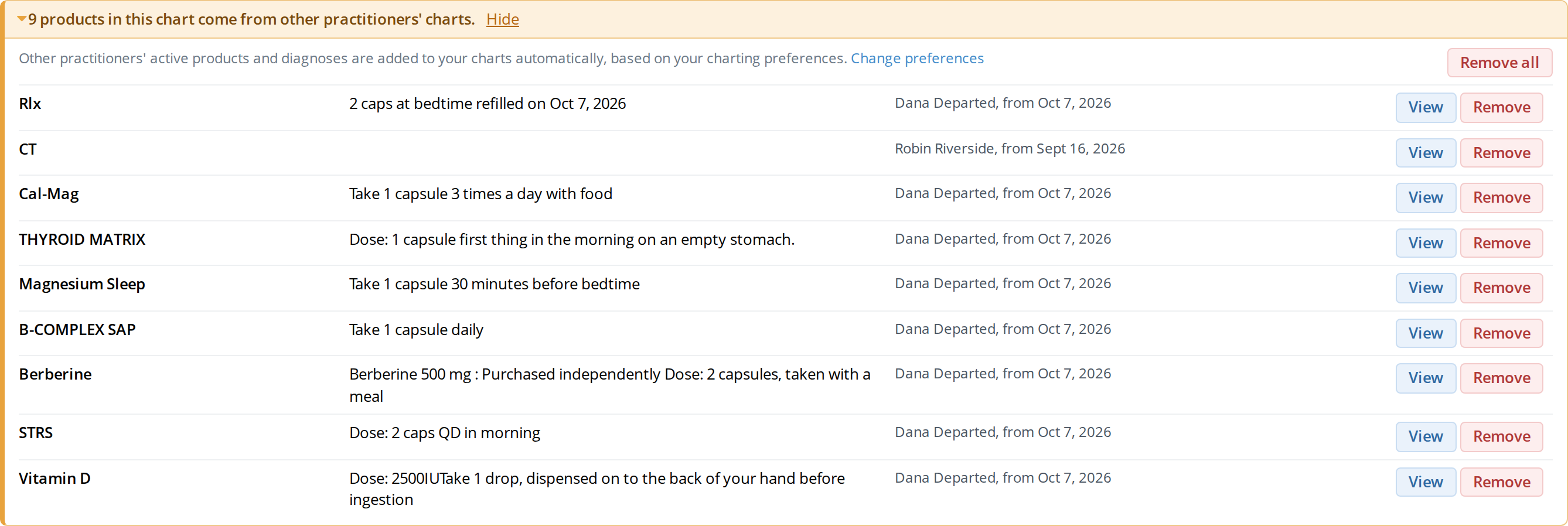
Click the orange line above the Products section to open this box. It lists every product in the chart that another practitioner recommended, with the dosage, their name, and the date they recommended it.
The list gives you each item, its dosage or status, the practitioner it came from and the date of their entry. What you can do with a row depends on whether the item is already in your chart:
- View takes you to that item’s section in your chart.
- Remove takes it out of this chart.
- Add to my chart appears on an item that is not in your chart, and charts it the same way it would have arrived automatically.
- View history shows that item’s history without adding it.
Add all and Remove all at the top of the box do the same for every item in the list at once.
Items from your colleagues sit after your own in the Products and Diagnoses sections, in the same order as this list. Reopening the chart keeps that order.
Removing An Item Is Not The Same As Stopping It
Read this section carefully. Removing an item and stopping it look similar, and they do very different things.
What the red minus does
Every section in a chart has a small red minus button at its top right corner. The red minus takes that product or diagnosis out of the chart you are working on. It does not stop the product, and it does not change your colleague’s chart.
Use it when the item is not part of what you are treating today, and you would rather it did not appear on your treatment plan.
When you click the red minus on an item that came from a colleague, OutSmart shows you a message before it removes anything. The message gives you the name of the practitioner who recommended the item, and tells you two things:
- The item will no longer appear on this chart’s treatment plan.
- The item stays on the patient’s record as that practitioner’s active recommendation. Removing it from your chart does not cancel their recommendation.
If you go ahead, the section disappears from your chart and the item’s history moves back into the history list, where you can still read it.
This video shows how to take a product another practitioner recommended out of your chart, and how to put the same product back in afterwards. The red minus at the top right of the product’s section removes it, and OutSmart asks you to confirm before it does. Once the product is out of the chart, it is listed in the orange box at the top of the Products section, where the Add to my chart button puts it back.
How to stop a product instead
To stop a product for the patient, leave it in the chart and choose Discontinue. To close a diagnosis, choose Resolved.
Choosing Discontinue charts your own recommendation that the patient stop using the product, and takes the product off their active recommendations from that point on. That is what tells everyone treating the patient that the product has ended.
If you remove an item from a chart, OutSmart remembers that for that chart. Reopening the chart later will not bring the item back. Your next chart starts fresh and follows your charting preference again.
Taking An Item On As Your Own
If you want to carry on a colleague’s recommendation yourself, pick the product or diagnosis by hand in your chart the way you normally would. OutSmart asks what you mean:
- For a product, you can continue their recommendation, or start your own.
- For a diagnosis, you can continue it.
Either way the item keeps one section in the chart with its full history attached, rather than appearing twice.
Once you set a product to New, Refill or Update, including when you chose to start your own, it is yours. The colleague’s mark comes off it and it stops appearing in the box at the top.
Choosing Whether These Items Are Added Automatically
You can decide whether a colleague’s active products and diagnoses are added to your charts for you, or simply listed at the top of the section for you to add yourself.
Open the box at the top of a section and click Change preferences, or go to your Smart Charts preferences. The question is When chart histories load, do you want other practitioners’ active products and diagnoses added to your chart automatically? and there are three answers:
- Yes. They are added to each new chart, marked with the practitioner’s name.
- No. They are not added. They are still listed in the box at the top of the section, so nothing is hidden from you, and you add the ones you want.
- Use my clinic’s setting. Your clinic’s default decides, which is what applies until you choose an answer of your own.
Changing your answer to Yes from inside a chart adds everything in the list to the chart you have open. Changing it to No leaves that chart as it is.
The Clinic Default, For Owners And Office Admins
A clinic can set the default for everyone who has not chosen an answer of their own. Open Office Details, click Preferences, then the Collaborative Clinic tab, and use Auto-chart products and diagnoses.
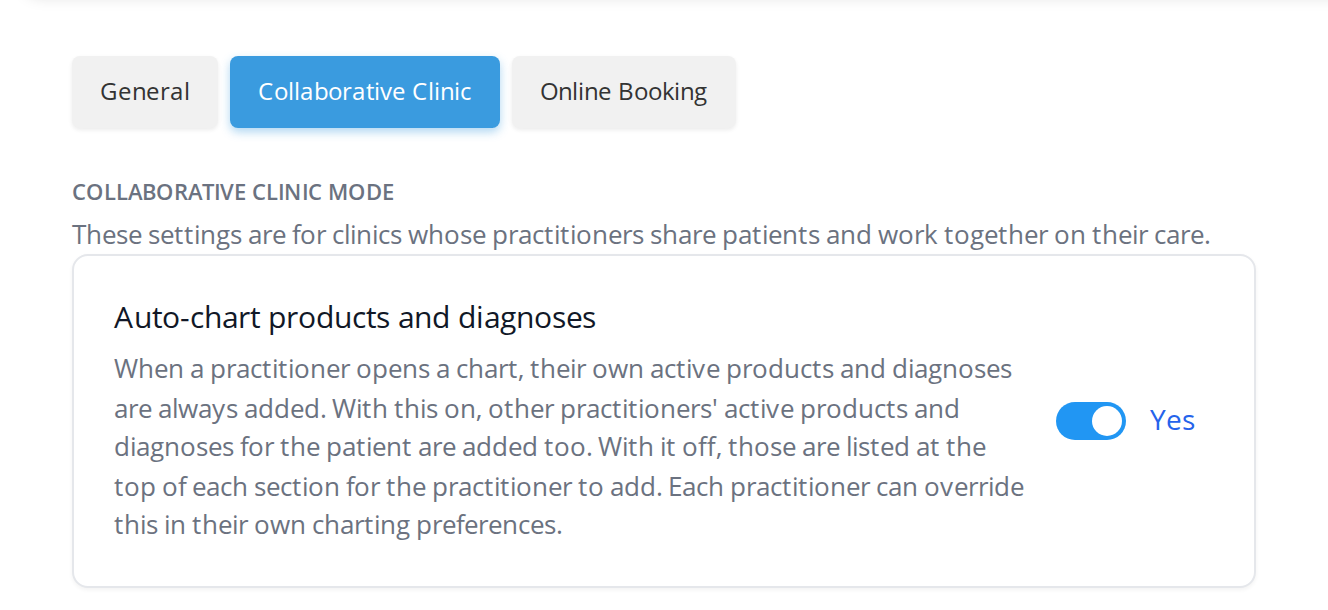
The Collaborative Clinic tab sits beside General and Online Booking under Preferences. The setting is Yes unless you change it, and any practitioner can override it in their own charting preferences.
It is set to Yes unless you turn it off, and a practitioner can always override it for their own charts. Only the clinic’s owner or an office admin can change it.
A practitioner’s own active products and diagnoses are always added to their charts, whatever this setting says.
Where The History Comes From
Your chart history includes the patient’s charts from every office in your clinic’s network, which are the same charts you can already open. The patient’s medical summary in their workspace follows the same list.
Related Pages
- Chart History. How history entries are shown, and what the product and diagnosis timelines mean.
- Product Recommendations. Recommending, refilling and discontinuing products.
- Diagnoses and Working Diagnoses. Recording a diagnosis and changing its status.
- Sharing Charts With Colleagues. Who can see your charts, and how to share them.
- Charting Preferences. Every preference on the Smart Charts page.