

Letting Patients Choose A Practitioner On A Smart Form
A SmartForms V2 form can ask a patient to choose one or more of your clinic’s practitioners from a dropdown list. For example, a consent form can ask which practitioners the patient allows to share their record, and an intake form can ask which practitioner the patient wants to see.
You never type the names. When a patient opens the form, OutSmart fills the list with the practitioners who work at the office that sent the form. When a practitioner joins or leaves your office, the list on every form changes by itself, and you do not need to edit any form.
The two kinds of practitioner question
The form editor’s toolbox has a category called Practitioners at this office. It holds two questions:
| Question | What the patient does | Example |
|---|---|---|
| Practitioner (choose one) | Chooses one practitioner from a dropdown list. | ”Which practitioner would you like to see?” |
| Practitioners (choose several) | Chooses as many practitioners as you allow from a dropdown list. Each practitioner they choose shows as a tag in the box. | ”Which practitioners may share your health record?” |
A form can have as many of these questions as it needs. A consent form that asks for a patient’s current practitioner and their new practitioner, for example, uses two Practitioner (choose one) questions, each with its own title.
Adding a practitioner question to a form
The toolbox is the column of icons down the left side of the form editor. On most screens it shows only small icons, so open it out first to see its categories.
- Open the form in the form editor. See Creating A Smart Form if you are starting a new one.
- Click the magnifying glass at the top of the toolbox. The toolbox opens out and lists its categories.
- Click Practitioners at this office, just below Misc, to open that category.
- Click Practitioner (choose one) or Practitioners (choose several). The question is added at the end of the form. You can also drag the question straight to the place on the form where you want it.
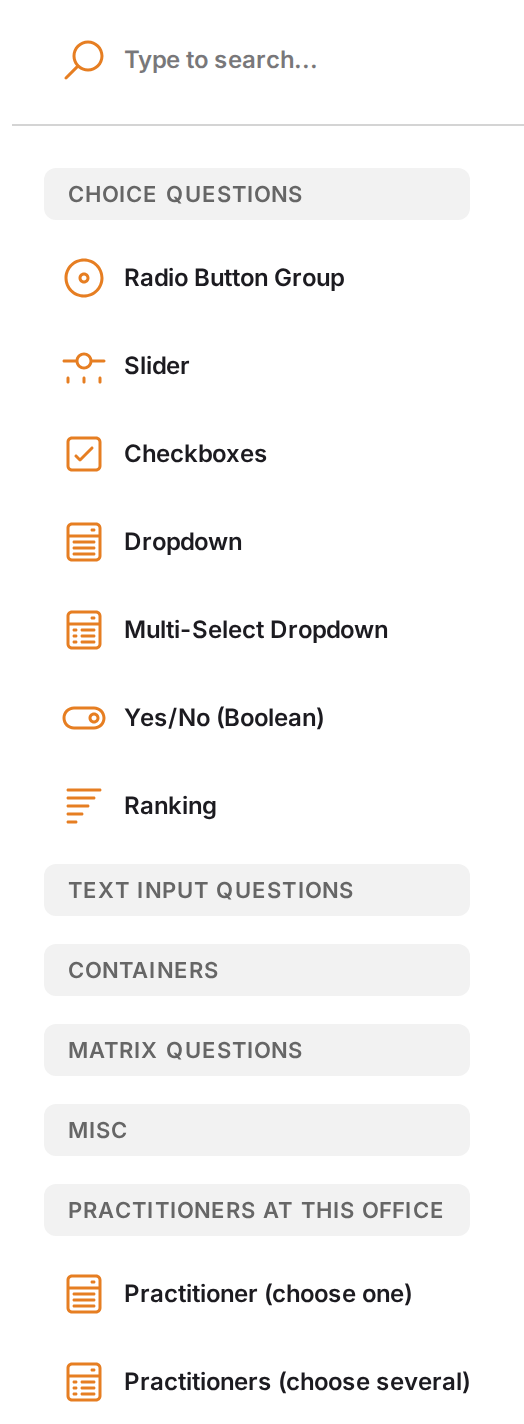
Both practitioner questions are in the Practitioners at this office category of the toolbox.
To move a question you have added, drag it by the row of dots at the top of the question.
You can also type “practitioner” in the search box at the top of the opened-out toolbox. The toolbox then shows only the two practitioner questions.
Setting up the question
Change the title. The question is titled Practitioner or Practitioners when you add it. Click the title on the form and type the question you want the patient to answer, such as “Your current practitioner” or “Which two practitioners may share your record?”.
Make the question required if the patient must answer it. Click the question, then click Required at the bottom right of the question.
Limit how many practitioners a patient can choose. This applies to Practitioners (choose several) only.
- Click the question on the form.
- Open the property panel on the right of the editor, then open the Choice Options tab. See The Form Editor for the property panel and its tabs.
- Type the most practitioners a patient may choose in Maximum choices to select. For example, type 2 if the patient must name exactly two practitioners, and make the question required.
When the patient reaches the limit, the list lets them choose no more names until they remove one. A value of 0 means there is no limit.
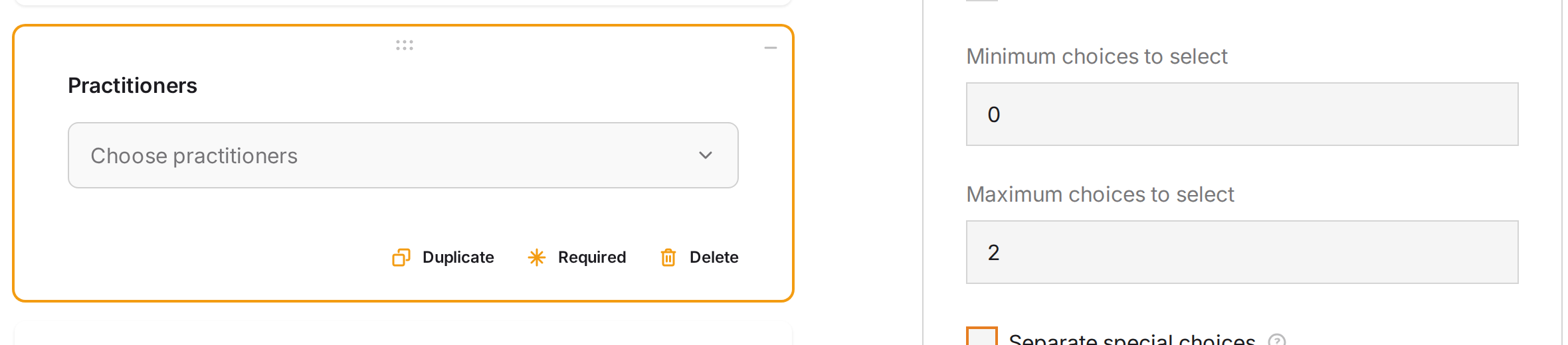
Maximum choices to select, on the Choice Options tab, sets how many practitioners the patient can choose.
The list of names itself has no settings. The settings for typing in choices, changing their order, and adding Other or None are not shown for these questions, because OutSmart fills in the list for you.
Who is on the list
The list holds the practitioners who are active at the office the form was sent from. It is the same list of practitioners that your online booking page shows.
- Admins and front desk staff are never listed. Only practitioners appear.
- Each name shows as it appears on the practitioner’s profile, with their title, first name and last name, such as “Dr. Anika Rao”. The list is in order of last name.
- The list is built each time a patient opens the form. A practitioner who joins your office appears on every form with no edit. A practitioner who leaves the office, or whose account is switched off, no longer appears.
- A form sent from one office lists that office’s practitioners only. If a form is shared with a colleague at another clinic and sent from there, the patient sees the practitioners of that clinic.
To see the list while you build the form, click Preview in the editor’s toolbar. Preview shows the practitioners of the office you are working in.
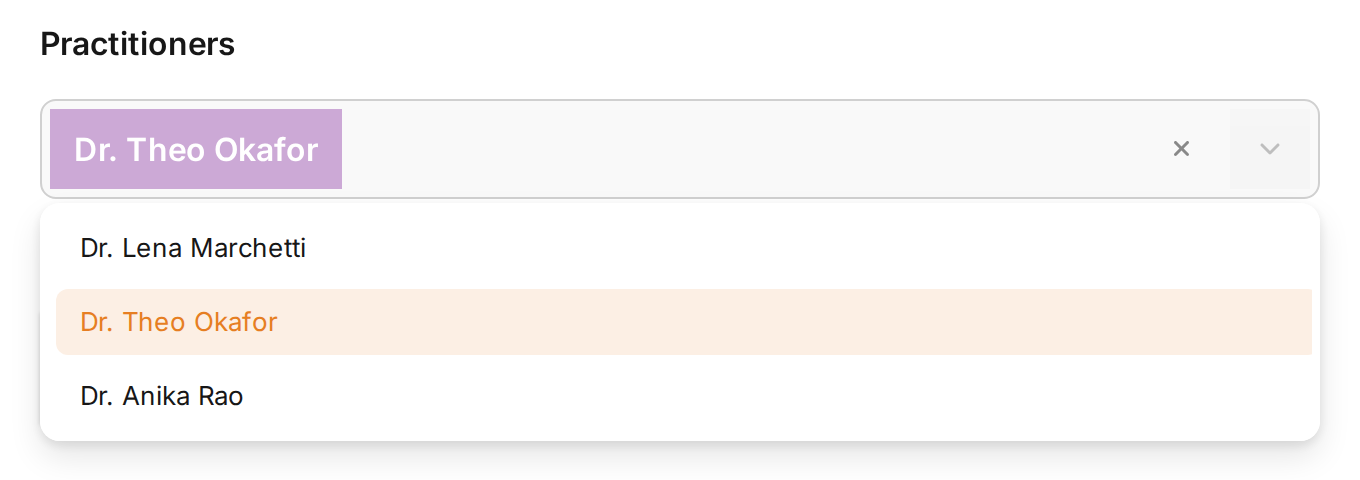
The patient chooses from the practitioners at your office. Each practitioner they choose shows as a tag.
What you see after the patient submits
The patient’s answer is saved as the practitioner’s name. The name shows in the submitted answers, in the PDF of the submission that is saved to the patient’s documents, and when you import the submission into a chart.
A practitioner the patient chose still shows on that submission after the practitioner leaves your office. If a practitioner’s name is changed later, earlier submissions keep the name the patient chose.
Example: a consent form for sharing a record between two practitioners
A consent form that once had blank lines for the patient to write in their practitioners’ names works better with practitioner questions. The patient chooses each name from the list, so staff do not print the form, write the names in by hand and scan it back in.
- If the form is a SmartForms V1 form, convert it first. See Converting A SmartForms V1 Form. The conversion makes a SmartForms V2 copy and leaves the original form as it is.
- Add a Practitioner (choose one) question and title it “Your current practitioner”. Add a second one and title it “Your new practitioner”. Make both required.
- Drag both questions above the consent text.
- In the consent text, replace the blank lines with words that point to the two questions, such as “I give permission for the two practitioners I chose above to share parts of my medical file between them.”
- Keep a Signature question at the end of the form. If the SmartForms V1 form had a signature, the conversion brings it across. To add one, use Signature in the Misc category of the toolbox.
- Click Preview to check the form, then click Save.
If the order of the two practitioners does not matter, use one Practitioners (choose several) question instead, with Maximum choices to select set to 2, and make it required.
Related Pages
- The Form Editor. The toolbox, the toolbar and the property panel.
- Question Types Reference. Every question type in the toolbox.
- Converting A SmartForms V1 Form. Making a SmartForms V2 copy of a SmartForms V1 form.
- Sending Smart Forms To Patients. Every way to get a form to a patient.
- The Submission PDF. The PDF saved to the patient’s documents when they submit.