

Expiries And Link Timing
Every SmartForms V2 form link a patient receives has a time limit. The limit works on two clocks: a link-click clock that tracks how long the patient has to open the link, and a fill clock that tracks how long they have to finish once they’ve started. A grace period protects a patient who is filling in the form when the deadline passes, and a patient who is running out of time can give themselves one extra day from the form itself. Staff can give a patient more time on any form, before or after it expires, from the Assignments tab.
The two clocks
| Clock | How long | Starts when | Applies to |
|---|---|---|---|
| Link-click clock | 60 days | The moment you click Send on a direct-send assignment | Direct-send assignments only |
| Fill clock | 90 days | The first time the patient opens the form (the first page load on their link) | Both direct-send and guest assignments, once started |
For a direct-send assignment, the link-click clock is active until the patient opens the form. The instant they open it, the link-click clock is replaced with a fresh 90-day fill clock starting at that moment.
For a public guest link, there is no separate link-click clock, because the public link does not expire. Each patient’s own copy of the form is created when they enter their name, email and date of birth on the landing page and click Start Form. That moment is the “first open” and the 90-day fill clock starts there.
Once a patient is on the fill clock, the timing is identical for both paths: 90 days from first open to submit.
Why expiry exists
Two reasons:
- Security. Anyone who has a patient’s link can open the patient’s form. If the link never expired, an old email forwarded by mistake or a lost phone could let someone fill in the form as the patient long after the visit.
- A tidy list. Forms that are never submitted would stay on the assignment list forever. Time limits let old unfinished forms expire without you having to clean them up.
The link-click clock limits how long an unopened link works, and the fill clock gives a patient who has started the form time to finish it.
What the patient sees in their browser
While either clock is still live and there’s plenty of time remaining, the patient sees the form normally and can fill, save progress, and submit. The form header carries two lines:
- Primary: Please complete this form before your visit.
- Secondary (smaller, grey): This form will expire on [date], followed by a reminder to submit before then or before the visit, whichever comes first.
The emails show the same date with the number of days left. The form page shows only the date.
Deadline banner inside the last hour
When less than an hour remains on the patient’s active clock, a coloured banner appears at the top of the form. The banner updates itself every minute without the patient reloading the page.
| Banner state | Background | What it says | Self-extend link |
|---|---|---|---|
| Almost out of time | Warm orange | About N minutes left to submit | ”I need more time”, if the patient has not used it yet |
| Past the deadline | Light red | The deadline has passed. The patient can still submit for the next N hours as long as they stay on the page | ”I need more time”, if the patient has not used it yet |
| Time is up | Deep red | The page no longer accepts saves or submissions. The patient is asked to contact the clinic | Not offered. Staff use Extend, described below |
The 48-hour grace period
Once a patient has opened the form for the first time, a 48-hour grace period runs past the expiry date. During the grace period, auto-save and submit keep working as long as the patient stays on the page. A patient who is filling in the form when the deadline passes does not lose the answers they typed.
The grace period only applies once the form has been opened. A patient who never opens the email link before the deadline gets no grace period, because they have no answers to protect.
A form filled in on a clinic tablet has a grace period of two hours instead of 48. See Filling A Form In The Clinic.
The patient’s one-time self-extend
Inside the deadline banner, the patient sees a “I need more time” link. Clicking it adds one extra day to their deadline, with no clinic call required. The note next to the link reads: “Adds 1 day. One-time use. Please still submit before your visit.”
This is a one-time action per assignment. Once they’ve used it, the banner replaces the link with: “You have already used your one-time extension. If you need more time, please contact your clinic. Please still submit before your visit.”
A staff Extend, described below, does not give the patient another self-extend. The patient gets exactly one self-extend per form they were sent. Staff extensions are on top of that.
What the patient sees when the link has expired
Once the expiry date and the 48-hour grace period have both passed, and the patient was not on the page when the grace period ran out, the link no longer works. Clicking it shows:
“This form link has expired. Please contact your clinic to request an extension if you’d like to continue. Any answers you had saved will still be there.”
At this point the patient cannot reload the form, see their saved answers, or self-extend. Only a staff Extend reopens the form.
Giving a patient more time with the Extend action
Beside the bell (reminder) icon on each unfinished form is the clock icon, called Extend. Extend gives the patient more time, and works in two different ways depending on whether the form has expired.
| Assignment state | Icons visible | What you can do |
|---|---|---|
| Not started or in progress (still inside its clock) | bell and clock | Send a reminder (same link, same clock), or push the current clock out so the patient has more time before it expires. |
| Expired | clock only | The bell is not shown, because the link no longer works. Extend emails a new link to replace the expired one. |
| Submitted / Revoked | (no bell or Extend) | Nothing to send or extend. |
You can extend the same form as many times as you need to. There is no limit. Each extension is recorded in the assignment’s audit trail.
Extend before the form expires: same link, more time
This happens when you click the clock icon on a form that has not expired.
- The patient’s existing link keeps working. Any bookmark or saved link they have is unchanged.
- Whichever clock the patient is on (link-click if they haven’t opened the form yet, fill if they have) gets reset to a fresh full window from now: another 60 days on the link-click clock, or another 90 days on the fill clock.
- The patient gets an email with the subject “More time to finish your form for [Practitioner Name]: [Form Name]” so they know why they just received another email from you.
Use this when a patient tells you they need more time before they run out. For example, a patient calls to say they are travelling for two months and want the form held for them.
Extend after the form expires: a new link
This happens when you click the clock icon on a form that has expired, including one past the 48-hour grace period.
- A new link is issued. The old expired link stays expired, so a copy that was forwarded by mistake no longer works.
- The patient gets 60 days to open the new link, and 90 days to finish once they open it.
- The patient’s saved answers are kept. When they open the new link, they continue from where they stopped.
- The patient gets an email with the subject “A new link for your form for [Practitioner Name]: [Form Name]”.
Use this when a patient missed the deadline but you still want their answers.
How to use Extend
Open Smart Forms > Smart Forms v2 and click the Assignments tab, or open the patient’s Smart Forms tab.
- Find the patient’s form.
- Click the clock icon.
- A confirmation window opens. For a form that has not expired, it is headed Extend deadline? and says the link stays the same and the patient will get an email. Click Extend. For an expired form, it is headed Reopen and extend?. Click Reopen and extend.
- OutSmart emails the patient and records the extension in the audit trail.
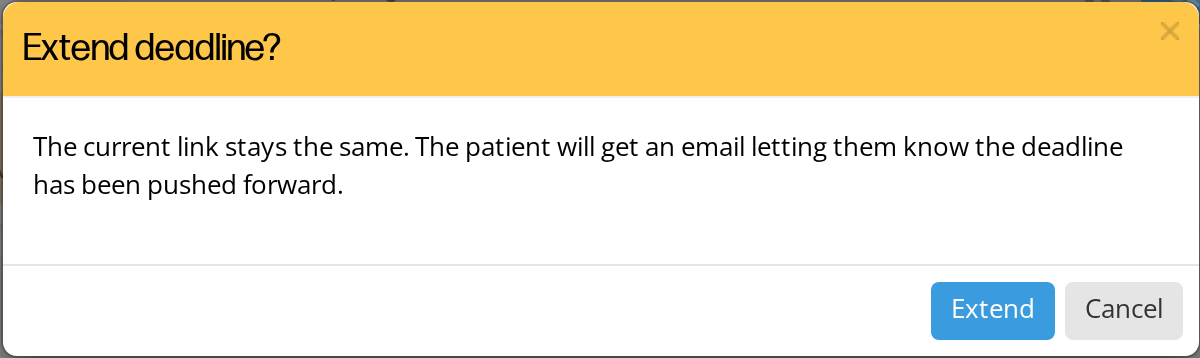
The window that opens when you click the clock icon on a form that has not expired yet.
When you point to the clock icon on a form that has not expired, it says the patient keeps the same link and gets an email saying they have more time.
On a form filled in on a clinic tablet, Extend gives the patient another two hours on the same code and sends no email.
Reminder, patient self-extend, and staff Extend: when to use which
| Situation | Who acts | Use |
|---|---|---|
| Patient hasn’t started, link still works, you want to remind them | Staff | Bell icon. Sends a reminder email with the same link. The clock does not change |
| Patient is partway through, link still works, you want to remind them | Staff | Bell icon. Sends a reminder. Saved answers are kept |
| Patient is filling the form and sees they are running out of time | Patient | ”I need more time” link in the deadline banner. Adds 1 day, once per form |
| Patient tells you they need more time before the link expires | Staff | Clock icon before expiry. Pushes the clock out, same link |
| Patient ran out of time and used their self-extend, and needs more time | Staff | Clock icon, before or after expiry depending on whether the form has expired again |
| Link expired | Staff | Clock icon after expiry. New link, 60 days to open, saved answers kept |
In all cases, the patient stays on the same row in the Assignments tab. You don’t need to send the form again or create a new patient record.
What happens to in-progress data when a form expires?
The patient’s saved progress is kept on the assignment row.
- During the 48-hour grace period (right after the expiry date, and only if the patient had opened the form): the patient can still open the form, see their saved answers, save more answers, and submit.
- Once the grace period runs out: the link no longer works. The patient can no longer open it or see their saved answers. The answers are not deleted.
- When you extend an expired form: the saved answers are there when the patient opens the new link, and they continue from where they stopped.
Related Pages
- Sending Smart Forms To Patients explains how the link is sent in the first place.
- Patients Filling Out A Smart Form explains what the patient sees from start to finish.
- Emails Reference lists every email OutSmart sends, including the Extend emails.
- Viewing Smart Form Submissions shows where the bell and clock icons are.
- Editing A Smart Form explains why a sent form is locked and how to duplicate it.