

Creating A Form From A PDF
If you already have a form as a PDF, whether it is one you built years ago or one a college or association publishes, you can upload it and OutSmart builds a SmartForms V2 version of it for you. You get an editable form with the questions and answer choices already in place, so you are correcting a draft instead of typing it out.
Before you start
Building a form from a PDF is available on OutSmart Basic and OutSmart PRO subscriptions. If your subscription does not include it, the option appears but cannot be used, and it tells you so.
Uploading the PDF
- From the main menu, choose Smart Forms > Smart Forms v2.
- Click Create New. A panel titled Create a new form opens.
- If you are an administrator, choose the practitioner the form is being built for under Who is this form for? first. Every form belongs to a practitioner. A practitioner does not see this choice.
- Click Convert a PDF into a Smart Form. Your computer’s file picker opens.
- Choose your PDF. The upload and the conversion start as soon as you choose the file.
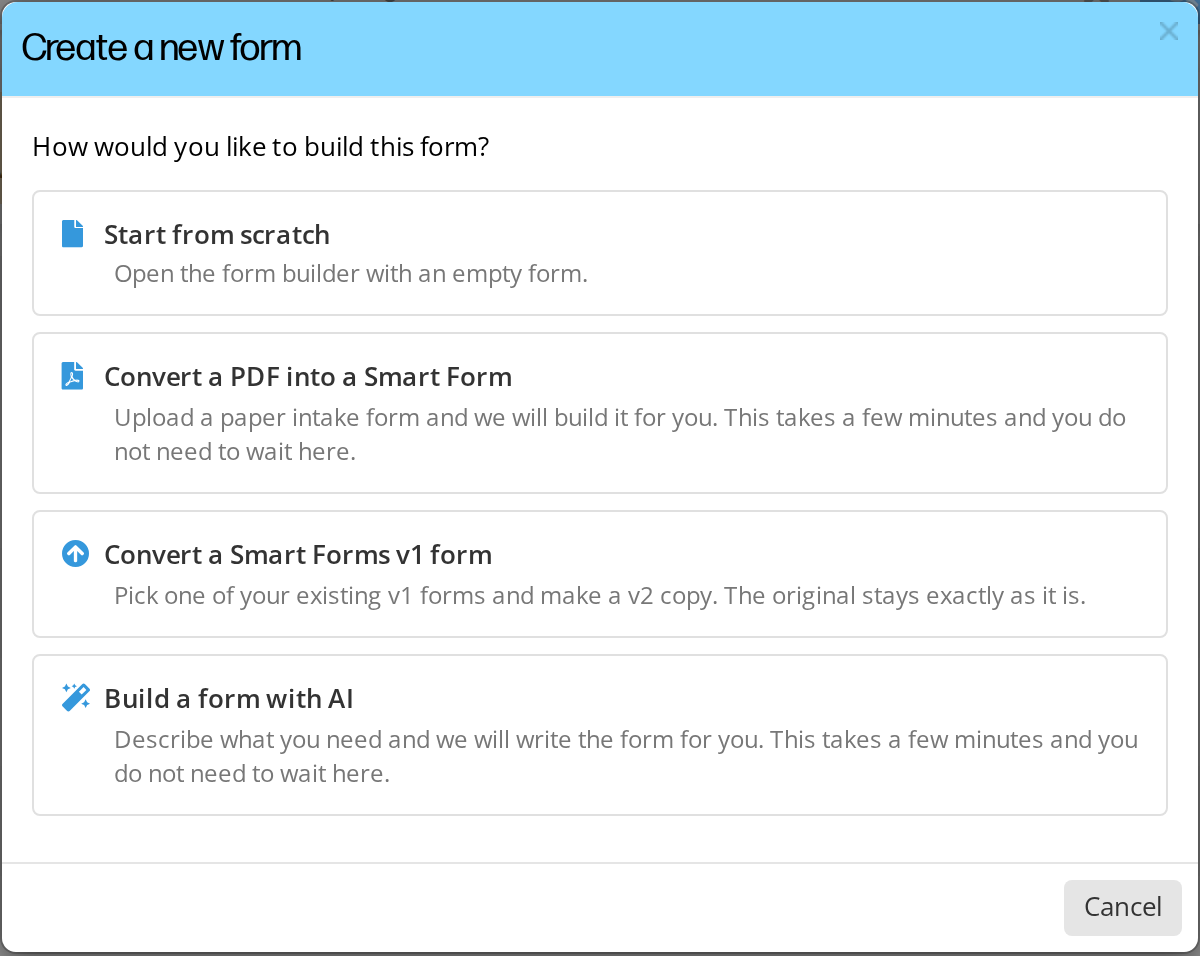
The Create a new form window. Convert a PDF into a Smart Form opens your computer's file picker.
The largest PDF OutSmart can convert is 20 MB. If your file is larger, OutSmart says so and does not upload it. Scanned forms are usually the large ones, and saving the scan again at a lower resolution usually brings it under the limit.
While it works
Building the form takes a few minutes, so it runs in the background. You do not have to sit and wait on the page.
A row appears in your Smart Forms list showing that OutSmart is building your form from this PDF. You can leave the page, work on something else, and come back to it. When it finishes, the new form appears in your list ready to edit. If the Smart Forms list is open when the form finishes, or the next time you open the list, the editor opens the new form for you. When two or more forms finish at the same moment, the editor does not open, and you choose the form from the list.
If something goes wrong, the row tells you why. You can dismiss it, and it clears itself after a day either way.
What to check before you send it
A converted form is a draft. It is much faster than starting from nothing, but the PDF was written for paper and some things do not carry across cleanly. Open it in the editor and check:
- Question types. A checkbox on paper might come across as a single choice where you wanted several, or the other way around.
- Answer choices. Make sure every option that was on the page is there, and that nothing has been merged.
- Required questions. Nothing on a PDF says which answers are compulsory, so set those yourself.
- Instructions and headings. Text that is guidance rather than a question is better as a Text block, so it is not recorded as an answer.
- Consent and policy wording. Check this especially carefully. It is your clinic’s wording and it carries weight, so read it against your original rather than assuming it came through intact.
The form is yours to edit until the first time you send it to a patient. After that it locks. See Editing A Smart Form.
Related Pages
- Building A Form With AI. Describe the form you want instead of uploading one.
- Converting A SmartForms V1 Form. Bring an existing SmartForms V1 form across.
- Creating A Smart Form. Build one from scratch in the editor.
- The Form Editor. The toolbox, the form canvas, and the property panel.
- Question Types Reference. Every question type, and what each one does.