

Fulfilling an Order
Once a practitioner places an order, it is at the Submitted step and it is the dispensary staff’s turn. This page explains how the dispensary staff review the order, begin fulfilling it, pack it, and move it on to Ready, and how to take an order back a step when something needs to change.
The dispensary staff are the dispensary owner and the staff who have full access to the dispensary. Only they can move an order from one step to the next. Orders explains all the steps of an order.
Shipping the order, or having the client pick it up, is the last part of the work. Shipping or Pickup: the Ready Step explains it.
Finding the Orders Waiting for You
Open your dispensary and click Transactions in the menu along the top. The Fulfillment column shows the step each order has reached, and the Actions column at the right end of each row has a button that opens the order:
| Fulfillment step | Button in the Actions column | What it opens |
|---|---|---|
| Submitted | An arrow, Review Order | The order screen, where the order can still be changed |
| In Progress | An open box, Continue Packing | The order’s printout |
| Ready, Shipped or Picked Up | An eye, View Order | The order’s printout |
Hover over a button to see its name. Transactions Page explains the rest of the list.
Reviewing a Submitted Order
A Submitted order opens in the order screen. Check the products, the quantities and the prices, and change anything that needs changing. You can also choose pickup or shipping in the Delivery dropdown, if the practitioner did not. Click Save to keep your changes.
The step bar at the bottom of the order screen gives you three ways forward:

The step bar of a Submitted order, as the dispensary staff see it. The blue arrow begins fulfillment, the outlined Draft dot reverts the order to a draft, and the red X deletes it.
- The blue arrow at the right end of the bar is Begin Fulfillment. The next section explains it. Clicking the In Progress dot does the same thing.
- The Draft dot is Revert to Draft. It saves the order and moves it back to Draft, so that the practitioner can change it and place it again.
- The red X at the left end of the bar is Delete Order. You are asked to confirm. The order is then deleted and no longer counts in your sales or stock. The client is not emailed.
When the client has already paid for the order by card through OutSmart Pay, the order cannot be deleted or reverted to a draft. The red X then does Cancel and Refund instead: hover over it to see the amount it refunds to the client’s card. Cancelling an Order explains it.
Beginning Fulfillment
Click the blue arrow at the right end of the step bar. The order is saved first.
When the order has been paid in full, it moves straight to In Progress. When there is still a balance owing, a window titled Outstanding Balance Options opens and asks what you would like to do about the payment.
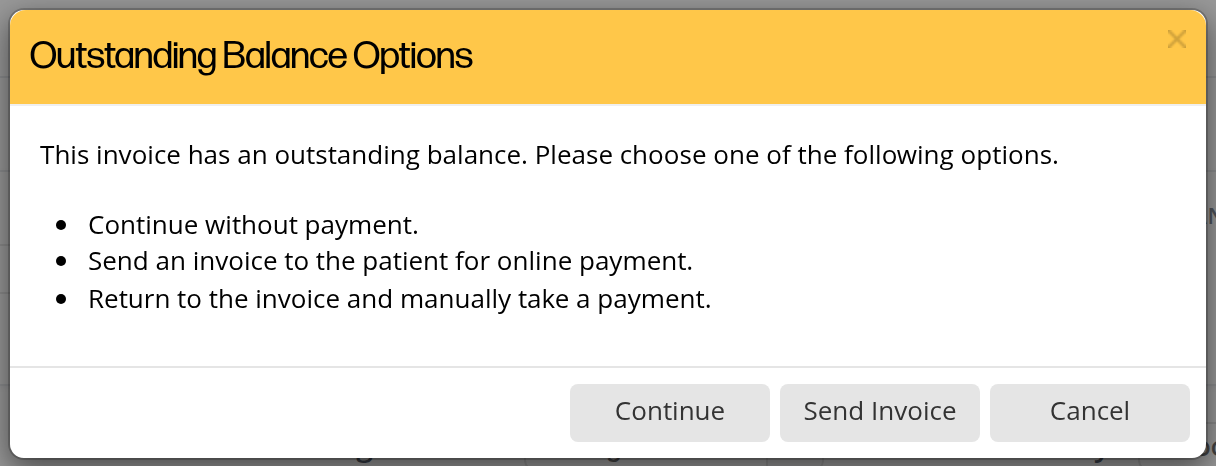
The window that opens when you begin fulfilling an order that has not been paid in full. Choose whether to continue, email the client an invoice they can pay online, or take the payment first.
| Button | What happens |
|---|---|
| Continue | The order moves to In Progress without a payment. The balance stays on the order, and the client can pay it later. |
| Send Invoice | A window titled Send Invoice To Client opens, with the invoice attached and a Pay Online button in the email. When you send it, the order moves to In Progress and the client can pay the balance by card. |
| Cancel | The window closes and the order stays at Submitted, so that you can take the payment first. Taking Payments on an Invoice explains how. Then click the blue arrow again. |
Once the order is at In Progress, it opens on its printout. The printout’s title changes from Order Request to Invoice, and the Delivery box shows whether the order is to be picked up or shipped.
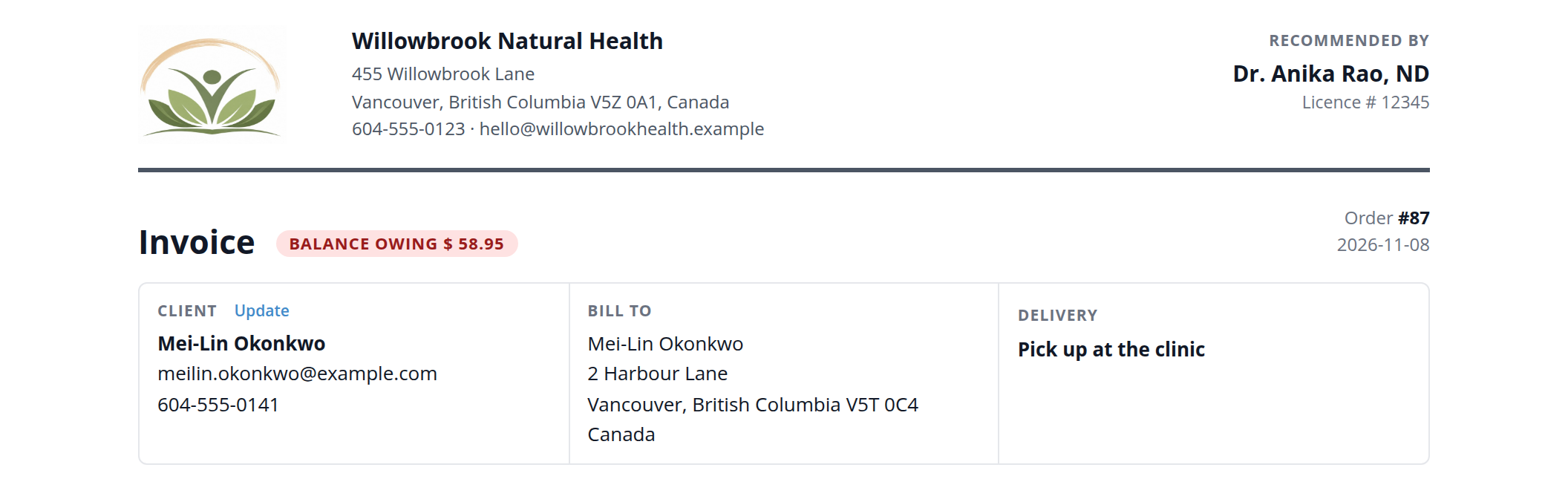
An order's printout once fulfillment has begun. The title is Invoice, and the Delivery box tells the dispensary staff how the order leaves the clinic.
Packing the Order and Marking It Ready
While the order is at In Progress, the dispensary staff pick and pack the products. The order can no longer be changed in this step.
When the order is packed, click the blue arrow at the right end of the step bar. Its name is Packing Completed. Clicking the Ready dot does the same thing.

The step bar of an order at In Progress. The blue arrow is Packing Completed, which moves the order to Ready.
The order moves to Ready straight away, without a confirmation. A card appears at the top of the printout where you ship the order or tell the client it is ready to be picked up. Shipping or Pickup: the Ready Step explains that card.
Taking an Order Back a Step
Sometimes an order needs to go back a step, for example when a product is out of stock and has to be changed. The dots of the step bar that are outlined in blue are the steps you can take the order back to.
| The order is at | Click | The order goes back to | What it is called |
|---|---|---|---|
| Submitted | The Draft dot | Draft, so that the practitioner can change it and place it again | Revert to Draft |
| In Progress or Ready | The Submitted dot | Submitted, and the order screen opens so that you can change the order | Order Review |
| Shipped or Picked Up | The Ready dot | Ready, so that you can ship it or hand it over again | Shipping / PickUp |

The step bar of an order at Ready. The Submitted dot is outlined in blue, because Order Review can take the order back to Submitted.

The step bar of an order that has been picked up. The Ready dot is outlined in blue, so the order can be taken back to Ready if it was marked by mistake.
Turning an Invoice into an Order
An order management dispensary also makes invoices, which have no steps. Sometimes an invoice turns out to need packing or shipping, for example when the client decides to have the products delivered. You can turn that invoice into an order.
- Open the invoice in the order screen.
- Click Other options in the bar at the bottom of the screen.
- Click Begin Fulfillment.
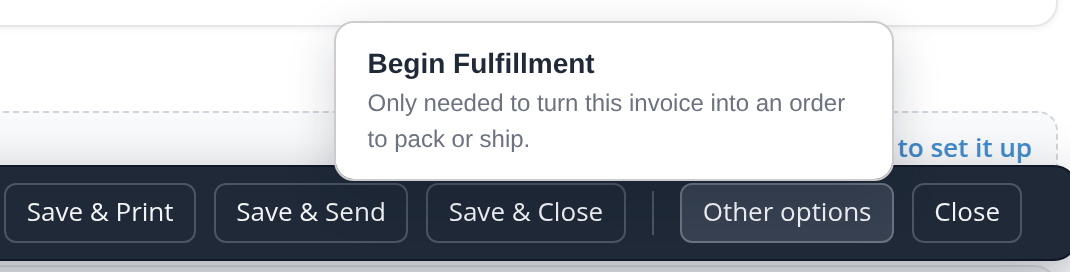
The Other options menu on an invoice. Begin Fulfillment turns the invoice into an order and moves it to In Progress.
The invoice becomes an order at In Progress, and from then on it goes through the steps like any other order. The Outstanding Balance Options window opens first if there is still a balance owing.
Troubleshooting
There is no red X on the order
An order can only be deleted while it is a draft or Submitted. To delete an order at In Progress or Ready, take it back to Submitted with Order Review, then click the red X. When the client paid for the order by card through OutSmart Pay, use Cancel and Refund instead, which Cancelling an Order explains.
The dots of the step bar cannot be clicked
When a practitioner has asked for the order to be cancelled, the order cannot be moved until the request is answered. A Cancellation Requested banner is shown on the order. Approve or decline the request first, as Cancelling an Order explains.
The Prepare Dispensary Order and Begin Fulfillment buttons are missing
Only an order management dispensary takes orders, and only the dispensary staff can move an order from one step to the next. Dispensary Permissions explains how the dispensary owner gives staff full access.
Related Pages
- Orders: the steps of an order and who moves it from one step to the next.
- Placing a Dispensary Order: how an order is prepared and placed.
- Shipping or Pickup: the Ready Step: shipping the order or having the client pick it up.
- Cancelling an Order: requests to cancel, and Cancel and Refund.
- Taking Payments on an Invoice: recording a payment before or during fulfillment.