

Setting Up Payment Processing with OutSmart Pay
OutSmart Pay is the credit card processing built into OutSmart. Once it is set up for your dispensary, you can take card payments from patients on invoices, collect deposits and full payments when patients book online, and save a card on a patient’s file for later.
Money taken through OutSmart Pay is deposited into the bank account your clinic gave us when the account was set up.
OutSmart Pay sends a bank deposit once a day, on business days. Each card payment waits about seven days before it is included in a bank deposit, so a payment you take today usually reaches your bank about a week later.
Setting Up OutSmart Pay
Setting up OutSmart Pay takes two steps. The dispensary owner fills in a form in the dispensary, and then OutSmart verifies the account and turns it on.
Step 1: Fill in the form
You must be signed in as the dispensary’s owner: either the practitioner who created the dispensary, or the owner of the office the dispensary belongs to.
- Open your dispensary.
- Click Dispensary Settings in the menu along the top of the dispensary, then click Billing Settings.
- Fill in the form under OutSmart Pay Settings:
- Account No and Route No: the bank account your card payments are deposited into, and its routing number.
- Company: your clinic’s business name, and its tax number.
- Company’s Address: your business address.
- Representative: the first name, last name and date of birth of the person responsible for the account.
- Representative’s Address: that person’s address.
- Read the Terms and Conditions, and check I agree to the Terms and Conditions. The Save button appears.
- Click Save. A message at the top right says the account is saved.
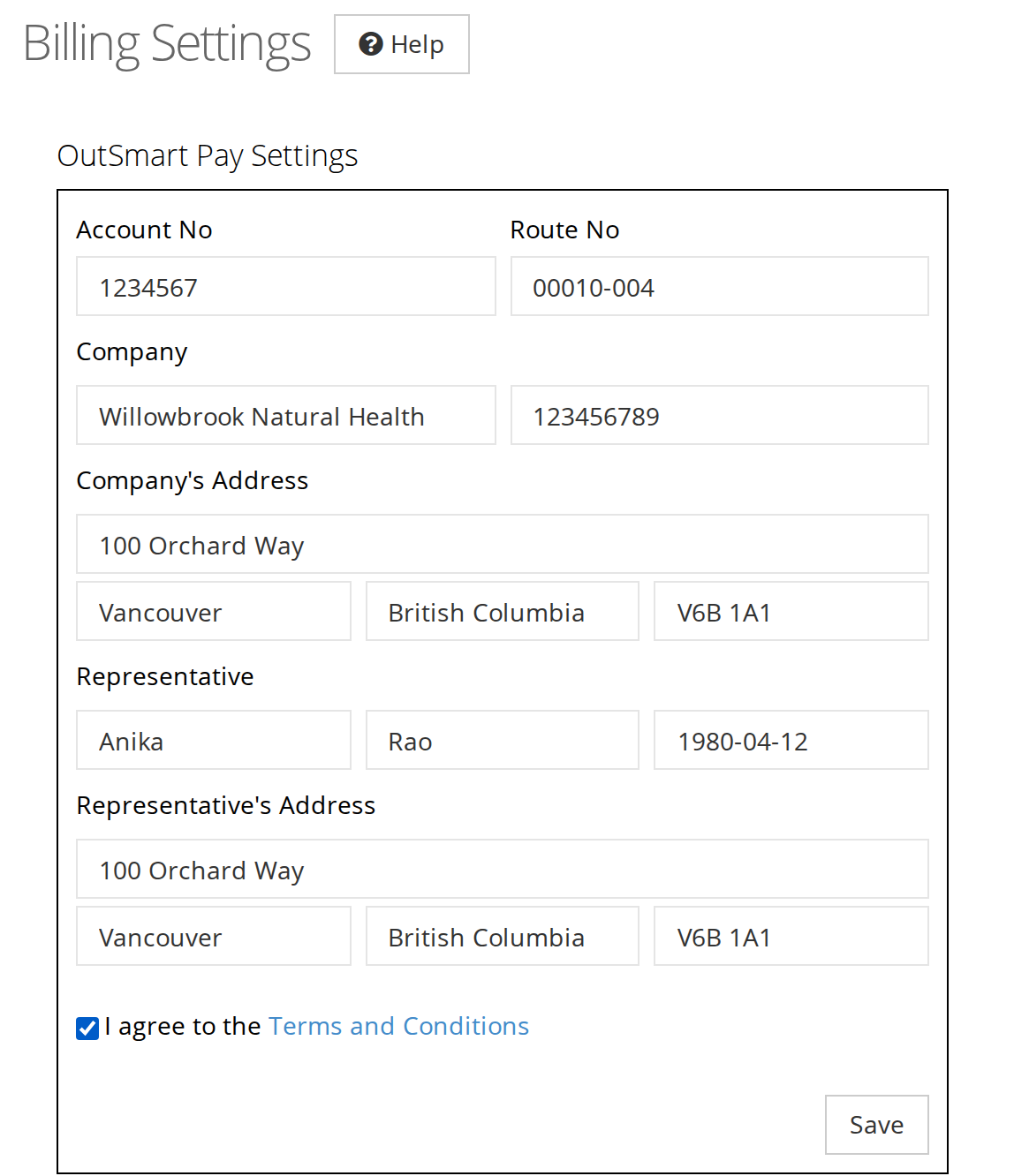
The OutSmart Pay form on the Billing Settings page. Save appears once you agree to the Terms and Conditions.
Step 2: Let us know
Contact us at contact.outsmartemr.com to say the form is filled in, and which dispensary it is for. We verify the account and turn it on. Until then, the dispensary cannot take card payments through OutSmart Pay.
What OutSmart Pay Does in the Dispensary
Once OutSmart Pay is set up for a dispensary, these are the ways it takes and gives back card payments on invoices and orders. Each one has its own page.
| What you can do | Where | Page |
|---|---|---|
| Charge the client’s card for an invoice or order | The Process Payment with OutSmart button on a card payment line | Taking Payments on an Invoice |
| Let the client pay from their email | The Pay Online button in the invoice email | Emailing and Printing an Invoice |
| Put the Pay Online button in invoice emails by default | Dispensary Settings > Preferences | Dispensary Preferences |
| Give back a card payment that came to more than the invoice | The orange Refund $X to the card button on the invoice, where $X is the amount overpaid | Refunding an Overpayment on an Invoice |
| Give money back to the card after the sale | A refund transaction, with Refund via OutSmart Pay | Creating Refunds and Store Credit |
| Cancel an order that was paid by card | The Cancel and Refund button on the order | Cancelling an Order |
A card-paid invoice cannot be deleted
When an invoice or order has a payment taken through OutSmart Pay, the money is in your clinic’s account, and the only way to give it back is to refund the card. For this reason:
- The invoice’s Delete button is crossed out. Hover over it to see why.
- An order cannot be put back to Draft.
To give the money back, create a refund transaction. In an order management dispensary, the Cancel and Refund button refunds the card and cancels the order in one step.
When OutSmart Pay Is Not Set Up
When a dispensary does not have OutSmart Pay yet, clicking Process Payment with OutSmart on an invoice opens a window titled OutSmart Pay is not set up. It says that the dispensary owner sets up OutSmart Pay before card payments can be taken, and its How to set up OutSmart Pay button opens this page. The owner follows Setting Up OutSmart Pay above.
Until it is set up, you can still record card payments taken on your own card machine. Choose the card in SELECT PAYMENT METHOD, check the amount, and click Save.
Changing the bank account your deposits go into
You cannot change the bank account yourself from inside OutSmart. Contact us at contact.outsmartemr.com and we will make the change for you.
This is deliberate. The bank account is where your clinic’s money goes, so changing it needs a verified request rather than a setting anyone with access to your account could alter.
Have the new account details ready when you get in touch, and let us know which dispensary the change is for if your clinic has more than one.
Related Pages
- OutSmart Pay Money Flow Report. Which payments made up each bank deposit, and what to check when a payment is not in your bank account.
- Payments Overview. How patients pay when booking online.
- Deposits. Taking a partial payment at the time of booking.
- Card Registration. Saving a card on file without charging it.
- Saved Cards. Charging a card the patient has already used.
- Taking Payments on an Invoice. Charging a card on an invoice.
- Creating an Invoice. The invoice screen.