

Sending Smart Forms To Patients
There are four ways to get a SmartForms V2 form to a patient: attach it to an event type so it goes out on its own when the patient books, send it directly to one patient by email, hand them a tablet to fill it in while they are with you, or generate a public guest link that anyone can fill out without logging in. All four produce a real submission on the patient’s record.
Send to a specific patient
Use this when you know which patient should fill in the form.
From the form list:
- Open Smart Forms > Smart Forms v2.
- Find the form and click the paper plane icon. A window titled Send: followed by the form’s name opens.
- Under Who is sending this form?, check the Office and the Practitioner.
- Under Give this form to a patient, pick the Patient and check their Email. Changing the email here also changes it on the patient’s record.
- Click Send form.
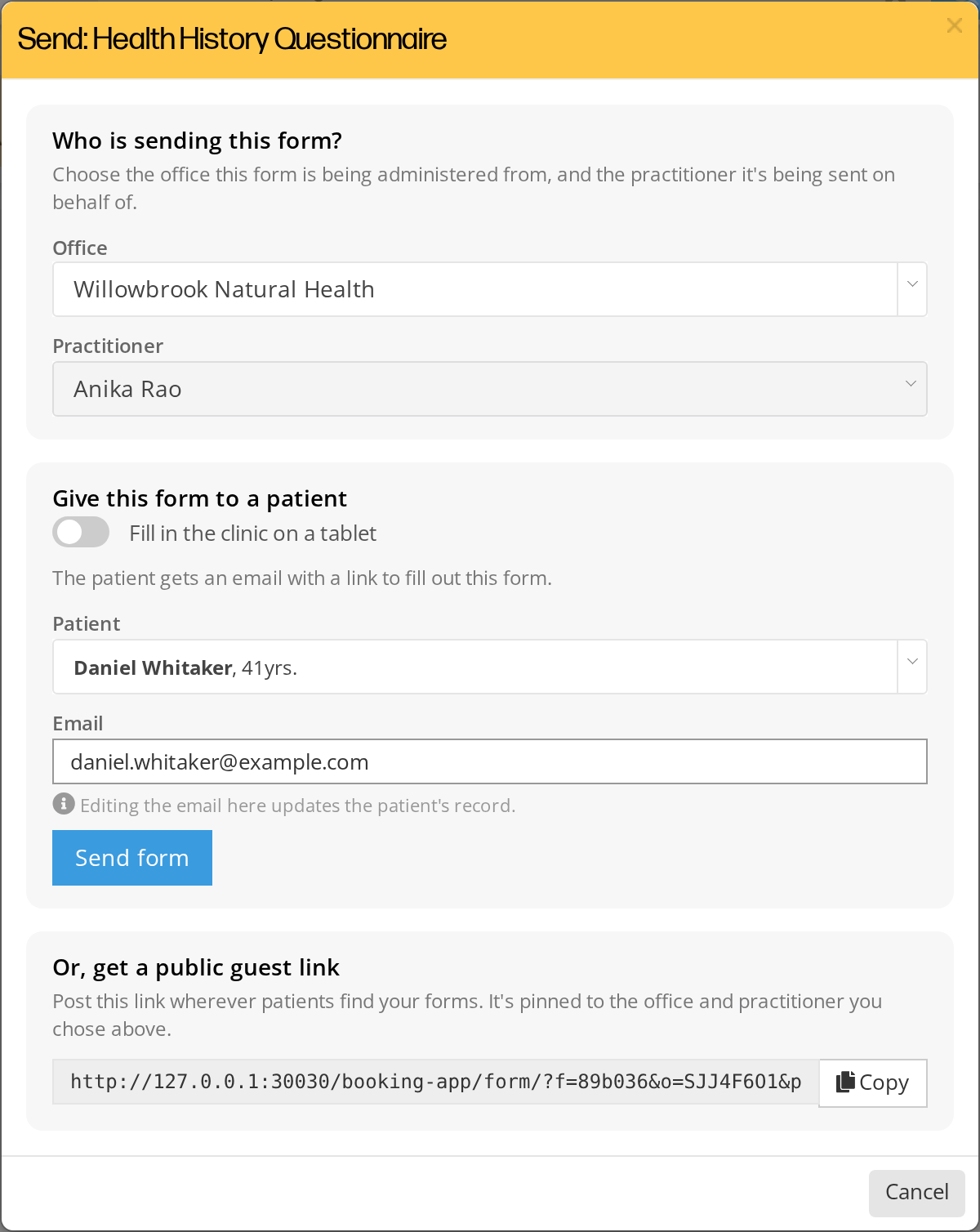
The Send window opened from the form list. The guest link section at the bottom appears only when you send from the form list.
From the patient’s record:
- Open the patient’s record and go to the Smart Forms tab.
- Click Send Form to Patient. A window titled Send form opens with the patient already filled in.
- Check the office and practitioner, pick the Form, and check the patient’s Email.
- Click Send form.
The patient receives an email with a link from your clinic. They have 60 days to click the link, and once they open it, 90 days to fill out and submit the form. They click it, fill the form in their browser, and submit. You see the submission on their workspace right away. See Expiries And Link Timing for the full timing rules and how to extend a patient’s time.
Hand the patient a tablet
If the patient is with you, they can fill in the form on a clinic tablet instead of by email. In the send window, turn on Fill in the clinic on a tablet, click Show QR code, and scan the code with the tablet.
No email is sent and the patient does not need an email address on file, which is what makes this the answer for a walk-in. See Filling A Form In The Clinic.
Choose which practitioner sends it
Every send window starts with Who is sending this form?, which asks for the office the form is sent from and the practitioner it is sent on behalf of. The practitioner’s name appears in the patient’s email, and the practitioner’s photo, name and credentials appear at the top of the form when the patient opens it.
If you are an admin, the Practitioner list shows the practitioners linked to your office, and you pick the one you are sending for. If you are a practitioner, the form is always sent on your behalf, and you pick which of your offices it comes from.
Generate a public guest link
A guest link is a single web address that anyone can use to fill in the form. It suits:
- A “New Patient Intake” link posted on your clinic’s website.
- A QR code at the front desk.
- Outreach to many people, when you do not want to email patients one at a time.
To get one:
- Open Smart Forms > Smart Forms v2, find the form, and click the paper plane icon. The guest link is offered only from the form list, not from the patient’s record.
- Under Who is sending this form?, choose the office and practitioner the form should belong to. The link is tied to them.
- Under Or, get a public guest link, click Copy, and share the link wherever you like.
Each patient’s individual link is valid for 90 days from the moment they enter their credentials and start the form. The public guest URL itself doesn’t expire, so anyone with the URL can use it to start a new form. See Expiries And Link Timing.
What the patient sees when they open a guest link:
- A page showing the practitioner’s photo, name and credentials, your office’s name, and the form’s name.
- A short form asking for their first name, last name, email and date of birth, with a Start Form button.
- After they click Start Form, they get an email with a personal link back to their form.
- They fill in the form and submit it.
When the patient clicks Start Form, OutSmart looks for an existing patient in your office with the same first name, last name and date of birth. If it finds one, the submission goes on that patient’s record. If it does not, OutSmart creates a new patient record when the form is submitted.
What the email looks like
The practitioner’s name is in the From field of the email, followed by “via OutSmart”. The subject reads:
- For direct sends, “[Practitioner Name] has sent you a form to fill out: [Form Name]”
- For guest-link starts, “You started a new form: [Form Name]”
The form’s name is in the subject, so two different forms from the same practitioner arrive as separate emails instead of being grouped into one thread in the patient’s inbox. Emails Reference describes every email the patient can receive.
What happens after the first send
The first time anyone sends the form to a patient, by email, on a clinic tablet or through an online booking, the form becomes locked for editing. A patient starting the form from a guest link does not lock it. You can keep sending a locked form to more patients, but to change its questions you duplicate it and edit the copy. See Editing A Smart Form.
Resend if a patient loses the email
If a patient says they lost the link or can’t find the email:
- Open Smart Forms > Smart Forms v2 and click the Assignments tab.
- Find the patient’s row.
- Click the bell icon to email them a reminder with the same link. The deadline does not change, and the patient carries on where they stopped.
The bell is also on the patient’s Smart Forms tab, on forms that are not finished. It is not shown on a form that is submitted, expired or being filled in on a clinic tablet.
If the patient needs more time, or the link has already expired, click the clock icon instead of the bell. Before the link expires, the clock icon moves the deadline out and the patient keeps the same link. After it expires, the clock icon emails the patient a new link and keeps the answers they saved. See Expiries And Link Timing.
Related Pages
- Adding SmartForms V2 To An Event Type. Send intake forms automatically on booking instead of one at a time.
- Filling A Form In The Clinic. Hand a patient a tablet, or let them finish a form they already started.
- Patients Filling Out A Smart Form. What the patient experience looks like end to end.
- Viewing Smart Form Submissions. Where submissions show up after the patient submits the form.
- Sharing Smart Forms With Other Practitioners. Let colleagues send your forms to their own patients.
- Editing A Smart Form. What to do when you need to change a locked form.
- Expiries And Link Timing. How long the email link stays valid.
- Emails Reference. Every email the system sends, who gets each one, and what triggers it.