

Creating an Invoice
An invoice transaction is a bill for one client. It lists the products and services the client is paying for, the payments they make, and the balance still owing. Both regular dispensaries and order management dispensaries make invoices in exactly the same way.
This page explains how to start an invoice, what each part of the invoice screen is for, and how to add the products and services. Taking Payments on an Invoice explains the payments, and Emailing and Printing an Invoice explains how the invoice reaches the client.
Starting an Invoice from the Daily Express Checkout Card
The Daily Express Checkout card on your dashboard lists the patients who have an appointment, or a SOAP chart, on the day shown at the top of the card. Starting an invoice from the card fills in the client, and can add the patient’s appointments and charted items for you.
- Click the patient’s name on the Daily Express Checkout card. Their row opens.
- Click each appointment under Select Services, and each item under Select Items, that you want on the invoice. A selected appointment or item is highlighted in yellow. Click it again to leave it off.
- Click the green New Invoice button in the Invoices column.
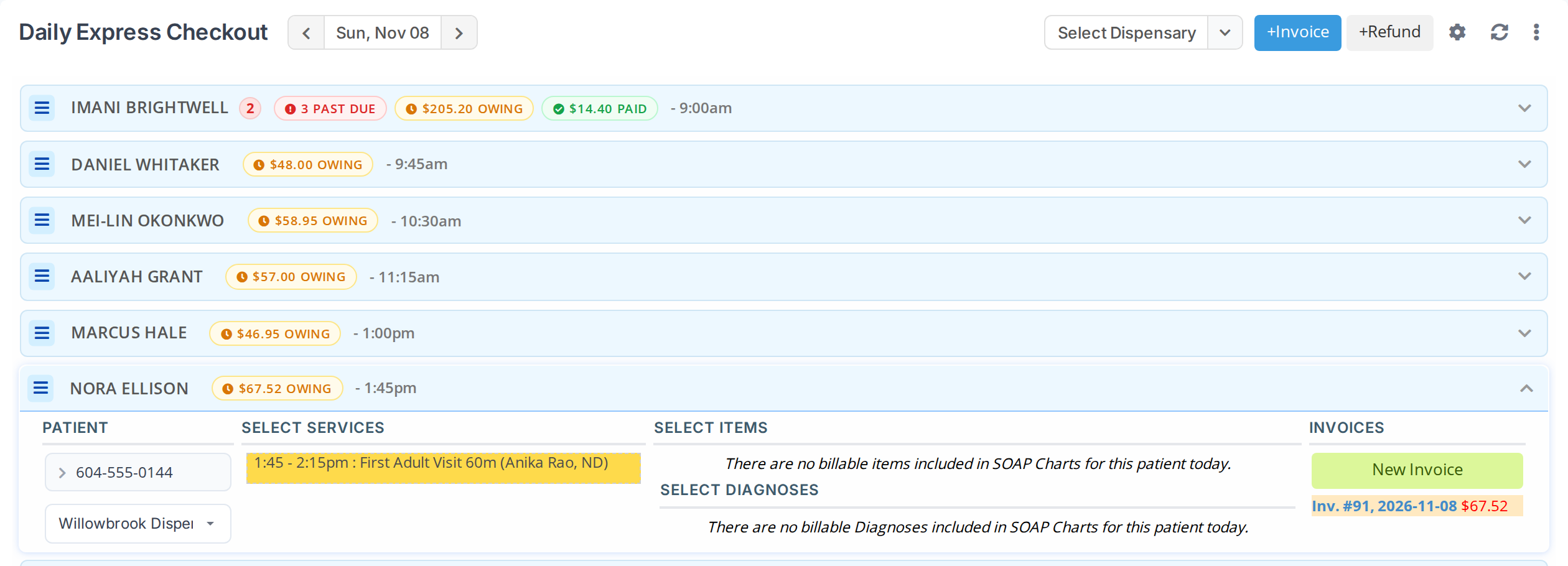
A patient's row on the Daily Express Checkout card, with today's appointment selected. New Invoice opens an invoice with the client filled in and the selected appointment added as a line.
The invoice opens in a new window. The appointments and items you selected are already on it, and the practitioner is filled in from the appointment.
When you have more than one dispensary, the dropdown under the patient’s contact details, in the Patient column, shows which dispensary the invoice is for. Choose the dispensary there before you click New Invoice.
Starting a blank invoice
For a client who is not listed on the card, such as someone buying a product without an appointment, click the blue +Invoice button at the top right of the Daily Express Checkout card. A blank invoice opens. Choose the client in the Client dropdown, which searches as you type.
The Invoice Screen
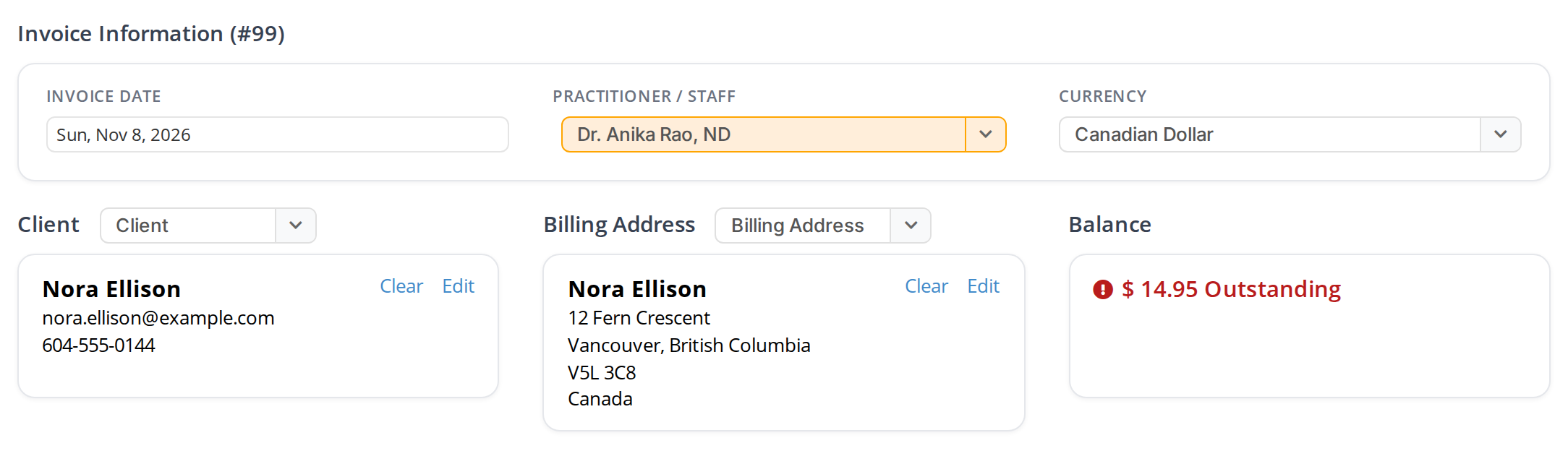
The top of the invoice screen. The client, billing address and practitioner come from the patient's record and the appointment, and the Balance box shows what is still owing.
| Section | What it is for |
|---|---|
| Invoice Information | The invoice’s number, its Invoice Date, the Practitioner / Staff the invoice is for, and its Currency. Click the date to change it. |
| Client | The person the invoice is for. The dropdown beside the heading chooses another client. Clear removes the client, and Edit opens the client’s name and contact details so you can correct them. |
| Billing Address | The address printed on the invoice. The dropdown beside the heading chooses another address the client has. |
| Balance | How much is still owing, shown in red until the payments cover the total. |
| Products and Services | The lines of the invoice. The next section explains them. |
| Telus Health Direct Billing | Billing an insurer directly, when your clinic has set it up. Telus Health Insurance explains it. |
| Memo | A note printed on the invoice. |
| Payments | The payments the client makes. Taking Payments on an Invoice explains them. |
In a regular dispensary, two more sections at the bottom of the invoice, Upcoming Events and Statement of Account, show the client’s next appointments and their account. Click either heading to open it.
Adding Products and Services
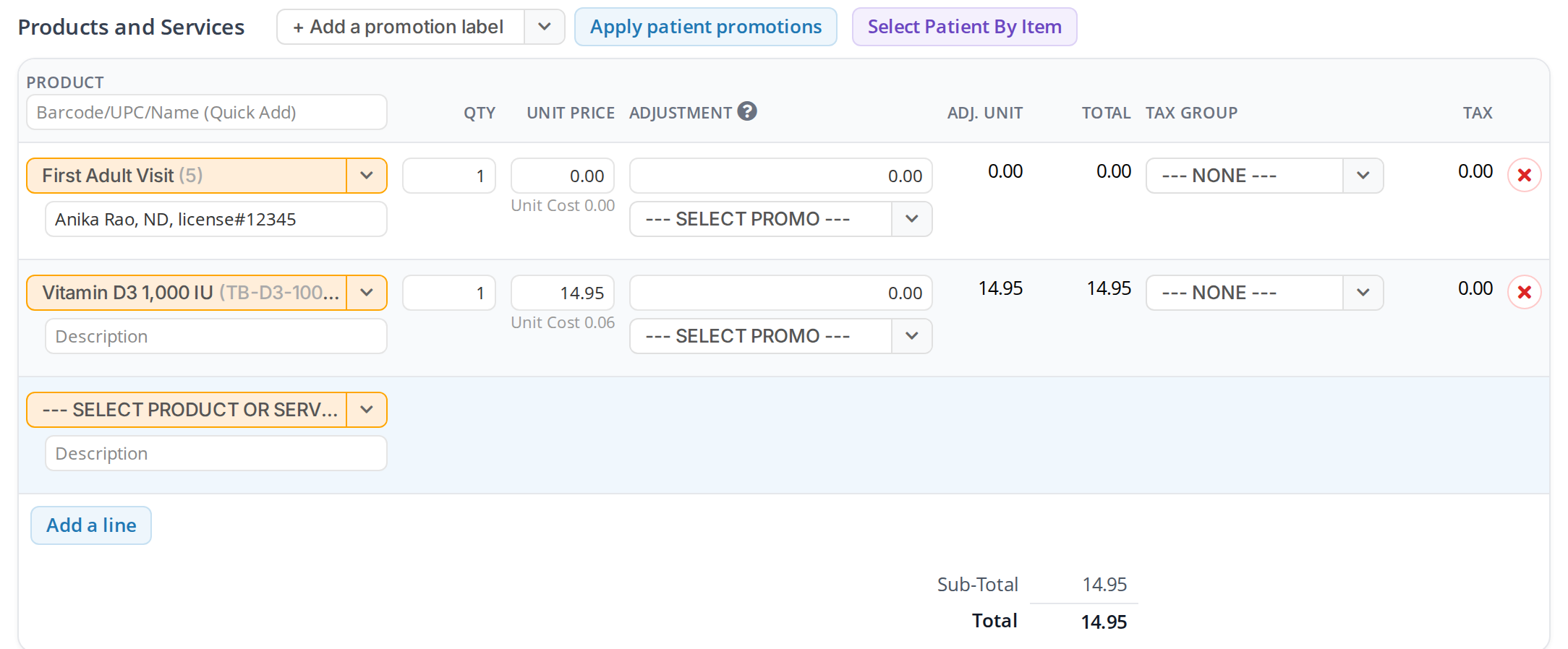
The Products and Services section. Each line has its quantity, unit price, adjustment and tax group, and the totals are worked out for you.
There are two ways to add a product or service:
- Choose it from the list. Click the orange SELECT PRODUCT OR SERVICE box on the empty line at the bottom, type part of the name, and choose the product. A new empty line appears underneath for the next one.
- Scan or type it. Click in the Barcode/UPC/Name (Quick Add) box at the top of the list, then scan the product’s barcode, or type its name and press Enter. The first product that matches is added as a line.
On each line:
| Column | What it is |
|---|---|
| QTY | How many the client is buying. |
| UNIT PRICE | The price of one. It comes from the product list, and you can change it for this invoice. |
| ADJUSTMENT | A change to the price of one unit, explained below. The SELECT PROMO dropdown underneath chooses one of the dispensary’s promotions instead. |
| ADJ. UNIT | The price of one unit after the adjustment. |
| TOTAL | The adjusted unit price times the quantity. |
| TAX GROUP | The taxes charged on this line. It comes from the product, and you can change it for this invoice. |
| TAX | The tax on this line. |
To remove a line, click the red X at its right end. To add another empty line, click Add a line.
The Adjustment column
The Adjustment box changes the price of one unit on that line. For a unit price of 20.00:
| Type | What it does | Adjusted unit |
|---|---|---|
| -5 | Takes 5.00 off each unit | 15.00 |
| 5 | Adds 5.00 to each unit | 25.00 |
| %10 | Takes 10% off each unit | 18.00 |
| 0 | No change | 20.00 |
A percent sign at the start makes it a percentage. A number on its own is an amount of money. The question mark beside the ADJUSTMENT heading shows the same explanation on the screen.
Promotions and patient labels
The Apply patient promotions button applies the promotions the client is entitled to through their patient labels, line by line. + Add a promotion label gives the client a label from the invoice. Promotions and Discounts explains how promotions and labels work.
Select Patient By Item is for an invoice that pays for more than one patient’s products, such as a parent paying for their children. Managing Existing Invoices explains it.
Saving the Invoice
The dark bar along the bottom of the invoice screen has the buttons for saving the invoice and for what to do next.

The bar at the bottom of an invoice. Every Save button saves the invoice first, then does what its name says.
| Button | What it does |
|---|---|
| Save | Saves the invoice and keeps it open. |
| Save & Print | Saves the invoice and opens its printout. |
| Save & Send | Saves the invoice and opens a window to email it to the client. |
| Save & Close | Saves the invoice and closes the window. |
| Close | Closes the window. |
| Refund | Creates a refund transaction for this invoice. Creating Refunds and Store Credit explains it. |
| Delete | Deletes the invoice, after asking you to confirm. Managing Existing Invoices explains it. |
While there are changes that have not been saved, the words Unsaved changes appear at the left of the bar.
In an order management dispensary, the bar also has an Other options button. Its Begin Fulfillment option turns the invoice into an order, for when it turns out to need packing or shipping. Fulfilling an Order explains it.
Troubleshooting
The patient is not on the Daily Express Checkout card
The card lists the patients with an appointment or a SOAP chart on the day it shows. Use the arrows beside the date to go to the right day, or click +Invoice to start a blank invoice.
The appointment was not added to the invoice
Only the appointments and items that are highlighted in the patient’s row are added. Open the row again, click the appointment so that it is highlighted, then click New Invoice. On an invoice that is already open, add the service from the product list instead.
A product’s price or tax is wrong on every invoice
The unit price and tax group on the invoice come from the product list. Change them there for future invoices. Managing Dispensary Items explains how.
Related Pages
- Taking Payments on an Invoice: recording the client’s payment, including card payments through OutSmart Pay and store credit.
- Emailing and Printing an Invoice: Save & Send, Save & Print and the printout.
- Managing Existing Invoices: finding, changing and deleting invoices.
- Creating Refunds and Store Credit: giving a client money back after the sale.
- The Dispensary: invoice, order and refund transactions.