

Patient Correspondence (AI)
The Patient Correspondence tool can draft a letter for you from the patient’s chart. You pick the kind of letter you’re writing (Referral, Update, Consultation, or Clinical Care Request), optionally add a short note about what to emphasize, and the AI produces a first draft you then review, edit, sign, and finalize.
The AI side of the tool is optional. If you’d rather write the letter from scratch, turn the AI toggle off and start typing in the editor. This page focuses on the AI workflow. For the rest of the tool (entry button, setup row, editor, signature, save and finalize, draft list), see Patient Correspondence Tool in Document Management.
Where the AI sits in the workflow
After you’ve picked a letter type and filled in the date, patient, and recipient, you reach the Generate with AI toggle. It defaults to ON, but the AI panel is collapsed behind the toggle so it stays out of the way.
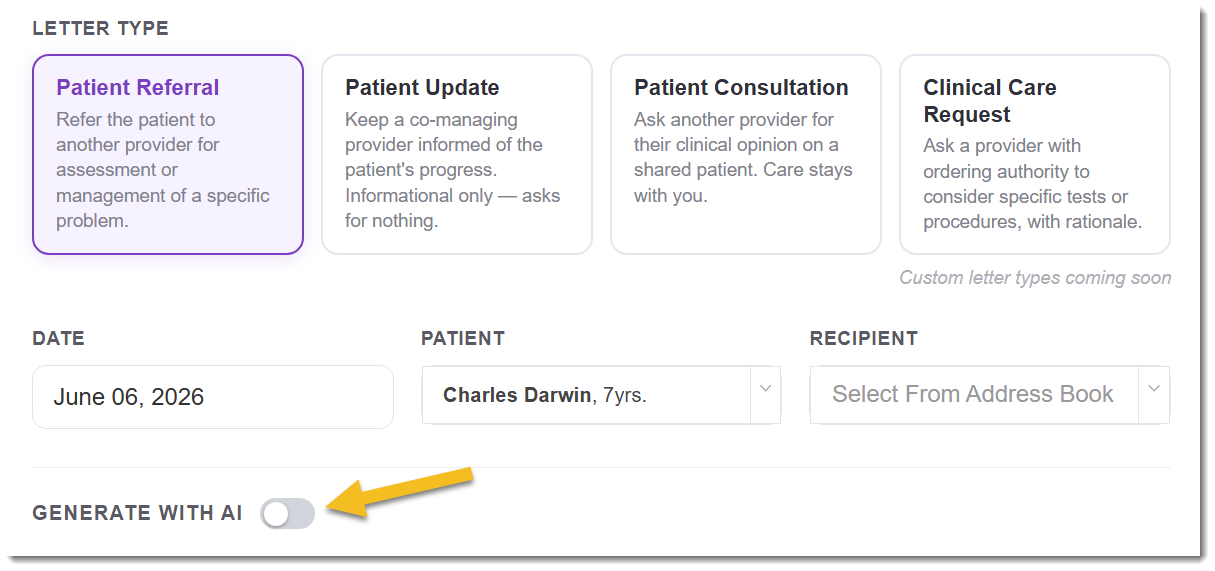
The setup panel. The Generate with AI toggle at the bottom controls whether the AI panel appears. Off means the panel is collapsed; on opens the panel below.
- Toggle on (default). The AI panel opens and you can draft the letter with AI.
- Toggle off. The panel collapses and you write the letter from scratch in the editor below.
OutSmart remembers your toggle choice per user, so if you turn it off once, the panel stays collapsed on every future letter until you turn it on again.
What the AI writes, by letter type
The letter type you picked at the top of the builder controls more than just the page heading. It tells the AI what kind of letter to write.
| Letter type | What the AI drafts |
|---|---|
| Patient Referral | A handoff letter. Names the problem, summarises the relevant clinical context, and asks the recipient to take on assessment or management of the specified issue. |
| Patient Update | An informational letter to a co-managing provider. Summarises progress since the last update, mentions changes to medications or working diagnoses, and closes without asking the recipient to do anything. |
| Patient Consultation | A letter asking for the recipient’s clinical opinion on a shared patient. Names the question, summarises the relevant context, and makes clear that care stays with you. |
| Clinical Care Request | A letter to a provider with ordering authority asking them to consider specific tests, imaging, or procedures, with the clinical rationale for the request. |
Picking the right type matters. A consultation written as a referral reads as a handoff the recipient may not expect. A clinical care request written as an update doesn’t actually ask for anything. The type gives the AI a structural template that fits the situation.
The AI panel
When the toggle is on, the AI panel opens below the setup row.
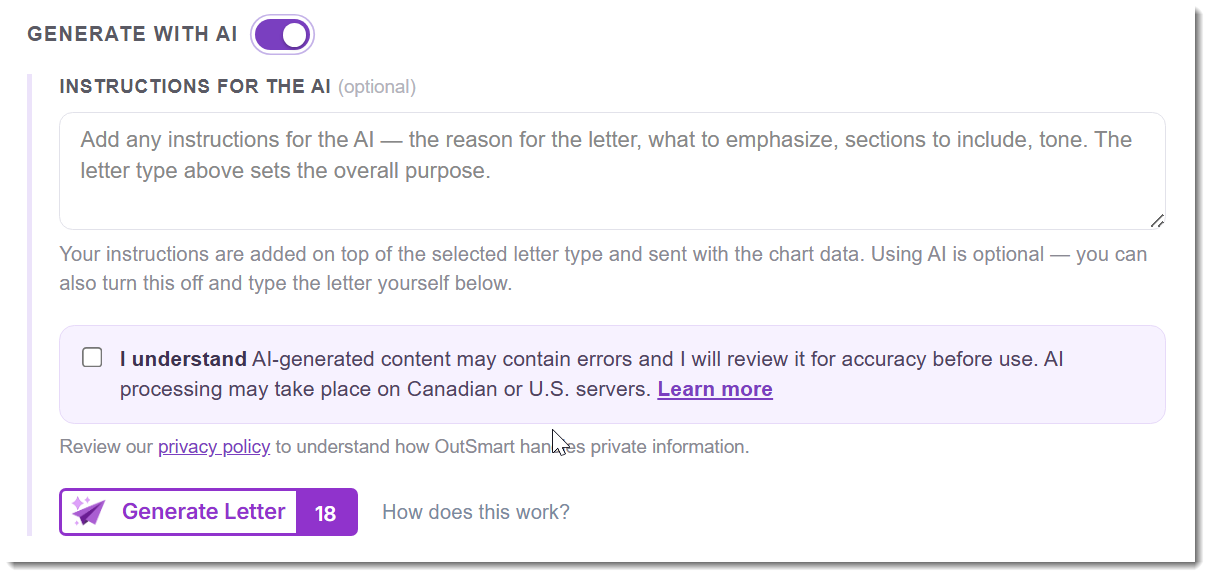
The AI panel. The instructions field is optional and lives on top of the letter type. The acknowledgment is required before the Generate Letter button works.
The panel has four parts:
- An instructions textarea (optional). Where you write specific guidance for the AI on top of the letter type.
- The acknowledgment. A checkbox confirming you’ll review the AI output for accuracy and that processing may happen on Canadian or U.S. servers.
- A privacy policy link for the broader privacy framework.
- The Generate Letter button with a small purple credit counter showing your remaining AI credits.
Writing the instructions (optional)
The instructions textarea is where you tell the AI anything specific you want in the letter. It sits on top of the letter type, so you don’t need to repeat what the type already conveys. Use it for the parts the AI can’t know from the chart and type alone:
- The reason for the letter. “Patient experiences frequent headaches with no clear trigger; requesting neurology consultation.”
- What to emphasize. “Lead with the sleep history. The headaches are likely tension-related.”
- Sections to include. “Include the patient’s recent imaging results in the rationale.”
- Tone. “Brief and direct.”
You can also leave it empty. The letter type and the chart are usually enough for a useful first draft on simple letters.
The help text under the textarea reminds you: “Your instructions are added on top of the selected letter type and sent with the chart data. Using AI is optional, and you can also turn this off and type the letter yourself below.”
The acknowledgment
Before the Generate Letter button works, tick the I understand acknowledgment:
I understand AI-generated content may contain errors and I will review it for accuracy before use. AI processing may take place on Canadian or U.S. servers. Learn more.
The Learn more link opens the AI and Health Information article in a new tab. That page explains the privacy framework, the safeguards OutSmart has in place, and a suggested paragraph for your patient consent forms.
The acknowledgment is per-letter, not per-session. Each new letter starts with the checkbox empty. This is intentional. It nudges the practitioner to remember, every time, that the AI output is a draft that needs review.
Generating the draft
When the type, recipient, and acknowledgment are all set:
- Click Generate Letter.
- A loading mask appears over the letter preview area below, with three dots and the text “Writing your letter…”.
- When the draft is ready (usually under 30 seconds), it appears in the letter editor below the AI panel.
Generating a draft uses 1 AI credit. The credit counter on the Generate Letter button updates after the draft appears.
If you’ve missed something the AI needs (no recipient picked, no acknowledgment ticked), the missing field is highlighted in red and the page scrolls to the first problem. Fix it and click Generate Letter again.
What the draft includes
The exact content depends on what’s in the chart, but a typical draft for any of the four letter types includes:
- The patient’s identifying details (already in the patient header, separate from the body)
- The reason for the letter, expanded from your instructions and the letter type
- A summary of relevant chart history (recent notes, medications, working diagnoses, relevant measurements)
- What the letter is asking for, in language that matches the letter type (a handoff, an opinion, a test request, or nothing in the case of an update)
- A closing line
The draft is always editable. You can rewrite, expand, trim, or replace any part of it.
Reviewing and editing
Read the draft. Edit anything that doesn’t match what you’d write. The most important checks:
- Clinical assertions. If a sentence overstates or understates the situation, rewrite it.
- The medications and history list. The AI pulls from the chart. If the chart is out of date, the draft will be too.
- The ask. Make sure what the AI says you’re asking for matches what you actually want the recipient to do (or not do, in the case of an Update).
- Anything the AI couldn’t know. Context that lives in your head but not in the chart (a recent phone conversation, a specific concern the patient mentioned) needs to be added by you.
When you’re happy with the letter, move on to signature and finalize in the standard Patient Correspondence Tool workflow.
Re-generating the draft
If you don’t like the first draft and want a fresh start:
- Change the letter type if the draft reads like the wrong kind of letter, then click Generate Letter again.
- Edit your instructions to give the AI a different angle, then click Generate Letter again.
- Each fresh generation uses 1 AI credit. The system doesn’t cache correspondence drafts the way it caches lab analyses, because the draft depends on your inputs and you may genuinely want a different result.
You can also keep the current draft and edit it directly in the letter editor. No extra AI credit is used for editing.
Writing the letter without AI
Turn the Generate with AI toggle off. The AI panel collapses out of view and you write the letter from scratch in the editor below. The rest of the tool (recipient, signature, preview, finalize) works the same way.
You can also start with an AI draft, decide it’s not the right starting point, and rewrite the whole thing manually. Once a draft has been generated, the credit has been used. The editor is yours to do anything with from that point on.
Troubleshooting
Nothing happened when I clicked Generate Letter
Check for a red error message below the field, or scroll up to see if a required field is highlighted in red. The most common causes:
- The acknowledgment checkbox isn’t ticked.
- No recipient was picked from the address book.
- No patient is selected.
- No date is filled in.
Fix the highlighted field and click Generate Letter again. No credit is used by the click that failed validation.
”Letter generation took too long” or a timeout message
The AI generation has a time limit. Very long charts can occasionally hit it. If this happens, the credit is not deducted. Try again with a shorter instructions field, or simplify the chart context the AI is working from.
If the timeout keeps happening on the same patient, contact us at contact.outsmartemr.com.
”You have no AI credits remaining”
Your AI credit balance is zero. The You’re out of AI credits panel that appears guides you to top up, upgrade, or subscribe. See When You’re Out of Credits.
The draft missed the most important detail
The AI works from the chart, the letter type, and your instructions. If the most important detail isn’t in any of those, the draft won’t have it. Two fixes:
- Add the detail to your instructions and re-generate.
- Add the detail to the chart (a quick chart note) and re-generate.
Or just type the detail into the draft directly. Editing is free.
The draft is too long or too short
Edit it down or expand it in the letter editor. That’s free. If you want the AI to take another swing, change your instructions to be more specific about scope (“Brief letter for…” or “Detailed letter covering…”) and re-generate.
The draft mentions something that isn’t true
The AI draws from the chart and may sometimes phrase a chart entry in a way that overstates it. Always read the draft before signing. Edit out or rewrite anything that isn’t right. This is exactly what the acknowledgment is reminding you to do every time.
Related Pages
- Patient Correspondence Tool. The full builder: entry, setup row, editor, signature, save and finalize, draft list.
- AI Letters Overview. The family of AI-drafted letter types.
- How AI Credits Work. What the AI draft costs and how the credit balance works.
- When You’re Out of Credits. What to do when the credit balance reaches zero.
- AI and Health Information. Privacy framework, safeguards, and a suggested consent-form paragraph.