

Calendar Search
Why Use Calendar Search
Calendar search is your best tool when you need to:
- Find a specific appointment quickly
- Locate events without scrolling through weeks of calendar views
- Search for appointments by patient name
- Find events by practitioner
- Filter appointments by status
- Find deleted events so you can recover them
Opening Calendar Search
To open the calendar search:
- Click the calendar icon at the top right of your screen in the quick launch section. Your calendar opens.
- Click the magnifying glass button in the calendar toolbar at the top right of the calendar. A small menu opens with two choices: Search Calendar and Find Availability.
- Click Search Calendar. The Search Calendar page opens in place of the calendar, with a search box at the top.
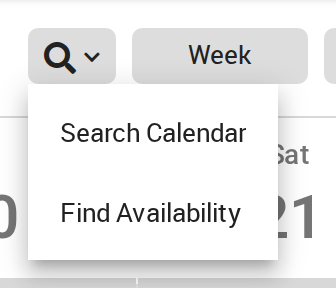
Choose Search Calendar from the magnifying glass menu.
To go back to the calendar, click the back button at the top right of the Search Calendar page.
The search looks at the events of the office you are working in.
Basic Search
The search box finds events that contain the text you type.
What You Can Search For
The text you type is matched against:
- Patient names: first name, last name, or part of either
- The patient’s email address
- Practitioner names: find the appointments for a specific practitioner
- The office name
- Description text: any text you have added to the event’s description
The search box does not match the name of the event type. To find events of one type, see Finding a Specific Event Type below.
How to Perform a Basic Search
- Click in the search box at the top of the Search Calendar page.
- Type what you’re searching for, such as a patient’s name or a practitioner’s name.
- Press Enter on your keyboard.
- The results appear in a list under the search box.
Advanced Search
For more precise results, use the advanced search filters.
Accessing Advanced Search
- Open the Search Calendar page.
- Look just below and to the right of the search box.
- Click Advanced Search. The filters open under the search box, and the link changes to Simple Search. Click Simple Search to hide the filters again.
Advanced Search Filters
The advanced search lets you filter by:
| Filter | What It Does |
|---|---|
| Practitioner/Staff | Shows only events in the calendars of the people you choose |
| Patient | Shows only the appointments of the patients you choose |
| Status | Shows only events with the statuses you choose, such as Pending, Confirmed or Cancelled |
| Include deleted events? | A switch. Turn it on to include deleted events in the results |
| Date | A From Date and a To Date that limit the search to that period |
You can type text in the search box as well as using the filters. When your filters are set, click apply and search at the bottom of the filters.
Click Clear Fields to empty the search box and every filter, so you can start a new search.
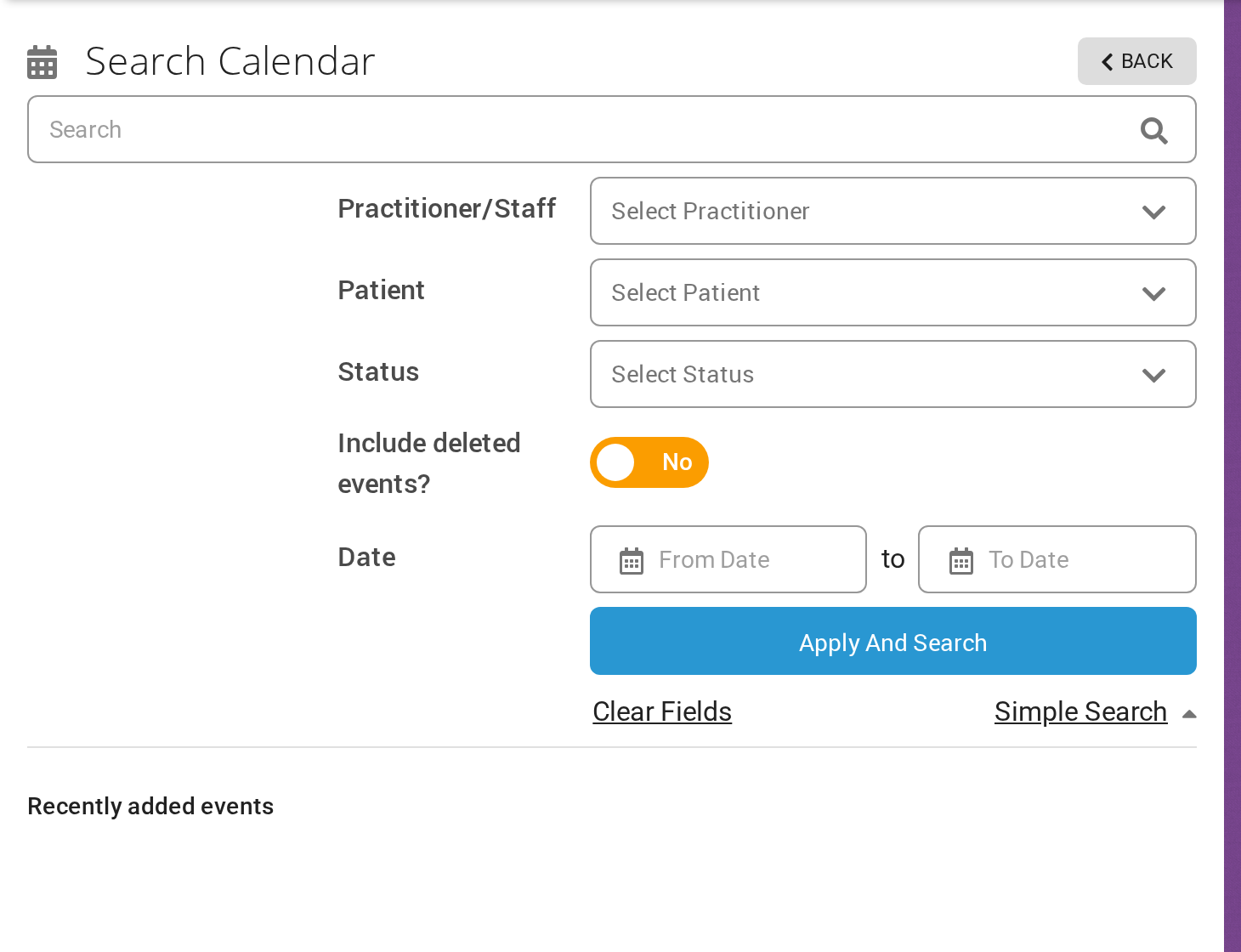
The Advanced Search filters on the Search Calendar page. Click Simple Search to hide them again.
Using Date Range Filters
The date range filter helps narrow your search to specific time periods:
- Click Advanced Search to open the filters.
- Set the From Date, the beginning of the search period.
- Set the To Date, the end of the search period.
- Click apply and search to search only within that range.
Include Deleted Events Filter
One of the more useful features of calendar search is the ability to find deleted events.
Why This Matters
- Deleted events don’t appear in the normal calendar view
- Calendar search is the only way to find deleted events
- This is essential for recovering accidentally deleted appointments
How to Search for Deleted Events
- Open the Search Calendar page.
- Click Advanced Search.
- Turn on the Include deleted events? switch.
- Type a search or choose other filters, then click apply and search.
- Deleted events appear in the results with the status Deleted.
Search Results
When you perform a search, results are displayed in a list under the heading Recently added events. The list shows seven events at a time. Use the arrows at the bottom of the list to see the next seven.
What You See in Results
Each event in the search results shows:
- Date and time: when the appointment is scheduled
- Status: the current status, such as Pending, Confirmed, Cancelled or Deleted
- Event type: the type of appointment, such as Initial Assessment or Follow-up
- Room and practitioner: where the appointment is and which practitioner it is with
- Patient name: who the appointment is for
Result Ordering
Search results are listed by appointment date, latest date first:
- Events with the latest dates appear at the top
- Earlier events appear as you move through the pages
- This makes it easy to find upcoming and recent appointments quickly
Working with Search Results
Once you have your search results, you can open any event.
Opening Event Details
- Click on any event in the search results.
- The event details panel opens on the right side.
- All event information is displayed.
What You Can Do from Search Results
When you open an event from search results, you can:
| Action | Description |
|---|---|
| Review Details | See all appointment information |
| Change Status | Choose a new status from the status list at the top of the panel |
| Edit Event | Click the pencil button to open the event in the calendar and edit it |
| Reschedule | Click re-schedule event to move the appointment to a new time in the calendar |
| Rebook | Click re-book event to create a new appointment based on this one in the calendar |
| Send Notifications | Click Send Reminder or Send Confirmation |
| View Event Logs | Review the history of changes |
| View Visit History | See the patient’s other appointments |
| Delete Event | Click the trash can button to delete the event |
Editing Events from Search Results
The event details panel that opens from search results gives you these quick actions:
Quick Actions Available
- Change status: use the status list at the top of the panel
- Edit details: click the pencil button, which opens the event in the calendar
- Reschedule: click re-schedule event to move the event to a new time
- Rebook: click re-book event to create a follow-up appointment
- Delete: click the trash can button to remove the event
- Send notifications: click Send Reminder or Send Confirmation
Reviewing Event Logs
The event details panel includes access to event history:
Event Logs
Event logs show:
- Who created the event
- Who modified the event
- When changes occurred
- The date, time and status of the event after each change
- The emails and text messages sent about the event
Visit History
For patient-related events, the Visit History section lists the patient’s other appointments. Each one shows:
- The event type
- The practitioner
- The date
- The status
Click an appointment in Visit History to see its description and its event logs.
Common Search Scenarios
Finding a Patient’s Appointment
- Open the Search Calendar page.
- Type the patient’s name and press Enter.
- Review results for the specific appointment.
- Click the appointment to open it.
Finding All Appointments for a Practitioner
- Open the Search Calendar page.
- Click Advanced Search.
- Choose the practitioner in Practitioner/Staff.
- Set a From Date and To Date if you want to.
- Click apply and search.
Finding Cancelled Appointments
- Open the Search Calendar page.
- Click Advanced Search.
- Choose Cancelled in Status. You can also choose Cancelled with notice and Cancelled without notice.
- Set a date range if needed.
- Click apply and search.
Finding a Specific Event Type
The search box and the filters do not search by event type. To find events of one type:
- Open the Search Calendar page.
- Narrow the results with a patient, a practitioner or a date range.
- Look at the event type shown in bold on each result.
Best Practices
- Use specific search terms: the more specific, the fewer results to review.
- Use date ranges: narrow results when searching for events from specific periods.
- Use Advanced Search: the filters help find exactly what you need faster.
- Include deleted events: turn on the switch when recovering deleted appointments.
- Check patient spelling: try different name variations if the first search finds nothing.
Troubleshooting
No Results Found
If your search returns no results:
- Check the spelling of patient or practitioner names
- Try searching with part of a name, such as the first name only
- Widen your date range
- Make sure you are working in the office the event belongs to
- Check whether the event was deleted (turn on Include deleted events?)
Too Many Results
If you get too many results:
- Use the Advanced Search filters to narrow them down
- Add a specific date range
- Type more specific search text
- Filter by practitioner or status
Can’t Find a Deleted Event
If you can’t find a deleted event:
- Make sure the Include deleted events? switch is turned on in Advanced Search
- Widen your date range
- Try searching by patient name instead of event details
- Check that the event was actually deleted and not just cancelled