

Shipping Carriers
When the dispensary staff ship an order, they choose the carrier from a list on the order’s Ready step. This page explains where that list comes from: the dispensary’s Shipping page, where you choose the carriers you ship with and add your own.
Shipping or Pickup: the Ready Step explains how an order is shipped.
Opening the Shipping Page
- Open your dispensary.
- Click Dispensary Settings in the menu along the top of the dispensary.
- Click Shipping.
The page is available to the dispensary owner and to staff who have full access to the dispensary.
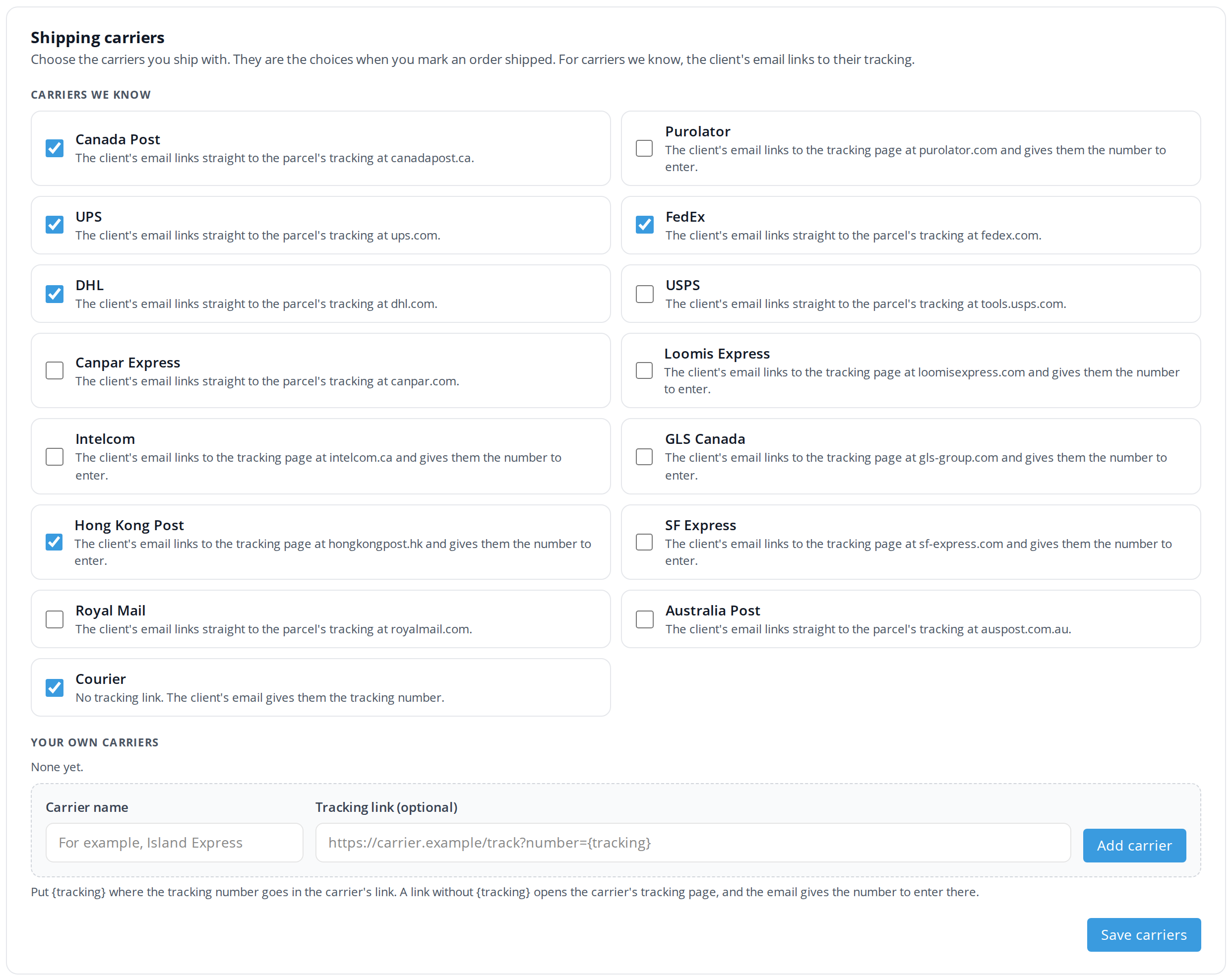
The Shipping page. Checked carriers appear in the Carrier list when an order is shipped.
Choosing the Carriers You Ship With
Under Carriers we know, check each carrier you ship with and uncheck the ones you do not. Then click Save carriers at the bottom of the page.
Only the checked carriers appear in the Carrier list when the dispensary staff ship an order. Until you save the page for the first time, the list has six carriers: Canada Post, UPS, FedEx, DHL, Hong Kong Post and Courier.
The line under each carrier says what the client’s shipping email does for that carrier:
| What the line says | What the client’s email does |
|---|---|
| Links straight to the parcel’s tracking | The Track My Order button opens the carrier’s tracking for that parcel. |
| Links to the tracking page, and gives the number to enter | The Track My Order button opens the carrier’s tracking page, and the email gives the tracking number to enter there. |
| No tracking link | The email gives the tracking number, with no button. Use Courier for a local delivery service that has no tracking website. |
Adding Your Own Carrier
When you ship with a courier that is not in the list, add it under Your own carriers.
- Type the courier’s name in Carrier name.
- If the courier has a tracking website, type its tracking link in Tracking link (optional). Put {tracking} where the tracking number goes in the link, for example
https://islandcourier.example/track?number={tracking}. A link without {tracking} opens the courier’s tracking page, and the email gives the number to enter there. Leave the box empty when the courier has no tracking website. - Click Add carrier. The courier is added to the list above the form.
- Click Save carriers.
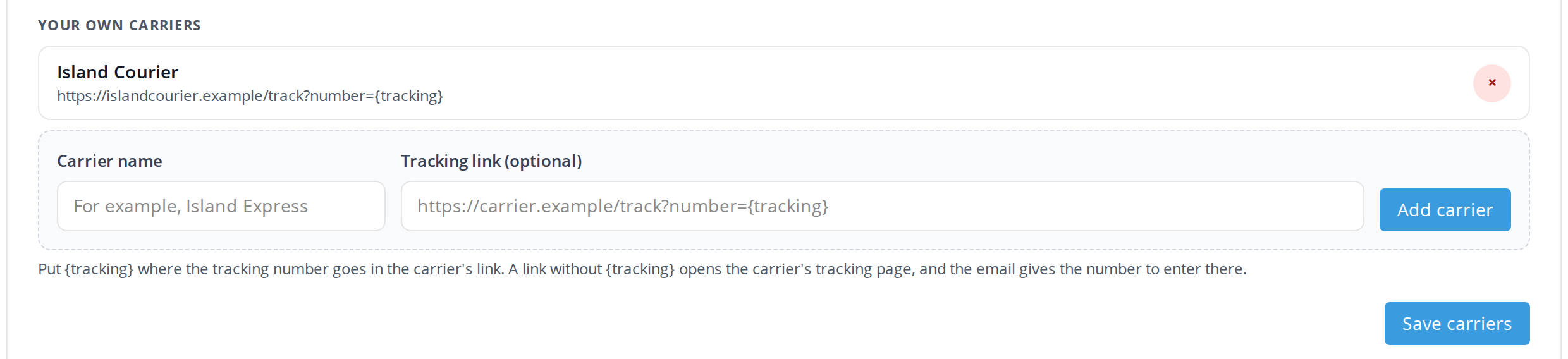
A courier of your own, with a tracking link. OutSmart puts the order's tracking number where {tracking} is.
To remove one of your own carriers, click the x at the right end of its line, then click Save carriers.
Troubleshooting
A carrier is missing from the Carrier list on an order
Check the carrier on the Shipping page and click Save carriers. Then open the order again.
The Track My Order button opens the wrong page
Check your carrier’s tracking link. It must contain {tracking} exactly, with the curly brackets, where the tracking number goes.
Related Pages
- Shipping or Pickup: the Ready Step: shipping an order and the email the client receives.
- Dispensary Preferences: the other settings for an order management dispensary.
- Orders: the steps of an order.