

Taking Payments on an Invoice
Every invoice and order has a Payments section, below the products and services. This page explains how to record the payments a client makes there, whether they pay at the front desk, by card through OutSmart Pay, with store credit, or online from an email.
Creating an Invoice explains the rest of the invoice screen.
The Payments Section
At the top right of the Payments section is the invoice’s balance. It shows how much is Outstanding in red, Paid in Full in green once the payments cover the total, or Overpaid when the payments come to more than the total.
Under the heading, a grey label shows whether the client has any store credit. Below it is the list of payments, with the PAYMENT METHOD, AMOUNT, DATE and PAYMENT STATUS of each one.
Recording a Payment Taken at the Front Desk
Use this for cash, debit, cheque, e-transfer, a card you charged on your own card machine, or any other payment the client has already made.
- Click the orange SELECT PAYMENT METHOD box on the empty line in the Payments section. The list of payment methods opens.
- Choose how the client paid.
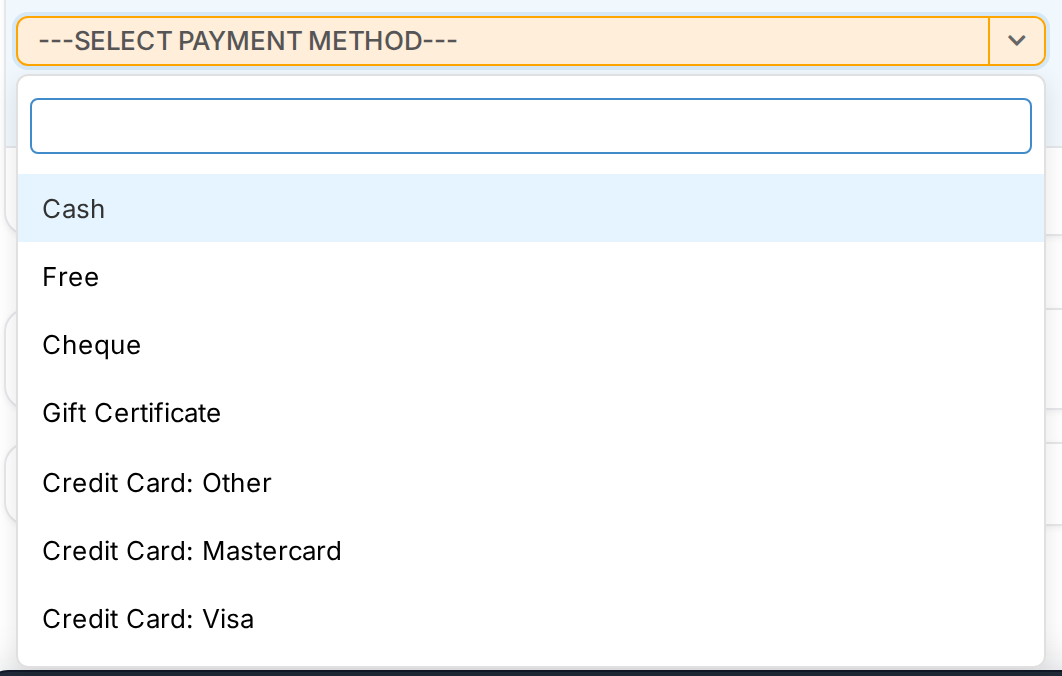
The list of payment methods. It includes cash, cheque, the credit cards, debit, e-transfer, store credit and the insurance companies.
- The AMOUNT is filled in with the whole balance, the DATE with today, and the PAYMENT STATUS with Complete. Change the amount if the client is paying only part of the balance.
- Type a note in Description if you need one, such as a cheque number.
- Click Save in the bar at the bottom of the screen.
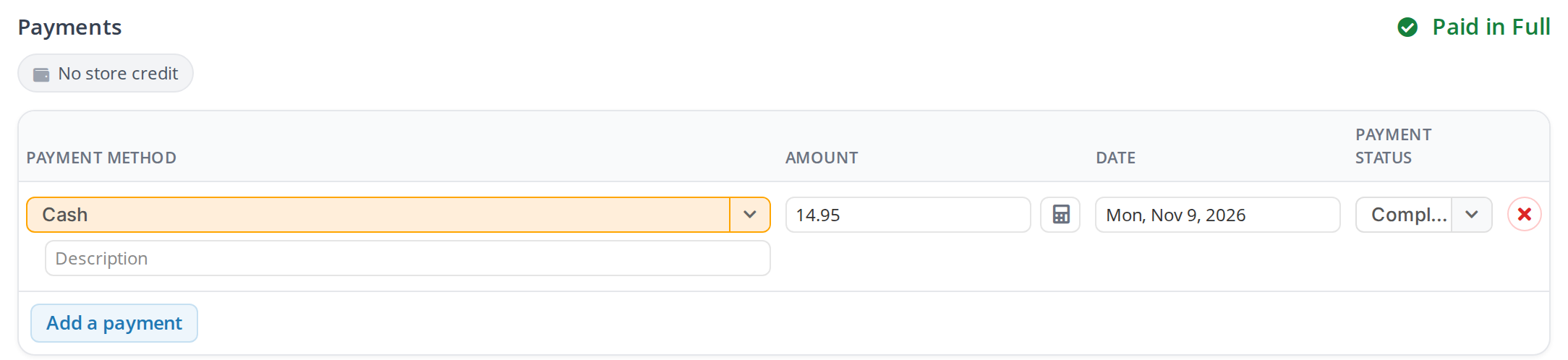
A cash payment that covers the whole balance. The invoice shows Paid in Full once it is saved.
The calculator button beside the amount fills in what is still owed. Use it after you have changed the products or another payment, so the amount matches the balance again.
Splitting a payment between methods
When the client pays part in one way and part in another, click Add a payment to add another line. Choose the second method and type its amount. The balance at the top of the section shows what is left after each payment.
Removing a payment
Click the red X at the right end of the payment’s line, then click Save. A card payment taken through OutSmart Pay cannot be removed this way, because the money was charged to the client’s card. Creating Refunds and Store Credit explains how to give it back.
Charging a Card Through OutSmart Pay
When your dispensary has OutSmart Pay set up, you can charge the client’s card from the invoice. The money goes to your clinic’s bank account. Setting Up Payment Processing with OutSmart Pay explains how to set it up.
- Choose a credit card in SELECT PAYMENT METHOD, such as Credit Card: Visa.
- Check the AMOUNT.
- Click Process Payment with OutSmart, under the amount.
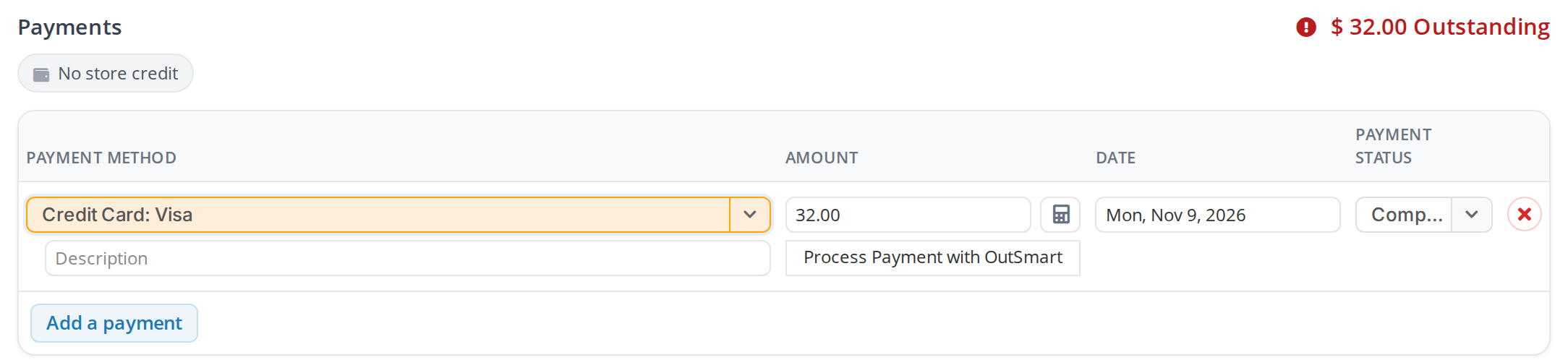
A card payment line ready to charge through OutSmart Pay. Process Payment with OutSmart opens the window where you enter the card.
- A window titled Process Payment with OutSmart shows the amount. Check the cardholder’s Name, then enter the card number, expiry date, security code and postal code in Card Details.
- Click Send Request.
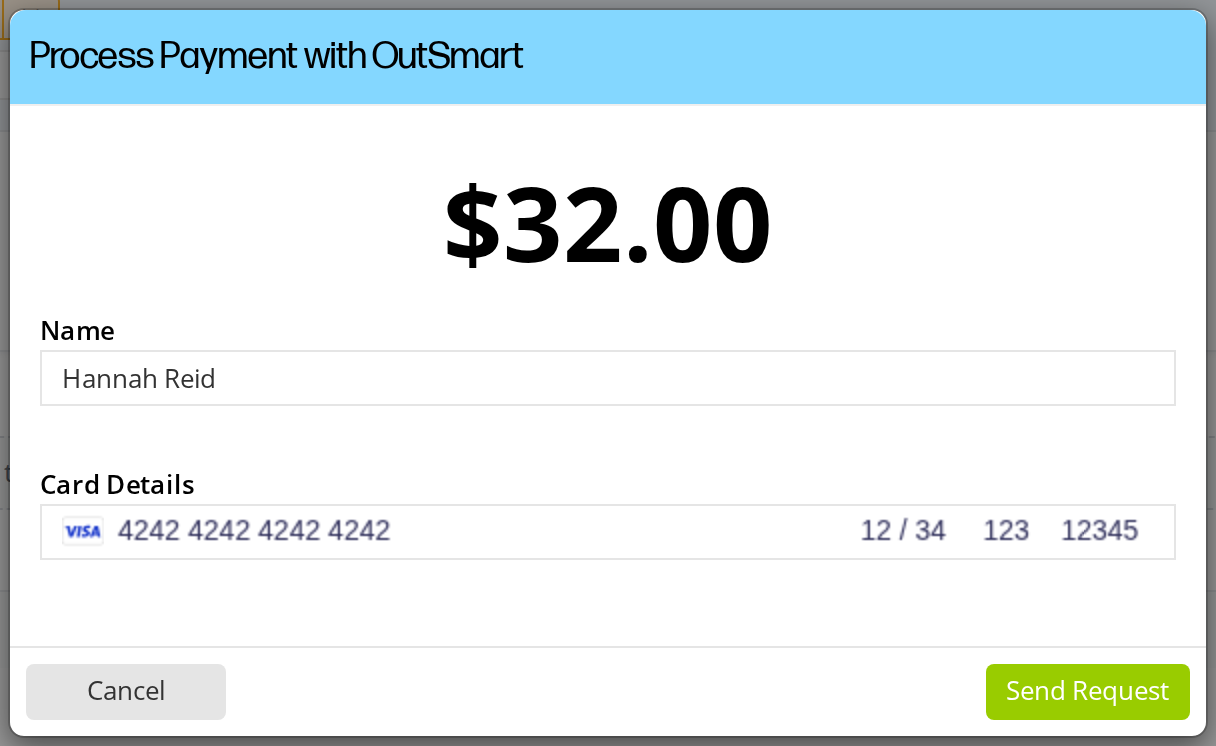
The window for charging a card through OutSmart Pay. Send Request charges the card for the amount shown.
When the card is accepted, the payment is saved on the invoice with the status Complete and a Reference Number, which is OutSmart Pay’s number for the payment. The payment can no longer be changed.
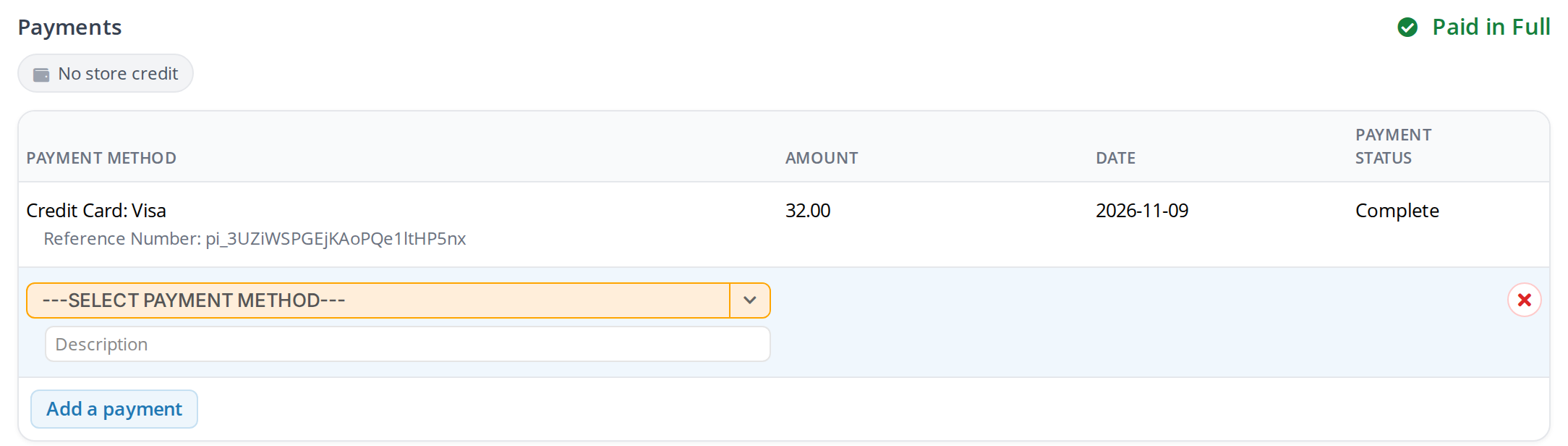
A card payment taken through OutSmart Pay. The reference number identifies the payment in OutSmart Pay's records.
If the card is not accepted, a message says so, and nothing is recorded. Check the card details with the client and try again.
When OutSmart Pay is not set up for the dispensary, clicking Process Payment with OutSmart opens a window titled OutSmart Pay is not set up, with a link that explains how to set it up.
Paying with Store Credit
When the client has store credit, the grey label under the Payments heading turns green and says Store credit available with the amount.
Click Use it on that label. A store credit payment is added for what is owed, up to the credit the client has. Two more labels then show how much credit is Used on this invoice and how much is Left after this invoice. Click Save to keep the payment.
Creating Refunds and Store Credit explains how a client gets store credit.
Letting the Client Pay Online
You can email the invoice to the client with a Pay Online button. The client clicks it and pays by card through OutSmart Pay, and the payment is recorded on the invoice for you, with no need to open the invoice. Emailing and Printing an Invoice explains how to send it.
When an Invoice Is Overpaid
An invoice is overpaid when its payments come to more than its total, for example when a product was taken off after the client had paid.
- When the overpayment is a cash or other front-desk payment that was entered for the wrong amount, change that payment’s AMOUNT to what the client actually paid, then click Save.
- When the overpayment was charged to a card through OutSmart Pay, refund the difference to the card from the invoice. Refunding an Overpayment on an Invoice explains how.
Troubleshooting
The Process Payment with OutSmart button is not there
The button appears only after you choose a credit card in SELECT PAYMENT METHOD, and only for a payment line that has not been charged yet.
The amount on the payment is not the balance
The amount is filled in when you choose the payment method. If you change the products afterwards, click the calculator button beside the amount to fill in what is still owed.
The client paid by card but no payment shows
Open the invoice again. A card payment taken through OutSmart Pay, or through the Pay Online button in an email, is saved on the invoice as soon as the card is accepted.
Related Pages
- Creating an Invoice: the rest of the invoice screen.
- Emailing and Printing an Invoice: sending the invoice with a Pay Online button.
- Refunding an Overpayment on an Invoice: correcting a card payment that came to more than the invoice.
- Creating Refunds and Store Credit: giving money back after the sale, and store credit.
- Setting Up Payment Processing with OutSmart Pay: taking card payments through OutSmart Pay.