

The Products Tab
The Products tab of the Patient Workspace brings together what has been recommended to the patient and what they have bought. From here you can put products into an order and turn the order into an invoice, without searching the dispensary for each product.
The tab has three parts. Recommendations, on the left, lists the products recommended in the patient’s charts. Build New Order, on the right, is where you gather products for an invoice. Purchase / Return History, under it, lists what the patient has bought and returned.
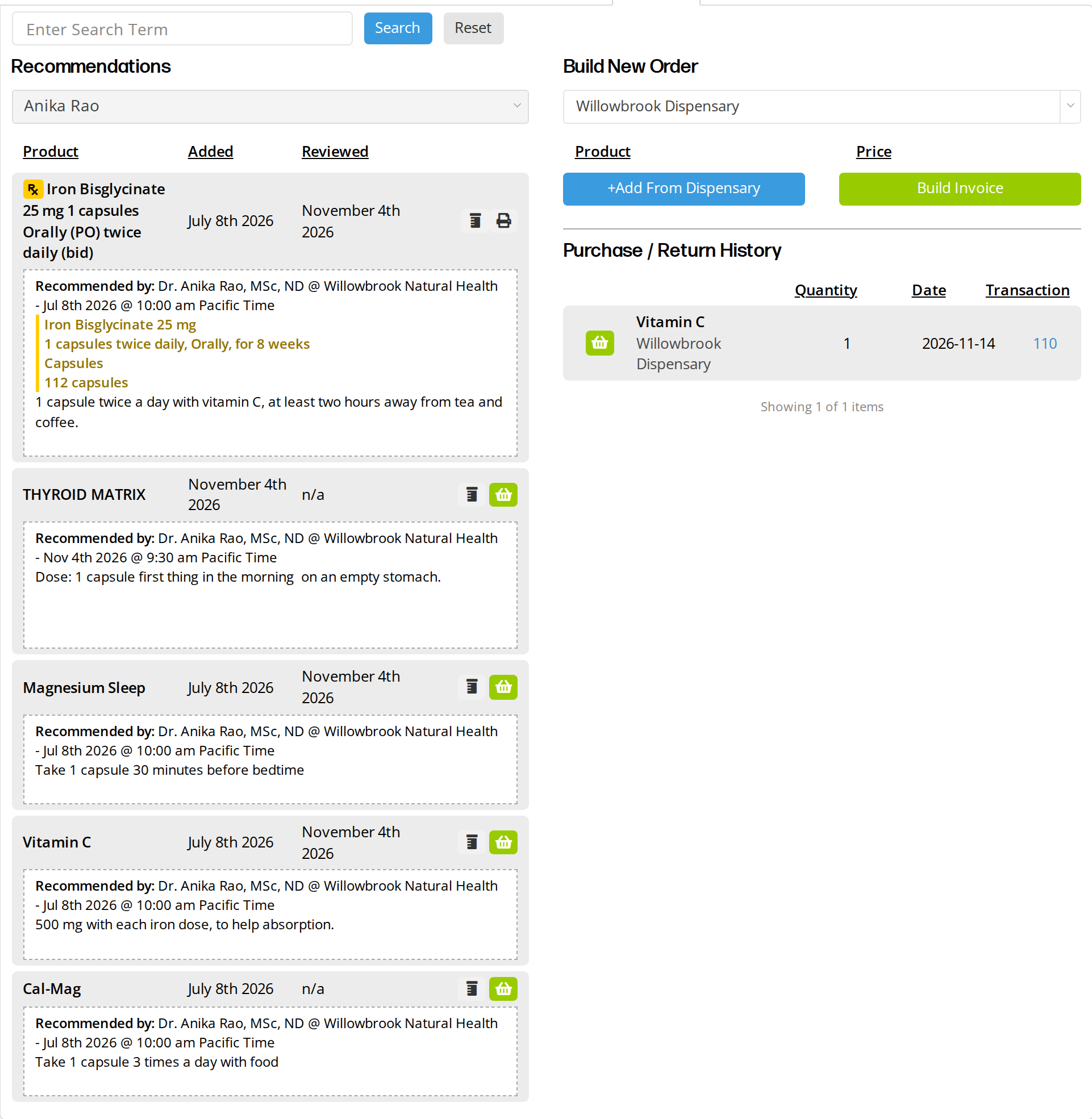
The Products tab. The recommendations are on the left, and the order you are building and the patient's purchase history are on the right.
Recommendations
The list beside Recommendations chooses whose recommendations are shown.
- As a practitioner, you see the products you recommended, and the list is fixed to your own name.
- As an admin, you choose the practitioner. The list starts on a practitioner who has recommended products to this patient.
Each product shows the date it was first recommended (Added) and the date of the latest chart that reviewed it (Reviewed). Reviewed reads n/a when no later chart has reviewed the product. Underneath is a box with Recommended by, naming the practitioner, the clinic and the chart’s date and time, and the instructions written in the chart.
A product written as a prescription has an Rx badge before its name, and its prescription details are shown in the box.
The buttons on the right of each product:
| Button | What it does |
|---|---|
| Print Product Label, a bottle | Prints the product’s label. See Product Label |
| Print Prescription Sheet, a printer | Prints the prescription. Shown only for a prescription. See Printing and Faxing Prescriptions |
| Add To Order, a green basket | Puts the product into Build New Order. Shown only for products that are not prescriptions |
The recommendations come from the charts. To change one, chart the change, as Product Recommendations explains.
Building An Order And Turning It Into An Invoice
Build New Order gathers products for one invoice.
- Choose the dispensary in the list under Build New Order. It starts on the Default Dispensary For Product Ordering from your Workspace Settings.
- Add products. Click the green basket beside a recommended product or beside a product in Purchase / Return History, or click +Add From Dispensary to search the chosen dispensary for any product.
- Check the list. Each product shows its name, the dispensary it comes from and its price. The red bin removes a product from the order.
- Click Build Invoice. OutSmart makes a new invoice for the patient in the chosen dispensary, with one of each product in the order, and opens it in a new window. Change the quantities, take payment and save it there, as Creating An Invoice describes.
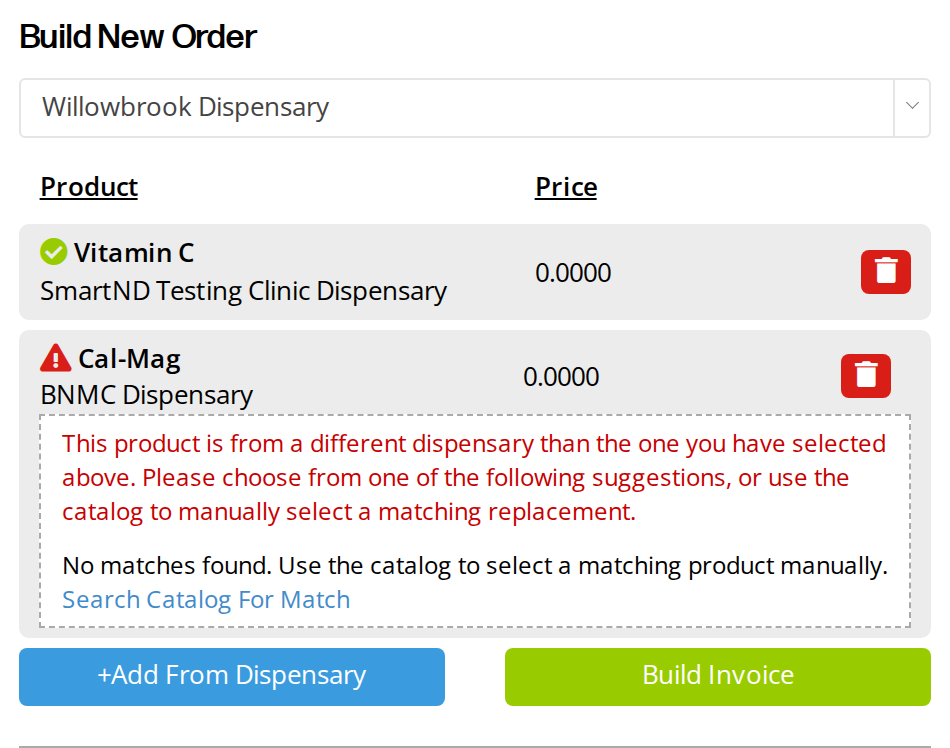
An order with two products. Vitamin C has a green checkmark because the chosen dispensary has it. Cal-Mag has a red warning because it was recommended from another dispensary.
When A Product Comes From Another Dispensary
A recommended product belongs to the dispensary it was recommended from. When that is not the dispensary chosen for the order, the product has a red warning sign and a message saying it is from a different dispensary. OutSmart suggests similar products from the chosen dispensary when it finds any. Click a suggestion to use it, or click Search Catalog For Match to pick the right product yourself.
A product the chosen dispensary has shows a green checkmark instead. Changing the dispensary checks every product in the order again.
Purchase / Return History
Purchase / Return History lists the products the patient has bought and returned. Each line shows the product, its dispensary, the quantity, the date and the number of the transaction. Click the number to open the transaction. The green basket at the start of a line puts that product into Build New Order, which is a quick way to sell the patient the same product again.
A line at the bottom says how many items are shown, such as Showing 1 of 1 items. When the patient has a long history, click Load More under that line to see the next part of the list.
Searching The Tab
The search box at the top searches both the recommendations and the purchase history. Type part of a product’s name and click Search, or press Enter. Reset clears the search and shows everything again.
Related Pages
- Patient Workspace Overview. The page this tab sits on, and the Workspace Settings that choose your default dispensary.
- Medical Summary. The patient’s active recommendations from every practitioner, grouped by who recommended them.
- Product Recommendations. Recommending, refilling and discontinuing products in a chart.
- Creating An Invoice. Finishing the invoice that Build Invoice opens.
- Managing Multiple Dispensaries. When a clinic has more than one dispensary.