

Turning Calculate Inventory On or Off
Each product in your dispensary has a setting called Calculate Inventory. It decides whether OutSmart counts the product’s stock.
- Turn Calculate Inventory on for something you keep on the shelf, such as a supplement. OutSmart then keeps its stock count.
- Turn Calculate Inventory off for something you do not count, such as a visit or another service. OutSmart keeps no count for it.
You can turn the setting on or off at any time.
Turning it on or off in the Product List
The quickest way is a Calculate Inventory column in the Product List, with an on and off switch on each row. You add the column once, and it stays on your Product List.
- Open the dispensary, then open the Products menu along the top and choose Product List.
- Click the gear icon at the top right of the list, beside Delete Selected. Product List Preferences opens above the list.
- Click in the box of Product list columns, and choose Calculate Inventory.
- Click Apply Changes. The preferences close, and the Calculate Inventory column is added to the list.
To turn Calculate Inventory on or off for a product, click the switch in its row. OutSmart saves the change straight away and shows Property has been updated.
Turning it on or off on the product page
- In the Product List, click the blue pencil at the end of the product’s row. The Edit Product page opens.
- In the left-hand column, find Calculate Inventory, and choose Yes to turn it on or No to turn it off.
- Click Save at the top of the page.
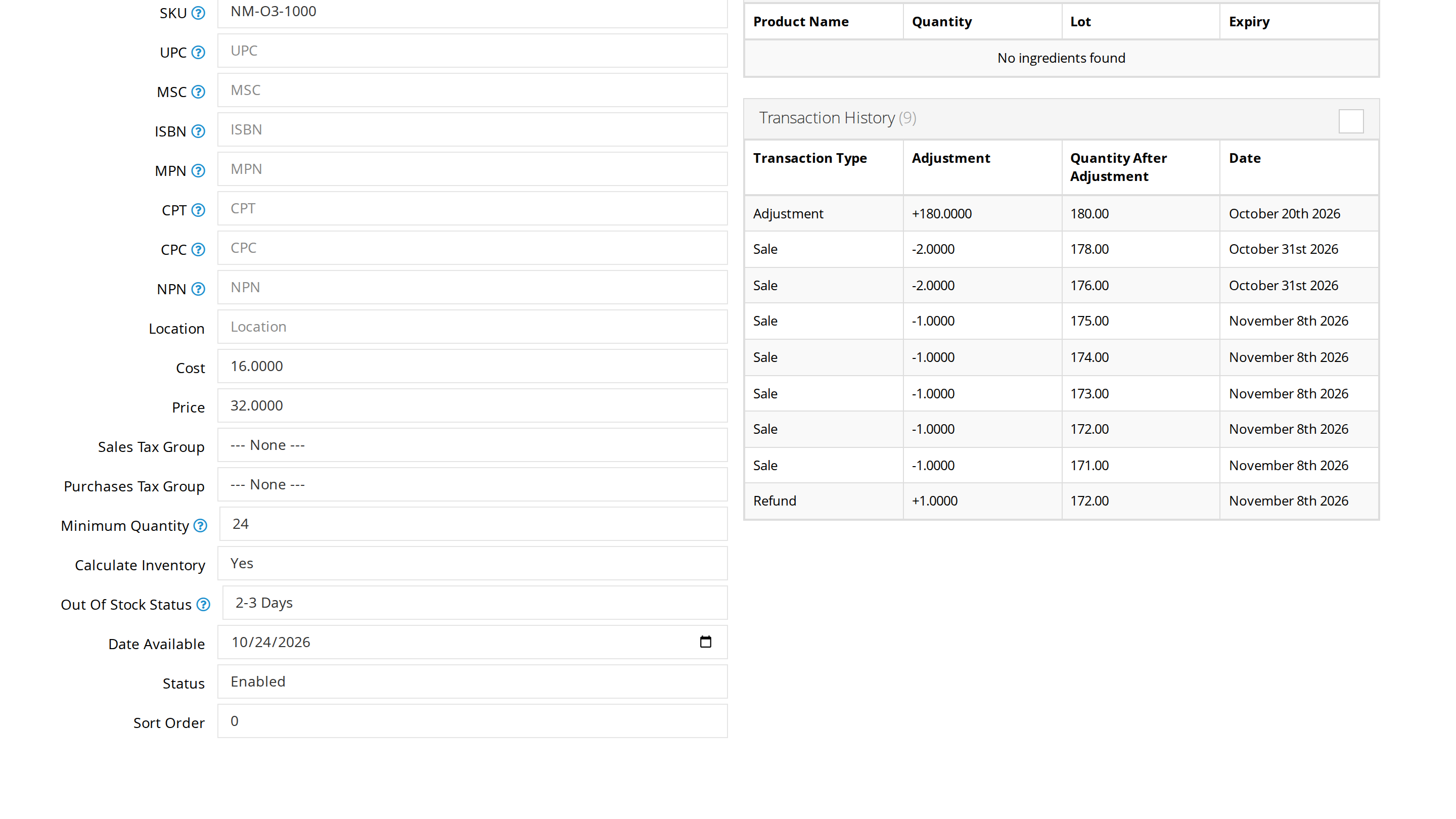
Calculate Inventory decides whether OutSmart counts the product's stock. Minimum Quantity is the level at which you reorder it.
When Calculate Inventory is turned back on, OutSmart counts everything recorded for the product again, including the sales, purchases, refunds and adjustments made while it was off.
Minimum Quantity
Minimum Quantity, a few rows above Calculate Inventory on the Edit Product page, is the stock level at which you want to reorder the product. OutSmart uses it in two places:
- The product list colours the product’s count, as described below.
- The Item List report can list every product at or below its own minimum, which gives you a reorder list. See Checking Your Stock.
The Inventory column of the product list
The Product List has an Inventory column that shows the current count of each product with Calculate Inventory turned on. A product with Calculate Inventory turned off shows no count.
| Colour | What it means |
|---|---|
| Green | The count is more than a quarter above the product’s Minimum Quantity. |
| Orange | The count is above the Minimum Quantity, but by no more than a quarter of it. |
| Red | The count is at or below the Minimum Quantity. |
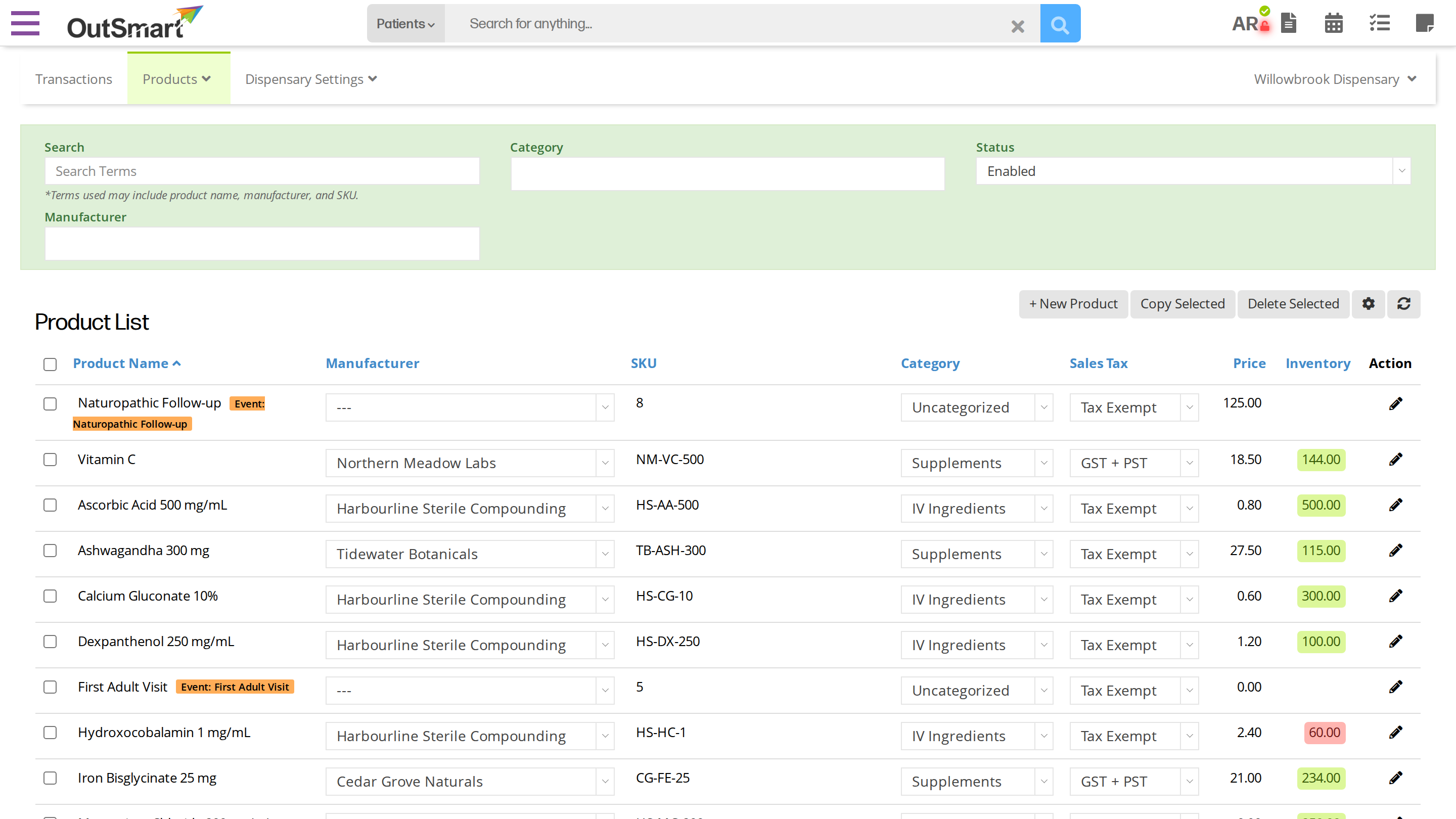
The Inventory column of the Product List. Green, orange and red show how close each product is to its Minimum Quantity.
Clicking a count opens the Adjust Inventory window, which Adjusting Inventory by Hand explains.
Related Pages
- Inventory Management: what adds stock and what takes it away.
- Managing Dispensary Items: adding and editing products.
- Adjusting Inventory by Hand: setting a product’s opening count.
- Checking Your Stock: the reorder list and the stock history.