

Medical Summary
The Medical Summary is the first tab of the panel in the middle of a patient’s workspace. It collects what you have recorded in that patient’s charts and lays it out on one screen, so you can see what is going on with them without opening the charts one at a time.
You do not type anything into the Medical Summary. It is built from your charts, so the way to change what it says is to change the chart the entry came from.
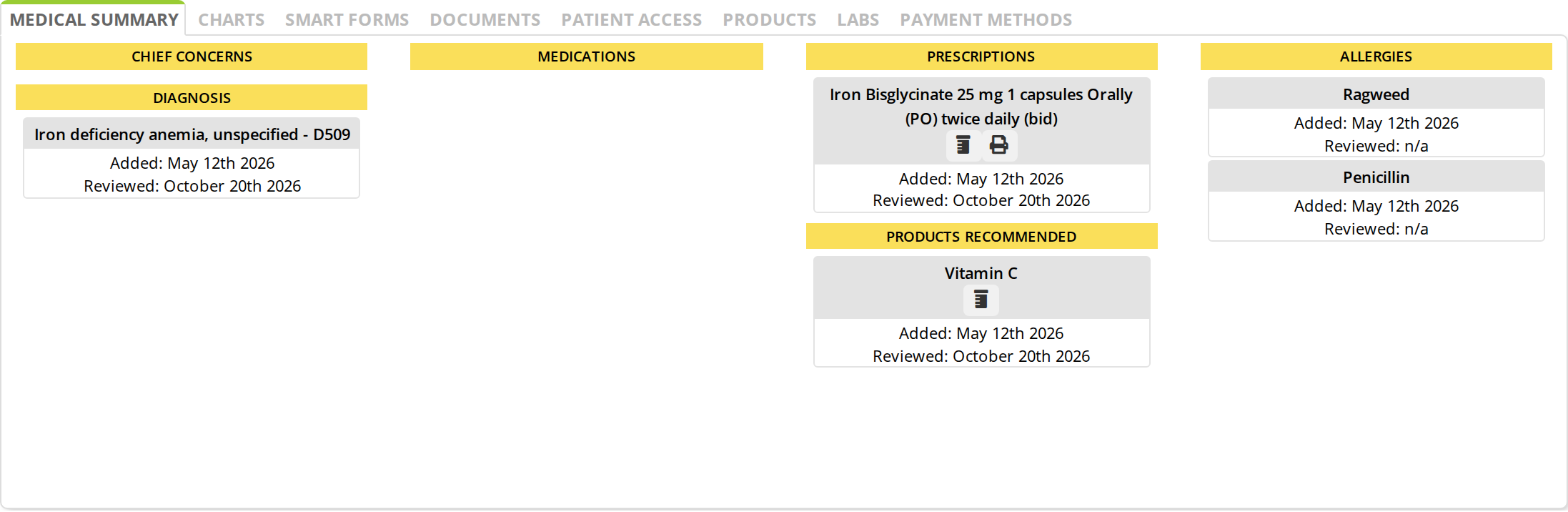
The Medical Summary tab, with the other workspace tabs along the top. Each entry is a card, and the dates underneath it say when the item first appeared in a chart and when it last appeared.
What the Medical Summary Shows
The summary has a heading for each kind of entry it collects. A heading is shown even when there is nothing under it yet, so an empty column means nothing of that kind has been charted rather than that something has gone wrong.
| Heading | What it collects |
|---|---|
| Chief Concerns | The chief concerns recorded in the History part of your charts |
| Diagnosis | The diagnoses recorded in your charts, naturopathic, TCM and ICD alike |
| Medications | The medications recorded in the History part of your charts |
| Prescriptions | Prescriptions written in your charts, with the dose and directions |
| Products Recommended | The products you have recommended in your charts |
| Allergies | The allergies recorded in the History part of your charts |
| Labs | Lab tests ordered in your charts. This heading appears only for clinics with lab management |
Added And Reviewed
Every entry carries two dates underneath it, and they are easy to misread.
- Added is the date of the earliest chart in which the item appears. It tells you how long this has been part of the picture.
- Reviewed is the date of the most recent chart in which the item appears. It tells you the last time you touched it.
Reviewed shows n/a when the item has only ever appeared in one chart. That is not a gap in the record. It means the item was recorded once and has not come up again since, which on a long-standing allergy is normal and on an active diagnosis may be worth a second look.
Printing From The Summary
Prescriptions and recommended products carry small print buttons on the card:
- The bottle button prints a label for that item.
- The printer button prints the prescription sheet.
See Printing and Faxing Prescriptions for what comes out and how to send it.
Whose Charts The Summary Reads
This is the part that surprises people, and it is the usual reason an entry a colleague made is not on the screen.
- As a practitioner, the Medical Summary reads your own charts for that patient. A diagnosis another practitioner recorded in their chart does not appear here.
- If your clinic is set up as a collaborative clinic, it reads every chart created in that office instead, whoever wrote it.
- As an office worker, you see charts from everyone on the office’s staff, but a shorter list of headings: Medications, Allergies, Products Recommended and Labs. Chief Concerns, Diagnosis and Prescriptions are left out.
Deleted charts are left out for everyone.
Keeping The Summary Worth Reading
The summary only shows what your charts have recorded in a structured way. Free text typed into the Subjective or Objective part of a chart does not reach it. Three habits keep it useful:
- Record diagnoses as diagnoses with a status, rather than writing an impression into the notes.
- Recommend products through Product Recommendations, so what the patient is taking stays current.
- Keep allergies and medications in the History part of the chart, where the summary reads them.
When Something Is Not On The Summary
An entry a colleague made is not showing
The summary reads your own charts unless your clinic is a collaborative clinic. See Products And Diagnoses From Other Practitioners for how a colleague’s active products and diagnoses reach your chart instead.
A section heading is there but empty
Nothing of that kind has been charted for this patient yet, or it was typed as free text rather than recorded in the section the summary reads.
Something you just charted is not there
The summary is built when the workspace loads. Reload the workspace.
Vitals and measurements are not on the summary
They are not part of it. Measurements are read in the chart where they were recorded.
Related Pages
- Client Workspace Overview. The workspace this tab sits in, and what the other tabs hold.
- Workspace Notes. The Alerts and Notes panel, which is separate from the Medical Summary.
- Diagnoses and Working Diagnoses. Recording a diagnosis and changing its status.
- Product Recommendations. Recommending, refilling and discontinuing products.
- Products And Diagnoses From Other Practitioners. How a colleague’s active items reach your chart.