

Dispensary Orders
The Dispensary Orders card lists one dispensary’s most recent invoices and orders on your Dashboard, with the balance of each. In an order management dispensary, it also shows the step each order is at, so you can see what needs to be packed, what is ready, and what has left.
The Dispensary explains regular and order management dispensaries.
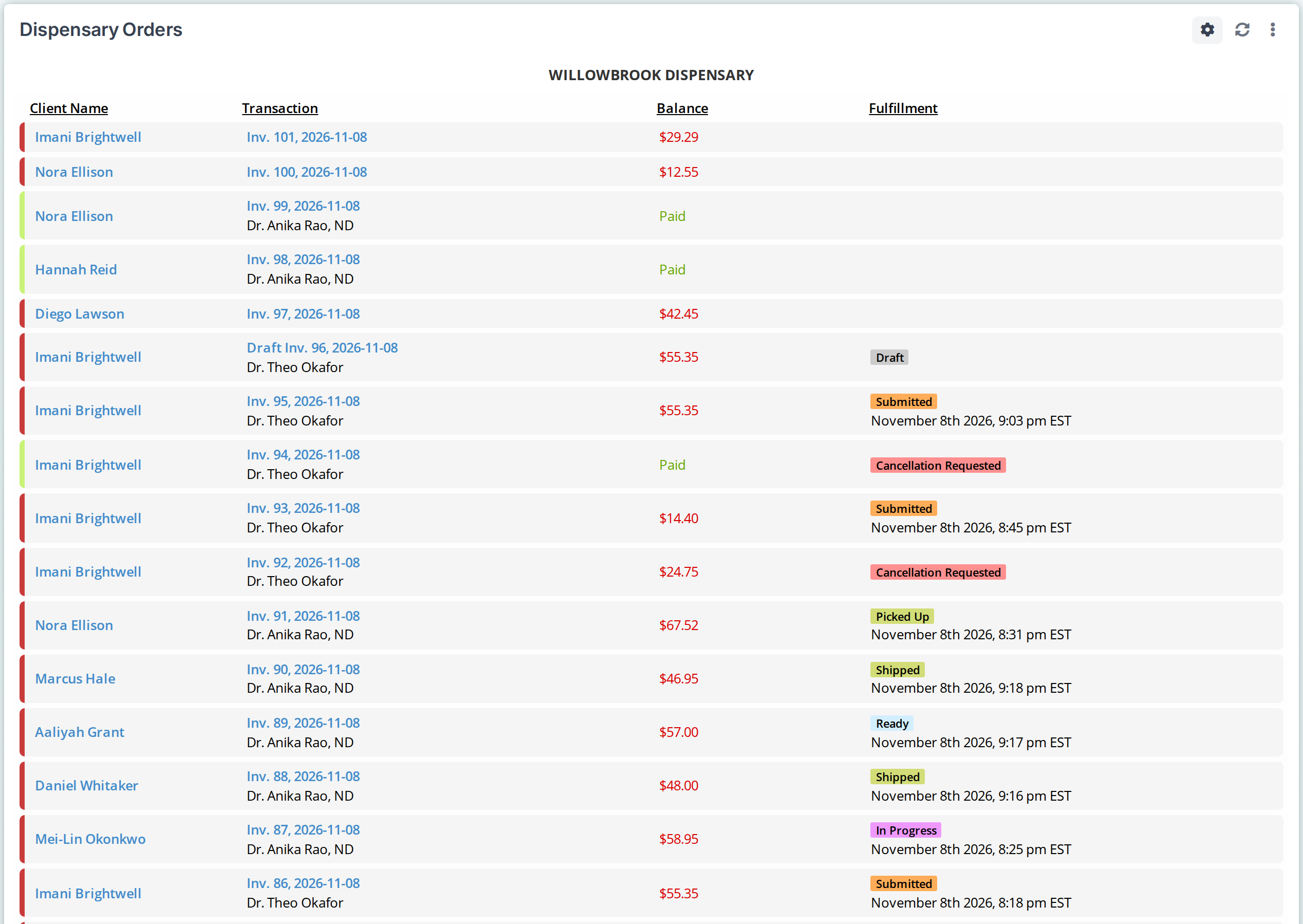
The Dispensary Orders card for an order management dispensary. The Fulfillment column shows each order's step.
What the Card Shows
The card lists the 100 most recent invoices and orders in the chosen dispensary, newest first, including drafts. Deleted invoices and refunds are not listed. The Transactions Page lists every transaction.
| Column | What it shows |
|---|---|
| Client Name | The client. Click the name to open their Client Workspace. |
| Transaction | The invoice or order number and its date, with the practitioner underneath. A draft says Draft before its number. Click it to open the invoice or order. |
| Balance | The amount still owing, in red, or Paid, in green. The bar at the left of the row is red or green to match. |
| Fulfillment | In an order management dispensary only: the order’s step, and the date and time it reached that step. An invoice that is not an order has no label. |
The steps in the Fulfillment column
| Label | What it means |
|---|---|
| Draft | The practitioner saved the order but has not submitted it yet. |
| Submitted | The order was submitted and is waiting for the dispensary staff to begin fulfillment. |
| In Progress | The dispensary staff are packing the order. |
| Ready | The order is packed, and is waiting to be shipped or picked up. |
| Shipped | The order was shipped to the client. |
| Picked Up | The client picked up the order at the clinic. |
| Cancellation Requested | The practitioner asked to cancel the order, and the dispensary staff have not approved or declined it yet. |
Orders explains each step.
Choosing What the Card Shows
Click the gear button at the top right of the card. The settings open inside the card.
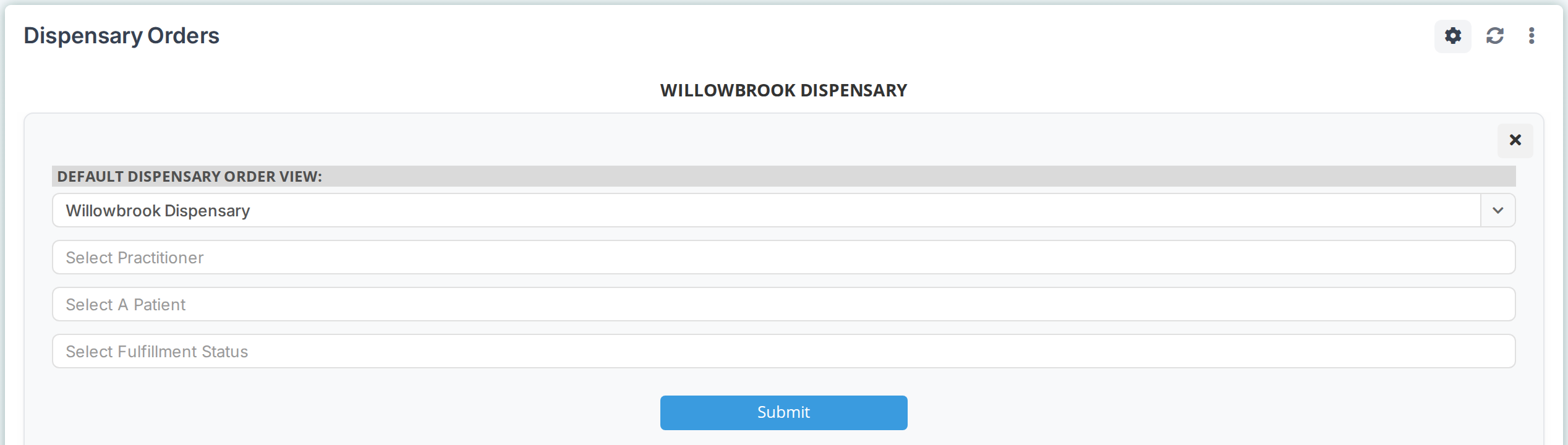
The card's settings. Choose a dispensary, and optionally narrow the list, then click Submit.
- Choose the dispensary under Default Dispensary Order View. The card shows nothing until a dispensary is chosen.
- To narrow the list, choose one or more practitioners in Select Practitioner, one or more patients in Select A Patient, or, in an order management dispensary, one or more steps in Select Fulfillment Status. Leave a box empty to include everyone, or every step.
- Click Submit.
To load the list again, click the refresh button beside the gear button.
Using Several Cards
You can add the Dispensary Orders card to your Dashboard more than once, and set each one differently.
- To follow orders through their steps, add three cards side by side, and set them to Submitted, In Progress and Ready. Each card is then a to-do list for one step.
- When your clinic has several dispensaries, add one card for each dispensary. This is useful when each practitioner runs their own dispensary.
- For one practitioner’s sales, set a card to that practitioner.
Troubleshooting
The card says no dispensary is selected
Click the gear button, choose the dispensary under Default Dispensary Order View, and click Submit.
The Fulfillment column and the Select Fulfillment Status box are missing
The chosen dispensary is a regular dispensary, which makes invoices only. The column appears for order management dispensaries. Dispensary Preferences explains the Manage orders setting.
An invoice is missing from the card
The card shows the 100 most recent invoices and orders, and no deleted invoices. Check the practitioner, patient and step boxes in the card’s settings. To find an older invoice, use the Transactions Page.
Related Pages
- Orders: the steps an order goes through.
- Fulfilling an Order: moving an order from step to step.
- Transactions Page: every transaction in the dispensary.
- Daily Express Checkout: starting invoices and orders.