

Creating Refunds and Store Credit
A refund transaction gives a client money back after the sale, for example when they bring back a product. It is a separate transaction, numbered like Refund #20, and it is linked to the invoice or order it is for. The invoice or order itself is left exactly as it was, so it keeps a true record of the original sale.
This page explains how to create a refund transaction, how to give the money back, and how store credit works.
Starting a Refund Transaction
Open the invoice or order the refund is for, and click Refund in the bar at the bottom of the screen. The invoice is saved, and the new refund transaction opens in a new window.
To refund something that is not on any invoice, click the +Refund button at the top of the Daily Express Checkout card on your dashboard. A blank refund transaction opens, and you choose the client yourself.
Every invoice that has a refund transaction shows a bar at the top, with a link to each refund.

The bar at the top of an invoice that has a refund transaction. Click the refund's number to open it.
The Refund Screen
The refund screen looks like the invoice screen, with an orange REFUND label at the top so that it is never mistaken for an invoice. Beside it, For invoice links back to the invoice the refund is for.
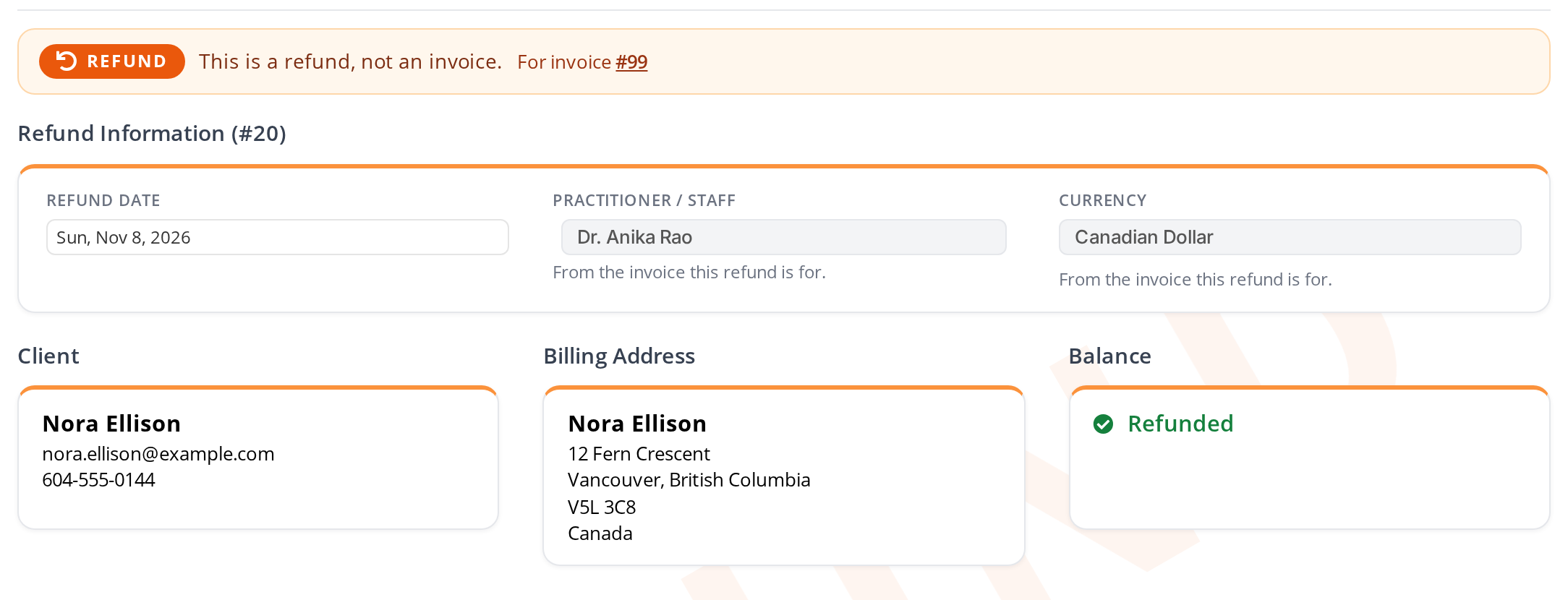
The top of a refund transaction. The practitioner, currency, client and billing address come from the invoice, and the Balance box shows whether the money has been given back.
| Section | What it shows |
|---|---|
| Refund Information | The refund’s number and Refund Date, which you can change. The practitioner and the currency come from the invoice. |
| Client and Billing Address | The client from the invoice. They cannot be changed on a refund that is linked to an invoice. |
| Balance | How much still has to be given back, shown as Refund Outstanding in red, or Refunded in green once it is all given back. |
Choosing What Is Refunded
The refund starts with every line of the invoice. Change it to what the client is actually being refunded for:
- To leave a line out, click the red X at its right end.
- To refund fewer than were bought, change the QTY.
- To refund a different amount for a line, change its UNIT PRICE.
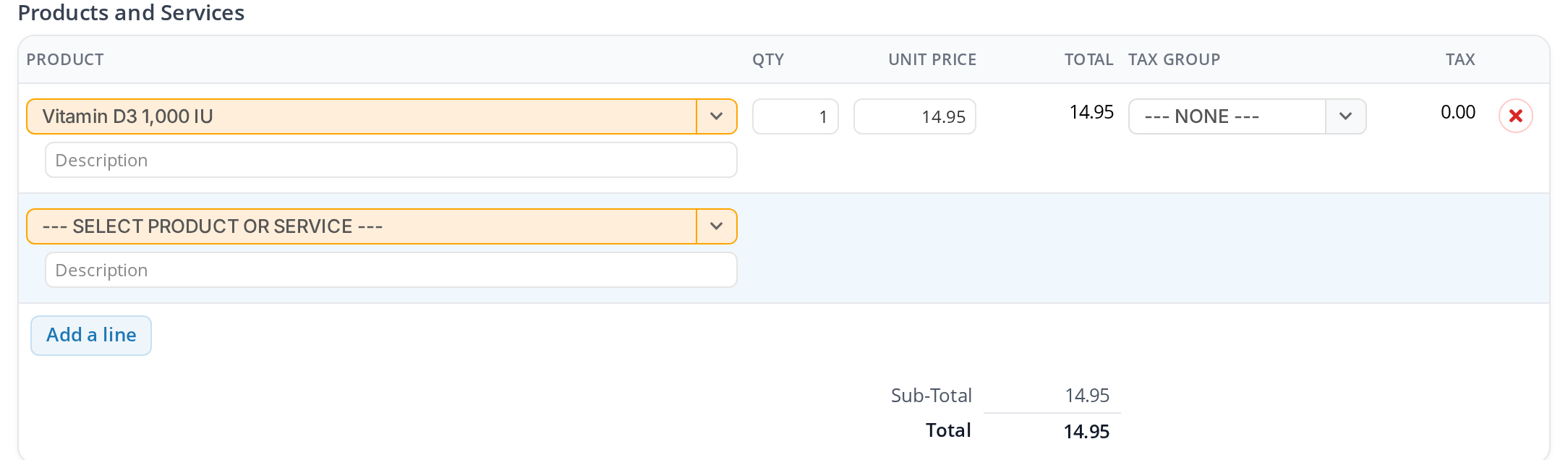
The products of a refund. Only the product the client brought back is left on it.
A refund transaction can add the refunded products back to your stock count. Inventory Management explains when.
Giving the Money Back
The bottom of the refund screen has two payment sections.
- Invoice #99 Payments (with the invoice’s number) shows how the client paid for the invoice. It is there for reference.
- Payments is where you record how the money goes back to the client.
In cash, by e-transfer, or as store credit
- Click SELECT PAYMENT METHOD in the Payments section, and choose how the money goes back, such as Cash or Store Credit.
- The AMOUNT is filled in with what is still to be refunded. Change it if needed.
- Click Save in the bar at the bottom of the screen.
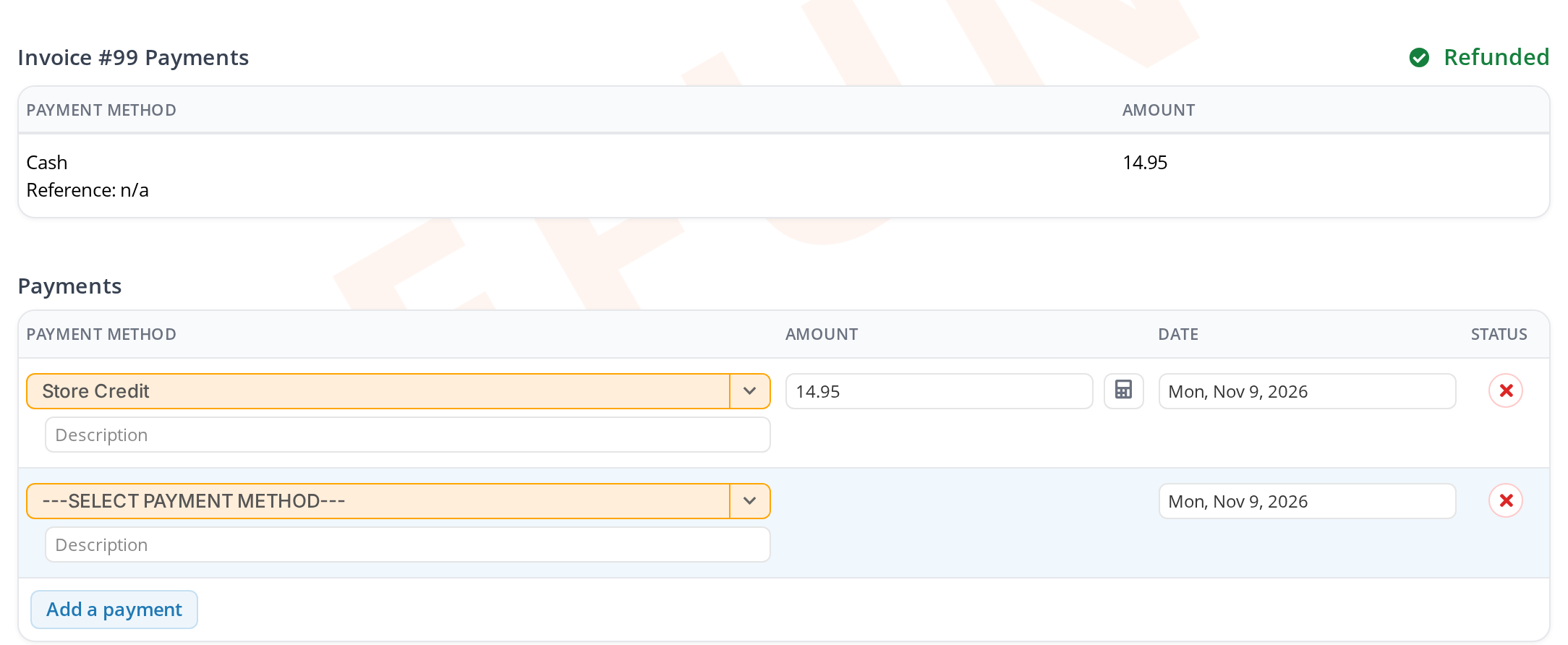
A refund given back as store credit. The invoice's own payment is shown above for reference, and the Balance shows Refunded.
Once the refund’s payments cover its total, the Balance shows Refunded.
To the card, through OutSmart Pay
When the client paid by card through OutSmart Pay, an orange Refund via OutSmart Pay button appears beside that card payment in the Invoice Payments section. It sends the money back to the same card.
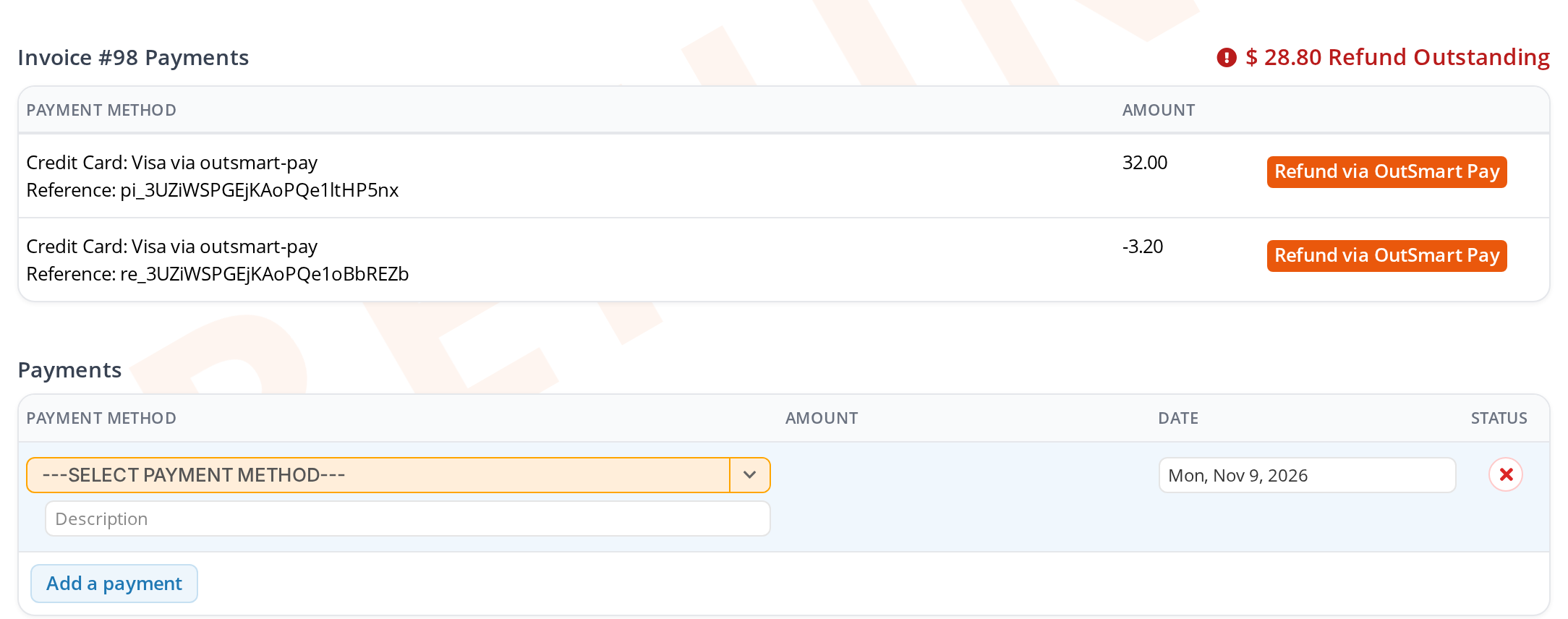
A refund for an invoice paid by card through OutSmart Pay. Refund via OutSmart Pay, beside the card payment, sends the money back to that card.
- Click Refund via OutSmart Pay beside the card payment.
- A window titled Process Refund with OutSmart shows the Refund Amount. Check that it is the amount you are refunding, and change it if it is not.
- Click Send Request.
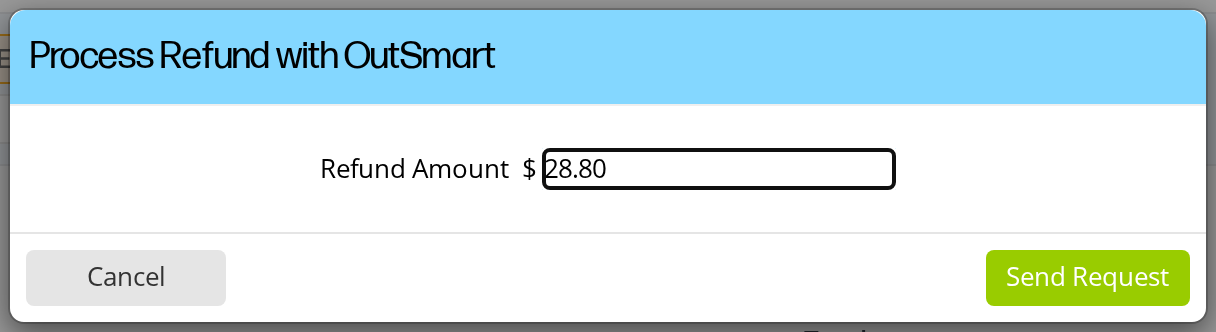
The window that sends a refund back to the card. Check the amount before you click Send Request.
A window confirms Refund has been processed!, and the refund is recorded in the refund’s payments. The Balance then shows Refunded.
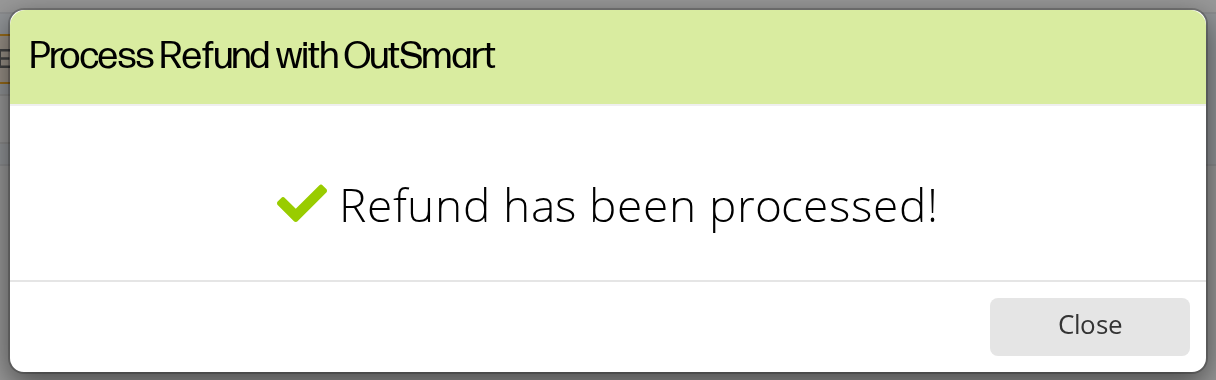
The confirmation that the card refund went through.
Store Credit
When you give a refund back as Store Credit, the amount is kept for the client to spend on a later invoice.
The next time you make an invoice for that client, the Payments section shows a green label, Store credit available, with the amount.
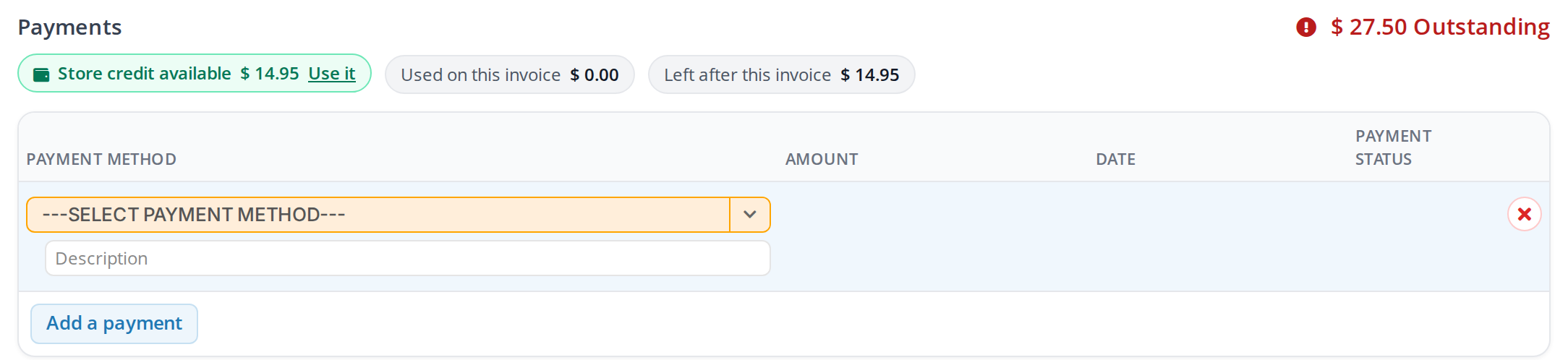
An invoice for a client who has store credit. Use it pays from the credit.
Click Use it. A store credit payment is added for what is owed, up to the credit the client has. Click Save. Two more labels show how much credit was Used on this invoice and how much is Left after this invoice.
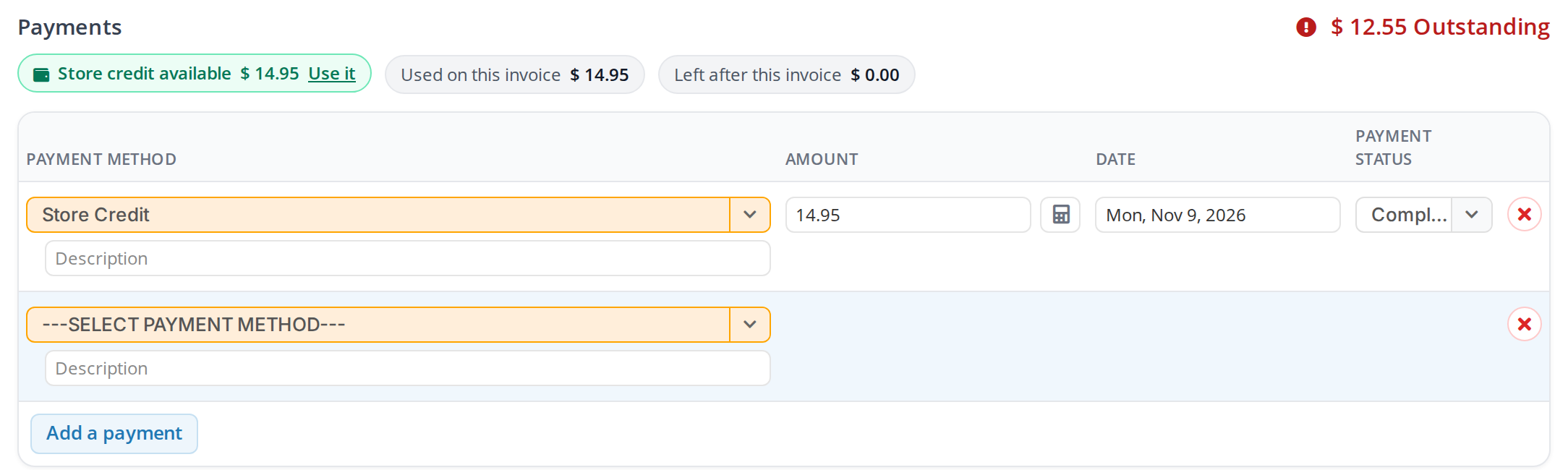
Store credit used on an invoice. The labels show how much was used and how much the client has left.
Printing, Emailing and Deleting a Refund
The bar at the bottom of the refund screen has Delete, Save, Save & Print, Save & Close and Close.
Save & Print opens the refund’s printout. In a regular dispensary it is titled OFFICIAL REFUND. Its bar has Edit Refund, Email Refund, which emails the printout to the client, and Print.
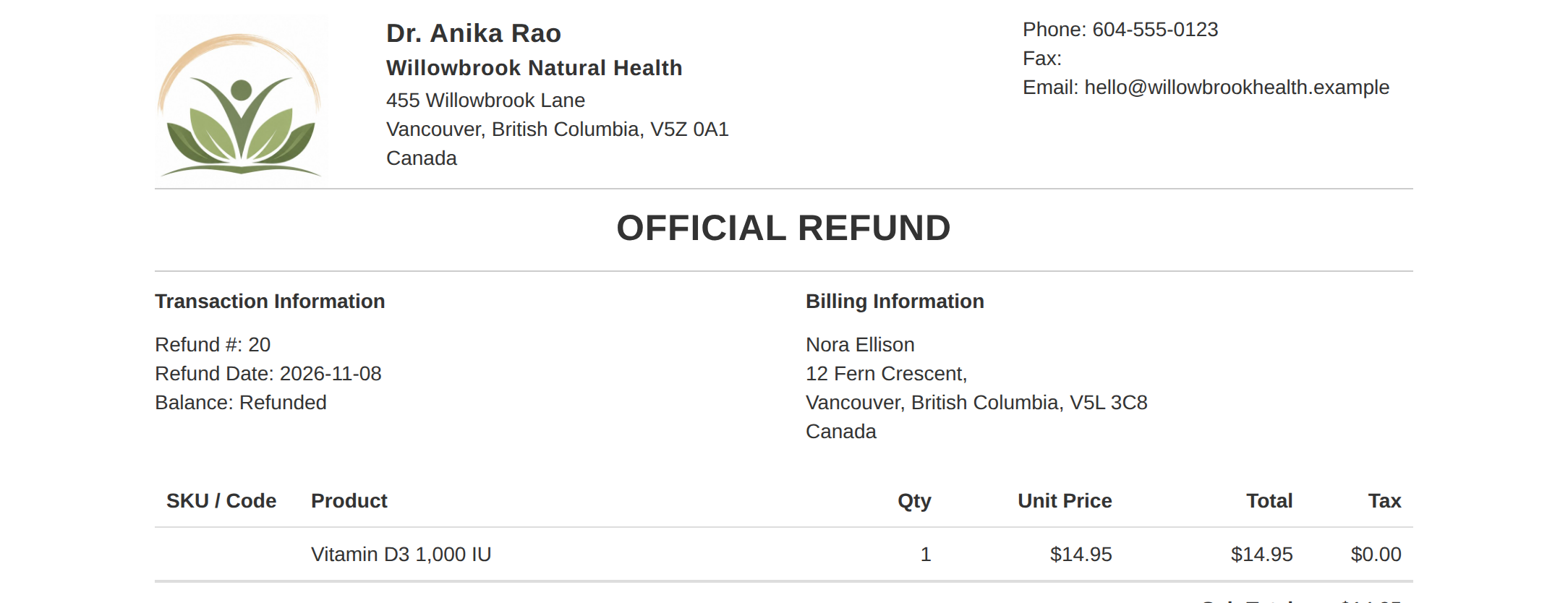
A refund's printout. It shows what was refunded and whether the money has been given back.
To delete a refund transaction, click Delete. A window asks whether you are sure. Click Yes.
Troubleshooting
Nothing opens when I click Refund
The refund opens in a new window. When saving the invoice takes a few seconds, your browser may block the new window as a pop-up. Allow pop-ups for OutSmart in your browser, then click Refund again. Each click creates a refund transaction, so delete any extra empty refunds from the Transactions list.
The card refund was refused
The Refund Amount was more than what is left of the card payment. Click Refund via OutSmart Pay again and type the amount you are refunding.
The client was overcharged on the invoice itself
That is a mistake on the invoice, not a refund after the sale. When the overcharge was paid by card through OutSmart Pay, refund it on the invoice. Refunding an Overpayment on an Invoice explains how. When it was paid another way, correct the payment’s amount on the invoice.
Related Pages
- Refunding an Overpayment on an Invoice: correcting a card payment that came to more than the invoice.
- Taking Payments on an Invoice: payments, including store credit.
- The Dispensary: invoice, order and refund transactions.
- Inventory Management: how refunds change the stock count.
- Transactions Page: finding refund transactions.