

Sharing Smart Forms With Other Practitioners
You can share a SmartForms V2 form with other practitioners so they can send it to their own patients without rebuilding the form from scratch. You control two things separately: who can send the form, and who can view the submissions that come back.
Two kinds of share
The sharing panel has two sections:
| Section | What it lets the people you choose do |
|---|---|
| Who can send this form to patients? | Send the form to their own patients. They see the submissions from patients they sent it to, and not the submissions other practitioners collected. |
| Who can view all submissions? | See every submission of the form, including those collected by other practitioners. |
Each section has a Practitioners picker and an Offices picker. Choosing an office shares the form with all the practitioners in that office.
Practitioners always see the submissions of forms they sent themselves. The second section is for people who need to see submissions beyond that, such as a clinic director.
Most of the time, you let colleagues send the form themselves, without seeing each other’s patients’ answers.
How to share
- From the main menu, open Smart Forms > Smart Forms v2.
- Find the form and click the share icon. When you point to it, it says Sharing.
- The panel Sharing properties opens, with the form’s name in its title.
- Under Who can send this form to patients?, search for the practitioners or offices you want to let send the form.
- Under Who can view all submissions?, do the same for anyone who needs to see every submission.
- Click Done. Each change saves as you make it.
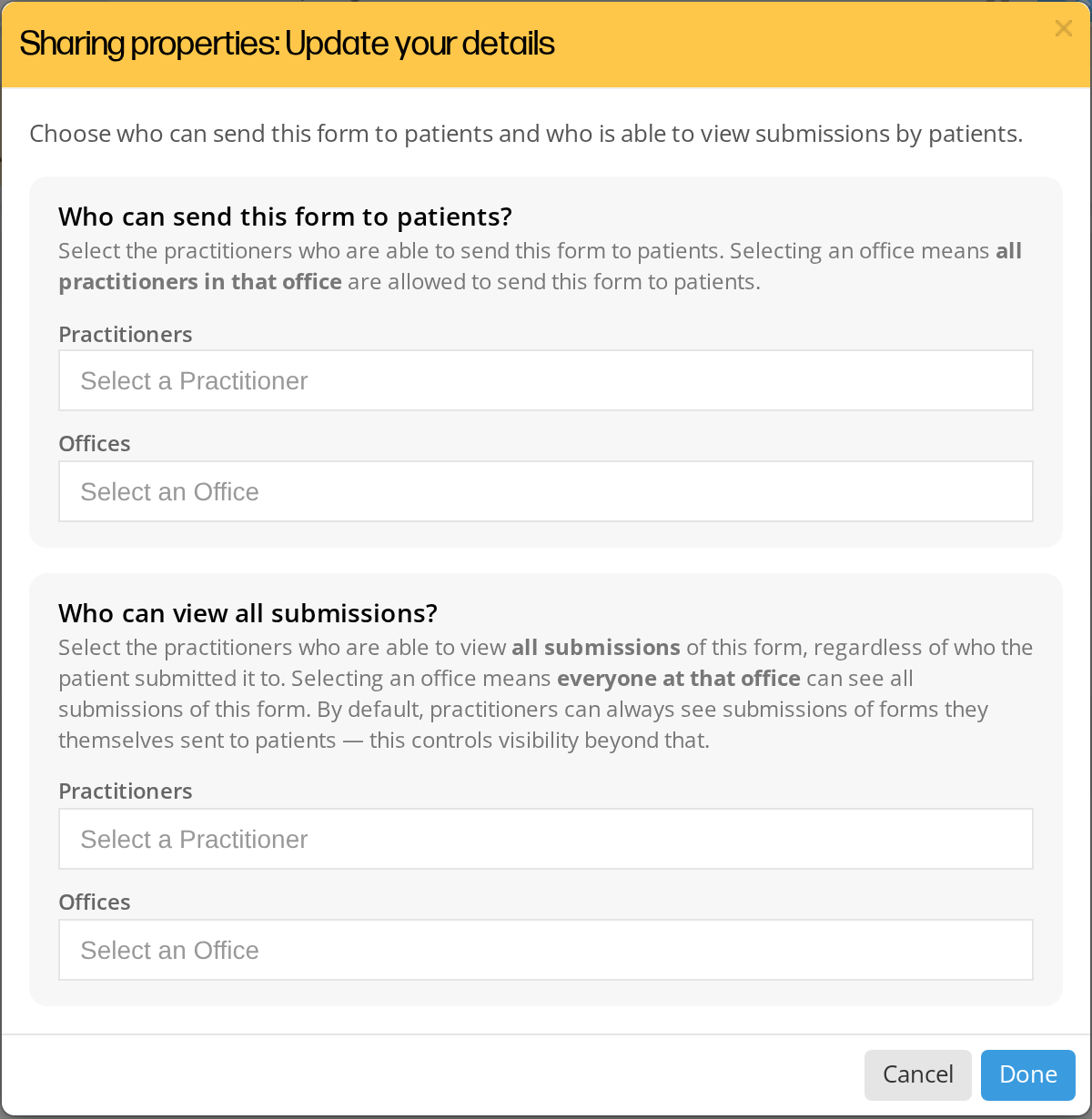
The Sharing properties window. Choosing an office shares the form with every practitioner in that office.
The practitioner search covers every office you’re a member of, not only the office currently selected at the top of the screen. You don’t need to switch offices to share with a colleague at a different clinic.
Who can manage shares
Only the form’s author (the practitioner who first created the form) or an admin in the form’s owning office can manage the share list. The people you share with can use the form but cannot share it further.
What recipients see
When a colleague can send a form:
- The form appears in their Smart Forms list with a small green Shared from [author’s name] tag below the form name.
- They can click the send icon to send it to one of their patients, or generate a guest link.
- They cannot edit the form or change its sharing.
- The form’s submission count column shows only their own submissions to the form, not other recipients’.
When a colleague can view all submissions:
- They see submissions to the form on the Assignments tab, even ones they didn’t send themselves.
- They can open the compact answer view for any submission they have view access to.
When a form can no longer be edited
A form locks the first time anyone sends it to a patient, whether that is you or a colleague you shared it with. On the form list, the Edit pencil is replaced by the eye (Preview) button with a small lock on it. When the form was sent from another office, the button says Preview only: in use at another office, so it can no longer be changed. Use Duplicate to make a copy you can edit. when you point to it. See Editing A Smart Form.
To make changes without affecting the forms your colleagues already sent, duplicate the form and edit the copy. The original locked form keeps working for everyone it was shared with.
Forms attached to an event type
Sharing works differently once a form is attached to an event type, because the person who attached it and the person seeing the patient are often not the same.
The attachment is what allows the form to be sent. Whoever attached the form to the event type had the right to use it at the time, and that permission applies to every appointment booked on that event type. The practitioner who happens to be booked doesn’t need their own share, and doesn’t need to know the form exists.
That means:
- Forms go out for every practitioner who takes that appointment, not only the person who set it up.
- The form shows the practitioner the patient is actually seeing, and that practitioner can read the answers, even when the form belongs to a colleague.
- An event type sends one set of forms. If it’s shared across the clinic, everyone sends the same set. It cannot send different forms for different practitioners.
What happens when you stop sharing a form
Removing a share is not retroactive, and the difference matters:
| What happens | |
|---|---|
| Answers already collected | Nothing. They stay readable by the practitioner who administered the form. Removing a share never hides clinical records someone already collected. |
| Forms already with patients | Unaffected. In-progress forms stay live and the patient’s link keeps working. |
| Future sends | Stop. If the person who attached the form to an event type loses access to it, that event type stops sending it. |
The short version: reading is permanent, sending is live. Once a practitioner has administered a form, those answers stay theirs to read. Whether a form can be sent is checked fresh every time.
Related Pages
- Creating A Smart Form. Author a new form to share.
- Editing A Smart Form. Why a form locks once it is sent.
- Sending Smart Forms To Patients. What a share recipient does with the form.
- Viewing Smart Form Submissions. How sharing affects which submissions you see on the Assignments tab.