

Cancelling an Order
An order can be stopped in three ways, depending on who is stopping it and whether the client has paid for it by card:
- A practitioner asks the dispensary to cancel it. Once a practitioner has placed an order, it belongs to the dispensary staff, so the practitioner sends a cancellation request and the dispensary staff approve or decline it.
- The dispensary staff delete it, while it is still a draft or Submitted.
- The dispensary staff use Cancel and Refund, when the client has paid for the order by card through OutSmart Pay. This cancels the order and refunds the card in one step.
Once an order has been shipped or picked up, it can no longer be cancelled.
The dispensary staff are the dispensary owner and the staff who have full access to the dispensary. Orders explains who does what with an order.
Asking the Dispensary to Cancel an Order
A practitioner who placed an order can ask the dispensary to cancel it, up until the order is shipped or picked up.
- Open the order. On the Daily Express Checkout card, the patient’s row lists their orders under Invoices. Click the order’s number.
- The order opens on its printout. Click the red X at the left end of the step bar at the bottom of the screen. Its name is Cancel Order.
- A window titled Request Cancellation? opens. Type the reason for the request in the box. The reason is required.
- Click Request Cancellation.
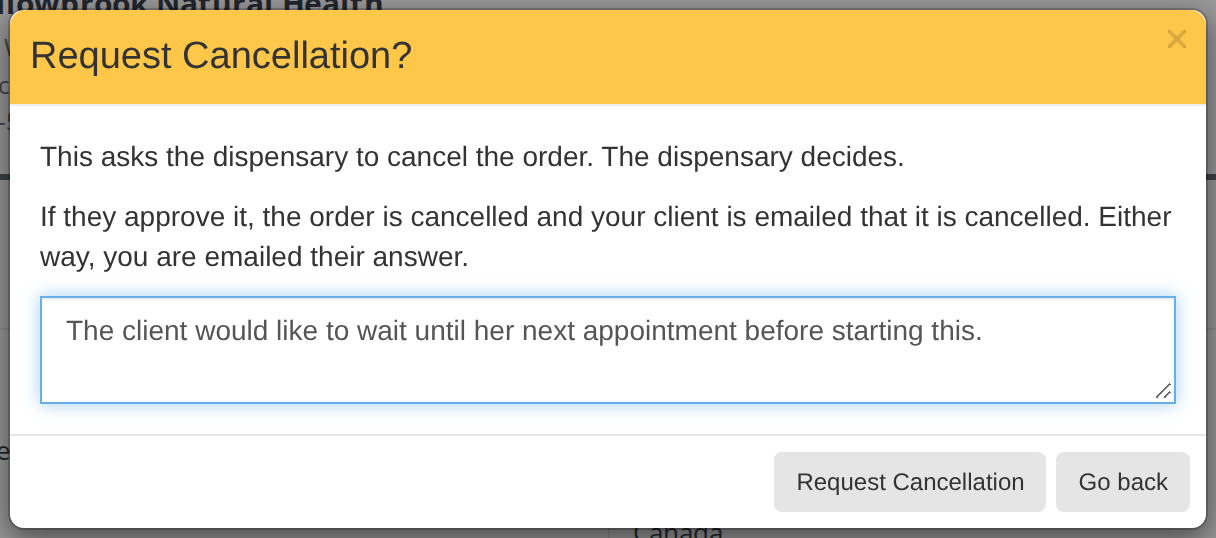
The window a practitioner uses to ask the dispensary to cancel an order. The reason is shown to the dispensary staff.
A banner appears at the top of the order, titled Cancellation Request Pending…. It shows your reason, who asked, and when.

The banner a practitioner sees while their cancellation request is waiting for the dispensary staff.
You are emailed the dispensary’s answer, whether they approve or decline the request.
When it is too late to cancel
Once an order has been shipped or picked up, the red X on its step bar is crossed out. Clicking it opens a window titled Too late to cancel, which says Sorry, this order has already been shipped. or Sorry, this order has already been picked up.
Approving or Declining a Request
When a practitioner asks to cancel an order, the order shows Cancellation Requested in the Fulfillment column of the Transactions list. Open the order. A banner at the top of the printout shows the practitioner’s reason, who asked, and when, with an Approve button and a Decline button.

A cancellation request as the dispensary staff see it. Approve cancels the order. Decline keeps it and tells the practitioner why.
While the request is waiting for an answer, the order cannot be moved to another step, and it opens on its printout rather than in the order screen. Answer the request first.
Approving the request
Click Approve. A window titled Approve Cancellation? explains what happens. Click Approve in the window to confirm.
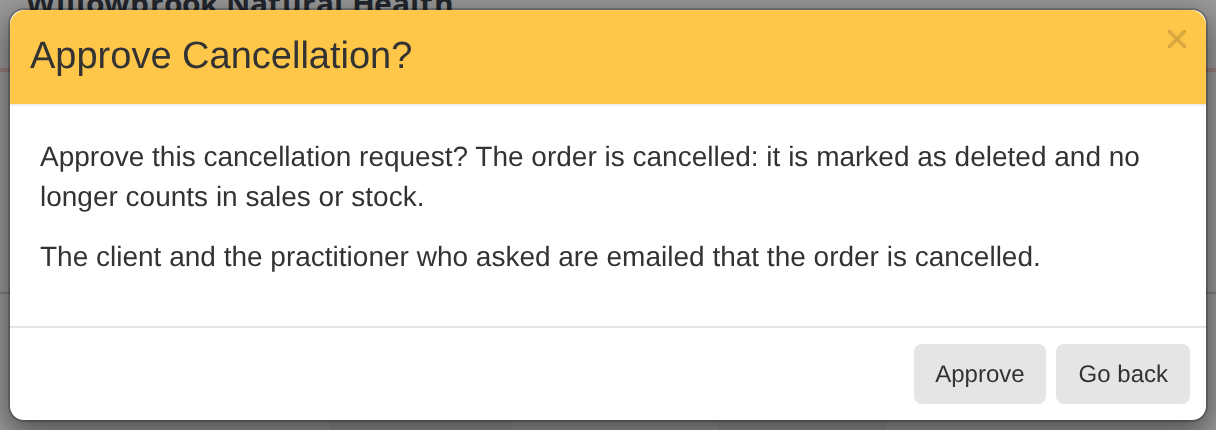
Approving a cancellation request. The order is cancelled, and both the client and the practitioner are emailed.
The order is cancelled. It is marked as deleted, and it no longer counts in your sales or stock. The client is emailed that the order is cancelled, and the practitioner who asked is emailed that their request was approved.
Declining the request
Click Decline. A window titled Decline Cancellation? opens. Type the reason you are declining, then click Decline.
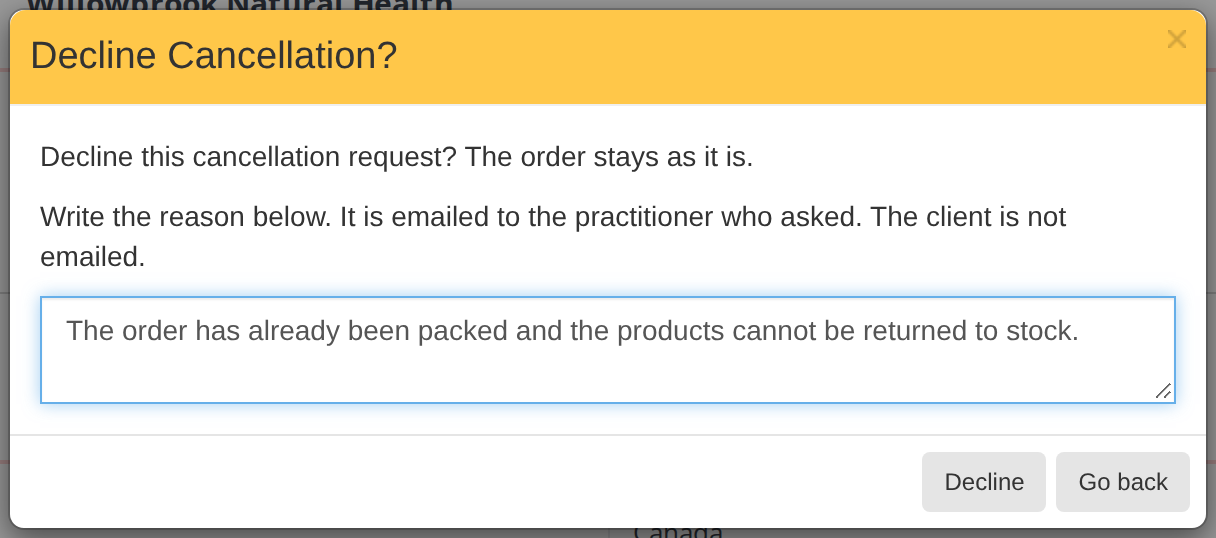
Declining a cancellation request. The order carries on, and only the practitioner who asked is emailed, with your reason.
The order stays as it is and carries on through its steps. The practitioner who asked is emailed that the request was not approved, with your reason. The client is not emailed.
Deleting an Order
The dispensary staff can delete an order while it is a draft or Submitted.
- Open the order in the order screen.
- Click the red X at the left end of the step bar. Its name is Delete Draft on a draft and Delete Order on a Submitted order.
- A window asks you to confirm. Click Yes.
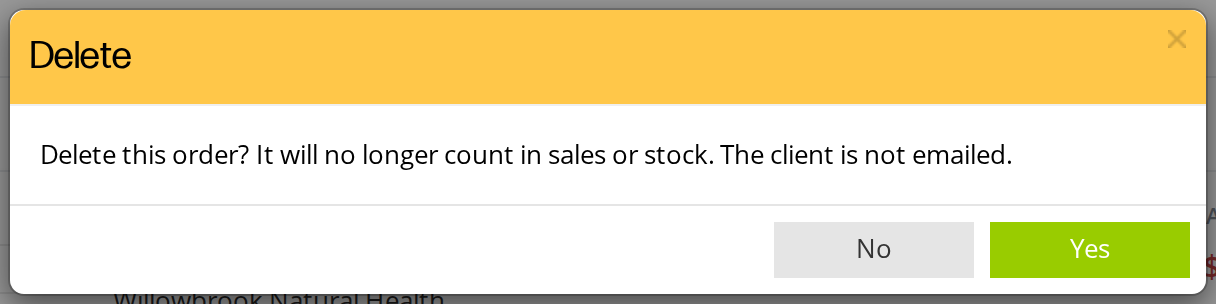
Deleting a Submitted order. It no longer counts in your sales or stock, and the client is not emailed.
A deleted draft changes nothing else, because it was never placed. A deleted Submitted order no longer counts in your sales or stock.
An order at In Progress or Ready cannot be deleted. Take it back to Submitted first with Order Review, which Fulfilling an Order explains, then delete it.
Cancel and Refund
When the client has paid for an order by card through OutSmart Pay, the order cannot simply be deleted, because the money has to go back to the card. On such an order, the red X at the left end of the step bar does Cancel and Refund instead. Hover over it to see the amount it will refund.

The step bar of a Submitted order that was paid by card through OutSmart Pay. The red X here is Cancel and Refund.
- Open the order in the order screen.
- Click the red X at the left end of the step bar.
- A window titled Cancel and refund this order shows the amount that will go back to the client’s card. Click Cancel and refund followed by the amount.
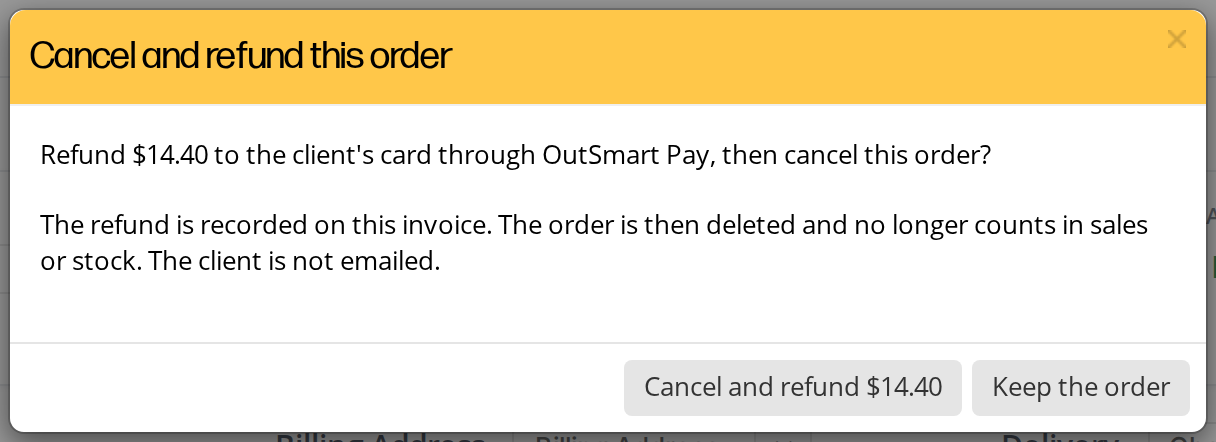
Cancel and Refund refunds the card payment and cancels the order in one step. Keep the order closes the window and changes nothing.
The amount is refunded to the client’s card through OutSmart Pay. The refund is recorded in the order’s payments, so the order is balanced. The order is then deleted, and it no longer counts in your sales or stock. The client is not emailed.
Cancel and Refund is available until the order begins fulfillment. To cancel an order at In Progress or Ready, take it back to Submitted first with Order Review.
An invoice that was paid by card, and has no steps, has an orange Cancel and Refund button in the bar at the bottom of the screen instead. It works the same way, and its window says Cancel and refund this invoice.
Troubleshooting
The practitioner’s red X is crossed out
The order has been shipped or picked up, so it can no longer be cancelled. To give the client their money back, create a refund transaction, which Creating Refunds and Store Credit explains.
The order cannot be moved or edited
A practitioner has asked for the order to be cancelled, and the request is waiting for an answer. Approve or decline the request first.
Delete is not offered on the order
The order has begun fulfillment, or the client paid for it by card through OutSmart Pay. Take it back to Submitted with Order Review, then use the red X. On a card-paid order the red X is Cancel and Refund.
Related Pages
- Orders: the steps of an order and who does what.
- Fulfilling an Order: Order Review, which takes an order back to Submitted.
- Placing a Dispensary Order: how a practitioner places an order.
- Creating Refunds and Store Credit: giving money back after an order has been completed.
- Setting Up Payment Processing with OutSmart Pay: card payments through OutSmart Pay.