

Adjusting Inventory by Hand
An adjustment changes a product’s stock count when no sale, purchase or refund explains the change. You use one to enter a product’s opening count, to match the count to your shelf after counting it, or to take out stock that has expired, been damaged or gone missing.
Each adjustment has a date and a reason, and it is listed on the product’s Transaction History with the word Adjustment.
Where to make an adjustment
You can make an adjustment in two places. Both work the same way.
- On the product page. Open the dispensary, open the Products menu and choose Product List, then click the blue pencil at the end of the product’s row. On the right of the Edit Product page, the box headed Inventory Calculations shows the product’s Current Inventory and the fields for an adjustment.
- From the product list. Click the product’s count in the Inventory column of the Product List. The Adjust Inventory window opens, showing the Current Inventory and the same fields.
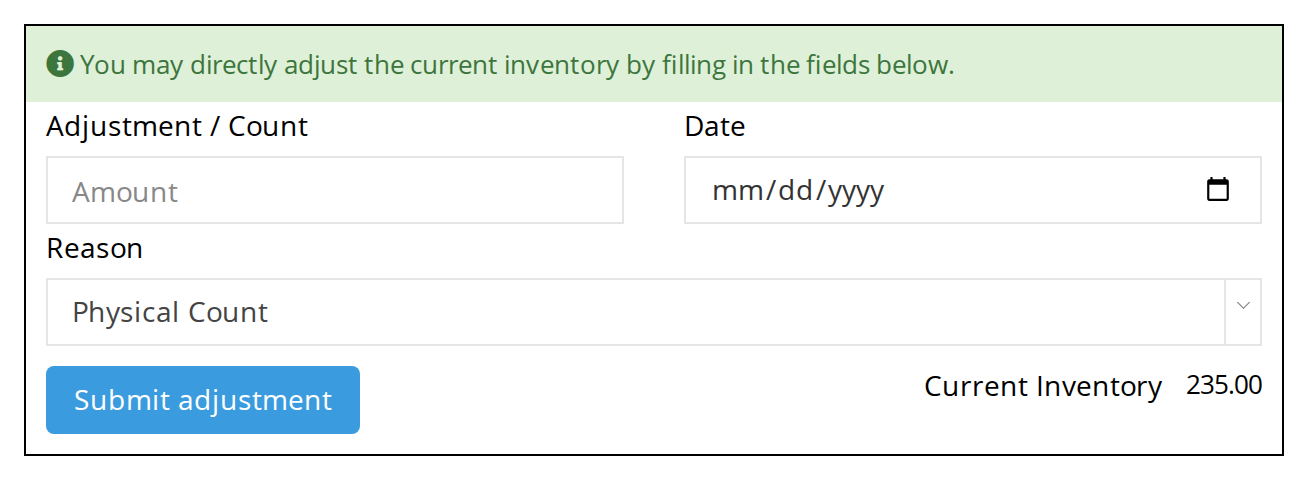
The Inventory Calculations box on the product page, where you change a product's count by hand.
Making an adjustment
- In Adjustment / Count, enter the change, in one of three ways:
- +5, with a plus sign, adds five units to the count.
- -5, with a minus sign, takes five units off the count.
- 5, with no sign, sets the count to five. OutSmart works out the difference from the count on the adjustment’s date and records that difference.
- In Date, enter the date of the change, such as the day you counted the shelf.
- In Reason, choose why the count is changing. The reasons are listed below.
- Click Submit adjustment on the product page, or Submit Adjustment in the Adjust Inventory window.
The Current Inventory changes straight away, and the adjustment is added to the product’s Transaction History.
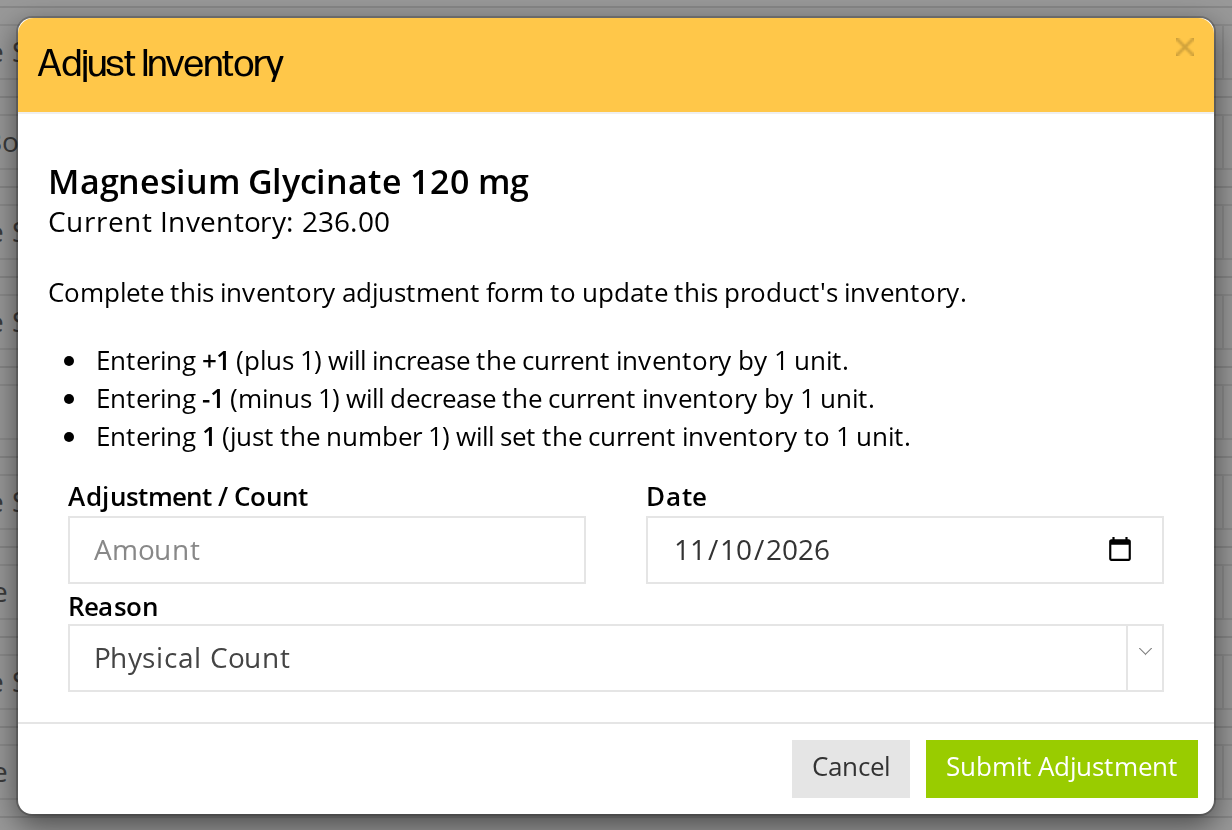
The Adjust Inventory window, opened by clicking a count on the Product List. It explains the three ways to enter a change.
The reasons for an adjustment
| Reason | Use it for |
|---|---|
| Opening Balance | The count of a product when you start keeping its stock in OutSmart. |
| Reconciliation | Matching OutSmart’s count to another record, such as your accounting records. |
| Loss or Theft | Units that are missing or were stolen. |
| Expiry | Units past their expiry date that you are throwing away. |
| Overstock | Units you are sending back or moving out because you have too many. |
| Physical Count | Setting the count to what you counted on the shelf. |
| Other | Anything else, such as a damaged unit or a returned product that cannot be sold again. |
The reason is kept with the adjustment, and it is shown in the Inventory Adjustment Report. See Checking Your Stock.
Related Pages
- Inventory Management: everything that adds stock and takes it away.
- Turning Calculate Inventory On or Off: which products have a count to adjust.
- Checking Your Stock: the Transaction History and the reports that list adjustments.
- Inventory Reports: the Inventory Adjustment Report in full.