

Connecting Your Google Calendar
A practitioner can connect their Google account to OutSmart so that their appointments appear in Google Calendar, alongside the rest of their day. OutSmart creates a calendar of its own in the practitioner’s Google account, named SmartND - followed by the practitioner’s name, and adds every appointment on their OutSmart calendar to it.
Appointments travel one way, from OutSmart to Google. OutSmart’s calendar stays the calendar of record: a change made to the event in Google Calendar is not copied back into OutSmart.
Where The Connection Is
Each practitioner connects their own Google account from their profile.
- Click your initials at the top right of OutSmart, then click My Profile.
- At the top of the Account Profile page, click the Remote Services tab.
- Find the Other Services panel on the right. It lists Google/Calendar in the Service Name column.
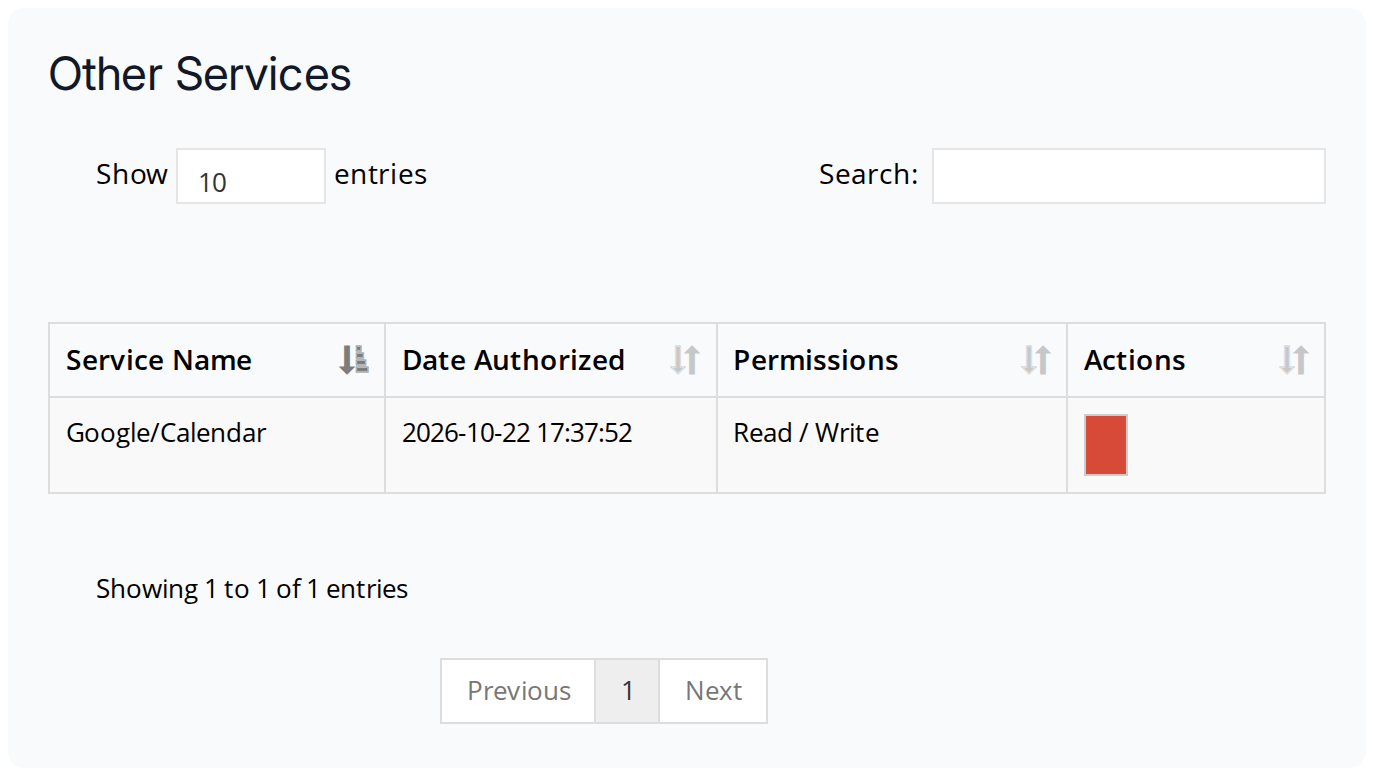
The Other Services panel on the Remote Services tab, with Google Calendar connected. The Date Authorized column shows when the practitioner connected it, and the red button in the Actions column disconnects it.
The Remote Services tab is on practitioner accounts. Admin staff accounts do not have it.
Connecting Google Calendar
- On the Google/Calendar row of the Other Services panel, click the green button in the Actions column.
- A Google window opens. Sign in to the Google account you want your appointments in, if you are not signed in already.
- Google asks you to let OutSmart create a calendar in your account and manage the events in it. Continue through Google’s screens to allow it.
- The Google window closes and the Remote Services tab reloads. The Google/Calendar row now shows the date you connected it in Date Authorized, and its button in Actions is red.
The SmartND - calendar appears in your Google Calendar the first time OutSmart adds an appointment to it. OutSmart can only see and change that one calendar. It cannot see or change any of your other Google calendars.
What OutSmart Adds To Google Calendar
Every appointment where you are the practitioner is added, whoever booked it:
- appointments booked by staff in the OutSmart calendar
- appointments patients book on your online booking page
- appointments booked from a booking link or a waitlist offer
Each event in Google Calendar has:
| Google Calendar shows | Taken from |
|---|---|
| Title | The name of the event type, such as Initial Visit |
| Description | The appointment’s description. For an online booking, this includes what the patient wrote when they booked |
| Start and end | The appointment’s time, in your office’s time zone |
| Repeats | The same pattern, for a repeating event |
The patient’s name is not in the event’s title.
When An Appointment Changes
OutSmart sends each change to Google when the appointment is saved.
| In OutSmart | In Google Calendar |
|---|---|
| The appointment is moved, or its details change | The event is updated to match |
| The appointment is cancelled, with or without notice | The event is removed |
| The appointment is rescheduled | The old event is removed, and the new appointment is added |
| The appointment is deleted | The event is removed |
| The appointment is marked No Show | The event stays, because the time was booked |
| A cancelled appointment is set back to an active status | The event is added again |
Reconnecting
Google sometimes ends a connection, for example after you change your Google password or remove OutSmart’s access from your Google account. When that happens, the Remote Services tab shows a red message above the Other Services panel: Your Google Calendar connection needs to be reconnected. Appointments are not sent to Google until you reconnect.
Click Reconnect now in that message and allow access again, as you did when you first connected. Appointments saved after you reconnect are sent to Google.
Disconnecting
To stop sending appointments to Google, click the red button in the Actions column of the Google/Calendar row, then confirm. The SmartND - calendar stays in your Google account with the events already in it. Delete it in Google Calendar if you no longer want it.
Patients Adding Their Appointment To Their Own Calendar
This is separate from the practitioner’s connection above, and needs no setup.
When a patient finishes booking on your online booking page, the confirmation screen has an Add to Your Calendar section with three buttons:
| Button | What it does |
|---|---|
| Opens Google Calendar with the appointment filled in, ready for the patient to save | |
| Apple | Downloads a calendar file the patient opens in Apple Calendar, or in any other calendar program |
| Outlook | Opens Outlook.com with the appointment filled in, ready for the patient to save |
Each one carries the appointment’s time in your office’s time zone, so the patient’s calendar shows the time they booked. The appointment confirmation and reminder emails also include links to add the appointment to Google, Outlook or Yahoo calendars.
Troubleshooting
An appointment is not in my Google Calendar
Open the Remote Services tab of My Profile. If it shows the message that your connection needs to be reconnected, click Reconnect now. If Google/Calendar has a green button in Actions, Google Calendar is not connected; click it to connect. Appointments that were saved while the connection was not working are sent the next time each one is saved.
I cannot find the SmartND calendar in Google Calendar
The calendar is created the first time OutSmart adds an appointment to it. In Google Calendar, look in the My calendars list on the left, and make sure the calendar is checked so its events show.
Related Pages
- Booking Events: how staff book appointments in the OutSmart calendar
- Editing Events: moving and changing appointments, which updates Google Calendar
- Online Booking Overview: the booking page patients use, whose bookings are also sent to Google
- Appointment Confirmations: the email patients receive after booking