

Collaborative Clinic
Collaborative Clinic is a setting for clinics whose practitioners share patients and work together on their care. When it is on, every practitioner at the clinic can access every chart and every patient document written or uploaded at the clinic, without anyone having to share them one by one.
When it is off, which is how every clinic starts, each practitioner sees only their own charts and the charts other practitioners have shared with them. See Sharing Charts With Colleagues for sharing one practitioner’s charts at a time.
Where The Setting Is
- From the Main Navigation Menu, click Office to open the Office Details page.
- Click Preferences in the row of buttons beside your office’s name.
- Click the Collaborative Clinic tab.
The tab has one switch, This is a collaborative clinic, with On or Off beside it.
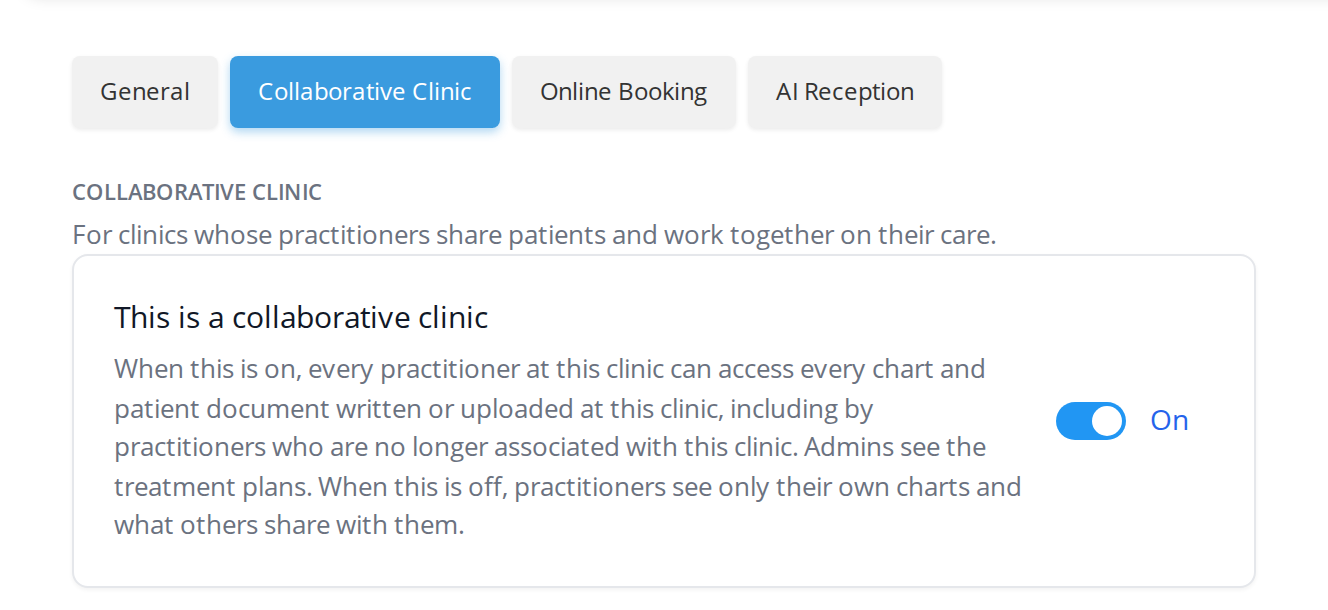
The Collaborative Clinic tab in Office Details, under Preferences. The description beside the switch says what changes when it is on and when it is off.
What Changes When It Is On
| Collaborative Clinic off | Collaborative Clinic on | |
|---|---|---|
| Practitioners at the clinic | See their own charts, and the charts others have shared with them | Can open every chart and patient document written or uploaded at the clinic, including those of practitioners who are no longer associated with the clinic |
| Chart history | Includes your own charts and charts shared with you | Also includes the clinic’s charts, for practitioners whose history includes every chart they can see |
| Medical Summary | Each practitioner’s summary reads their own charts | Each practitioner’s summary reads every chart written at the clinic |
Charts written by a practitioner who has left the clinic stay available to everyone at the clinic, because the setting follows the clinic a chart was written at rather than the practitioner who wrote it.
Admin staff do not see the charts themselves, whether the setting is on or off. They open the treatment plans made from the clinic’s charts, as described in Creating a Patient Treatment Plan.
Chart history follows each practitioner’s own preference. A practitioner’s chart history includes the clinic’s charts only while their Whose charts the history includes preference is set to Every chart I can see, which is the answer until they change it. A practitioner who chooses Only my charts sees only their own charts in their history, but can still open the clinic’s other charts. See Chart Preferences.
Turning It On Or Off
Only the office owner can change this setting.
- Open the Collaborative Clinic tab as described above.
- Click the This is a collaborative clinic switch. A window opens before anything changes.
- Read the window. To turn the setting on, type TURN ON in the box. To turn it off, type TURN OFF.
- Click Turn On or Turn Off. The button stays greyed out until the words in the box match.
Clicking Cancel closes the window and leaves the setting as it was.
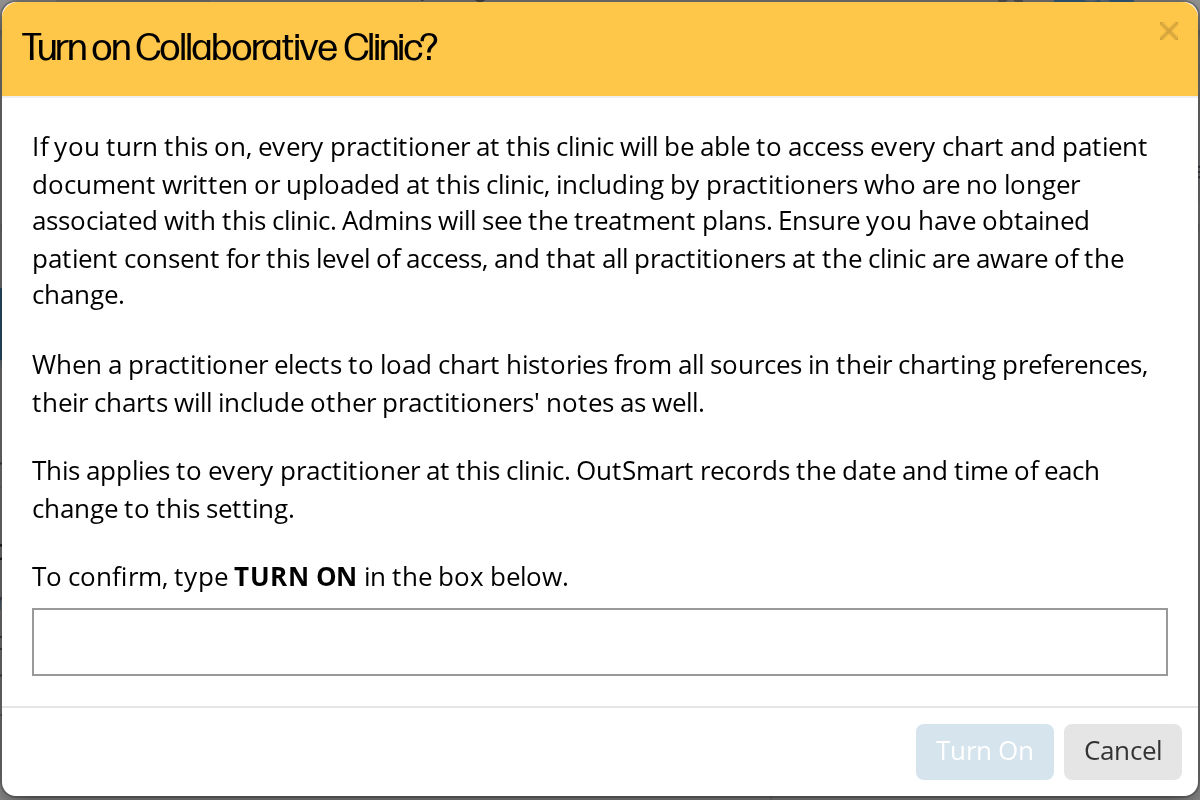
The window that opens when the owner clicks the switch to turn Collaborative Clinic on. The Turn On button becomes available once TURN ON is typed in the box.
The window for turning the setting on explains what every practitioner and admin will be able to see. The window for turning it off explains that practitioners will see only their own charts and what others share with them, and that their chart history will no longer include other practitioners’ charts from the clinic.
Once a change is saved, a Recent changes list appears under the switch. Each line names who turned the setting on or off, and when, for example Turned on by Anika Rao on Nov 14, 2026, 9:53 a.m. The date and time are shown the way your browser shows them.
Who Can See And Change It
The Preferences button on the Office Details page is shown to the office owner and to admin staff.
- The office owner can turn Collaborative Clinic on and off.
- Admin staff can see the tab and whether the setting is on, but the switch is greyed out and the card says Only the clinic owner can change this setting.
- Practitioners who are not the office owner do not see the Preferences button.
Related Pages
- Office Preferences. The other tabs under Preferences in Office Details.
- Sharing Charts With Colleagues. Sharing one practitioner’s charts with a colleague or an office.
- Chart Preferences. Each practitioner’s choice of whose charts their chart history includes.
- Products And Diagnoses From Other Practitioners. How colleagues’ active products and diagnoses reach your chart.
- Medical Summary. Whose charts the patient’s summary reads.
- Patient Privacy Between Team Members. How patient links decide who can see a patient at all.