

The Submission PDF
When a patient submits a SmartForms V2 form, OutSmart saves a PDF copy of the form and the patient’s answers in the patient’s documents. The PDF is how you fax, email or print a submitted form, the same way you send any other document.
Opening the PDF
- Open the submitted form in the answer view, from the patient’s Smart Forms tab or from the Assignments tab. Viewing Smart Form Submissions explains both ways.
- At the top of the answer view, find the bar headed PDF copy of this form.
- Click Open PDF. The PDF opens in the document viewer, where you fax, email or print it.
The PDF is also in the patient’s documents list, under the name of the practitioner who sent the form.
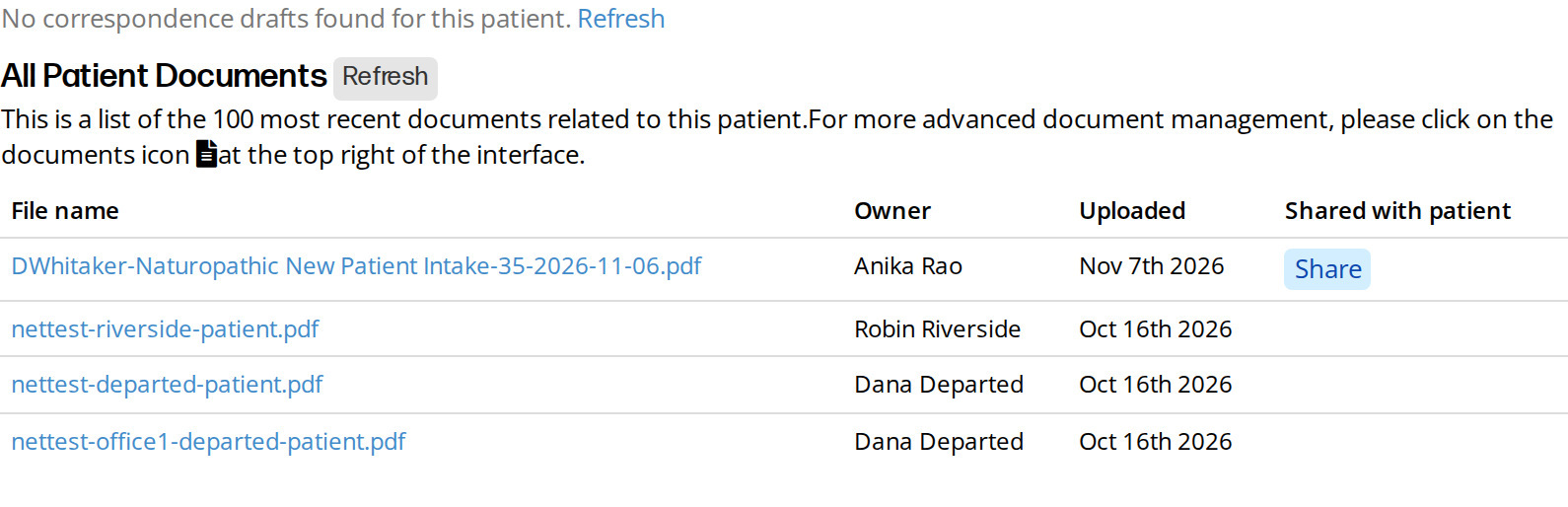
The PDF copy in the patient's documents. Its name gives the patient, the form and the date the form was submitted.
The file name
The file name is the patient’s first initial and last name, then the form’s name, the form’s number and the date the patient submitted it. For a patient named Jane Smart who submitted form 5 on 26 September 2026, the name is JSmart-New Patient Intake-5-2026-09-26.pdf. The name tells you whose form it is after you download, email or fax it.
What the PDF looks like
The PDF is sized to print on letter paper and is laid out to make the answers easy to find.
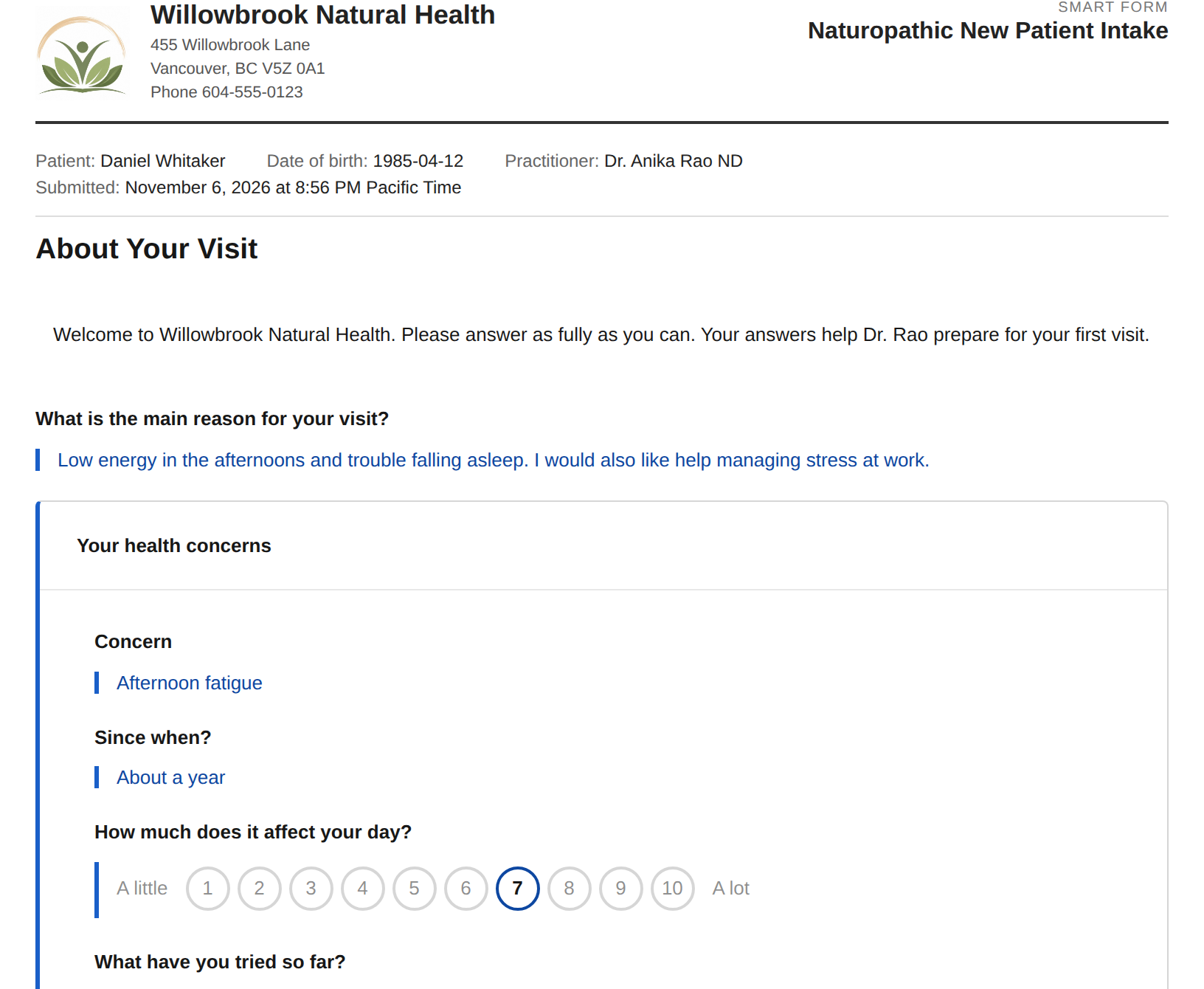
The first page of a submission PDF. Each answer is in blue beside a blue bar, so the answers stand out from the questions.
- The top of the first page shows your clinic’s logo, name, address and phone number, and the form’s name.
- Below that are the patient’s name and date of birth, the practitioner, and the date and time the patient submitted the form.
- Each answer is printed in blue, with a blue bar beside it.
- A choice question lists the options the patient chose, and then the options they did not choose in smaller text after the words Not selected.
- A yes or no question that the patient left blank shows No answer with a note that it was a yes or no question.
- Any question the patient left blank shows No answer.
- A table question fits the width of the page, and the rows the patient left blank are listed together on one No answer line under the table.
- Follow-up questions that appear only after a certain answer are indented under the question that opens them.
Forms submitted more than once and older forms
If a patient submits the same form again, OutSmart makes a new PDF for the new answers and keeps the earlier one. The bar in the answer view then lists the earlier PDFs after the words Earlier versions, each with the date it was submitted.
A form submitted before PDF copies were made has no PDF yet. For such a form, the bar says that opening it for the first time saves a PDF copy to the patient’s documents. When you click Open PDF, a window opens with the message Converting to PDF. This is a one time action, please wait., and the PDF appears in that window when it is ready. The PDF is dated with the day the patient submitted the form, not the day you opened it.
Related Pages
- Viewing Smart Form Submissions explains the answer view, where the Open PDF button is.
- Importing A SmartForms V2 Submission Into A Chart explains how to bring the answers into a SOAP chart.
- Emails Reference lists the emails patients and staff receive. The PDF is not emailed to anyone.