SmartForms V2 sends emails at seven points in the form’s life. This page lists each one so you know what your patient is reading and what arrives in your own inbox.
Emails to patients come from OutSmart, with the practitioner’s name followed by “via OutSmart” in the From field.
Some forms reach patients without a SmartForms V2 email of their own. Forms attached to an event type arrive with the booking emails and appointment reminders. See Adding SmartForms V2 To An Event Type and Smart Forms In Appointment Reminders. Forms filled in on a clinic tablet send no email at all.
The PDF copy of a submitted form is not emailed to anyone. It is saved in the patient’s documents for staff. See Viewing Smart Form Submissions.
When you send a form to a patient
Trigger
You click Send form in the Send panel, for one patient.
Recipient
The patient at the email address on file. You can change the address in the Send panel before sending, and the change is also saved to the patient’s record.
From name
The practitioner the form is sent on behalf of, followed by “via OutSmart”.
Subject
[Practitioner Name] has sent you a form to fill out: [Form Name]. The form name is in the subject so that two forms from the same practitioner don’t get grouped into one email thread in the patient’s inbox.
Body
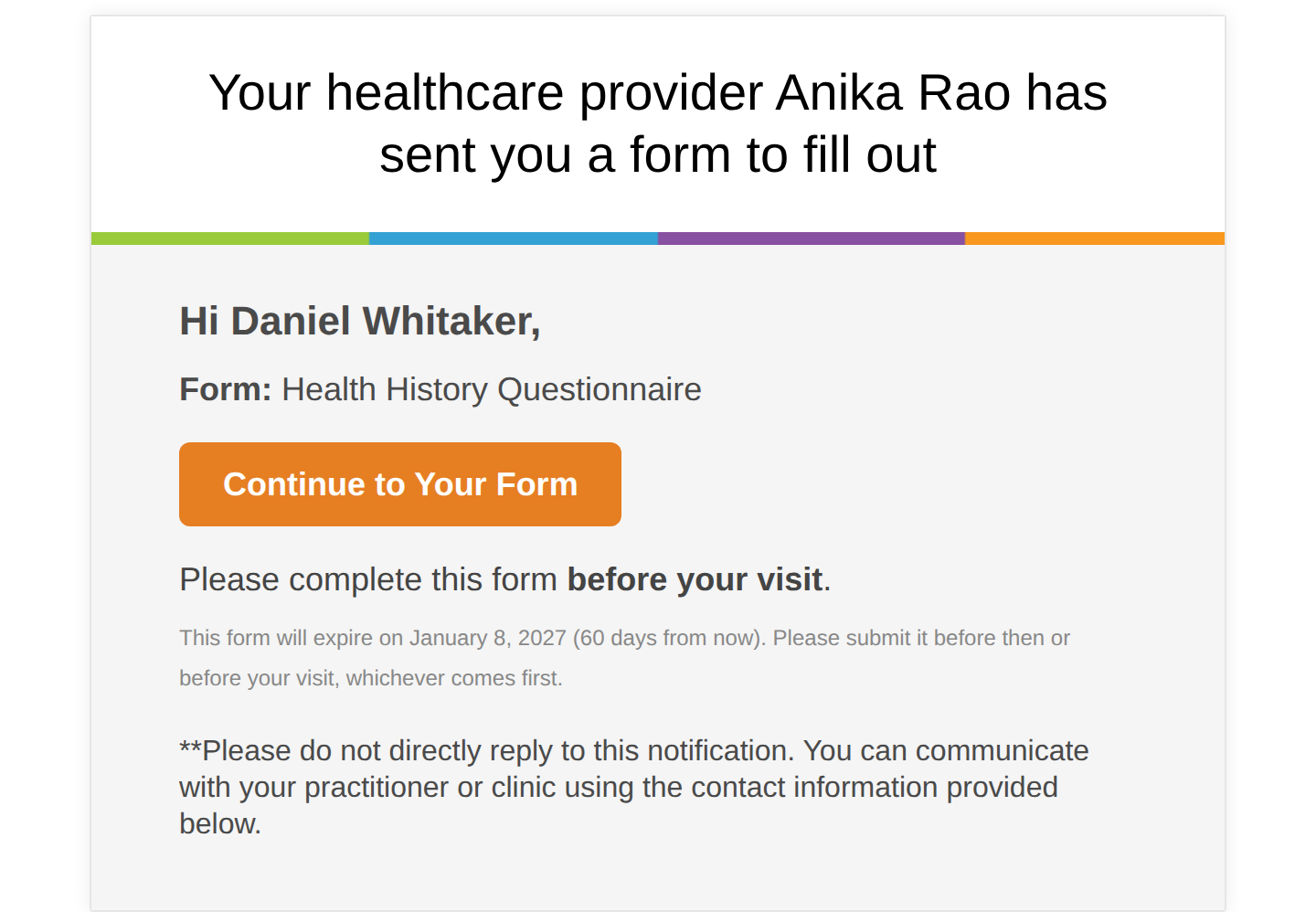
A short greeting, the form name, a Continue to Your Form button, then the line “Please complete this form before your visit”. A smaller line under it gives the date the form expires and the number of days left, for example This form will expire on [date] (60 days from now), and asks the patient to submit before then or before their visit, whichever comes first.
Link lifetime
60 days for the patient to click and open the form; once they open it, 90 days to fill and submit. See Expiries And Link Timing.
The email a patient receives when you send them a form. The orange button opens the form.
When a guest patient starts a form via public link
Trigger
A patient opens a public guest link, enters their name, email and date of birth, and clicks Start Form.
Recipient
The patient at the email they entered on the landing page.
From name
The practitioner the guest link belongs to, chosen when the link was made, followed by “via OutSmart”.
Subject
You started a new form: [Form Name]
Body
A greeting using the name they entered, the form name, a Continue Your Form button, and a note that the link is valid for 90 days.
Link lifetime
90 days from when they clicked Start Form. The public guest link itself never expires. Each patient’s own link has the 90-day clock.
When a returning guest patient asks to continue
Trigger
A patient opens a guest link again after starting the form, enters the same name and date of birth, and clicks Email me the link on the You already started this form screen.
Recipient
The same patient.
Subject
Continue your form: [Form Name]
Body
A link back to the form they started, and the date by which they have to complete it.
Why it’s email-only
The choice screen does not show the link in the browser. It sends the link by email, so someone who knows another patient’s name and date of birth cannot open that patient’s saved answers.
When a guest patient restarts
Trigger
A patient opens a guest link again after starting the form, enters the same name and date of birth, and clicks Start Over on the choice screen.
Recipient
The same patient.
Subject
You’ve restarted your form: [Form Name]
Body
A new link to a blank copy of the form, with the 90-day clock starting again. The answers the patient saved before are discarded.
When the patient submits the form
Trigger
The patient clicks Complete at the end of the form.
Recipient
The administering practitioner, whose name was on the patient’s email. If the form has no administering practitioner, the form’s author receives it.
CC
The office’s contact email, if the office has one and it is different from the practitioner’s email.
From name
The OutSmart notification address.
Subject
New SmartForm Submission: followed by the patient’s first name and last initial (for example, Jane S.), and then the form’s name. The form name is in the subject so that submissions of different forms don’t get grouped into one email thread.
Body
A note that the form, named in quotes, has been submitted by the patient. The answers are not in the email. Open the patient’s record to read them.
What patients receive
A green “Thank You” screen in their browser. The patient does not receive an email.
When you send a reminder
Trigger
You click the bell icon on an unfinished form, on the Assignments tab or on the patient’s Smart Forms tab.
Recipient
The patient at the email on the assignment.
From name
The administering practitioner, followed by “via OutSmart”.
Subject
Reminder: Fill out [Form Name] for [Practitioner Name]
Body
A reminder to finish the form, the link back to it, and the line “Please complete this form before your visit”. A smaller line under it gives the date the form expires and the number of days left, for example This form will expire on [date] (N days from now). That line turns orange at 7 days or fewer, and red at 3 days or fewer.
What’s not reset
The clock doesn’t restart. The reminder sends the same link the patient already had. To give the patient more time, use the Extend action described in the next entry.
When you extend a patient’s time
Trigger
You click the clock icon (Extend) on a form, whether it has expired or not, and confirm. OutSmart handles the two cases differently.
Recipient
The patient at the email on the assignment.
From name
The administering practitioner, followed by “via OutSmart”.
Subject (pre-expiry)
More time to finish your form for [Practitioner Name]: [Form Name]
Subject (post-expiry)
A new link for your form for [Practitioner Name]: [Form Name]
Body
An explanation that the patient has more time to finish, the form name, and a button back to the form. Then the line “Please complete this form before your visit”, with a smaller line giving the new expiry date and the number of days left. Before expiry, the link is unchanged. After expiry, the link is new, and the patient’s saved answers are kept so they continue where they stopped.
What gets reset
Before expiry: the clock the patient is on (60-day link-click or 90-day fill) starts again from now. Same link. After expiry: a new link is issued, the old one stays expired, and the patient gets 60 days to open the new link.