

Emailing and Printing an Invoice
Once an invoice is saved, you can email it to the client as a PDF, print it, or both. This page explains how, what the client receives, and what the printout shows.
Creating an Invoice explains how to make the invoice in the first place.
Emailing an Invoice
There are two places to email an invoice from:
- Save & Send, in the bar at the bottom of the invoice screen, saves the invoice and then emails it.
- Email Invoice, in the bar at the bottom of the invoice’s printout, emails an invoice that is already saved. When the invoice is paid in full, the button says Email Receipt.
Both open the same window.
When the invoice has a balance owing
When you click Save & Send on an invoice that is not paid in full, a window first asks whether you still wish to continue. Click Yes to carry on and send it, or No to go back and take a payment first.
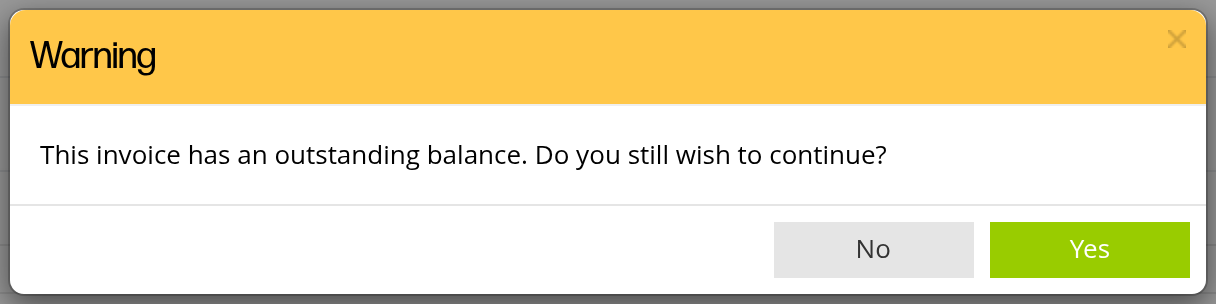
The question shown when you send an invoice that still has a balance owing. Yes carries on to the email.
The Send invoice to client window
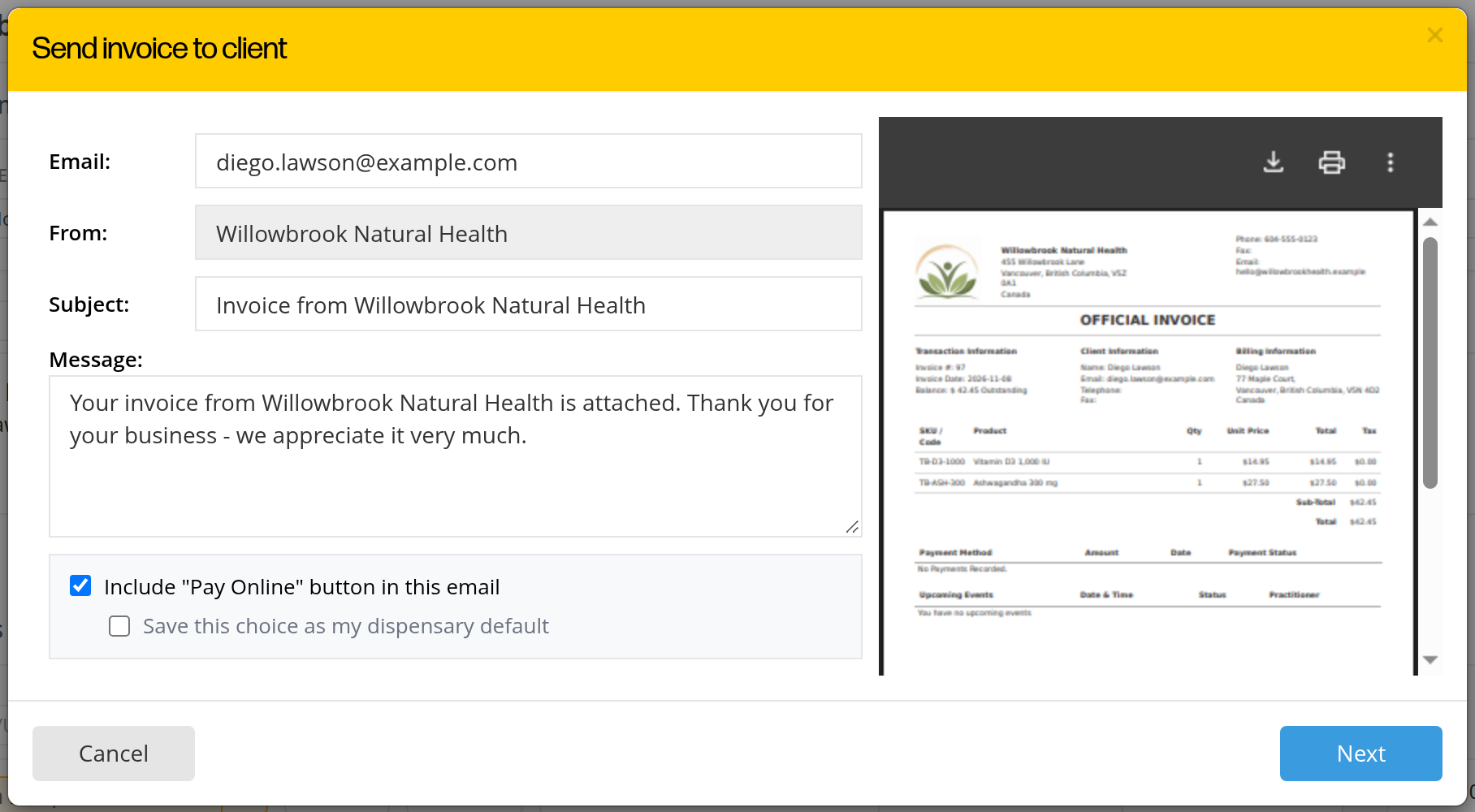
The window for emailing an invoice. The preview on the right is the PDF the client receives.
| Field | What it is |
|---|---|
| The client’s email address. You can change it for this email. | |
| From | The name the email comes from. |
| Subject and Message | The subject and message of the email. You can change both. |
| Include “Pay Online” button in this email | When this box is checked and the invoice has a balance owing, the email has a Pay Online button, so the client can pay the balance by card. |
| Save this choice as my dispensary default | Makes your choice for the Pay Online button the starting choice for every email from this dispensary. |
- Check the email address, the subject and the message.
- Check or uncheck Include “Pay Online” button in this email.
- Click Next. A summary shows who the email is going to, who it is from, the subject, the message, and whether the Pay Online button is included.
- Click Send E-mail. To change something first, click Go back.
The client receives your message, with the invoice attached as a PDF. When the Pay Online button is included, the client clicks it, pays the balance by card through OutSmart Pay, and the payment is recorded on the invoice. Taking Payments on an Invoice explains how that payment appears.
The PDF’s file name says what it is, its number, its date and your office, for example Invoice 99 2026-11-08 Willowbrook Natural Health.pdf.
Printing an Invoice
Click Save & Print in the bar at the bottom of the invoice screen. The invoice is saved and its printout opens. Click Print in the bar at the bottom of the printout to open your browser’s print window, where you choose the printer, or save the printout as a PDF.
What the printout shows
In a regular dispensary, the printout is titled OFFICIAL INVOICE while there is a balance owing, and OFFICIAL RECEIPT once the invoice is paid in full. It shows the practitioner and the office at the top, then the transaction, client and billing information, the products and services, and the payments.
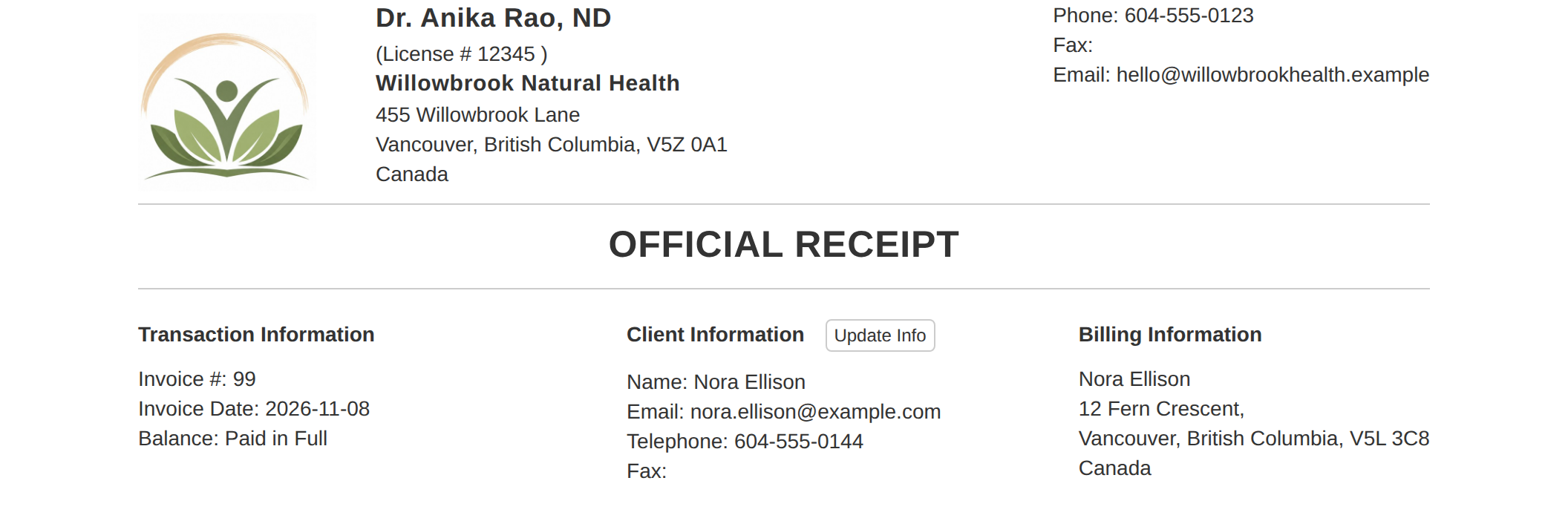
The printout of a paid invoice in a regular dispensary. Its title is Official Receipt because the balance is paid in full.
The Update Info button beside Client Information copies the client’s current details from the patient’s record onto the invoice. Use it when the patient’s address or phone number has changed since the invoice was made. It does not appear on paper.
In an order management dispensary, the printout has a different design. Its title is Order Request, Invoice or Receipt, with a red Balance owing label or a green Paid in full label beside it. Your Invoice Header and Printouts explains that printout.
The bar at the bottom of the printout

The bar at the bottom of a printout. It never appears on paper.
| Button | What it does |
|---|---|
| Edit Invoice | Opens the invoice screen again, so you can change the invoice. |
| Show Upcoming Events on printout? | When checked, the printout lists the client’s next appointments. Uncheck it to leave them off. This box is only in a regular dispensary. |
| Activity Logs | Shows the invoice’s history: who did what to it, and when. |
| Email Invoice or Email Receipt | Emails the invoice, as explained above. |
| Opens your browser’s print window. |
Troubleshooting
The client did not receive the email
Check the email address in the Email field of the window, and on the patient’s record. Then send the invoice again with Email Invoice on the printout.
The Pay Online button was not in the email
The button is only included when the box was checked, the invoice had a balance owing, and OutSmart Pay is set up for the dispensary.
The printout shows the client’s old address
Click Update Info beside Client Information on the printout. The client’s current details are copied from the patient’s record.
Related Pages
- Creating an Invoice: the invoice screen and its Save buttons.
- Taking Payments on an Invoice: payments, including those made with the Pay Online button.
- Your Invoice Header and Printouts: the header and footer of an order management dispensary’s printouts.
- Managing Existing Invoices: finding an invoice and opening it again.
- Setting Up Payment Processing with OutSmart Pay: what the Pay Online button needs.