

Office Preferences
Office Preferences hold the settings that apply to your whole office rather than to one practitioner. They are on the Office Details page, grouped into tabs so each group of settings has its own page.
Opening Office Preferences
- From the Main Navigation Menu, click Office to go to the Office Details page.
- Click Preferences in the row of buttons beside your office’s name at the top of the page.
- A row of tabs appears below. Click a tab to see its settings.
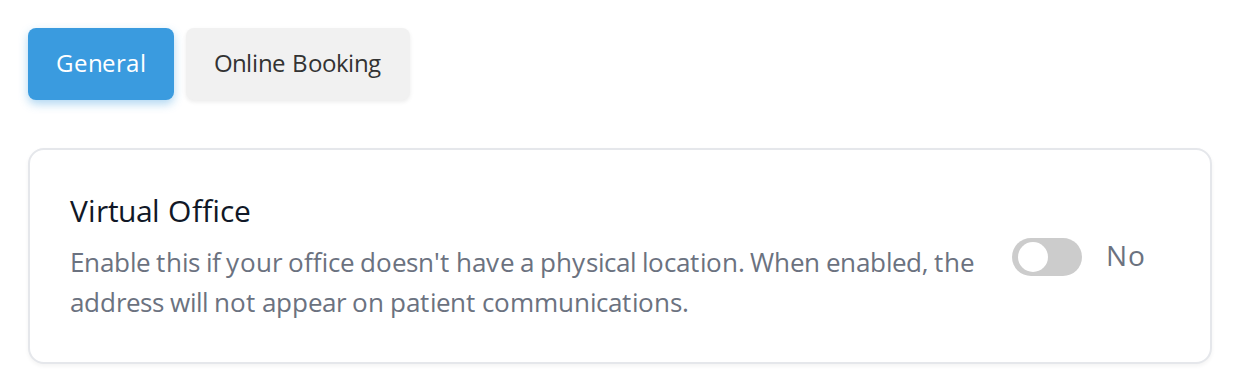
The tabs at the top of Office Preferences, with the General tab open. Each tab shows the cards for one group of settings.
Each setting is on a card of its own, with a description of what it does.
The Tabs
| Tab | What it holds |
|---|---|
| General | Virtual Office, for an office with no physical location |
| Online Booking | Web Address, your clinic’s address online; Allow Online Booking, which turns your online booking page on and off; and Redirect Legacy Online Booking Links, which sends visitors of your older booking page links to your current booking page |
You can link someone straight to a tab. The address in your browser changes to name the tab you are on, so copying it opens the same tab for a colleague.
Virtual Office
Turn on Virtual Office when your office has no physical location, for example a practice that sees every patient by video or phone. When it is on, your address does not appear on patient communications, and the page patients open from an appointment reminder says their appointment is online.
This is the same setting as Virtual Office on your online booking page, so changing it in one place changes it in the other. See Virtual Office Settings.
Online Booking
The Online Booking tab is where you choose your clinic’s web address and turn your online booking page on or off. Both are explained in Setting Up Your Booking Handle.
Who Can Change Office Preferences
The Preferences button on the Office Details page is shown to the office owner and admin staff. Practitioners who are not the office owner do not see it.
Related Pages
- Completing Your Profiles: the rest of the Office Details page, including your office logo
- Setting Up Your Booking Handle: your clinic’s web address and the Allow Online Booking switch
- Virtual Office Settings: the same Virtual Office setting, from your booking page
- General Preferences: the scheduling settings on your online booking page itself