

IV Protocols and Recipes
Most clinics give the same few IVs again and again. Instead of building each one from scratch, start the IV Therapy section from something saved:
| What it fills in | Where it is saved | Who sees it | |
|---|---|---|---|
| Protocol | The whole section: the recipe, the dispensary, the medication details, the duration and drops per mL, the formulation, the infusion details and the notes | In your charting | Every practitioner at the office |
| Recipe | The bag’s substances and their amounts (CC) | In the dispensary, as a recipe product | Everyone who uses that dispensary |
A protocol is the better choice for an IV you always give the same way. A recipe is the better choice when the bag is the same but everything else changes from patient to patient. A protocol usually contains a recipe, so it gives you both.
Choosing a Protocol or Recipe
The box at the start of the section’s heading row reads Select IV Therapy Protocol until you choose something.
- Click Select IV Therapy Protocol.
- Type part of the name. The list shows protocols and recipes, each marked PROTOCOL or RECIPE. A protocol or recipe made by a colleague shows their name.
- Choose one.
To narrow the list, start your search with prt and a space to see only protocols, or rec and a space to see only recipes.

Protocols and recipes in the same list, each with its label.
What Happens When You Choose a Protocol
OutSmart asks Load Product Protocol, because a protocol replaces everything in the section. Click Yes, Load Protocol to fill in the section, or Cancel to leave it as it is.
The section fills in with everything the protocol keeps. The screening answers, weight, start and end times, edema, monitoring, catheter status, complications, patient status and vital signs are never part of a protocol, so you fill those in for each visit.
What Happens When You Choose a Recipe
The recipe’s name becomes the IV’s heading, and its substances fill the IV Therapy Formulation table with their amounts. If the table already has substances in it, OutSmart asks Reset Ingredients List? first. Click Replace Ingredients to use the recipe’s substances, or Cancel.
The Lot#, Exp., mg/mL and mOsmol/mL of each substance are filled in from the last time the product was used in an IV, so check them against the vials in front of you. See Building the IV Formulation.
You can change the substances and amounts for this patient without changing the recipe. Reset Ingredients, above the table, puts them back to the recipe.
Saving a Protocol
Save the section as a protocol once it is filled in the way you usually give that IV.
- Type a name in the Save Protocol As… box, at the right end of the heading row.
- Click Save beside it.
A Protocol Saved! message confirms it. The protocol appears in Select IV Therapy Protocol for you and every other practitioner at the office.

Name the protocol and click Save.
Deleting a Protocol
Open Select IV Therapy Protocol. Each protocol you made has an x beside it in the list. Click it, then click Yes, Delete Protocol. You can only delete your own protocols.
Saving a Recipe
A recipe saves the bag’s substances and amounts in the dispensary, so that anyone can start an IV from it and so that the IV can be finalized and billed.
- Fill in the formulation table with at least two substances, each with an amount in CC (mL).
- Under the table, click Save As New Recipe. The Create New Recipe window opens.
- Fill in the recipe’s details:
- Name is required, and no other recipe in the dispensary can have the same name.
- Product SKU, Product Category and Tax Group are optional.
- Base Unit is mL for an IV.
- Product Cost and Product Sale Price are what the finished IV costs the clinic and what the patient pays. The sale price is the price that goes on the invoice.
- Click Create Recipe.
The recipe’s name becomes the IV’s heading.
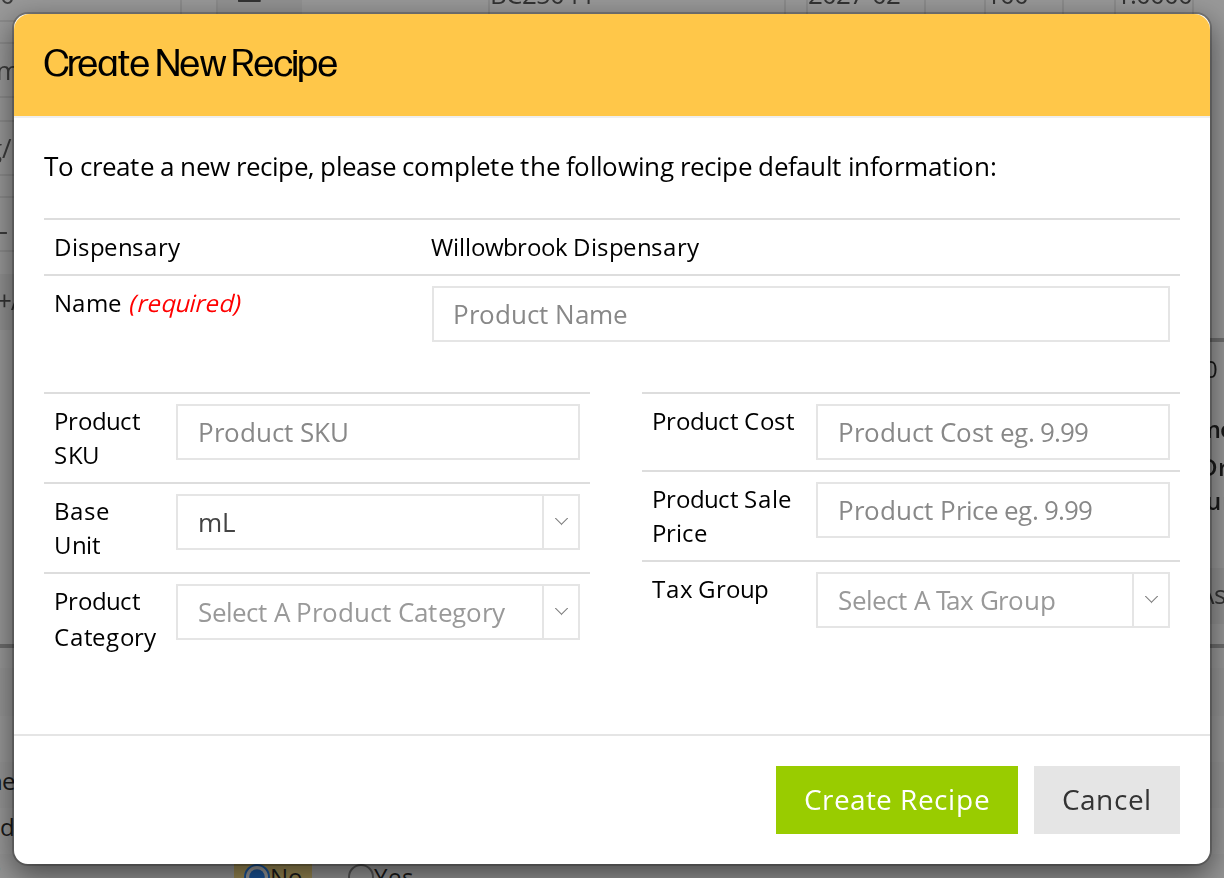
A recipe is saved in the dispensary, with its own price.
A recipe keeps only the substances and their amounts. The lot numbers, expiry dates, concentrations and osmolarity are not part of it; they are remembered for each product instead.
Updating a Recipe
When the IV’s heading is a recipe, Update Recipe saves the formulation table’s substances and amounts into that recipe. The Update Recipe Details window opens with the recipe’s details, so you can change its name and prices at the same time. Click Update Recipe in the window to save.
Recipes are deleted from the dispensary’s product list, not from the chart.
Related Pages
- IV Therapy: adding the section and how it is laid out
- Building the IV Formulation: the formulation table
- Finalizing the IV and Billing: turning the recipe into a billable blend
- Protocols: protocols in other kinds of sections
- Recipes and Blends: recipes and blends across the dispensary