

Importing A SmartForms V2 Submission Into A Chart
You can pull a patient’s completed SmartForms V2 answers straight into the Subjective section of their chart, so you are reviewing what they wrote rather than retyping it.
You choose how the answers arrive. Import them exactly as the patient wrote them, or have AI organise them into a written note. You see a preview either way and decide what goes in.
Opening the patient’s forms from the chart
Open the patient’s chart and click Smart Forms on the toolbar at the top of the page. Their forms list opens, showing every form you have sent them and where each one stands.
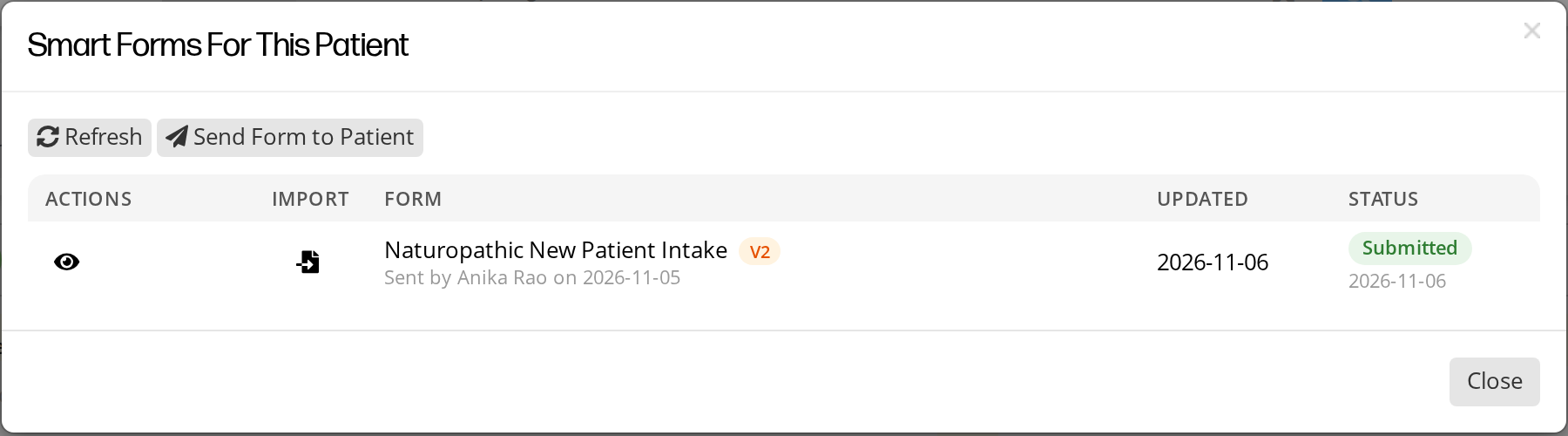
The patient's forms, opened from the chart. The icon in the Import column starts Review & import.
From this list you can also send a new form, remind a patient about one, let them finish a form on a tablet, or give them more time. If a patient is with you and their form is unfinished, you can send, extend or hand it over from here without leaving the chart.
Next to a SmartForms V2 form, click the import icon. When you point to it, it says Review & import.
Reviewing the answers first
Review opens the patient’s answers grouped by the pages of the form, so you can read the whole submission before deciding to bring any of it in.
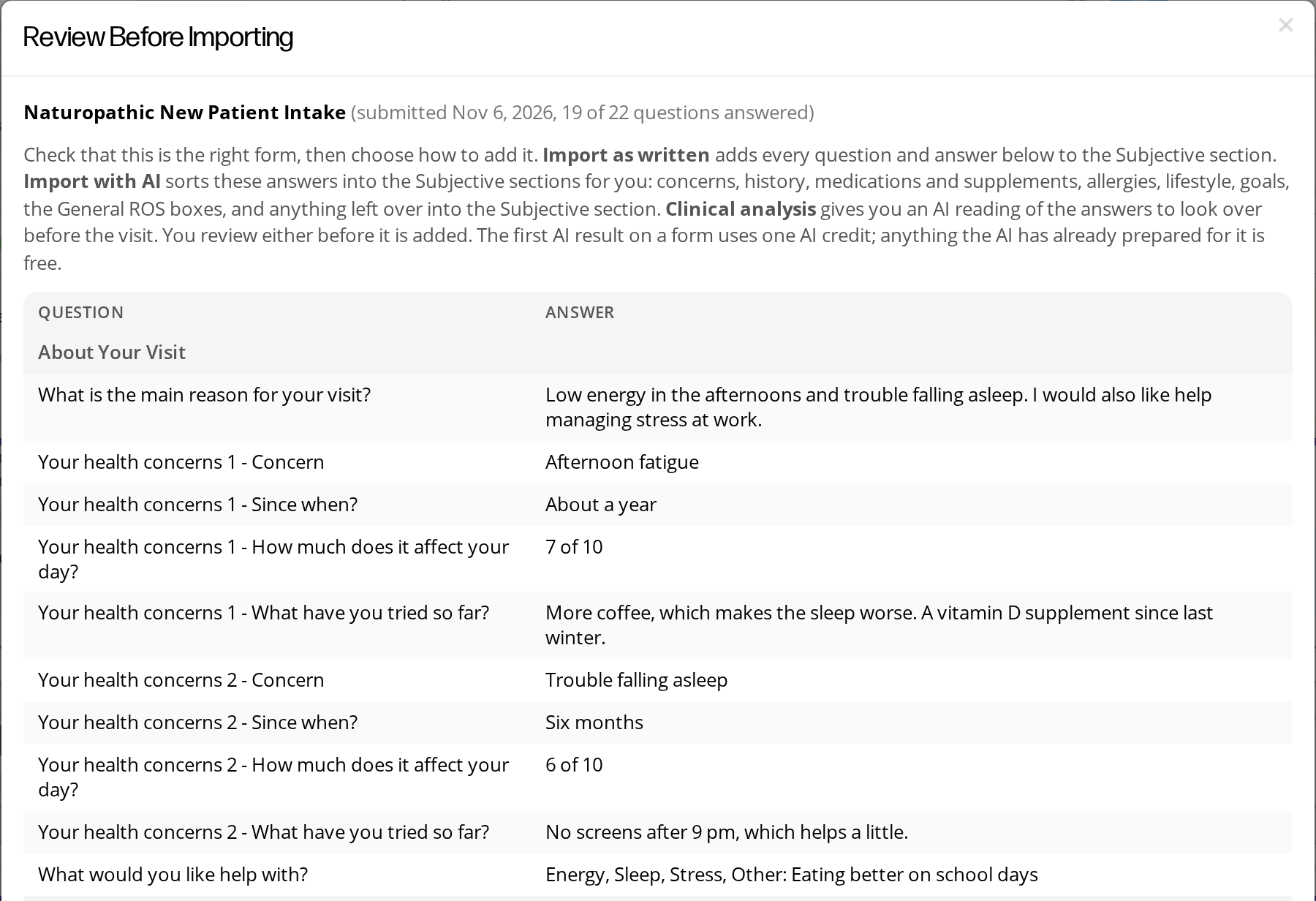
The review step. Every question and answer is listed before anything is added to the chart.
If the patient has not submitted the form, the review screen says so. You can still read what they filled in.
The two ways to import
Import as written
Brings the answers in exactly as the patient wrote them: one paragraph per question, with the question in bold and the answer beneath it, under a heading naming the form and the date.
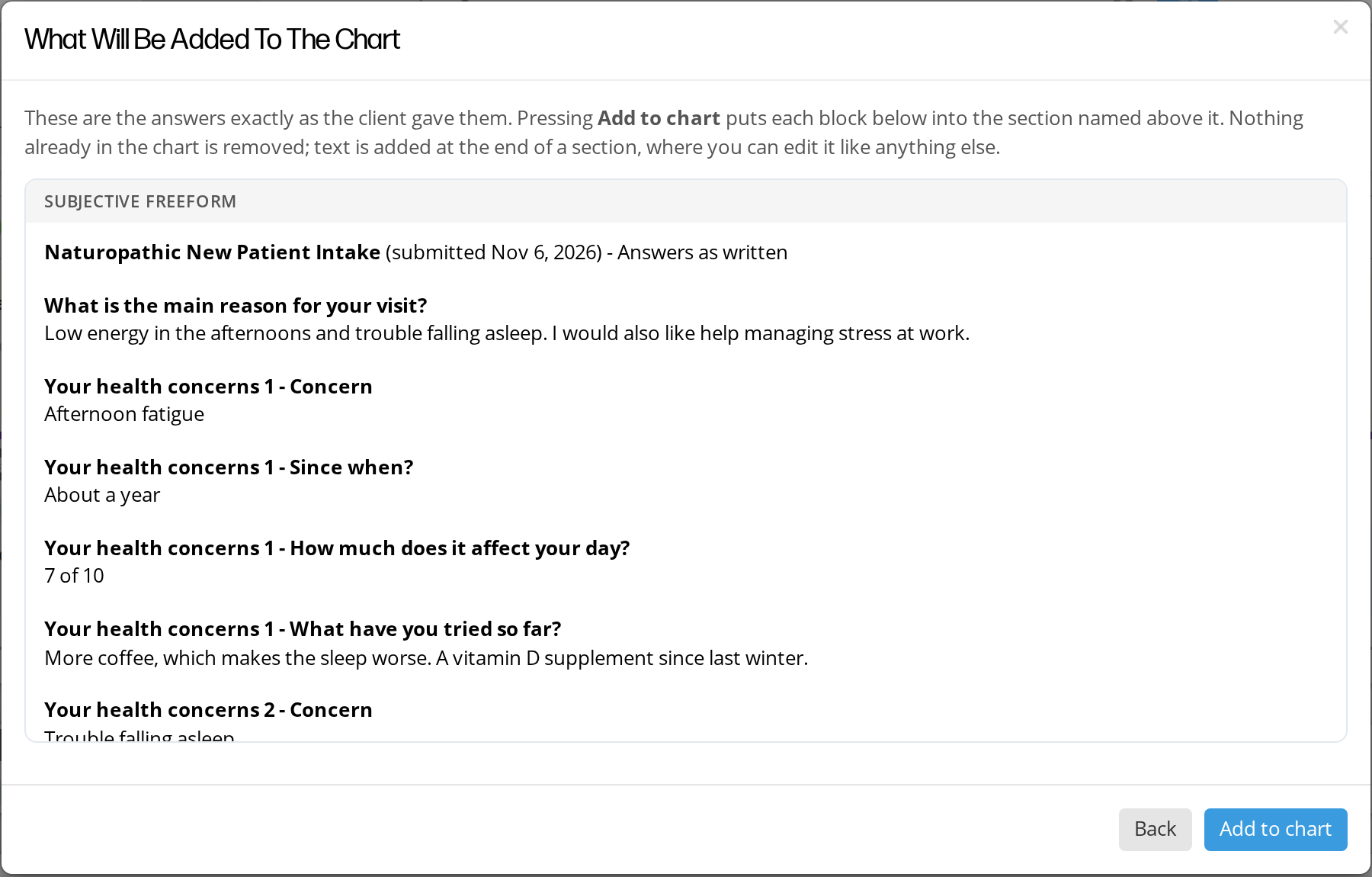
The preview of Import as written. Add to chart puts the text at the end of the section named at the top of the box.
Use this when you want the patient’s own words in the chart, unaltered. This option is free.
Import with AI
Turns the answers into a written Subjective note instead of a list of questions.
What you get depends on your charting:
- Basic charting gives you a Subjective note in plain, neutral language: bold group labels with one bullet per answer, covering what the patient reported and leaving out administrative questions.
- PRO charting sorts the answers into your chart’s own structure: Chief Concerns, Review of Systems, History, Supplements and Medications, Allergies, Lifestyle, Goals, and General. It also checks the matching General ROS boxes. Headings are matched against your own headings and the global list. Anything that does not match is created for you and marked as a new heading in the preview, and anything left over goes into Subjective Freeform.
When the preview has more than one block, each block has an include checkbox, so you choose what goes in. Where a heading already exists on the chart, the new content is added to it rather than creating a second one.
Clinical analysis
Alongside the import, you can ask for a clinical analysis: an AI reading of the answers written for you rather than for the chart. It covers the presentation in brief, notable patterns, things worth exploring, questions to ask, and things worth ruling out.
It opens by stating that it is not a diagnosis. It goes into Assessment Freeform by default, and you can send it to a different freeform box instead.
While AI is working
An AI import takes from a few seconds to a minute or more, depending on how many questions the form has. The screen tells you it is preparing and counts up while it works.
The other buttons keep working while it runs, and you can close the panel and carry on with something else. When the result is ready the preview opens on its own if you are still on the review step, and otherwise you get a notification and the button changes to View AI import or View clinical analysis. On the forms list, a small icon appears next to any form whose analysis is ready.
What it costs
One credit per submission, charged when the first AI result for that submission is ready.
After that:
- The other kind of AI result for the same submission is free.
- Looking at a result again, any number of times, is free.
- Regenerate costs a credit, and asks you to confirm first.
- A run that fails costs nothing.
Importing as written never costs a credit.
See How AI Credits Work.
Adding it to the chart
When the preview looks right, click Add to chart. Each block is added at the end of the section named above it in the preview, the chart saves, and the page scrolls to what was added. Nothing already in the chart is removed.
Forms the patient has not submitted
You can open a form the patient has not submitted yet. The review screen says This form has not been submitted. and shows the answers the patient has saved so far. You can still Import as written if that is what you want in the chart.
The AI options are not offered until the patient submits the form, because the answers can still change.
Reading the AI results from the patient workspace
The clinical analysis and a written summary are also available outside the chart. Open a submission from the patient’s Smart Forms tab and you see two boxes above the answers, AI Clinical Analysis and AI Form Summary, each with the date it was generated and a Copy button.
A result generated in the chart is free to view here, and the other way round. A PRO chart import, sorted into headings, is a separate result and does not fill the AI Form Summary box. If a box has not been generated yet, it says so.
Anyone who can open the submission can read a result that already exists. Generating one needs a submitted form and the right person: the practitioner who sent the form, or their office staff. Where a button cannot be offered, the box explains why.
Related Pages
- Viewing Smart Form Submissions. Reading a patient’s answers in the workspace.
- Converting A SmartForms V1 Form. Bring a V1 form across so its submissions can be imported.
- How AI Credits Work. What each AI action costs and how your balance works.
- The Charting Interface. The chart toolbar the Smart Forms button sits on.
- Filling A Form In The Clinic. Handing a patient a tablet to finish a form during their visit.
- AI and Health Information. How OutSmart handles patient information with AI tools.