

Notes and Activity on an Order
Every order has two panels that keep track of it, both opened from the dark bar at the bottom of the order’s printout:
- Notes are messages the dispensary staff write for each other about the order, such as a question from the client or a change to the pickup time.
- Activity Logs is the order’s history. OutSmart adds an entry every time the order moves to another step and every time an email is sent to the client, with who did it and when.
Notes
The Notes button is the light purple button in the bar at the bottom of the order’s printout. When the order has notes, the number of notes is shown on the button.
Click Notes. The Notes panel opens above the bar. Each note shows the initials of the person who wrote it, the note itself, their name, and the date and time.

The Notes panel of an order. Add a note writes a new note, Refresh shows notes others have just added, and Close hides the panel.
Adding a note
- Click Add a note at the top right of the panel. A box opens, saying Add a note about this order.
- Type the note.
- Click Save Note.
The note is added to the list, and the count on the Notes button goes up by one. Click Cancel to close the box without saving.
The panel has two more buttons. Refresh reloads the notes, so that you see any note another person has just added. Close hides the panel.
Who can see the notes
The notes are for the dispensary staff: the dispensary owner and the staff who have full access to the dispensary. They can read the notes and add to them.
A practitioner who orders from the dispensary but is not one of the dispensary staff does not see the Notes button or the notes. To ask the dispensary staff something about an order, contact them directly.
Activity Logs
The Activity Logs button is in the same bar at the bottom of the order’s printout. Click it to open the order’s history above the bar. The number beside the heading is how many entries there are, and the newest entry is at the top.
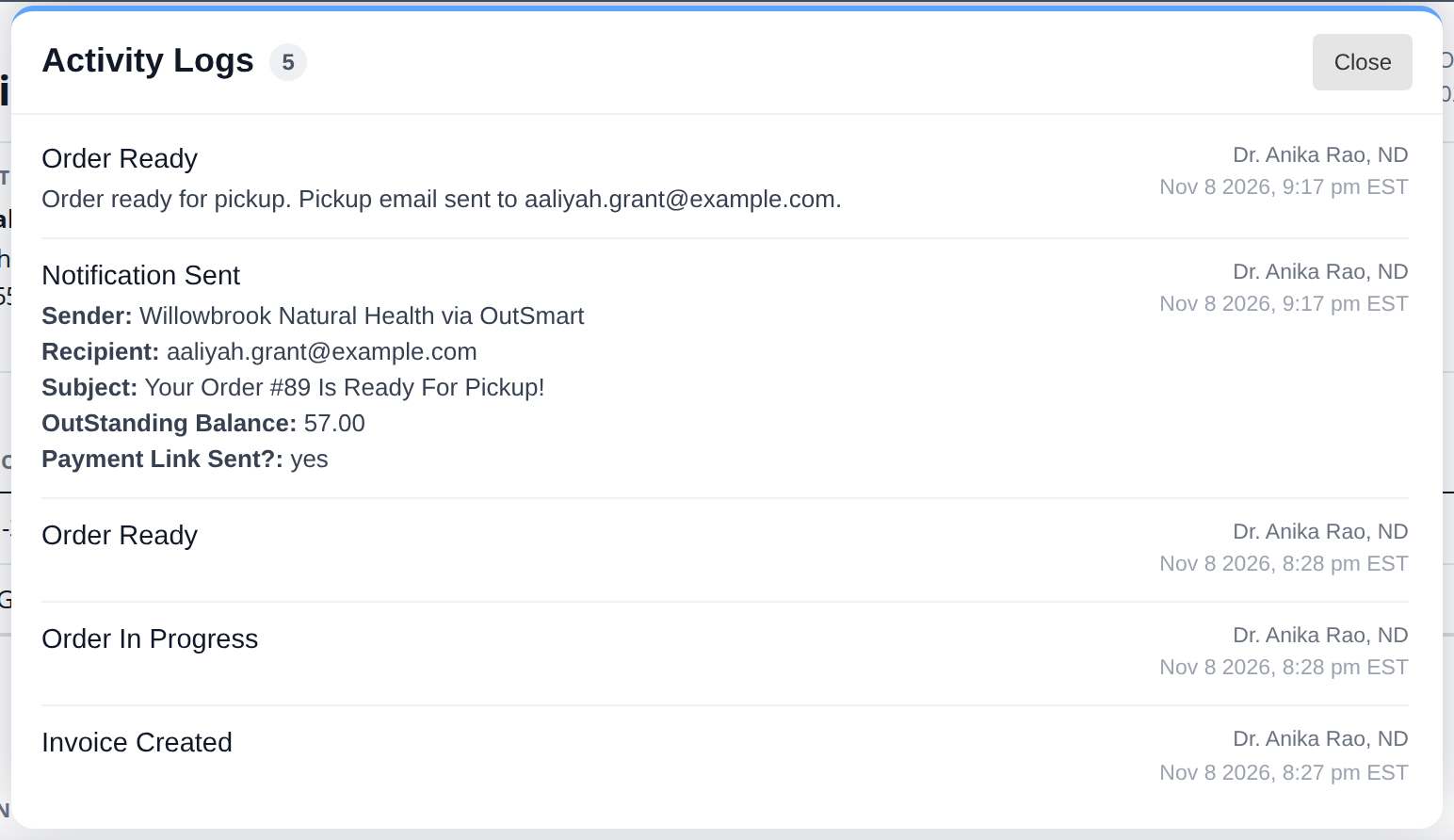
The Activity Logs of an order at Ready. Each entry shows what happened, who did it and when, including the pickup email sent to the client.
Each entry shows what happened on the left, and who did it and when on the right. The entries include:
| Entry | What it records |
|---|---|
| Invoice Created | When the order was first created. |
| Order In Progress, Order Ready and the other steps | Each time the order moved to a step, including moves back with Order Review. |
| Notification Sent | An email sent to the client, with the name it came from, the address it went to, its subject, the balance owing at the time, and whether it included a Pay Online button. |
When an email was sent as part of a step, such as the pickup email, the step’s entry also says so.
Practitioners can open Activity Logs on the orders they placed, as well as the dispensary staff.
Troubleshooting
The Notes button is not on the order
Notes are only shown to the dispensary staff. If you are the dispensary owner or have full access to the dispensary and the button is still missing, check that the dispensary is an order management dispensary. The Dispensary explains how to check.
A note someone else added is not showing
Click Refresh at the top of the Notes panel.
I need to know when the client was emailed
Open Activity Logs. Every email sent to the client has a Notification Sent entry, with the address it went to and when.
Related Pages
- Orders: the steps of an order and who does what.
- Shipping or Pickup: the Ready Step: the shipping and pickup emails that appear in Activity Logs.
- Fulfilling an Order: moving an order through its steps.
- Dispensary Permissions: giving staff full access to the dispensary.