

Converting A SmartForms V1 Form
You can convert a form you built in SmartForms V1 into a SmartForms V2 form. The questions and sections come across, and you get an editable V2 form you can then adjust.
This is worth doing when you want a V1 form to work the way V2 forms do: patients fill it in from a link without creating an account, and you can attach it to an event type so it goes out automatically when someone books.
Converting a form
- From the main menu, choose Smart Forms > Smart Forms v2.
- Click Create New. The Create a new form window opens.
- If you are an admin, choose a practitioner under Who is this form for? at the top of the window. Every form belongs to a practitioner, so choose the practitioner the form is for.
- Click Convert a Smart Forms v1 form. The Choose a v1 form to convert window opens.
- Click the V1 form you want to convert.
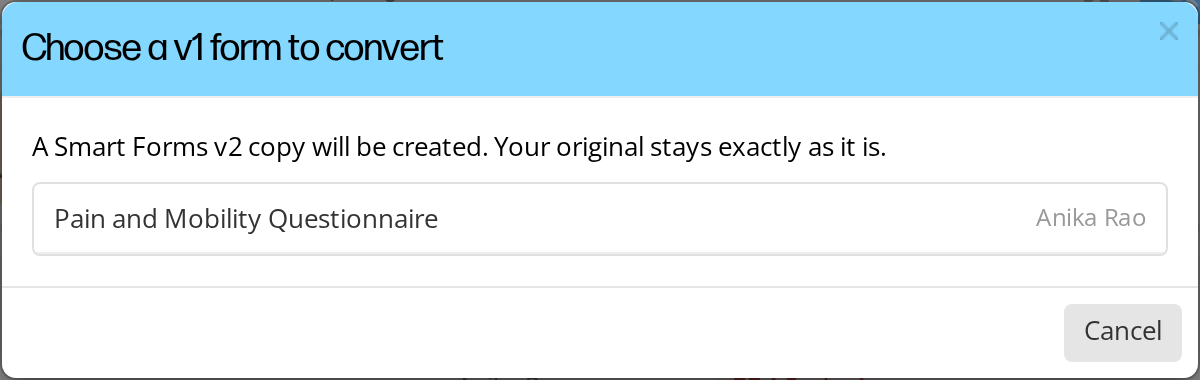
The list of your SmartForms V1 forms. Clicking one makes a SmartForms V2 copy and leaves the original as it is.
Conversion is quick, and the new form opens in the editor when it is done. The new form keeps the name of the form you converted.
Your original form is not touched
Converting creates a new V2 form. The V1 form stays exactly where it is, still works, and still holds every submission patients have already made against it.
Nothing is moved and nothing is deleted, so you can convert a form, look at the result, and decide afterwards whether to start using it.
What to check afterwards
Almost every V1 form converts completely, but the two systems organise questions differently, so open the new form in the editor and check:
- Every section came across. If part of a V1 form uses something the converter does not recognise, the converter skips that part and finishes the rest. A message then says how many sections need a look.
- Question wording and answer choices read the way you expect.
- Which questions are required.
- Section headings and instructions. Text that is guidance rather than a question is better as a Text block.
The new form is yours to edit until the first time you send it to a patient. After that it locks. See Editing A Smart Form.
After you convert
A converted form behaves like any other V2 form. You can send it to a patient, generate a guest link, share it with colleagues, or attach it to an event type so patients receive it automatically when they book.
If you attach the V2 version to an event type, remember an event type sends one version or the other, never both. See Adding SmartForms V2 To An Event Type.
Related Pages
- Adding SmartForms V2 To An Event Type. Send the converted form automatically when a patient books.
- Creating A Form From A PDF. Build a form from a document instead.
- Building A Form With AI. Describe the form you want.
- SmartForms V2 Overview. What the two versions do differently.
- Editing A Smart Form. Adjusting the form before you send it.