

Building A Form With AI
Describe the form you want in a few sentences and OutSmart writes a first draft of it. You get an editable SmartForms V2 form with questions and answer choices already in place, which you then review and adjust.
This is for when you know what you need to ask but do not want to build every question by hand.
Before you start
Building a form with AI is available on OutSmart Basic and OutSmart PRO subscriptions. If your subscription does not include it, the option appears but cannot be used, and it tells you so.
Writing the brief
- From the main menu, choose Smart Forms > Smart Forms v2.
- Click Create New. A panel titled Create a new form opens.
- If you are an administrator, choose the practitioner the form is being built for under Who is this form for? first. Every form belongs to a practitioner. A practitioner does not see this choice.
- Click Build a form with AI. A panel with the same title opens.
- Fill in the brief and click Build the form.
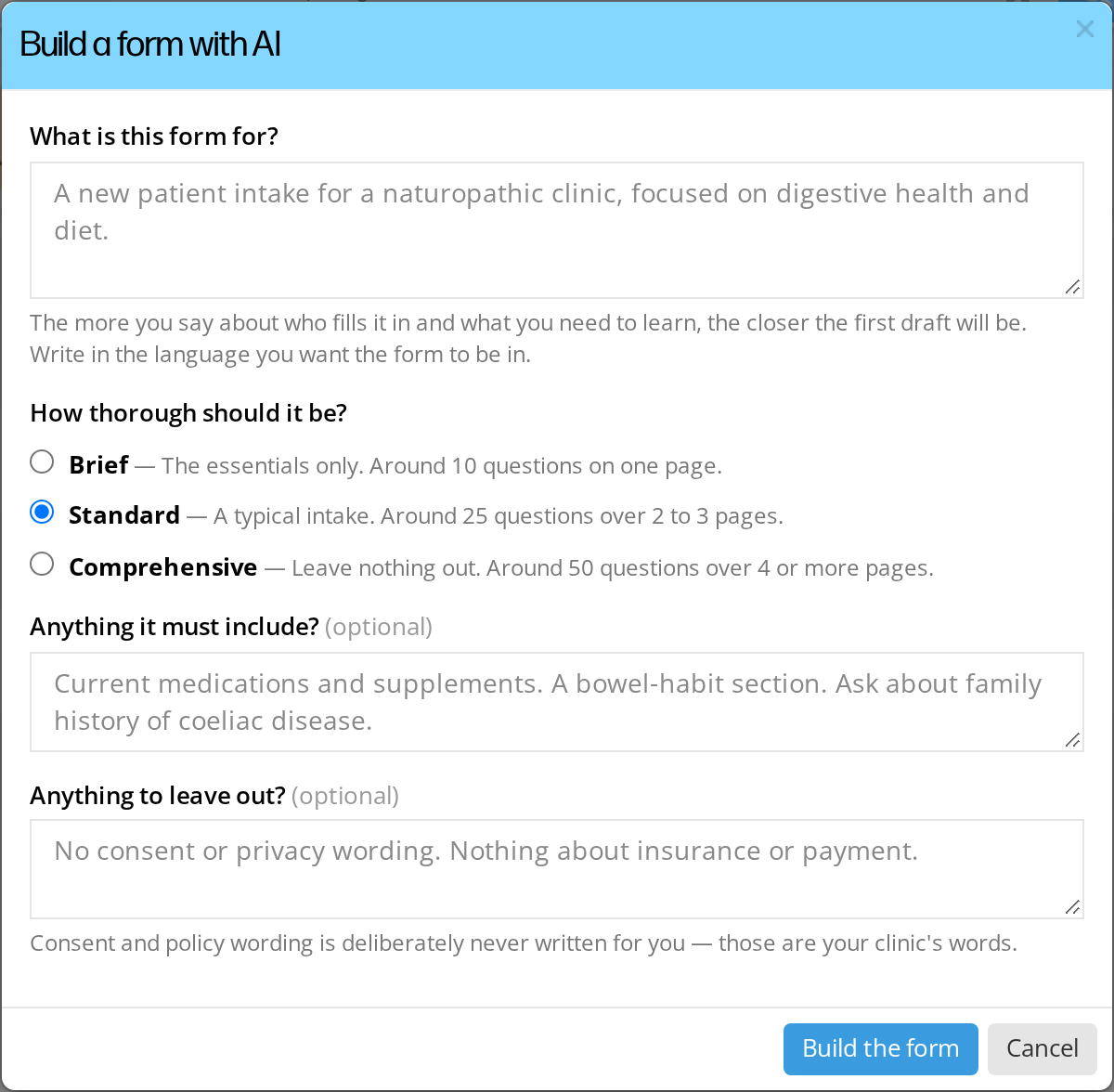
The brief for a form built with AI. Only the first box is required, and Standard is chosen for you.
The brief has four parts, and only the first is required:
- What is this form for? The more specific you are, the closer the draft is to what you need. “Intake form for a new naturopathic patient with digestive complaints” gives you far more than “intake form”.
- How thorough should it be? Choose one of three levels. Standard is chosen for you.
- Brief asks the essentials only, around 10 questions on one page.
- Standard is a typical intake, around 25 questions over 2 to 3 pages.
- Comprehensive leaves nothing out, around 50 questions over 4 or more pages.
- Anything it must include? Particular questions or topics you know you need. This part is optional.
- Anything to leave out? Topics you do not want asked about. This part is optional.
Write the brief in the language you want the form in. A brief written in French produces a French form.
While it works
Writing the form takes a few minutes, so it runs in the background and you can carry on with something else.
A row appears in your Smart Forms list showing that OutSmart is writing your form from your description. When it finishes, the form appears in your list ready to edit. If the Smart Forms list is open when the form finishes, or the next time you open the list, the editor opens the new form for you. When two or more forms finish at the same moment, the editor does not open, and you choose the form from the list.
If something goes wrong, the row tells you why. You can dismiss it, and it clears itself after a day either way.
What to check before you send it
Treat the result as a first draft written by someone who does not know your clinic. It is a starting point, not a finished form.
- Read every question. Check the wording suits your patients and your practice.
- Check the answer choices. Ranges, units and options may need adjusting to how you actually record things.
- Set which questions are required.
- Remove anything you do not need. A comprehensive draft usually asks more than you want.
The form is yours to edit until the first time you send it to a patient. After that it locks. See Editing A Smart Form.
Related Pages
- Creating A Form From A PDF. Upload an existing form instead of describing one.
- Converting A SmartForms V1 Form. Bring an existing SmartForms V1 form across.
- Creating A Smart Form. Build one from scratch in the editor.
- The Form Editor. The toolbox, the form canvas, and the property panel.
- AI and Health Information. How OutSmart handles patient information with AI tools.