

Dispensary Preferences
Each dispensary has a Preferences page with the settings that decide how it works. This page explains each setting, what it changes, and who can change it.
Opening the Preferences Page
- Open your dispensary.
- Click Dispensary Settings in the menu along the top of the dispensary.
- Click Preferences.
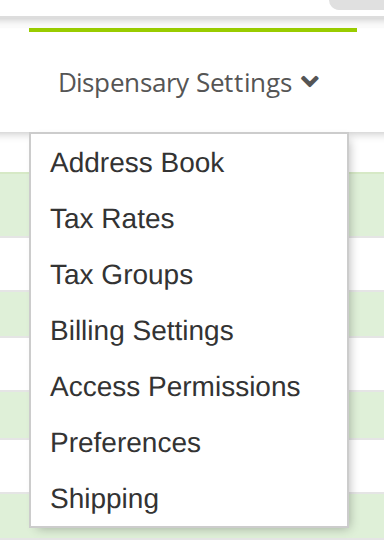
The Dispensary Settings menu. Preferences and Shipping are the last two items.
The page is available to the dispensary owner, and to staff who have full access to the dispensary. Dispensary Permissions explains how the owner gives that access.
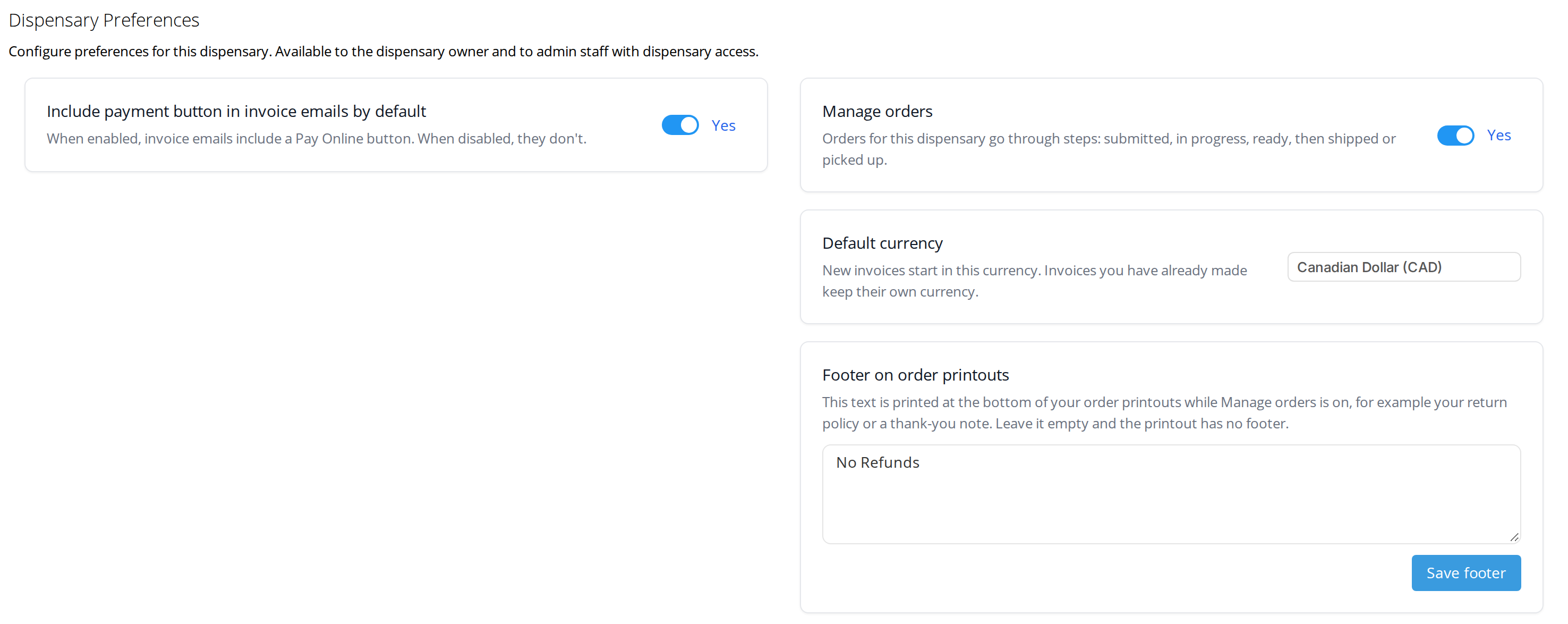
The Preferences page of an order management dispensary. Each card has one setting, and the switches save as soon as you change them.
Include Payment Button in Invoice Emails by Default
This setting decides whether the box Include “Pay Online” button in this email starts checked or unchecked in the window you send invoices from. When it is Yes, invoice emails include a Pay Online button that lets the client pay the balance by card through OutSmart Pay.
It is only a starting choice. You can still check or uncheck the box on each email. Checking Save this choice as my dispensary default in that window changes this setting too.
Emailing and Printing an Invoice explains the window.
Manage Orders
This setting decides how the dispensary handles sales.
- No makes it a regular dispensary, which makes invoices only.
- Yes makes it an order management dispensary. It still makes invoices in exactly the same way, but it can also take orders, which go through the steps Draft, Submitted, In Progress, Ready, and Shipped or Picked Up.
Click the switch to change it. The change is saved straight away.
When you turn Manage orders on:
- The Prepare Dispensary Order button appears on the Daily Express Checkout card, for starting orders.
- Orders have a step bar, and the dispensary staff move them from step to step.
- Each order has a Delivery choice of pickup or shipping, and the Ready step for shipping the order or having it picked up.
- Order printouts use the order design, with your office’s invoice header and the footer below.
Orders explains how orders work.
Some dispensaries always manage orders. Their switch is on and cannot be turned off, and the card says This dispensary always manages orders.
Default Currency
New invoices start in the currency chosen here. Invoices you have already made keep their own currency.
Choose the currency from the list. It is saved straight away.
You can also change an invoice’s currency on the invoice itself, in the Currency dropdown at the top of the invoice screen.
Footer on Order Printouts
The text in this box is printed at the bottom of your order printouts while Manage orders is on. Use it for your return policy, a thank-you note, or anything else you would like on every order.
- Type the footer in the box.
- Click Save footer.
Leave the box empty for no footer. Your Invoice Header and Printouts shows where the footer appears.
Troubleshooting
The Preferences page is not in the Dispensary Settings menu
The page is only available to the dispensary owner and to staff with full access to the dispensary. Ask the owner to give you access.
The Manage orders switch cannot be changed
The dispensary always manages orders, and its card says so. This setting cannot be changed for it.
The footer does not appear on an invoice printout
The footer is printed only on order printouts, while Manage orders is on.
Related Pages
- The Dispensary: regular and order management dispensaries.
- Orders: how orders work once Manage orders is on.
- Shipping Carriers: the carriers offered when an order is shipped.
- Your Invoice Header and Printouts: the header and footer of order printouts.
- Emailing and Printing an Invoice: the Pay Online button in invoice emails.