

Placing a Dispensary Order
An order is for products that the dispensary staff prepare and then ship to the client or have ready for the client to pick up. This page explains how to start an order for a client, add the products, and place the order so that it reaches the dispensary staff.
Orders are only available in an order management dispensary. Orders explains what that is, and the steps every order goes through.
Starting an Order from the Daily Express Checkout Card
You start an order from the Daily Express Checkout card on your dashboard. The card lists the patients who have an appointment, or a SOAP chart, on the day shown at the top of the card.
- Find the patient on the Daily Express Checkout card. To see another day, use the arrows on either side of the date at the top of the card.
- Click the patient’s name. Their row opens.
- In the Invoices column at the right of the row, click the blue Prepare Dispensary Order button.
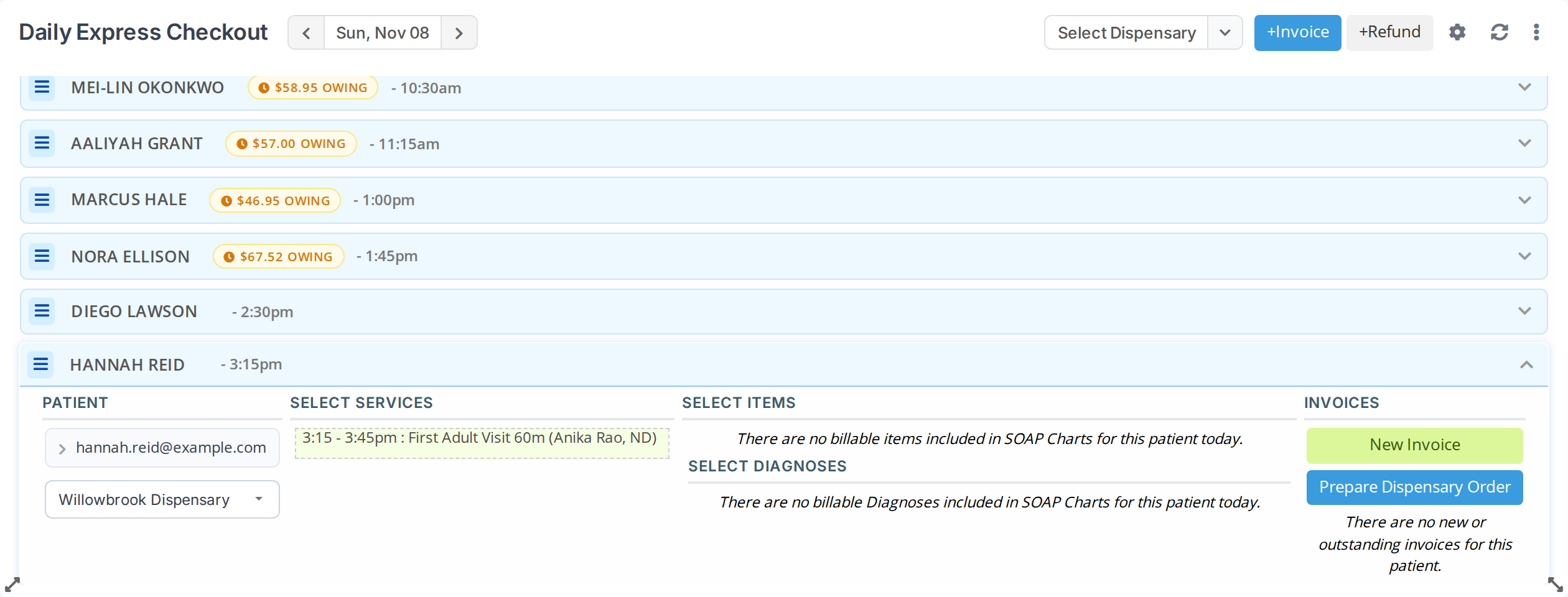
The Daily Express Checkout card with one patient's row open. The blue Prepare Dispensary Order button in the Invoices column starts an order for that patient.
The Prepare Dispensary Order button appears only when the dispensary chosen in the row is an order management dispensary. The green New Invoice button beside it makes an invoice instead, which has no steps. Creating an Invoice explains that button.
When you have more than one dispensary, the dropdown under the patient’s contact details, in the Patient column, shows which dispensary the order is for. Choose the dispensary there before you click the button.
When the patient’s details are incomplete
An order needs the client’s address and a phone number. If either is missing from the patient’s record, a window titled Incomplete Patient Demographics opens before the order does. Fill in the missing details, then click Save and Continue. The details are saved to the patient’s record, and the order opens.
The Order Screen
The order opens in a new window, called the order screen. The order is a draft at this point. It has been saved in the dispensary, but it has not been placed, so it does not count in your sales and the dispensary staff do not work on it yet.
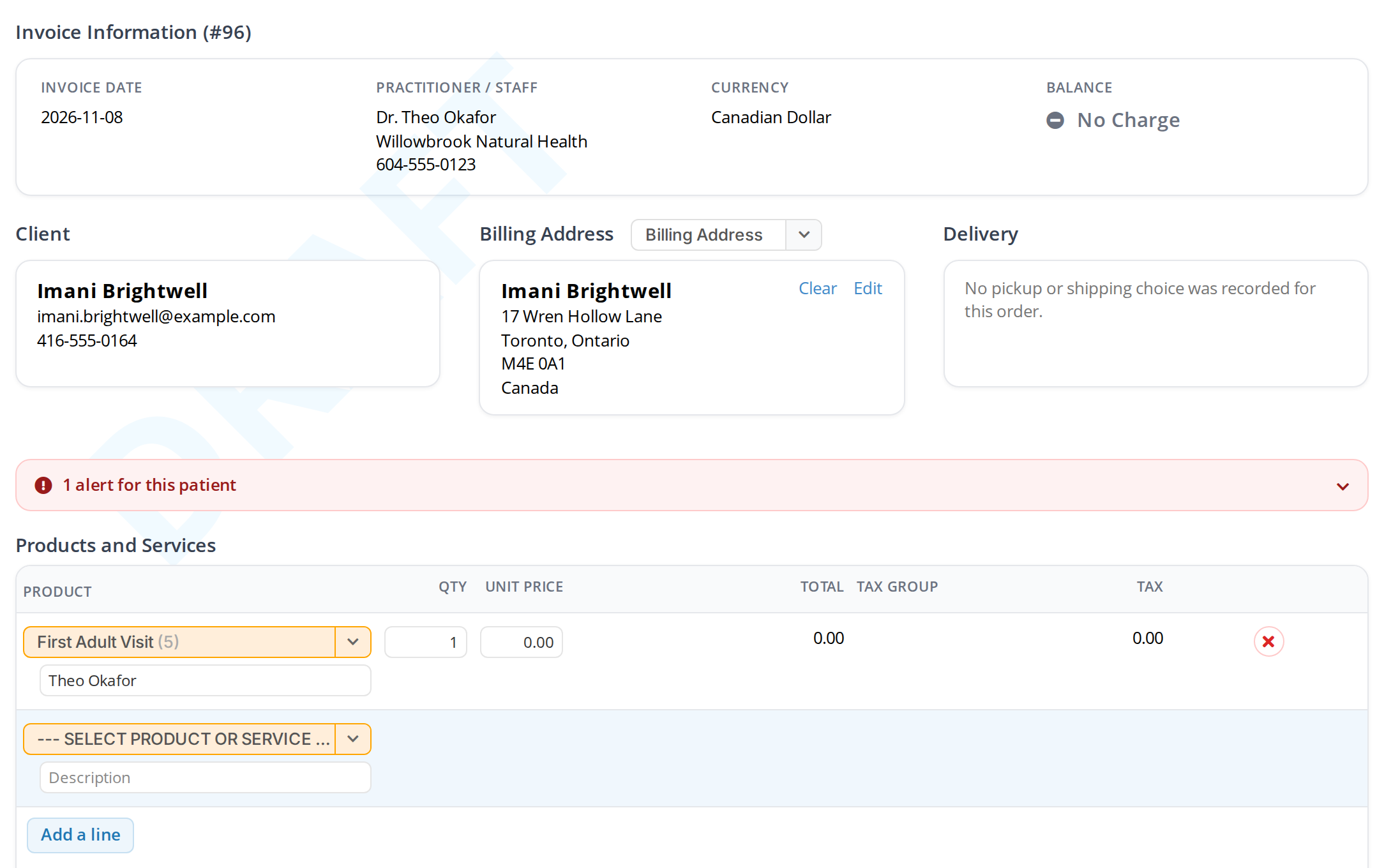
A new draft order. Today's appointment has been added as the first line, at no charge. The client's details and billing address come from the patient's record.
From the top, the order screen shows:
| Section | What it shows |
|---|---|
| Invoice Information | The order’s number, its date, the practitioner, the currency and the balance. |
| Client | The client’s name, email address and phone number. |
| Billing Address | The address printed under Bill To on the order. The dropdown beside the heading chooses another address the client has, and Edit changes this one. |
| Delivery | Whether the order is to be picked up or shipped. The next sections explain who chooses this. |
| Products and Services | The lines of the order. |
The appointment the patient has with you today is added to the order as the first line, at no charge. If you are not billing for the appointment on this order, remove that line by clicking the red X at the right end of the line.
Adding Products
- Click the orange SELECT PRODUCT OR SERVICE box on the empty line at the bottom of the list. A search box opens.
- Type part of the product’s name. The products that match are listed underneath, each with its code and how many are in stock.
- Click the product, or press Enter to choose the one that is highlighted. The product is added as a line, and a new empty line appears underneath it for the next product.
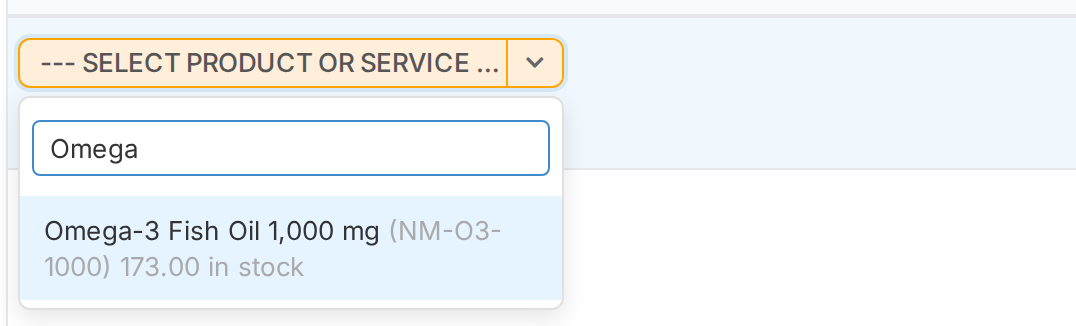
Searching for a product. Type part of its name and choose it from the list. The list shows each product's code and how many are in stock.
On each line you can change the quantity in the QTY box and the price in the UNIT PRICE box. The TOTAL for the line is worked out for you. When the client has a promotion that applies to a product, the line’s total already includes the discount.
To remove a line, click the red X at its right end. To add another empty line, click Add a line.
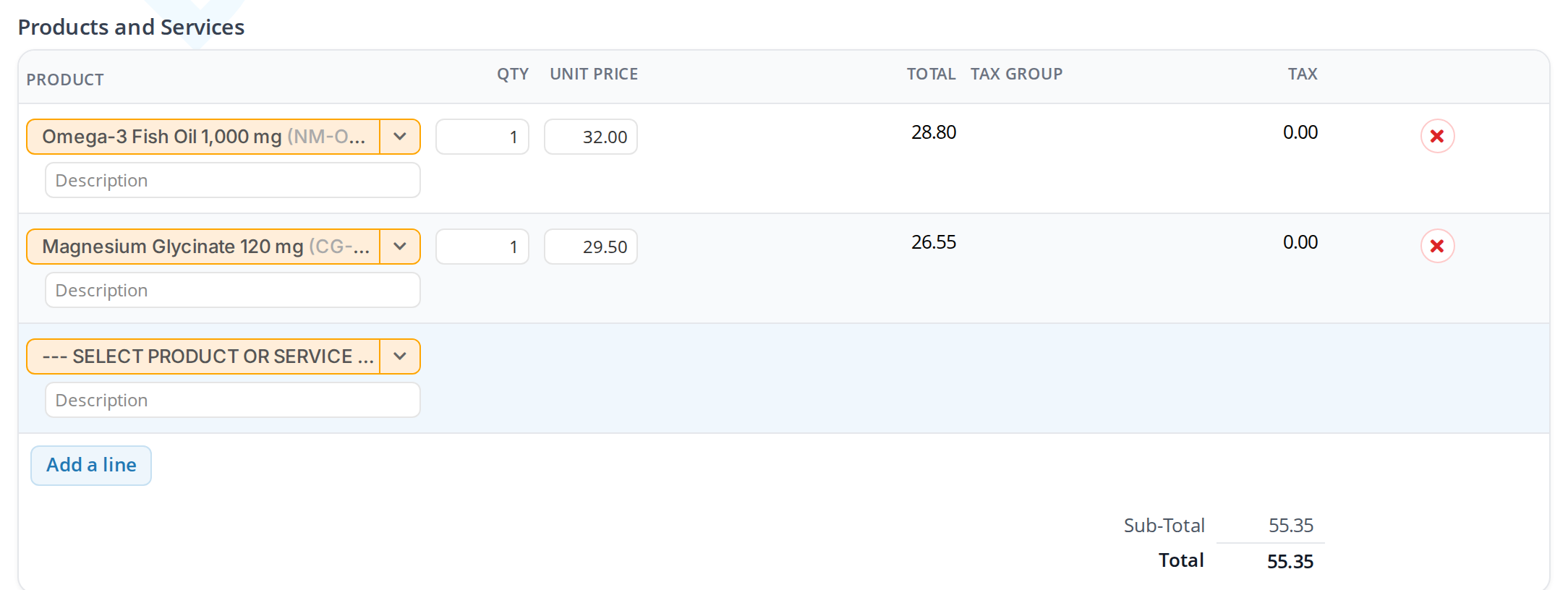
An order with two products. This client has a promotion, so each line's total is lower than its quantity times its unit price.
Choosing Pickup or Shipping
The Delivery box says whether the client picks up the order at the clinic or has it shipped.
The dispensary staff choose this, with the dropdown beside the Delivery heading. When nothing has been chosen yet, the dropdown says Choose Method. It offers:
- Pick up at the clinic
- Ship to followed by each address the client has, one option per address
- Ship to a new address, which opens a form for an address the client does not have yet
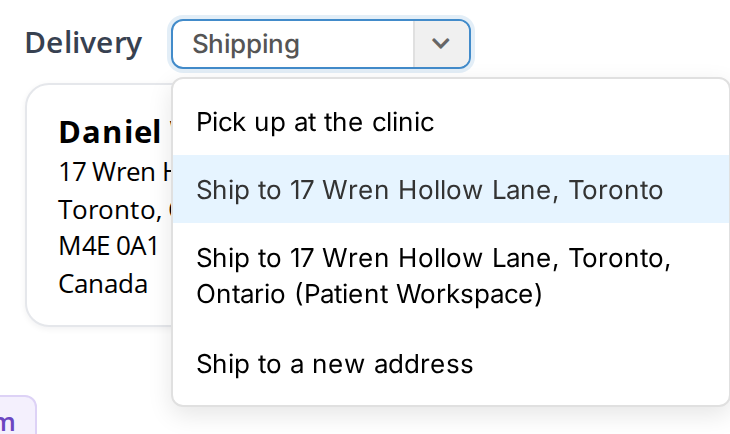
The Delivery dropdown, as the dispensary staff see it. It offers pickup at the clinic, each of the client's addresses, and a new address.
A practitioner who is not one of the dispensary staff does not see this dropdown. Their Delivery box says No pickup or shipping choice was recorded for this order, and the dispensary staff choose pickup or shipping once the order reaches them.
Saving the Draft
The dark bar along the bottom of the order screen is the step bar. While the order is a draft, it has:
- a red X at the left, which deletes the draft;
- the steps of the order in the middle, with Draft filled in blue;
- a Save button, and a blue arrow at the right that places the order.

The step bar of a draft order. Save keeps the draft without placing it. The blue arrow places the order, and the red X deletes the draft.
Click Save to keep the order as a draft and come back to it later. While there are changes that have not been saved, the words Unsaved changes appear at the left of the bar.
To delete the draft, click the red X. You are asked to confirm, and nothing else changes, because a draft has not been placed.
Placing the Order
When the order is ready, click the blue arrow at the right end of the step bar. The order is saved, and a window titled Send Order Request To Client opens. It offers to email the client a copy of the order, called the order request, as a PDF.
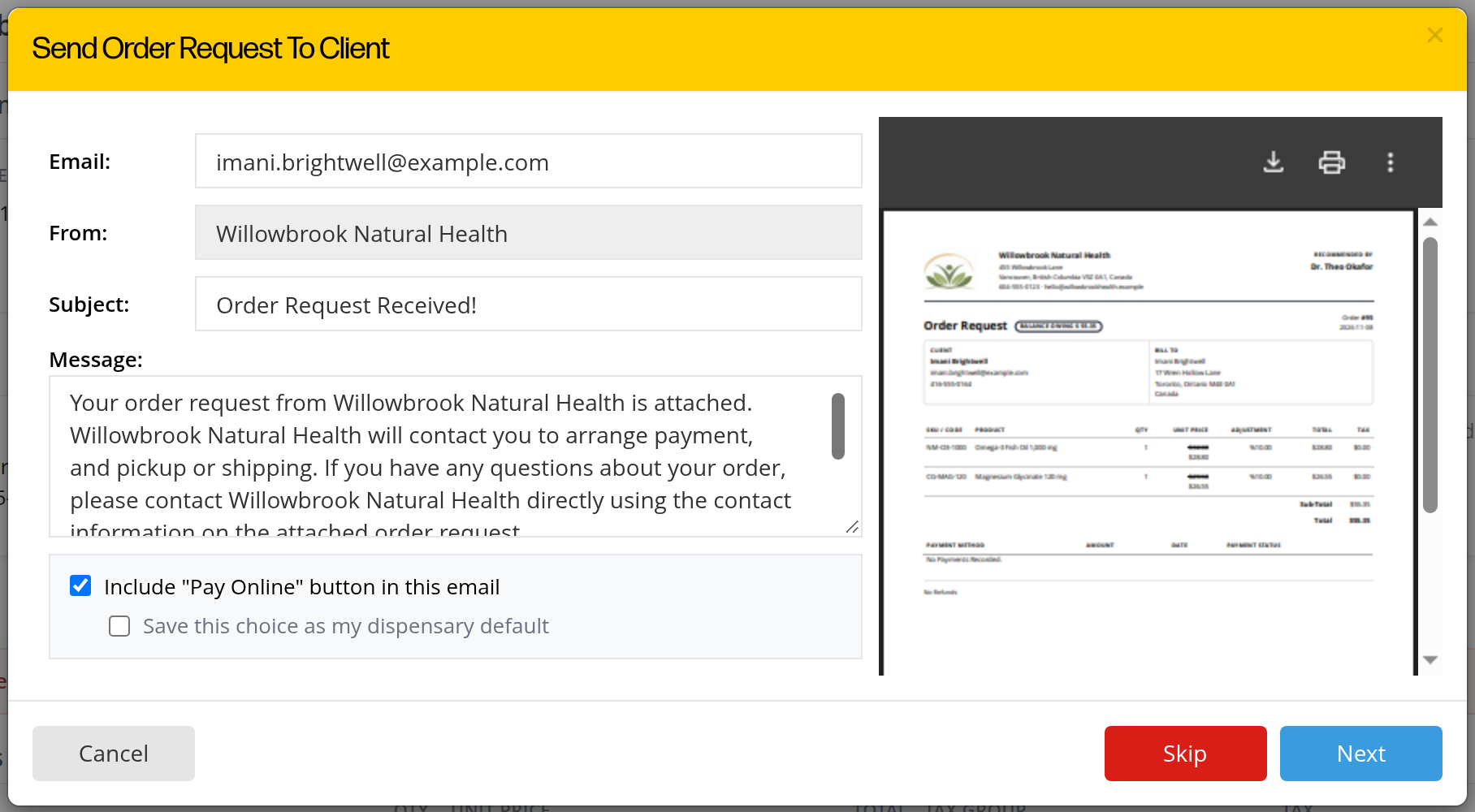
The Send Order Request To Client window. Check the email address and the message, then click Next to send the order request, or Skip to place the order without emailing the client.
The window has:
| Field | What it is |
|---|---|
| The client’s email address, from the patient’s record. You can change it for this email. | |
| From | The name the email comes from: the office the order was placed at. |
| Subject and Message | The subject and message of the email. You can change both before you send it. |
| Include “Pay Online” button in this email | When this box is checked, the email has a Pay Online button, so the client can pay for the order by card straight away. |
| Save this choice as my dispensary default | Check this box to make your choice for the Pay Online button the starting choice for every email from this dispensary. |
The preview on the right shows the order request exactly as it is attached to the email.
The buttons at the bottom of the window do three different things:
- Next shows a summary of the email before it is sent.
- Skip places the order without emailing the client.
- Cancel closes the window. The order stays a draft.
Sending the email
When you click Next, the window shows who the email is going to, who it is from, the subject and the message. A blue box tells you whether the email will include the Pay Online button.
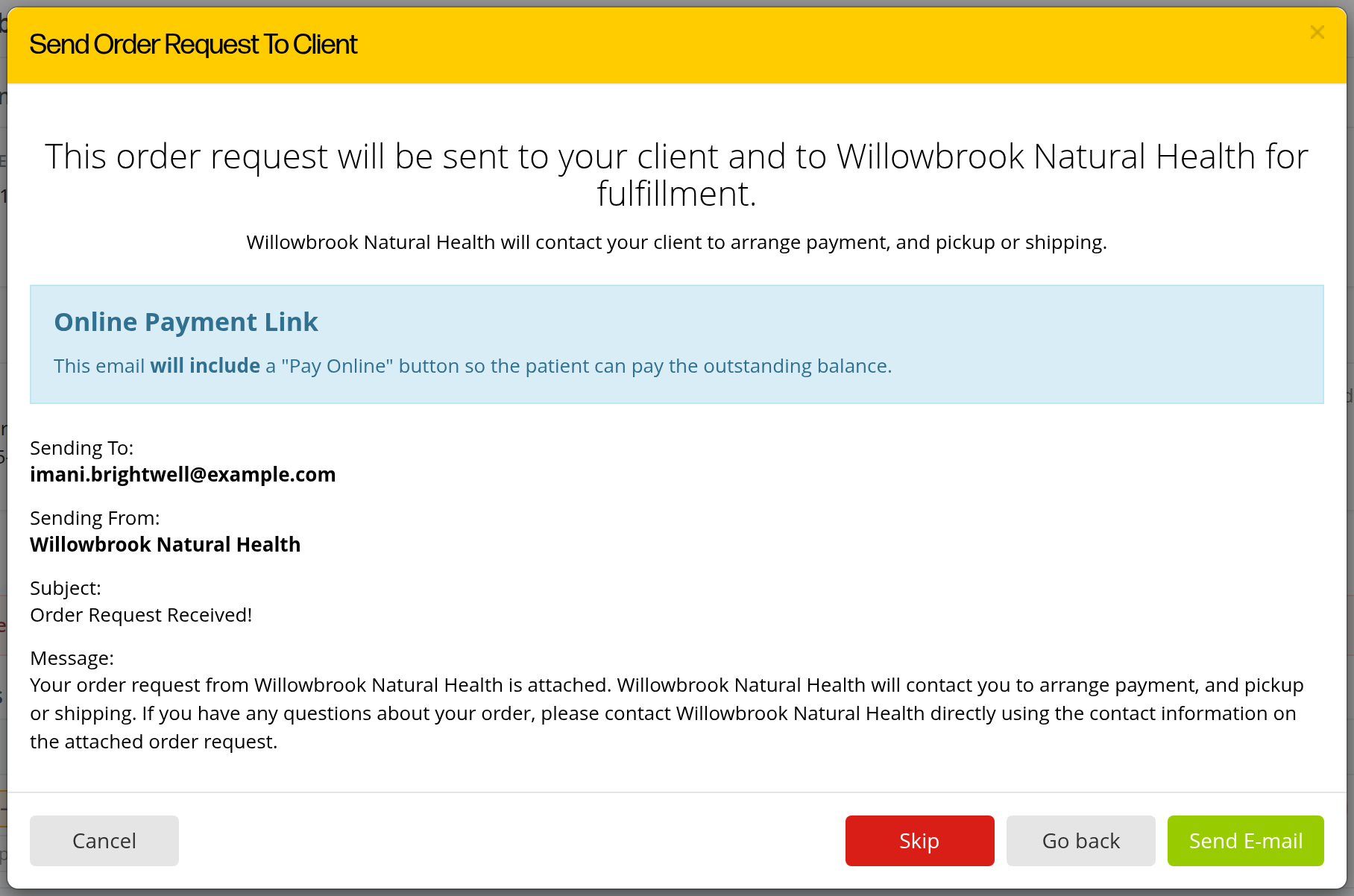
The summary shown before the order request is sent. Send E-mail places the order and emails the client. Go back returns to the email so you can change it.
Click Send E-mail. The order is placed and moves to Submitted, and the client is emailed the order request.
When the email includes the Pay Online button, the client clicks it and pays the balance by card through OutSmart Pay. The payment is recorded on the order straight away, and the order stays at Submitted until the dispensary staff begin fulfilling it.
After the Order Is Placed
Once the order is placed, it opens on its printout, titled Order Request. The printout shows the order’s balance, the client, the billing address, and the products.
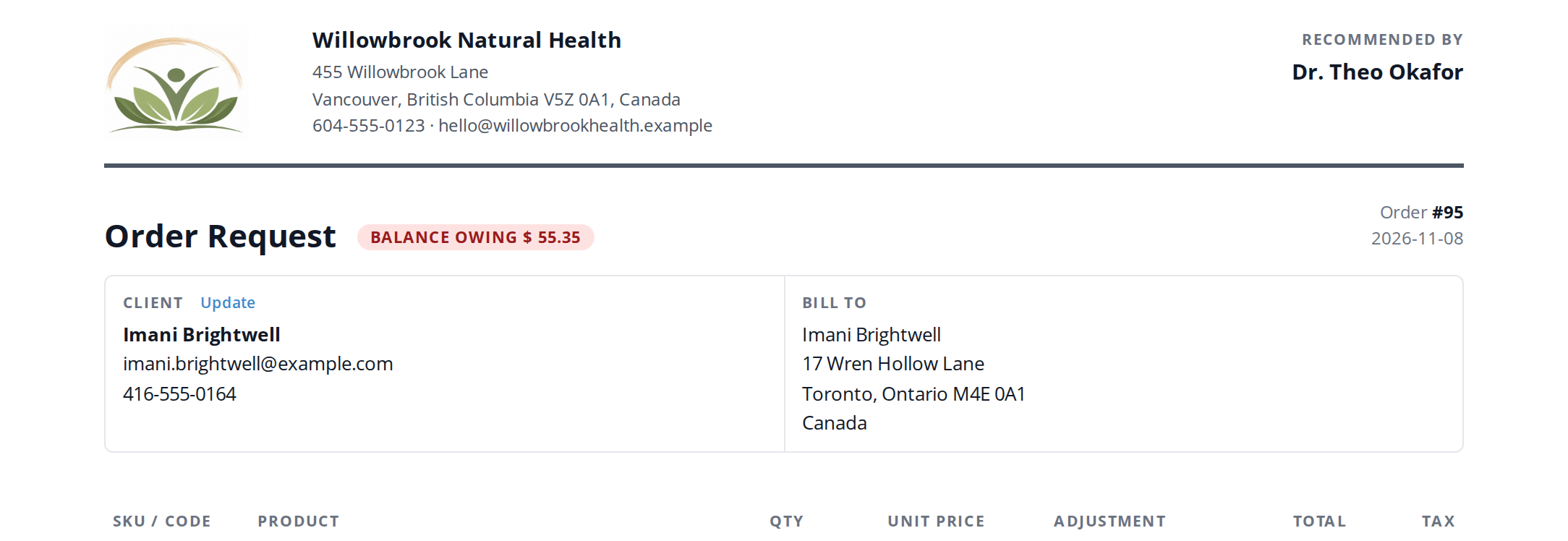
The printout of a placed order. Its title is Order Request until the dispensary staff begin fulfilling it, and the label beside the title shows the balance still owing.
The step bar at the bottom of the printout shows that the order is now at Submitted.

The step bar on the printout of a placed order, as the practitioner sees it. The red X here asks the dispensary to cancel the order.
From this point, the order belongs to the dispensary staff. A practitioner who is not one of the dispensary staff can open the order, print it with Print, and read its history with Activity Logs, but cannot change it. To stop the order, click the red X, which asks the dispensary to cancel it. Cancelling an Order explains what happens next.
When the Dispensary Staff Prepare an Order
The dispensary staff start an order in exactly the same way, from the Daily Express Checkout card. Two things are different for them:
- They choose pickup or shipping in the Delivery dropdown themselves.
- They do not need to place the order. The blue arrow on their step bar is Begin Fulfillment, which moves the order straight to In Progress. Fulfilling an Order explains that step.
Troubleshooting
The Prepare Dispensary Order button is not on the patient’s row
The button appears only for an order management dispensary. Check the dropdown under the patient’s contact details in the Patient column, and choose the order management dispensary there. If your dispensary is a regular dispensary, it makes invoices only. The Dispensary explains the difference.
The patient is not on the Daily Express Checkout card
The card lists the patients who have an appointment or a SOAP chart on the day it shows. Use the arrows beside the date to go to the right day, or book the appointment first.
I placed the order and need to change it
Once an order is placed, only the dispensary staff can change it, and only until they begin fulfilling it. Ask the dispensary staff to make the change, or ask them to cancel the order so you can prepare a new one.
Related Pages
- Orders: the steps of an order, and who moves it from one step to the next.
- Fulfilling an Order: what the dispensary staff do once an order is placed.
- Cancelling an Order: asking the dispensary to cancel an order you placed.
- Creating an Invoice: the New Invoice button, for a sale with no steps.
- Setting Up Payment Processing with OutSmart Pay: taking card payments, including through the Pay Online button.