

Orders
An order management dispensary makes invoices in the same way as a regular dispensary, but it can also take orders. An order is for products that have to be prepared before the client receives them. While the dispensary staff prepare an order, it goes through a series of steps, until it is shipped to the client or the client picks it up.
This page explains how orders work: the steps, who moves an order from one step to the next, the step bar you use to do it, and what you can still change at each step. The other pages in this section explain each part of the work in detail.
The Dispensary explains the difference between a regular dispensary and an order management dispensary, and the difference between an invoice transaction and an order transaction.
The Steps of an Order
Every order goes through these steps, in this order:
| Step | What it means | How the order moves on to the next step |
|---|---|---|
| Draft | The order has been started but not yet placed. It does not count in your sales yet, and it can still be changed. | The practitioner places the order, which moves it to Submitted. Dispensary staff can also begin fulfilling a draft straight away, which moves it to In Progress. |
| Submitted | The order has been placed and is waiting for the dispensary staff. From this step on, the order counts in your sales. The dispensary staff can still change it. | The dispensary staff click Begin Fulfillment, which moves it to In Progress. |
| In Progress | The dispensary staff are preparing and packing the order. The order can no longer be changed. | The dispensary staff click Packing Completed once it is packed, which moves it to Ready. |
| Ready | The order is packed and ready to be shipped or picked up. | The dispensary staff either ship it, which moves it to Shipped, or have the client pick it up, which moves it to Picked Up. |
| Shipped or Picked Up | The order has been shipped to the client, or the client has collected it. This is the last step. | The order is complete. |
Who Does What
Two kinds of people work with an order.
- The practitioner prepares the order for their client and places it.
- The dispensary staff are the dispensary owner and the staff who have full access to the dispensary. They prepare and pack the order, and ship it or hand it to the client.
A practitioner who is also the dispensary owner, or who has full access to the dispensary, can do both.
| Task | Practitioner | Dispensary staff |
|---|---|---|
| Prepare an order for a client with Prepare Dispensary Order | Yes | Yes |
| Change the order while it is a draft | Yes | Yes |
| Place the order, which moves it to Submitted | Yes | Not needed. Staff begin fulfilling a draft directly. |
| Change the order while it is Submitted | No | Yes |
| Move the order through In Progress, Ready, and Shipped or Picked Up | No | Yes |
| Delete the order while it is a draft | Yes, their own draft | Yes |
| Delete the order once it is Submitted | No | Yes, until it reaches In Progress |
| Ask the dispensary to cancel the order | Yes, until it is shipped or picked up | Not needed. Staff delete the order instead, taking it back to Submitted with Order Review first if it is already In Progress or Ready. |
| Approve or decline a request to cancel the order | No | Yes |
| Read and add notes on the order | No | Yes |
Cancelling an Order explains how a practitioner asks for an order to be cancelled, and how the dispensary staff approve or decline the request.
The Step Bar
Every order has a dark bar along the bottom of the screen. The middle of the bar shows the steps as a row of dots, so you can see at a glance where the order is. The steps the order has already passed have green dots, and the step it is at now has a dot filled in blue.
You also use this bar to move the order from one step to the next.
- The blue arrow at the right end of the bar moves the order on to its next step. Hover over the arrow to see what it will do, such as Begin Fulfillment or Packing Completed.
- A dot with a blue outline is a step you can move the order to by clicking it. The next step is outlined in blue, and so is an earlier step when the order can be taken back to it.
- The red X at the left end of the bar deletes the order, while it is still a draft or Submitted. Hover over it to see what it will do, such as Delete Draft or Delete Order.
In the order screen
While an order is at Draft or Submitted, the dispensary staff work on it in the order screen, where its products, prices and delivery can be changed. The bar also has a Refund button and a Save button.

The step bar of an order at Submitted, as the dispensary staff see it in the order screen. The red X deletes the order, the blue arrow begins fulfillment, and the outlined Draft dot takes the order back to Draft.
On the order’s printout
Once an order reaches In Progress, it opens on its printout instead, because it can no longer be changed. The bar on the printout has the Activity Logs, Notes, Email Invoice and Print buttons.

The step bar of an order at In Progress, on the order's printout. The blue arrow is Packing Completed, which moves the order to Ready. The outlined Submitted dot is Order Review, which takes the order back to Submitted.
Finding Your Orders
All of a dispensary’s orders are listed on its Transactions page, together with its invoice transactions and refund transactions. To open it, open your dispensary and click Transactions in the menu along the top.
An order is listed with the type Invoice, because every order transaction is also an invoice transaction. The Fulfillment column shows the step each order has reached, as a coloured label. An invoice transaction that is not an order has nothing in this column.
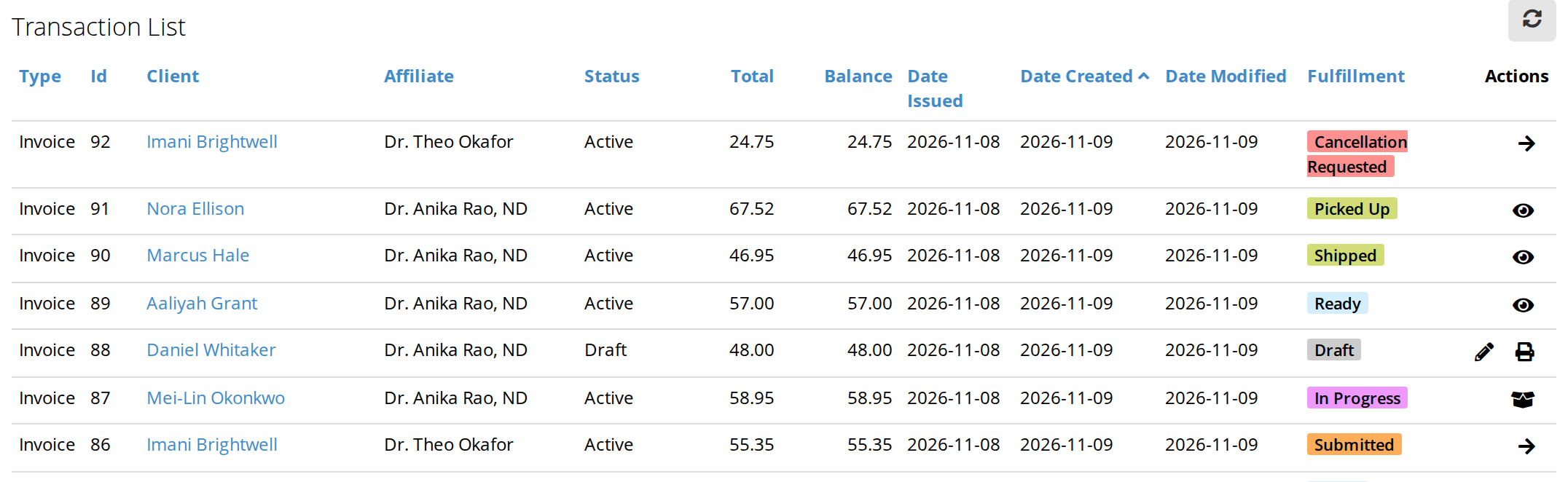
Orders in the Transaction List. The Fulfillment column shows the step each order has reached. Cancellation Requested means a practitioner has asked for that order to be cancelled, and the dispensary staff have not answered yet.
You can also add the Dispensary Orders card to your dashboard, which lists your dispensary’s orders.
Emails the Client Receives
OutSmart emails the client at these points. Each email comes from the office the order was placed at, and lists that office’s details at the bottom.
| When | What the email says |
|---|---|
| The practitioner places the order | The order request is attached. The practitioner can choose to skip this email when they place the order. |
| The dispensary staff ship the order | The order has been shipped, with the carrier, the tracking number and a Track My Order button. |
| The dispensary staff tell the client the order is ready | The order is ready to be picked up. |
| The dispensary staff approve a request to cancel the order | The order has been cancelled. |
Shipping or Pickup: the Ready Step shows the shipping and pickup emails, and explains how to preview them before they are sent.
Turning Order Management On
A dispensary takes orders when its Manage orders setting is turned on. The setting is on the dispensary’s Preferences page, under Dispensary Settings, and the dispensary owner and the staff with full access to the dispensary can change it. Dispensary Preferences explains what changes when you turn it on or off.
Related Pages
- Placing a Dispensary Order: preparing an order for a client and placing it.
- Fulfilling an Order: beginning fulfillment, packing, and taking an order back a step.
- Shipping or Pickup: the Ready Step: shipping an order or having the client pick it up, and the emails the client receives.
- Cancelling an Order: asking for an order to be cancelled, and approving or declining the request.
- Notes and Activity on an Order: the order’s notes and its record of everything that happened to it.
- The Dispensary: regular and order management dispensaries, and invoice, order and refund transactions.