

Editing A Smart Form
A SmartForms V2 form is fully editable until the first time you send it to a patient. After that, the form becomes locked so that submissions stay matched to the questions patients actually answered. You can still duplicate a locked form, edit the copy, and start sending the new version.
Editing a form that hasn’t been used
- From the main menu, choose Smart Forms > Smart Forms v2.
- Find the form and click the pencil icon to open the editor.
- Make your changes.
- Click Save in the top toolbar.
What “locked” means
The form locks the first time anyone sends it to a patient, by email, on a clinic tablet or through an online booking. A patient who starts the form from a guest link does not lock it. When you open a locked form, a yellow banner appears at the top with a Duplicate & Edit button beside it:
This form has been assigned to patients and cannot be edited.

The banner on a locked form. Duplicate & Edit makes a copy you can change.
On the form list, the pencil icon of a locked form is replaced by an eye icon with a small lock on it. The eye opens the form as a patient sees it, read only, so you can check what a locked form contains without being able to change it. When you point to the eye, a note explains that the form has been sent to a patient, or is in use at another office, and that Duplicate makes a copy you can edit. Forms a colleague has shared with you also show the eye icon.
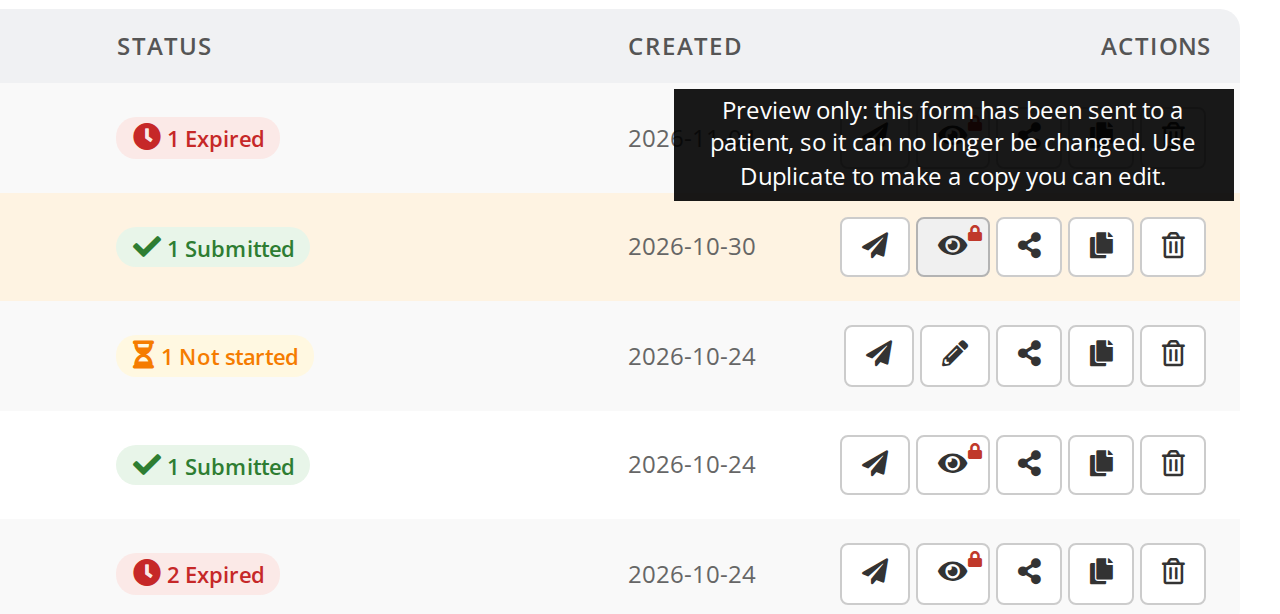
A locked form has an eye button with a lock where an editable form has a pencil.
Locking protects the integrity of existing submissions. If you renamed a question or removed an option after a patient submitted, their answers wouldn’t line up with the form anymore.
Duplicate and edit a locked form
When you want to change a form that has already been used, duplicate it first, then edit the copy.
- From the form list, find the locked form.
- Click the copy icon, labelled Duplicate. You can also click Duplicate & Edit on the banner inside the locked form.
- The copy opens in the editor, named after the original with (Copy) at the end. You can rename it.
- Make your changes and click Save.
The original locked form stays in the list with its submissions intact. The new copy becomes its own form with its own list of submissions.
What’s editable in the locked form (and what isn’t)
When a form is locked the editor itself is locked. You can still:
- Share the form with another practitioner from the form list.
- Send the form to additional patients (existing patients filling out the existing copy aren’t affected).
- Duplicate the form to start editing the copy.
- Archive the form when you’re done using it.
Archiving and restoring a form
When you no longer use a form, such as an old intake form you have replaced with a newer one, archive it to take it out of your everyday list. An archived form is not deleted, and it keeps its assignments and submissions.
To archive:
- From the Smart Forms list (Active Forms tab), find the form.
- Click the trash icon, labelled Delete or Archive, in the Actions column.
- A window opens that offers one action, depending on whether patients have used the form:
- If the form has been used by patients, the window is titled Archive form? and its button is Archive. OutSmart does not delete a used form, so its submissions and audit trail are kept.
- If the form has never been used, the window is titled Delete form? and its button is Delete. Deleting removes the form for good.
- Click the button. An archived form moves to the Archived tab.
To see archived forms:
- On the Smart Forms list, click the Archived tab in the top toolbar.
To restore an archived form:
- Open the Archived tab.
- Find the form.
- Click the undo arrow icon, labelled Restore. The form moves back to Active Forms and you can send it again.
You can still Preview an archived form to see its questions without restoring it.
When a patient never finishes their form
If a patient was sent a form and the link runs out of time before they submit it, the Assignments tab marks that patient’s form Expired. The form itself stays active for other patients. Only that one patient’s copy expires.
To give the patient another chance, click the clock icon on their expired form, labelled Reopen and email the patient a new link. OutSmart emails the patient a new link and keeps the answers they already saved, so they carry on where they stopped. The old link no longer works. See Expiries And Link Timing.
Related Pages
- Creating A Smart Form explains how to start a form from scratch.
- The Smart Forms Page explains the Archived tab and every action icon.
- Sending Smart Forms To Patients explains the first send, which locks the form.
- Viewing Smart Form Submissions explains how to find the answers to the original form.
- Expiries And Link Timing explains when a form expires and how to give the patient more time.