

Promotions and Discounts
There are two ways to lower a price on an invoice:
- A promotion is a discount you set up once, such as Seniors 10% off, and use again and again. When you link a promotion to a patient label, every patient with that label can get it on their invoices.
- An adjustment is a one-off change to the price of one line on one invoice, typed in the line’s Adjustment box.
This page explains how to set up promotions, how they reach an invoice, and when to use an adjustment instead.
How Promotions and Patient Labels Work Together
A patient label is a tag on the patient’s record, such as Senior, Student or VIP. You can see a patient’s labels on their patient card in the Patient Workspace. Client Workspace Overview explains the card.
When you link a promotion to a label, OutSmart knows that every patient with that label is entitled to the promotion. On that patient’s invoice, the Apply patient promotions button gives each line the promotion it qualifies for.
A patient can have several labels, and so several promotions. Each line then gets the one promotion that gives it the lowest price. Promotions are never combined on one line.
For example, a patient with the labels Senior (10% off), Student (15% off) and VIP (20% off Vitamin C only) gets 20% off Vitamin C, and 15% off everything else.
Setting Up a Promotion
Promotions are set up for each dispensary, on its Promotions page.
- Open your dispensary.
- Click Products in the menu along the top of the dispensary, then click Promotions.
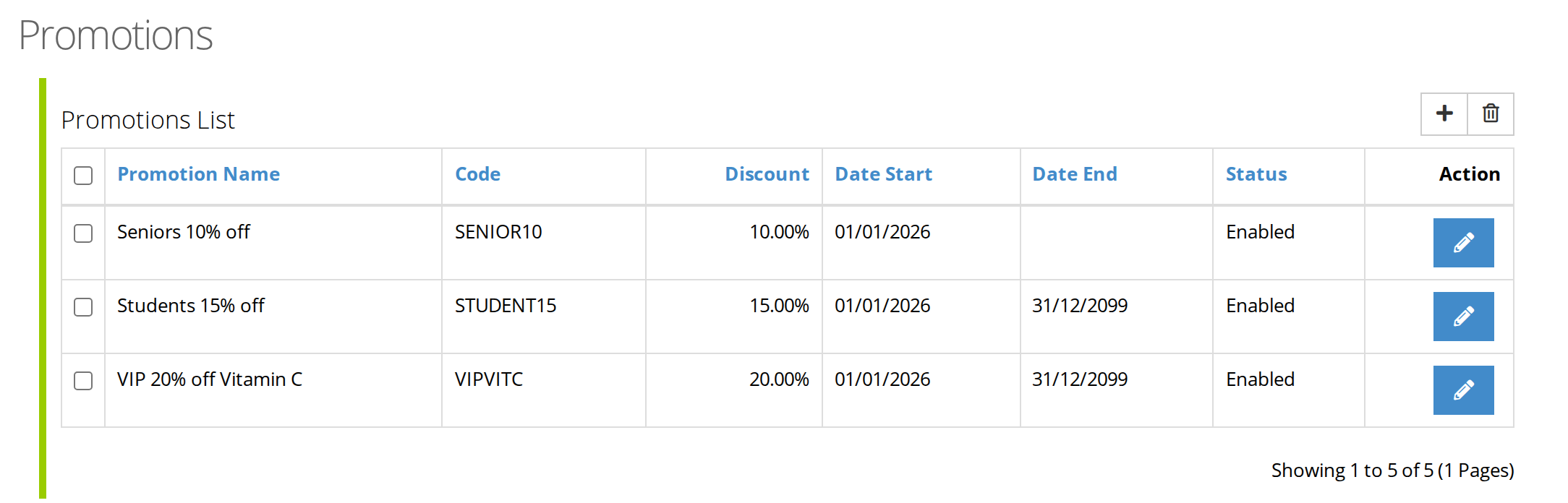
The Promotions page. The plus button adds a promotion, and the blue pencil button on a row changes it.
- Click the plus button at the top right of the list to add a promotion. To change an existing one, click the blue pencil button at the end of its row.
- Fill in the form, which is explained below.
- Click the save button, the disk icon at the top right of the form.
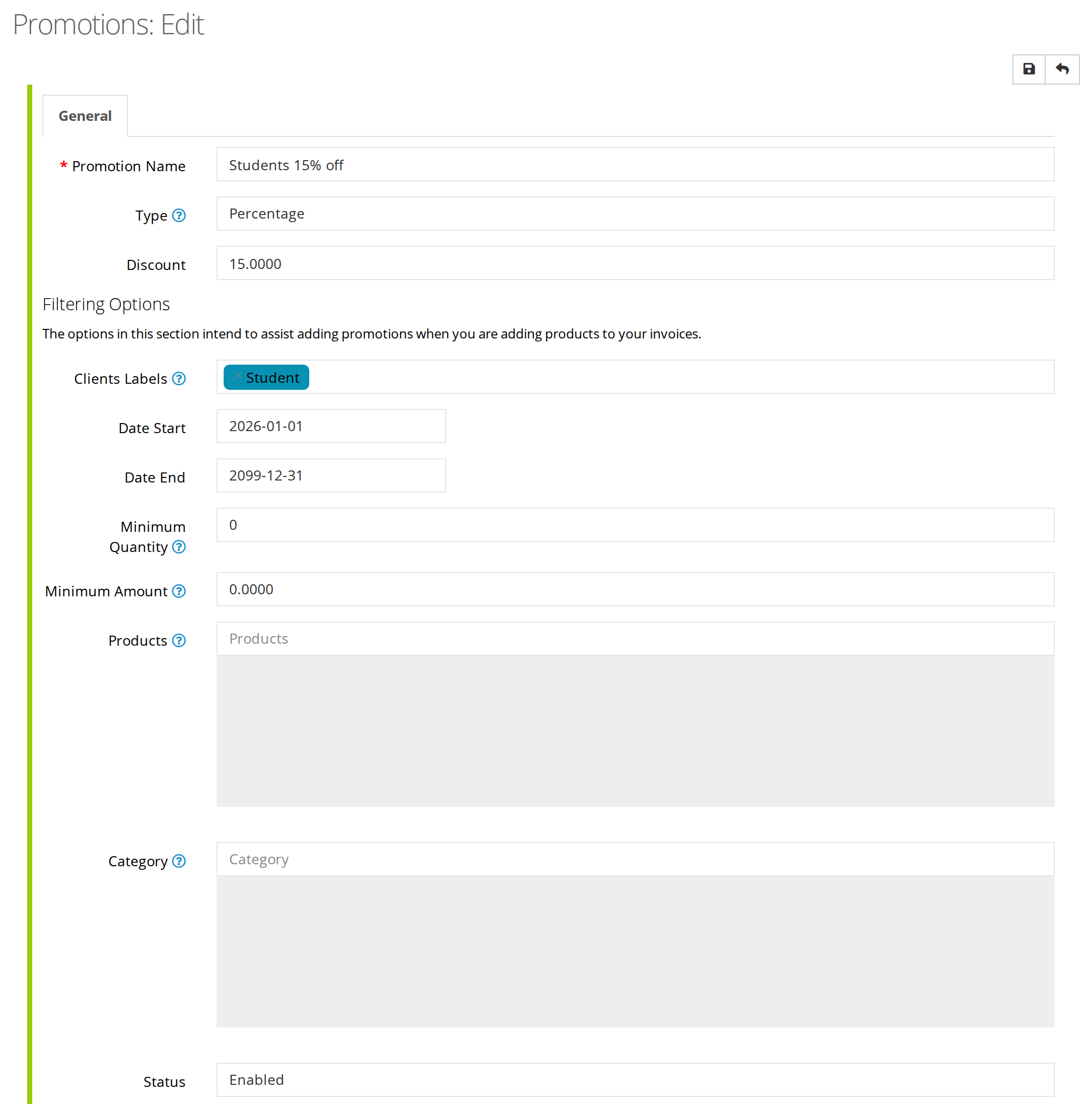
A promotion linked to the Student label. It gives 15% off every product, because the Products and Category boxes are empty.
The fields of a promotion
| Field | What to enter |
|---|---|
| Promotion Name | The name staff see on the invoice, such as Students 15% off. Saying the discount in the name helps staff choose the right one. This field is required. |
| Type | Percentage for a percentage off, or Fixed Amount for an amount of money. |
| Discount | For a percentage, the percentage off, such as 15 for 15% off. For a fixed amount, the amount off each unit, such as 5 for 5.00 off. A promotion always takes its discount off the price. |
| Clients Labels | The patient labels that give this promotion. Every patient with one of these labels gets it. Leave it empty for a promotion staff choose by hand. |
| Date Start and Date End | The first and last day the promotion can be used. Leave Date End empty for a promotion with no end. |
| Minimum Quantity | The smallest quantity on a line for the promotion to apply, such as 3 for “3 or more”. Leave it at 0 for no minimum. |
| Minimum Amount | The smallest line total for the promotion to apply. Leave it at 0 for no minimum. |
| Products | The products the promotion is for. Start typing a product’s name and choose it from the list. Leave it empty for every product. |
| Category | The product categories the promotion is for. Leave it empty for every category. When you fill in both Products and Category, a product must be in both for the promotion to apply. |
| Status | Enabled for a promotion in use, or Disabled to stop using it without deleting it. |
Deleting a promotion
Check the box at the left of the promotion’s row, then click the trash can button at the top right of the list. To stop using a promotion but keep it for later, set its Status to Disabled instead.
Giving a Client Their Promotions on an Invoice
When you add a product to an invoice, the client’s best promotion for that product is put on the line straight away. When the client has several promotions, each line gets the one that gives it the lowest price.
When your dispensary has a promotion linked to a label, a strip appears beside the Products and Services heading of the invoice. It shows each of the client’s promotion labels, with the promotion it gives them, the + Add a promotion label dropdown, and the Apply patient promotions button.
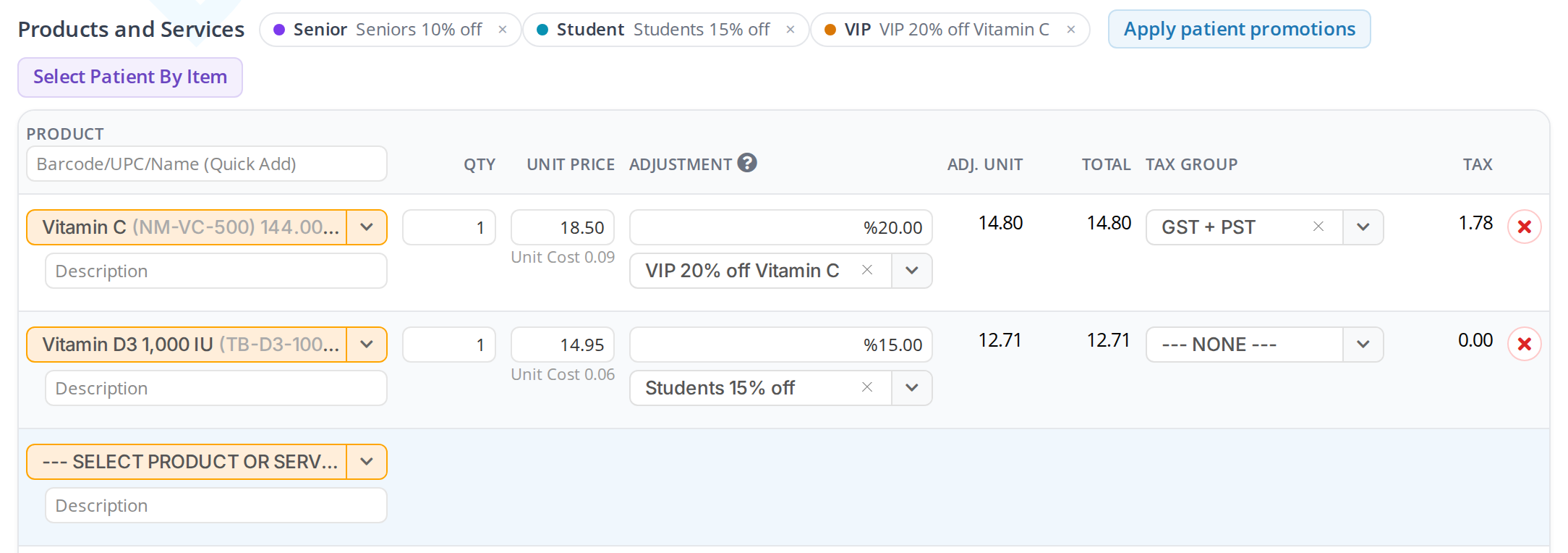
Each line has the client's best promotion: 20% off Vitamin C from the VIP label, and 15% off Vitamin D3 from the Student label.
Applying the promotions again
Click Apply patient promotions when something has changed since the products were added, for example when you added or removed one of the client’s labels, changed a quantity, or changed the client.
- Click Apply patient promotions.
- A window lists the promotions the client’s labels give them. Below it, a table shows each line that qualifies, the promotion it will get, its unit price now, and its unit price with the promotion.
- Click Apply.
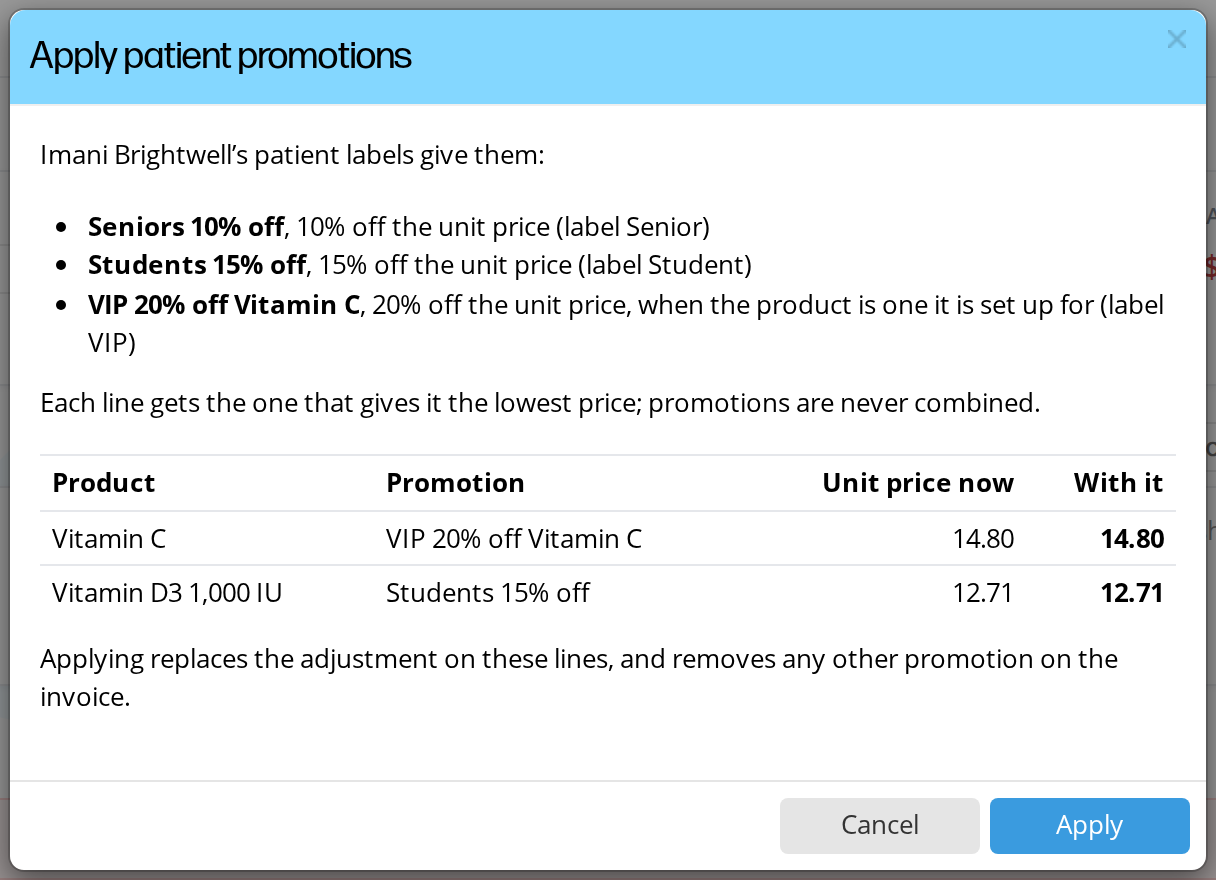
The Apply patient promotions window shows each line's price before and after, so you can check it before you apply it.
The promotions are put on the lines, and the invoice is saved. A message at the top right of the screen says so.
Applying replaces any adjustment on the lines that get a promotion, and removes any other promotion on the invoice. When the client has no promotion that fits a line, that line is left as it was.
Adding or removing a client’s promotion label from the invoice
You can change a client’s labels without leaving the invoice.
- To add a label, click + Add a promotion label in the strip and choose the label. The list shows only the labels that give a promotion.
- To remove a label, click the x on the label.
The label is added to or removed from the patient’s record straight away, so it changes their other invoices too. The prices on this invoice change when you click Apply patient promotions.
The strip is shown to staff with full access to the dispensary, and only when the dispensary has at least one promotion linked to a label.
Choosing a Promotion for One Line by Hand
Any of the dispensary’s promotions can be put on a line, whether or not the client has a label for it.
- Find the SELECT PROMO dropdown under the line’s Adjustment box.
- Choose the promotion. The line’s adjustment and price change. A Fixed Amount promotion takes its amount off, the same as when it is applied for you.
- Click Save.
To take the promotion off, click the x in the dropdown.
Applying Promotions on Their Own From Express Checkout
Products you add to an invoice yourself always get the client’s best promotion. The products and services that the green New Invoice button on the Daily Express Checkout card puts on the invoice, from the patient’s appointments and chart, are a different case: they get their promotions only when the card’s automatic promotions setting is on. When it is off, click Apply patient promotions once the invoice opens.
The setting applies the promotions while the invoice still has a balance owing.
To turn it on, open the card’s settings and answer Yes to Do you want promotions to be automatically applied to invoices created via the Express Checkout card? Daily Express Checkout explains the card’s settings.
One-Off Discounts With the Adjustment Box
For a discount that is not a promotion, such as a price matched for one client, type it in the line’s Adjustment box. Unlike a promotion, an amount typed here needs a minus sign to take money off.
- %10 takes 10% off each unit.
- -5 takes 5.00 off each unit.
- 5 adds 5.00 to each unit.
Creating an Invoice explains the Adjustment column.
Reporting on a Promotion
To find out what the items you discounted actually cost you, run the Detailed Sales report over the dates the promotion ran and add the Cost columns. Step by step in Sales Reports.
Troubleshooting
The promotion label strip is not shown on the invoice
Check two things:
- At least one of the dispensary’s promotions has a label in Clients Labels.
- You have full access to the dispensary.
Apply patient promotions says none of the lines qualify
Open the promotion on the Promotions page and check its Date Start, Date End, Minimum Quantity, Minimum Amount, Products and Category. A line gets the promotion only when it meets every one of them, and the promotion’s Status must be Enabled.
A line does not have the promotion the client should get
Click Apply patient promotions. When the line still does not get it, open the promotion on the Promotions page and check that the client has its label, and that the line meets its Minimum Quantity, Minimum Amount, Products and Category.
Related Pages
- Creating an Invoice: the invoice screen and the Adjustment column.
- Daily Express Checkout: the card’s setting for applying promotions on their own.
- Client Workspace Overview: the patient card, where a patient’s labels are shown.
- Sales Reports: what a promotion cost you.