

Client Workspace Overview
The patient workspace is the page that holds everything about one patient. Its title at the top left reads Client Workspace. From here you can read their charts, open their documents, see what they have been recommended, check what they owe, and leave a note for the rest of the team, without going anywhere else.
If you came from paper records, the workspace is the patient’s whole folder. A single chart is one page inside that folder.
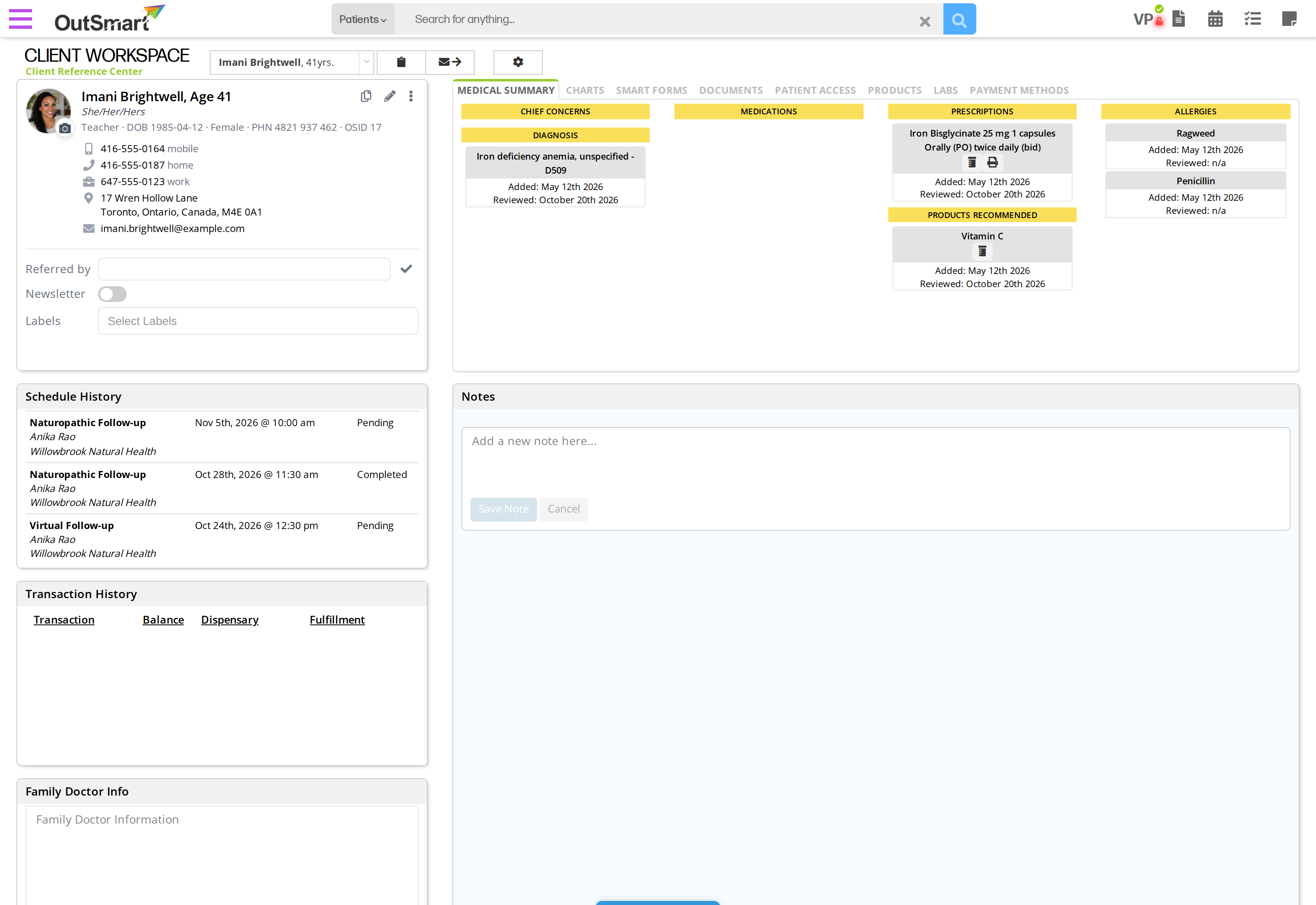
The patient workspace. The patient card and the history panels run down the left, and the tabs and the Notes panel fill the right. Click the picture to see it full size.
Opening The Workspace
The quickest way is the search box at the top of every page. Type the patient’s name, click them in the results, then click Patient Workspace.
You can also get there from:
- The Daily Schedule card on your dashboard. Click the patient’s name on their appointment row.
- The calendar. Click an appointment, then open the workspace from the appointment card.
- The patient list. Each row has a small card button on the right, labelled Go To Patient Workspace when you hover over it.
- A chart you already have open. Use the chart’s More Actions menu.
Once you are on the page, the dropdown at the top names the patient you are looking at. Use it to switch to another patient without leaving the workspace.
The Buttons At The Top
Three buttons sit beside the patient’s name at the top of the page. Hovering over each one tells you what it does.
| Button | What it does |
|---|---|
| Create New Medical Chart | Starts a new chart for this patient |
| Create Patient Correspondence | Writes a letter about this patient with AI help |
| Patient Workspace Settings | Opens a panel of settings for the workspace itself |
The settings panel holds two choices. Select Labels to display Workspace Alerts decides which labelled notes are treated as alerts for this patient. Default Dispensary For Product Ordering decides which dispensary is picked for you when you order a product from this page.
Down The Left: The Patient And Their History
| Panel | What is in it |
|---|---|
| The patient card | Photo, name, age, pronouns, date of birth, gender, health card number and OSID, then the phone numbers, address and email address. Underneath are Referred by, Newsletter and Labels. See Copying A Patient’s Details for the buttons in its corner |
| Schedule History | Their appointments, with the date, the practitioner, the office and the status of each one |
| Transaction History | Their invoices, with the balance, the dispensary and the fulfillment status |
| Family Doctor Info | A free text box for their family doctor’s details |
| Insurance Information | Their insurance provider, policy number and policy dates |
On The Right: The Tabs
The panel on the right is a row of tabs. Click one to change what is underneath it.
| Tab | What is in it |
|---|---|
| Medical Summary | What your charts have recorded about this patient, gathered onto one screen. See Medical Summary |
| Charts | Every chart for this patient, with the option to show deleted ones |
| Smart Forms | The Smart Forms sent to this patient and the ones they have sent back, and a button to send another |
| Documents | The files on this patient’s record |
| Patient Access | What this patient can reach, including their access code. Clinics without the OutSmart Store see this tab named Medical Access Code |
| Products | The products recommended to this patient and what they have bought |
| Labs | Lab tests for this patient. This tab is there only for clinics with lab management |
| Payment Methods | The cards saved against this patient |
Underneath The Tabs: Notes
The Notes panel sits below the tabs. Notes are attached to the patient rather than to a visit, so everyone on your team sees them whenever they open this patient, no matter which appointment they are working on. The box reading Add a new note here is where a new one starts.
See Workspace Notes for labelling notes and for where a labelled note shows up elsewhere in OutSmart.
Choosing Between The Workspace And A Chart
The workspace answers “what do I know about this patient”. A chart answers “what happened at this visit”. Both link to each other, so the useful habit is knowing which question you are asking.
Reading a lab result while writing a chart is a workspace question, so use the Documents tab. Comparing today’s findings with the last visit is a chart question, so open the previous chart. Checking what the patient is currently taking is a workspace question, so use the Medical Summary.
Related Pages
- Medical Summary. The first tab, and what feeds it.
- Workspace Notes. Notes attached to the patient, and what labels do.
- Copying A Patient’s Details. The copy button on the patient card and the layout it uses.
- Client Update: Patients Check Their Own Details. Handing a patient a tablet to correct their own details.
- Merging Duplicate Patient Records. What to do when one patient has two records.