

The Smart Forms Page
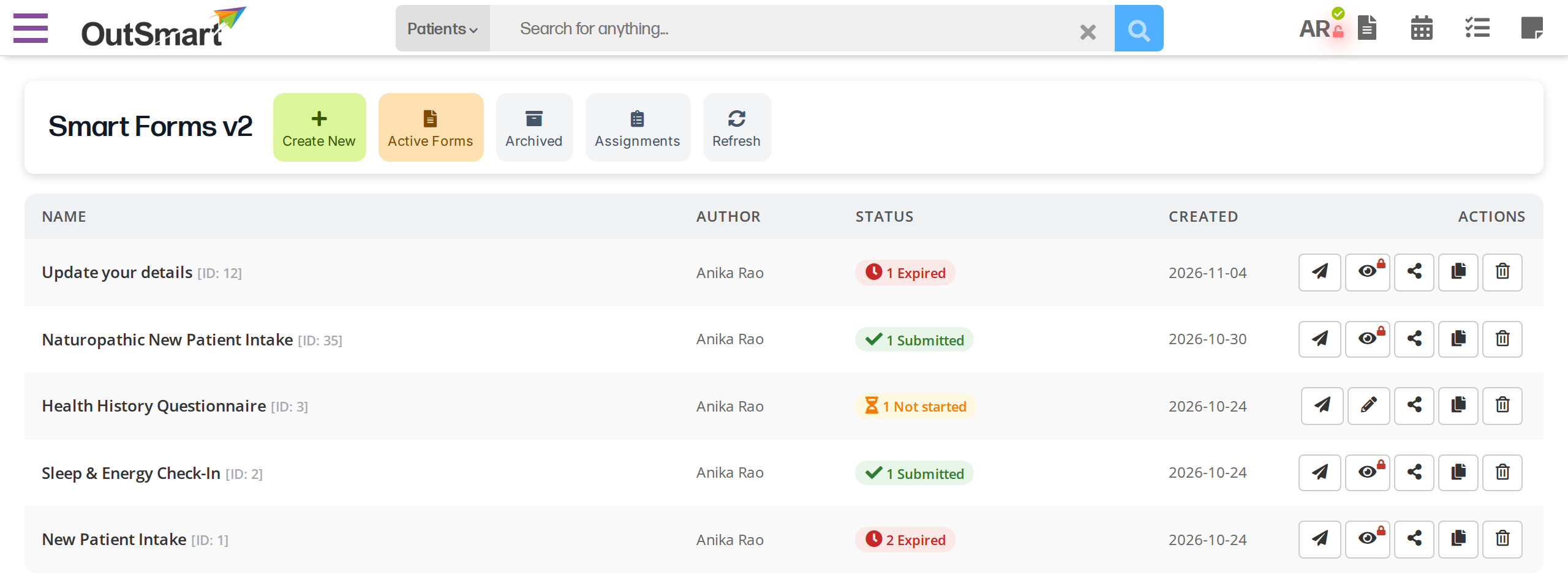
The SmartForms V2 forms list. From here you create new forms, and send, preview, share, copy or archive the forms you have.
The SmartForms V2 list page is where you start every task with a form: building, sending, viewing the forms you have sent, sharing and archiving. This article explains what each tab and column shows, so you know where to look.
To open it, click Smart Forms > Smart Forms v2 in the main menu.
The three tabs
The page has three tabs along the top toolbar plus a Create New button for building a new form and a Refresh button that reloads whichever tab is open without a full page reload.

The tabs in the top toolbar of the SmartForms V2 list page.
- Active Forms lists every form available to send, build on, or share.
- Archived lists forms taken out of the active list but kept on file (see Archiving).
- Assignments lists every patient who has been sent a form, the status of each form sent, and what is still outstanding.
Use Refresh when you have just sent a form, given a patient more time, or expect submissions to have come in while the page was open. Refresh reloads the list on the open tab and shows the list again from the top.
What appears in each tab depends on your role:
- Practitioners see forms they authored plus forms shared with them.
- Admins see every form in the office’s library.
The Active Forms list
Each row is one form. Columns:
| Column | Shows |
|---|---|
| Name | The form’s name (the one you set on the form’s title), with a small grey [ID: <number>] indicator after it. The ID helps when you talk to support about a form: you can say “form ID 47” instead of “the third intake form”. |
| Author | The practitioner who created the form. |
| Status | Up to four tags, in this order: N In progress (warm orange) for patients filling the form, N Not started (light amber) for patients who have not opened it yet, N Expired (muted red) for forms past their deadline, and N Submitted (green). A tag appears only when its count is above zero. When every count is zero, the cell says No submissions. On a form another practitioner shared with you, a green Shared from [author] tag appears under the form name. On a form you can manage that is shared with others, a Shared with: line under the form name lists who it is shared with. |
| Created | The date the form was first saved. |
| Actions | Action icons for the form, described below. |
Active-form action icons
Icons appear from left to right. Which ones you see depends on whether you authored the form or are using it via a share:
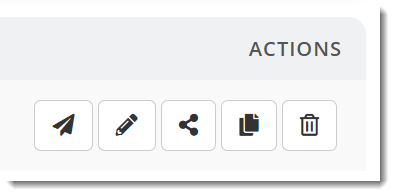
Action icons for each form on the SmartForms V2 list page.
| Icon | Action | Notes |
|---|---|---|
| paper plane | Send to Patient | Opens the send panel. |
| pencil | Edit | Only on forms you authored / can manage, and only when the form isn’t locked. |
| eye | Preview | Appears in place of the pencil when you cannot edit the form: on a locked form and on a form shared with you. Opens the form as a patient sees it, read only. On a locked form you manage, the eye has a small lock badge, and pointing to it explains why the form is locked: it has been sent to a patient, or it is in use at another office. |
| share-alt | Sharing | Only on forms you can manage (you authored it, or you’re an admin in its office). |
| copy | Duplicate | Makes a copy you can edit. Use it when a locked form needs changes. |
| trash | Delete or Archive | Offers Archive for a form that has been used, and Delete for a form that has not. |
Forms still being built
When you ask OutSmart to build a form from a PDF or with AI, a row appears in the list while OutSmart works, saying it is building your form. The row is not a form yet, so it has no action icons.
When OutSmart finishes, the row becomes a normal form. If the build fails, the row says why. You can dismiss a failed row, and it clears itself after a day either way.
The Archived list
The Archived list has the same columns as Active Forms, with two actions: Preview (the eye icon) and Restore (the undo arrow icon). An archived form keeps all its assignments and submissions. Archiving only takes the form off the Active Forms list. See Editing A Smart Form > Archiving.
The Assignments list
Each row is one form sent to one patient. The columns are:
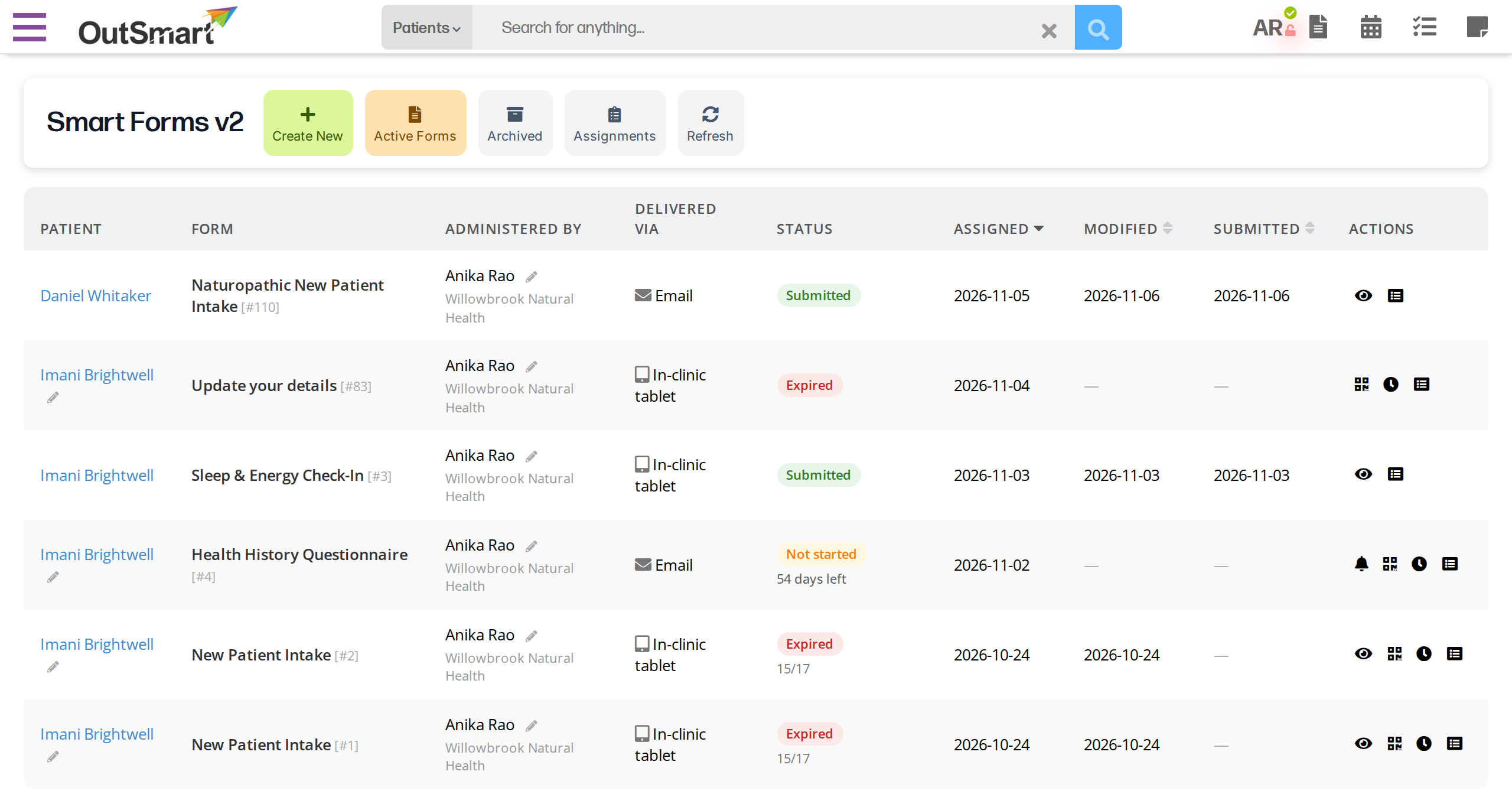
The Assignments tab. Each row is one form sent to one patient, and the icons at the right depend on the form's status.
| Column | Shows |
|---|---|
| Patient | The patient’s name, linked to their record. For a guest who started a form from a guest link and has not submitted it, the name the guest typed, because no patient record exists yet. |
| Form | The form’s name. |
| Administered by | The practitioner the form was sent for, with their office on a second line in small text. |
| Delivered via | How the form reached the patient: Email, Online booking, Booking email, or In-clinic tablet. |
| Status | A coloured badge, described below. Under the badge of a form that is still open, a line says how much time is left, such as 12 days left, 5 hours left or 20 mins left. |
| Assigned | The date the form was sent. |
| Modified | The date the patient last saved answers. |
| Submitted | The date the patient submitted the form. |
| Actions | Action icons for the row, described below. |
The Assignments list shows 50 rows on a page. The bar under the list says which rows you are looking at, such as Showing 1–50 of 212, and has a Per page choice of 25, 50, 100 or 200 rows and arrows to move between pages. To sort the list, click the Assigned, Modified or Submitted column heading. The list starts sorted by Assigned, newest first.
Assignment status badges
Sample of a submitted status badge on the SmartForms V2 page.
| Badge | What it means |
|---|---|
| Not started (light amber) | The form has been sent, and the patient has not opened it yet. |
| In progress | The patient has opened the form and has not submitted it. Instead of a badge, the cell shows a progress bar with the number of questions answered out of the total. |
| Submitted (green) | The patient completed and submitted the form. |
| Expired (muted red) | The time ran out before the patient submitted the form. See Expiries And Link Timing. |
| Revoked (grey) | The form was withdrawn from the patient. |
| Code not used (grey) | A QR code for filling the form on a clinic tablet was made, and nobody scanned it. |
Assignment row actions
| Icon | Action | When it shows |
|---|---|---|
| eye | View submission | Whenever the patient has saved any answers. On a submitted form it opens the answers. On a form that is not submitted yet, pointing to it says View what the client has filled in so far (not submitted), and it opens the answers saved so far. See Viewing Smart Form Submissions. |
| bell | Remind patient | On forms that are not started or in progress. It is not shown on expired or revoked forms, or on forms filled in the clinic on a tablet. It emails the same link again and does not change the deadline. |
| QR code | Finish in the clinic | On any form that is not submitted or revoked, including an expired form. It shows a QR code so the patient can finish the form on a clinic tablet. See Filling A Form In The Clinic. |
| clock | Give more time | On any form that is not submitted or revoked, including an expired form. Before the deadline, it moves the deadline out. After the deadline, it emails the patient a new link and keeps the answers they saved. See Expiries And Link Timing. |
| list | Audit trail | Always. It lists every event for this form, with the date and time of each. |
| pencil (small, beside the patient or the practitioner) | Change | The pencil beside Patient shows on forms that are not submitted or revoked, and lets you change the patient. The pencil beside Administered by shows on every form that is not revoked, submitted forms included, and lets you change the practitioner. |
Finding something on a long list
The Active Forms list shows the form changed most recently at the top. To find a form there, use your browser’s Find (Ctrl+F on Windows, Cmd+F on a Mac), which searches the page on your screen.
On the Assignments list, your browser’s Find searches only the page of rows on your screen. To look through more rows at once, choose a larger number in Per page, or sort by a date column to bring the rows you want to the top.
Related Pages
- SmartForms V2 Overview explains when to use SmartForms V2.
- Creating A Smart Form explains how to build a form for the list.
- Editing A Smart Form explains when a form can be edited, what the lock badge means, and how to archive and restore a form.
- Sending Smart Forms To Patients explains the panel the paper plane icon opens.
- Viewing Smart Form Submissions explains what the eye icon opens.
- Expiries And Link Timing explains the time left shown under each status.