

Managing Existing Invoices
Once an invoice is saved, you can find it again, open it, change it, and delete it. This page explains each of these, and the two sections at the bottom of an invoice that show the client’s appointments and their account.
Creating an Invoice explains the invoice screen itself.
Finding an Invoice
There are three places to find an invoice:
- The Transactions page lists every invoice, order and refund transaction in the dispensary. Open your dispensary and click Transactions in the menu along the top.
- The Daily Express Checkout card lists each patient’s recent invoices in the Invoices column of their row, with the invoice’s number, date and balance. Click an invoice to open it.
- The Statement of Account at the bottom of any invoice lists the same client’s other invoices. It is explained below.
Filtering the Transactions page
The green box at the top of the Transactions page narrows the list.
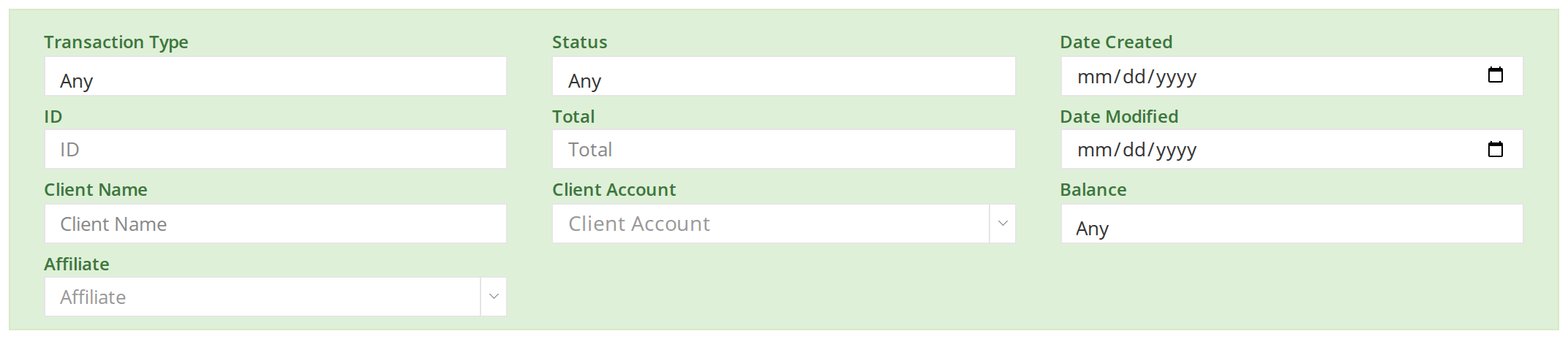
The filters at the top of the Transactions page. Fill in one or more to narrow the list.
| Filter | What it finds |
|---|---|
| Transaction Type | Invoices Only or Refund Only. Orders are listed as invoices. |
| Status | Active Transactions, Deleted Transactions or Draft Transactions. |
| ID | The invoice’s number. |
| Client Name and Client Account | The client the invoice is for. |
| Affiliate | The practitioner on the invoice. |
| Balance | No Charge, Unpaid, Overpaid or Paid. |
| Total, Date Created and Date Modified | An exact total, or the day the invoice was made or last changed. |
In the list, the pencil button at the right end of an invoice’s row opens it in the invoice screen, and the printer button opens its printout. Transactions Page explains the list in full.
Changing an Invoice
Open the invoice in the invoice screen. If you are looking at its printout, click Edit Invoice at the left end of the bar at the bottom of the screen.
Change anything you need to, the same way as when you made the invoice, then click Save.
Changing the client
- Click the Client dropdown beside the Client heading, and type the new client’s name. Choose them from the list.
- Click the Billing Address dropdown beside the Billing Address heading, and choose the client’s address.
- Click Save.
An order that has begun fulfillment cannot be changed in the invoice screen. Fulfilling an Order explains how to take it back a step first.
Saying Which Patient Each Product Is For
An invoice is for one client, but it can pay for products for more than one patient, for example when a parent pays for their children’s products.
Click Select Patient By Item, beside the Products and Services heading. A purple patient dropdown appears under each line, set to the invoice’s client. Choose the patient each product is for, then click Save.
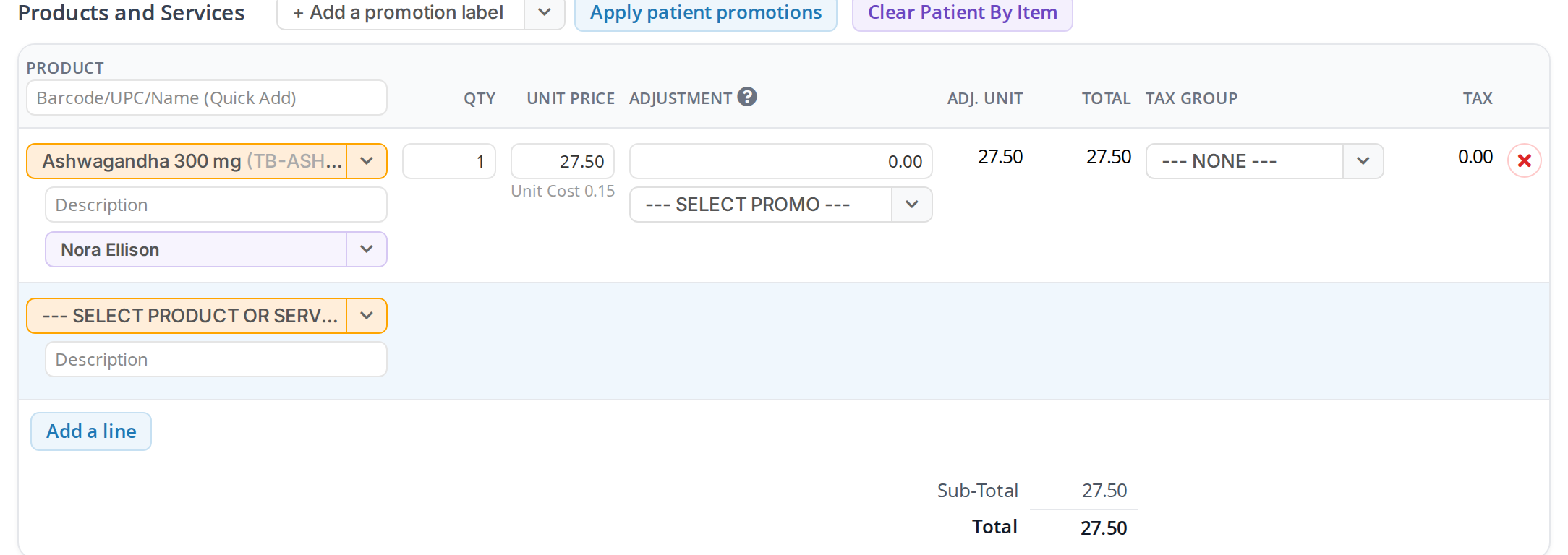
Select Patient By Item adds a patient dropdown under each line. The invoice's printout then shows which patient each product is for.
The printout shows For and the patient’s name under each product.
To stop, click Clear Patient By Item. When some lines are set to another patient, a window asks whether to put every line back on the invoice’s client. Click Clear the patients to do that, or Keep them to leave the lines as they are.
Upcoming Events and Statement of Account
In a regular dispensary, two sections at the bottom of the invoice show the client’s next appointments and their account. Click a section’s heading to open or close it.
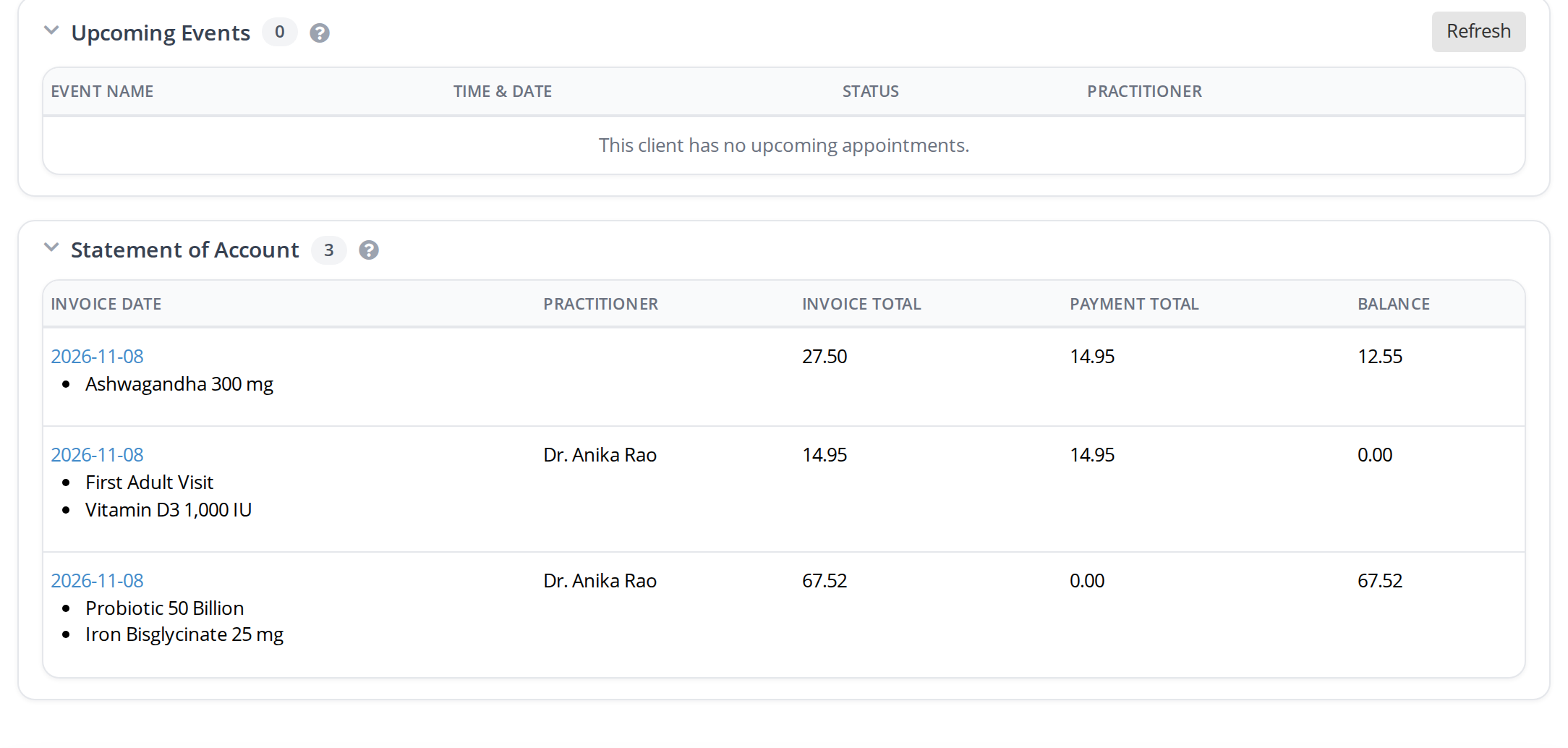
The Upcoming Events and Statement of Account sections of an invoice. The number beside each heading is how many entries it has.
- Upcoming Events lists the client’s next appointments. Refresh reloads them.
- Statement of Account lists the client’s invoices, with the products on each, the invoice total, what was paid, and the balance. Click an invoice’s date to open it.
The question mark beside each heading explains the section on the screen.
Deleting an Invoice
- Open the invoice in the invoice screen.
- Click Delete at the left end of the bar at the bottom of the screen.
- A window asks you to confirm. Click Yes.
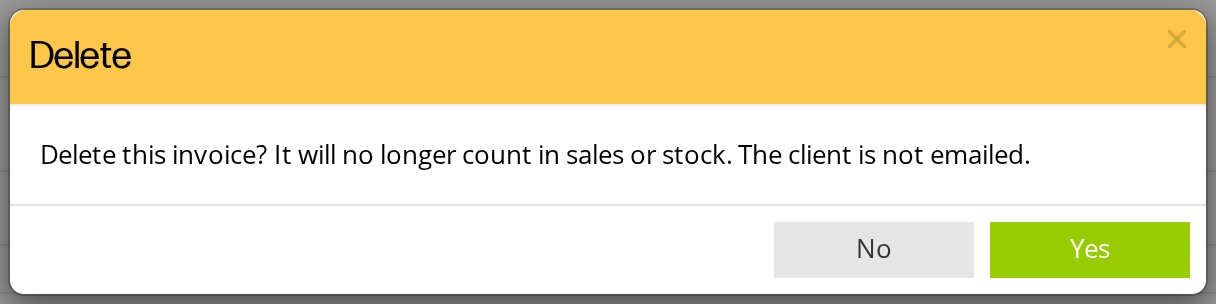
Deleting an invoice. It no longer counts in your sales or stock, and the client is not emailed.
A deleted invoice no longer counts in your sales or stock. It is still listed on the Transactions page when you choose Deleted Transactions in the Status filter.
Troubleshooting
I cannot find an invoice
Clear the filters on the Transactions page, then search by Client Name or ID. If the invoice was deleted, choose Deleted Transactions in the Status filter.
The invoice opens on its printout and cannot be changed
An order that has begun fulfillment opens on its printout. Fulfilling an Order explains how to take it back to Submitted, where it can be changed.
The Delete button is crossed out
The client paid for the invoice by card through OutSmart Pay. Hover over Delete to see why. To give the money back, create a refund transaction with the Refund button.
Related Pages
- Creating an Invoice: the invoice screen and how to add products.
- Transactions Page: the full list of transactions.
- Creating Refunds and Store Credit: giving money back after the sale.
- Emailing and Printing an Invoice: the printout and its Edit Invoice button.
- Taking Payments on an Invoice: payments on an existing invoice.